Redshift
When migrating data from Redshift to VeloDB Cloud, an object storage service (such as Amazon S3) is typically used as an intermediate medium. The overall migration flow is as follows:
- Create the target table in your warehouse based on the source table schema.
- Export the data to object storage with the Redshift UNLOAD statement.
- Use the VeloDB Cloud S3 Load feature to read the data from object storage and load it into your warehouse. For details, see S3 Load.
Before you begin
Use a running warehouse and a warehouse SQL user with the privileges required by the selected method. Run SQL in SQL Editor or a connected SQL client. Create or select a database before running unqualified table statements. Replace sample paths and credentials with your own values. Use a new load label for each independent job.
This migration exports a snapshot to object storage and loads it into warehouse tables. It does not continuously synchronize later source changes. For supported object storage sources, Data Integration offers a guided import. Use the SQL path below when you need explicit load options or partition batches.
Plan source export, object storage, network transfer, and warehouse compute costs. Verify row counts, nulls, numeric ranges, timestamps, and key semantics before switching workloads. Remove staging files when validation and your retention requirements permit. Example output illustrates job and error fields; it is not a Cloud performance measurement.
Notes
Before performing the migration, pay attention to the following points:
- Modeling and partitioning strategy: Choose an appropriate VeloDB Cloud data model based on the Redshift source table schema, and define a partitioning and bucketing strategy. For more table design recommendations, see Load Best Practices.
- Type conversion: When Redshift exports the
TIMEtype, you must firstCASTit toVARCHARbefore exporting. - Complex type limitations: For nested Parquet/ORC data, match the source schema to supported target types. Use TVF Load when you need schema inspection or SQL transformations.
Data type mapping
Before the migration, map the Redshift data types to VeloDB Cloud data types according to the table below:
| Redshift | VeloDB Cloud | Notes |
|---|---|---|
| SMALLINT | SMALLINT | |
| INTEGER | INT | |
| BIGINT | BIGINT | |
| DECIMAL | DECIMAL | |
| REAL | FLOAT | |
| DOUBLE PRECISION | DOUBLE | |
| BOOLEAN | BOOLEAN | |
| CHAR | CHAR | |
| VARCHAR | VARCHAR/STRING | VARCHAR maximum length is 65533 bytes |
| DATE | DATE | |
| TIMESTAMP | DATETIME | |
| TIME/TIMETZ | STRING | |
| SUPER | VARIANT | |
| OTHER | UNSUPPORTED |
Migration steps
1. Create the VeloDB Cloud table
Before the migration, create the corresponding target table in your warehouse.
Goal: Plan the VeloDB Cloud data model, partitioning, and bucketing strategy based on the Redshift source table schema.
Redshift source table example:
CREATE TABLE sales_data (
    order_id      INTEGER,
    customer_name VARCHAR(128),
    order_date    DATE,
    amount        DECIMAL(10,2),
    country       VARCHAR(48)
)
DISTSTYLE AUTO;

INSERT INTO sales_data VALUES
(1, 'Alice', '2025-04-08', 99.99, 'USA'),
(2, 'Bob', '2025-04-08', 149.50, 'Canada'),
(3, 'Charlie', '2025-04-09', 75.00, 'UK'),
(4, 'Diana', '2025-04-10', 200.00, 'Australia');
VeloDB Cloud target table example: Based on the schema above, create a Unique Key partitioned table that uses order_date as the partition column and partitions by day:
CREATE TABLE `sales_data` (
  order_id      INT,
  order_date    DATE NOT NULL,
  customer_name VARCHAR(128),
  amount        DECIMAL(10,2),
  country       VARCHAR(48)
) ENGINE=OLAP
UNIQUE KEY(`order_id`,`order_date`)
PARTITION BY RANGE(`order_date`) (
PARTITION p20250408 VALUES [('2025-04-08'), ('2025-04-09')),
PARTITION p20250409 VALUES [('2025-04-09'), ('2025-04-10')),
PARTITION p20250410 VALUES [('2025-04-10'), ('2025-04-11'))
)
DISTRIBUTED BY HASH(`order_id`) BUCKETS 16
PROPERTIES (
 "dynamic_partition.enable" = "false",
 "dynamic_partition.time_unit" = "DAY",
 "dynamic_partition.end" = "5",
 "dynamic_partition.prefix" = "p",
 "dynamic_partition.buckets" = "16"
);
The example keeps the historical sample partitions fixed by disabling dynamic partition scheduling. For ongoing daily data, configure the desired dynamic partition window before enabling it.
2. Export data from Redshift to S3
2.1 Use unload to export as Parquet
Goal: Export Redshift data as Parquet files split by the VeloDB Cloud partition column, so that the data can later be loaded partition by partition.
Command:
unload ('select * from sales_data')
to 's3://mybucket/redshift/sales_data/'
iam_role 'arn:aws:iam::0123456789012:role/MyRedshiftRole'
PARQUET
PARTITION BY (order_date) INCLUDE
Note: It is recommended to export with the same partition column used in your warehouse, so that the data can be loaded in batches by partition.
2.2 Verify the exported files on S3
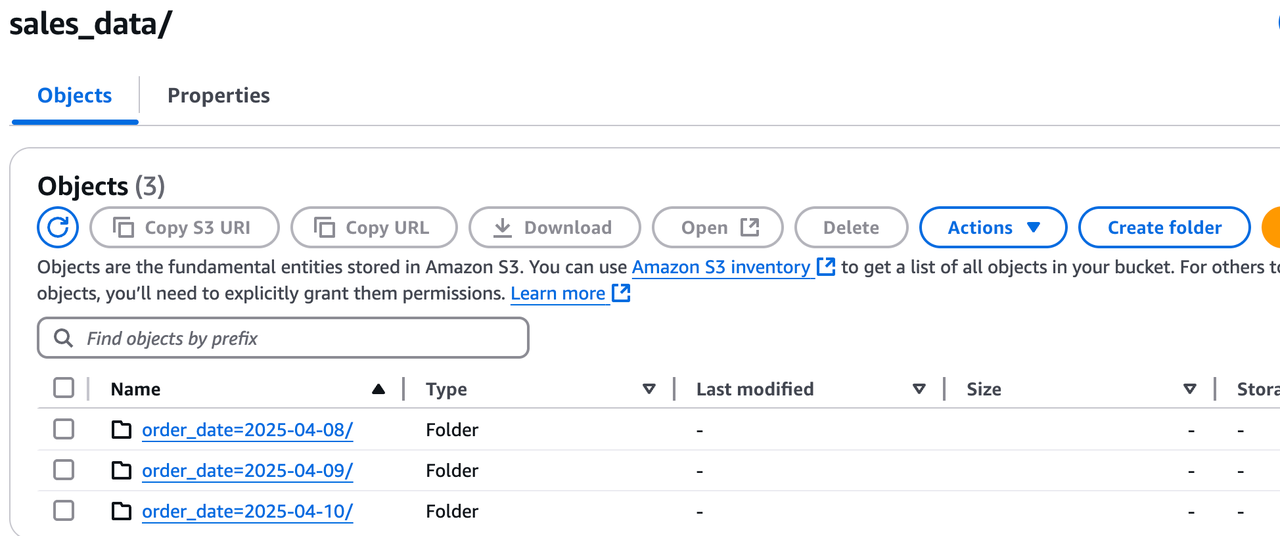
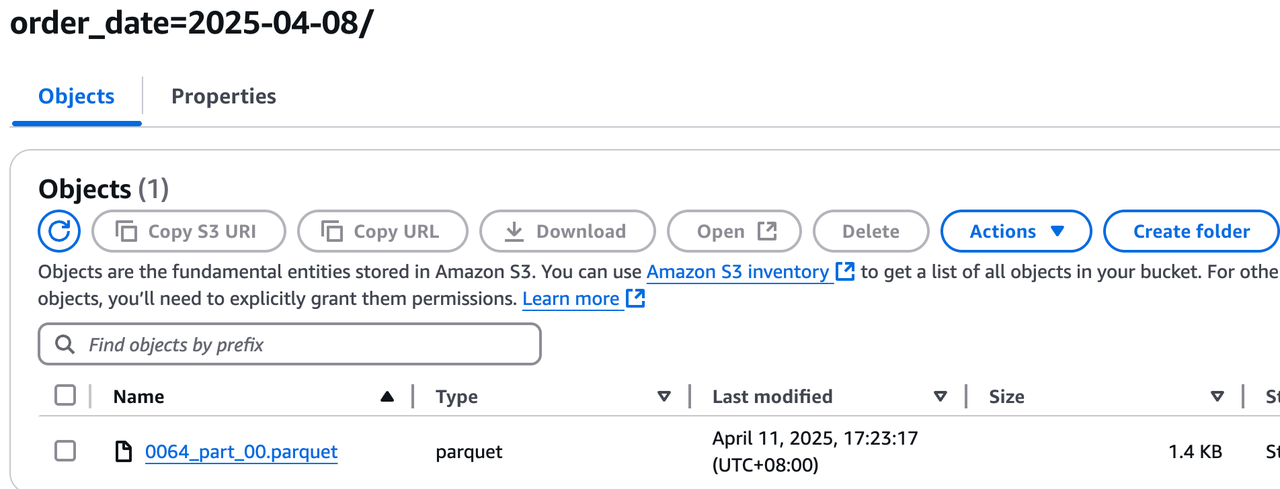
After the export, S3 generates a subdirectory for each partition, and each directory contains the data of one partition:
3. Load data into your warehouse
The load uses S3 Load, an asynchronous data load method in which VeloDB Cloud actively pulls data from the data source after the job is submitted. Use the corresponding provider adapter and authentication settings for AWS S3, Google Cloud Storage, and Azure Blob Storage.
Comparison of applicable scenarios:
| Scenario | Recommended method |
|---|---|
| Large data volume, can be processed asynchronously | S3 Load |
| Synchronous data load is required | TVF Load |
| Files contain complex types (Struct/Array/Map) | Validate nested type mapping; use TVF for inspection or transformations |
3.1 Load a single partition
LOAD LABEL sales_data_2025_04_08
(
    DATA INFILE("s3://mybucket/redshift/sales_data/order_date=2025-04-08/*")
    INTO TABLE sales_data
    FORMAT AS "parquet"
    (order_id, order_date, customer_name, amount, country)
)
WITH S3
(
    "provider" = "S3",
    "s3.endpoint" = "https://s3.ap-southeast-1.amazonaws.com",
    "s3.access_key" = "<ak>",
    "s3.secret_key"="<sk>",
    "s3.region" = "ap-southeast-1"
);
3.2 Check job status with SHOW LOAD
Because S3 Load is submitted asynchronously, you can use SHOW LOAD with the job label to check load progress:
mysql> show load where label = "sales_data_2025_04_08"\G
*************************** 1. row ***************************
         JobId: 17956078
         Label: sales_data_2025_04_08
         State: FINISHED
      Progress: 100.00% (1/1)
          Type: BROKER
       EtlInfo: unselected.rows=0; dpp.abnorm.ALL=0; dpp.norm.ALL=2
      TaskInfo: cluster:s3.ap-southeast-1.amazonaws.com; timeout(s):3600; max_filter_ratio:0.0; priority:NORMAL
      ErrorMsg: NULL
    CreateTime: 2025-04-10 17:50:53
  EtlStartTime: 2025-04-10 17:50:54
 EtlFinishTime: 2025-04-10 17:50:54
 LoadStartTime: 2025-04-10 17:50:54
LoadFinishTime: 2025-04-10 17:50:54
           URL: NULL
    JobDetails: {"Unfinished backends":{"5eec1be8612d4872-91040ff1e7208a4f":[]},"ScannedRows":2,"TaskNumber":1,"LoadBytes":91,"All backends":{"5eec1be8612d4872-91040ff1e7208a4f":[10022]},"FileNumber":1,"FileSize":1620}
 TransactionId: 766228
  ErrorTablets: {}
          User: <warehouse-user>
       Comment:
1 row in set (0.00 sec)
3.3 Handle errors during the load
Step 1: Query failed load jobs. When a batch load contains multiple jobs, you can use the following statement to filter the labels and reasons of the failed jobs:
mysql> show load where state='CANCELLED' and label like "label_test%"\G
*************************** 1. row ***************************
         JobId: 18312384
         Label: label_test123
         State: CANCELLED
      Progress: 100.00% (3/3)
          Type: BROKER
       EtlInfo: unselected.rows=0; dpp.abnorm.ALL=4; dpp.norm.ALL=0
      TaskInfo: cluster:s3.ap-southeast-1.amazonaws.com; timeout(s):14400; max_filter_ratio:0.0; priority:NORMAL
      ErrorMsg: type:ETL_QUALITY_UNSATISFIED; msg:quality not good enough to cancel
    CreateTime: 2025-04-15 17:32:59
  EtlStartTime: 2025-04-15 17:33:02
 EtlFinishTime: 2025-04-15 17:33:02
 LoadStartTime: 2025-04-15 17:33:02
LoadFinishTime: 2025-04-15 17:33:02
           URL: <load-error-url>
    JobDetails: {"Unfinished backends":{"7602ccd7c3a4854-95307efca7bfe341":[]},"ScannedRows":4,"TaskNumber":1,"LoadBytes":188,"All backends":{"7602ccd7c3a4854-95307efca7bfe341":[10022]},"FileNumber":3,"FileSize":4839}
 TransactionId: 769213
  ErrorTablets: {}
          User: <warehouse-user>
       Comment:
Step 2: Interpret the error type. The example above is a data quality error (ETL_QUALITY_UNSATISFIED). Open the URL returned in the output to see the detailed error. For example, the error below indicates that the data exceeds the actual length of the country column defined in the schema:
curl "<load-error-url>"
Reason: column_name[country], the length of input is too long than schema. first 32 bytes of input str: [USA] schema length: 1; actual length: 3; . src line [];
Reason: column_name[country], the length of input is too long than schema. first 32 bytes of input str: [Canada] schema length: 1; actual length: 6; . src line [];
Reason: column_name[country], the length of input is too long than schema. first 32 bytes of input str: [UK] schema length: 1; actual length: 2; . src line [];
Reason: column_name[country], the length of input is too long than schema. first 32 bytes of input str: [Australia] schema length: 1; actual length: 9; . src line [];
Step 3: Set an error tolerance ratio (optional). If you can tolerate skipping some erroneous rows, set the error tolerance ratio in the PROPERTIES of the S3 Load. For details, see Load Configuration Parameters.
3.4 Load multiple partitions in batches
When migrating large historical datasets, follow these guidelines for batch loading:
- Each batch should correspond to one VeloDB Cloud partition or a small number of partitions.
- The size of a single batch can initially target 100 GB or less, to reduce system pressure and lower the cost of retrying after a failed load. This is planning guidance, not a Cloud limit. Tune batch size and concurrency for warehouse resources, file layout, and retry cost.
- You can use the s3_load_demo.sh script as a reference. It iterates over the partition directories on S3 and automatically submits S3 Load jobs to VeloDB Cloud for batch loading.
FAQ
Q1: Why can the Redshift TIME type not be loaded directly into your warehouse?
VeloDB Cloud does not use TIME as a stored table column type in this migration path. When Redshift exports the TIME/TIMEZ type, you must use CAST to convert it to VARCHAR before exporting, and store it as STRING in your warehouse.
Q2: Can S3 Load be used for Parquet/ORC files that contain complex types such as Struct/Array/Map?
Yes, for supported nested schemas. Match the target ARRAY, MAP, and STRUCT types to the file schema and test representative files. Use TVF Load if you need schema inspection or transformations.
Q3: Is S3 Load synchronous or asynchronous? How can the result be queried?
S3 Load is an asynchronous load method. After submitting the job, run SHOW LOAD WHERE label = "<your_label>" to check the progress and result.
Q4: How should the ETL_QUALITY_UNSATISFIED error be handled?
This error indicates that the data quality does not meet requirements. To handle it:
- Open the
URLreturned in theSHOW LOADoutput to retrieve the detailed error log. - Adjust the VeloDB Cloud table schema or the source data based on the error log (such as field length overflow or type mismatch).
- If some erroneous rows are tolerable, adjust the
max_filter_ratioerror tolerance ratio in thePROPERTIESof the S3 Load.
Q5: How can a one-shot load failure be avoided when migrating large data volumes?
It is recommended to load data in batches by VeloDB Cloud partition, test batches under 100 GB initially, and use the s3_load_demo.sh script to automate batch submission. This is planning guidance, not a Cloud limit. Tune batch size and concurrency for warehouse resources, file layout, and retry cost.
When an error URL refers to an internal service address that your client cannot reach, use the job error details available to you or contact VeloDB Cloud support with the label and job ID. Do not log in to warehouse hosts to retrieve error logs. Increasing max_filter_ratio can discard rows; reconcile rejected rows before accepting a migration.