Connect to Microsoft OneLake
Query Microsoft OneLake Iceberg tables from a VeloDB Cloud warehouse through the Iceberg REST Catalog API. Prepare the Fabric workspace and Azure application permissions, then configure metadata authentication and Azure storage access.
Prerequisites
- Connect to a VeloDB Cloud warehouse with a SQL user allowed to create catalogs and use the required databases and tables.
- For SaaS and BYOC warehouses, configure network access from the warehouse to both the external catalog endpoint and the storage endpoints returned in table metadata. An endpoint reachable from your laptop may still be unreachable from the warehouse. Contact VeloDB Cloud support when the integration needs private networking or managed runtime configuration.
- Prepare external service permissions for the metadata and data operations you plan to run. Credential vending still requires the external service to grant storage access.
- Replace sample hosts, account IDs, bucket names, and credentials. The HTTP endpoints and development credentials in local service examples are for an isolated test environment. Use HTTPS and restricted credentials for remote access.
Configure OneLake
We’ll start by preparing the data and authentication setup on the Fabric (OneLake) side, then show how to create an Iceberg REST Catalog in VeloDB Cloud to access that data.
Load data into OneLake
-
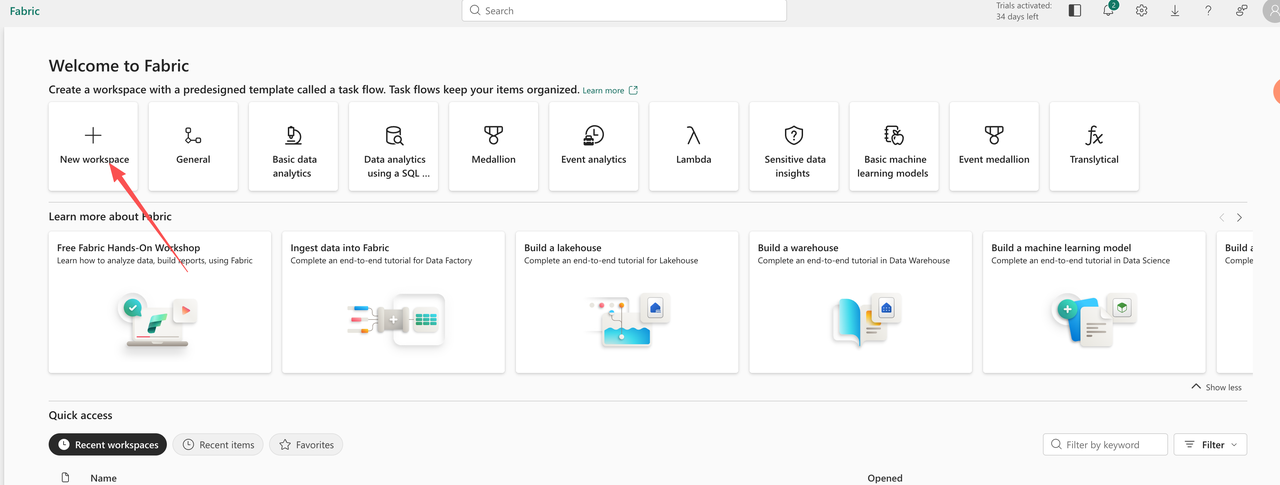
Open the Microsoft Fabric console and create a new Workspace (it’s recommended not to use the default workspace, as some settings may be restricted).
-
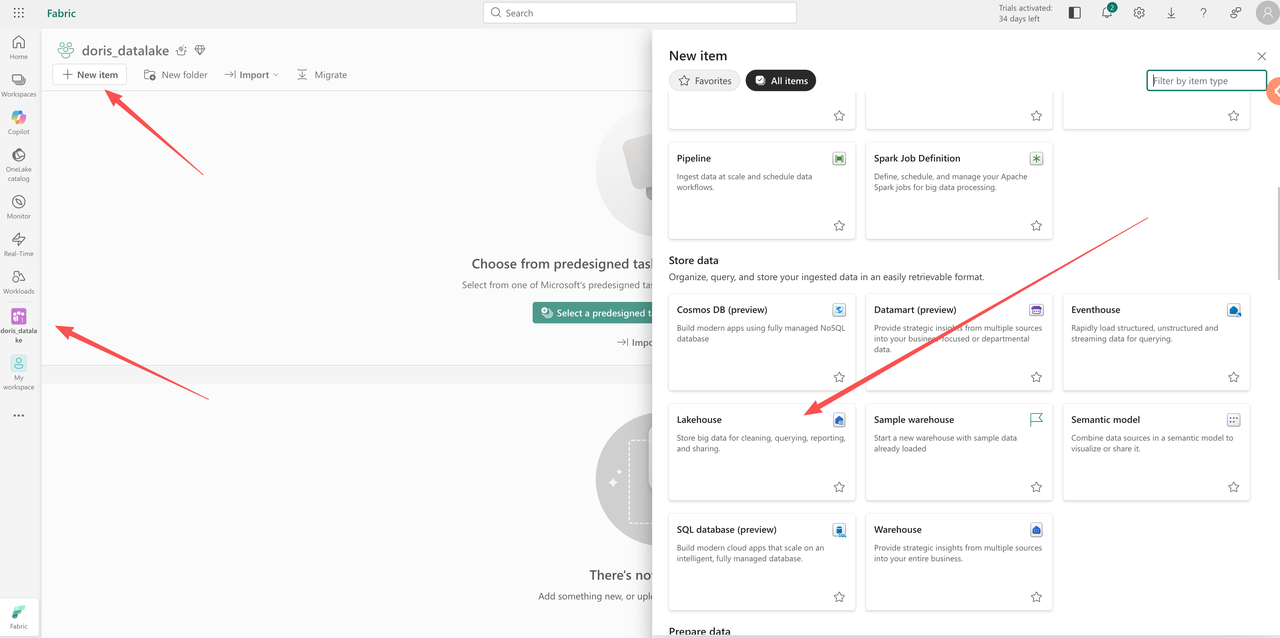
Inside the workspace, select New Item → Lakehouse to create a Lakehouse instance.
-
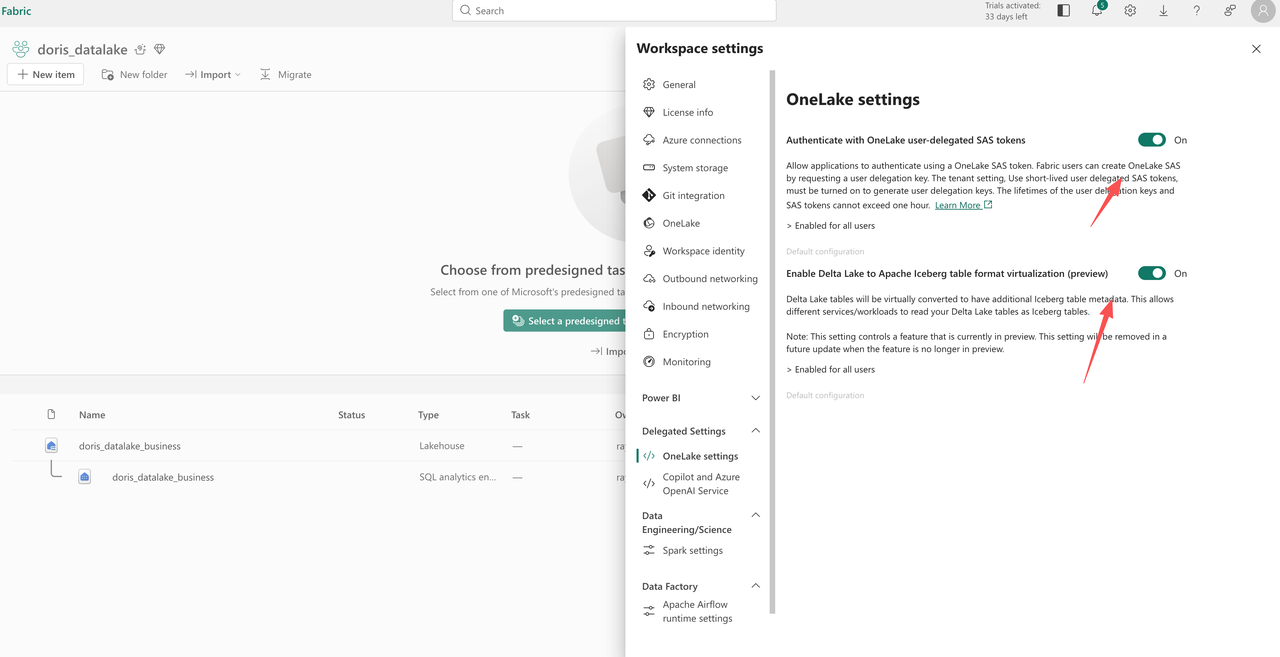
Go to Workspace Settings and enable the necessary feature toggles to activate Lakehouse functionality.
Upload local files
For demonstration purposes, we’ll upload a local CSV file directly into OneLake. This is a sample file:
-
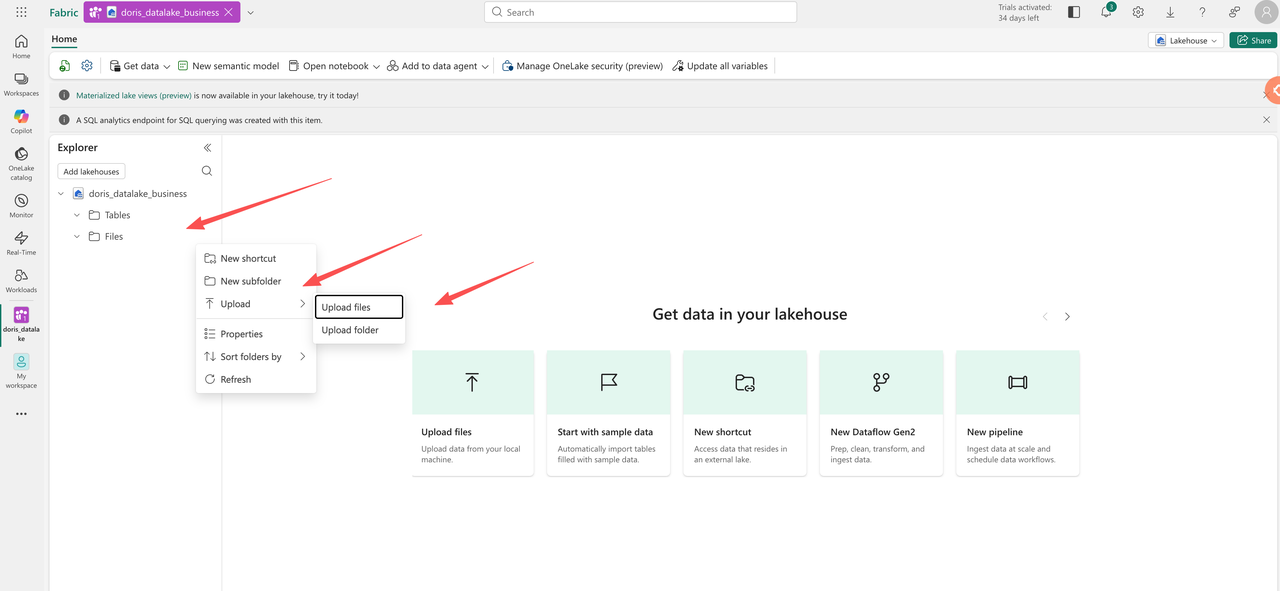
Navigate to the workspace’s Files section, click Upload → Upload Files, and select your CSV file.
-
After uploading, choose Load Tables → New table (or load into an existing table if one already exists).
-
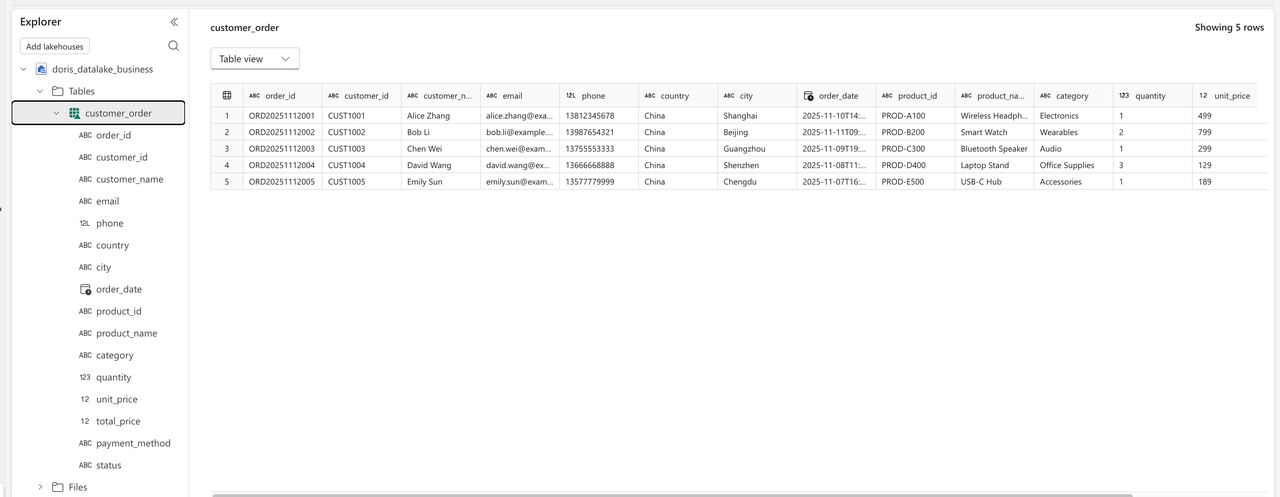
Once the import finishes, go to the Tables view to inspect your tables and data.
Configure authentication
To allow VeloDB Cloud to access OneLake via the Iceberg REST Catalog, you’ll need to configure application registration and permissions in the Azure portal:
-
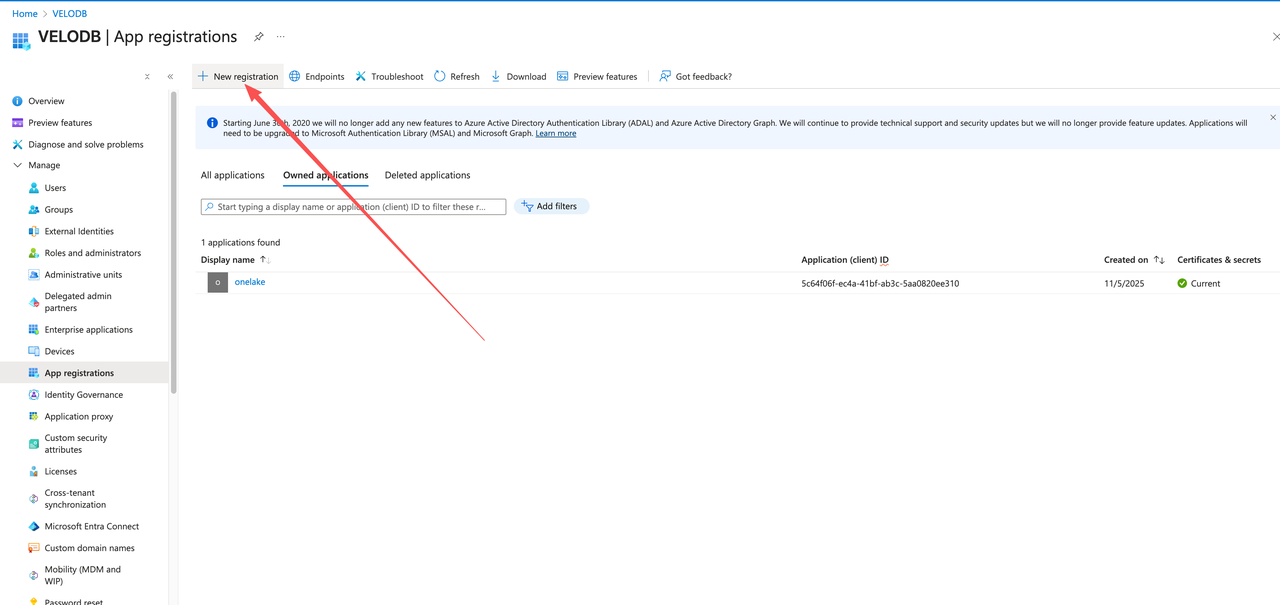
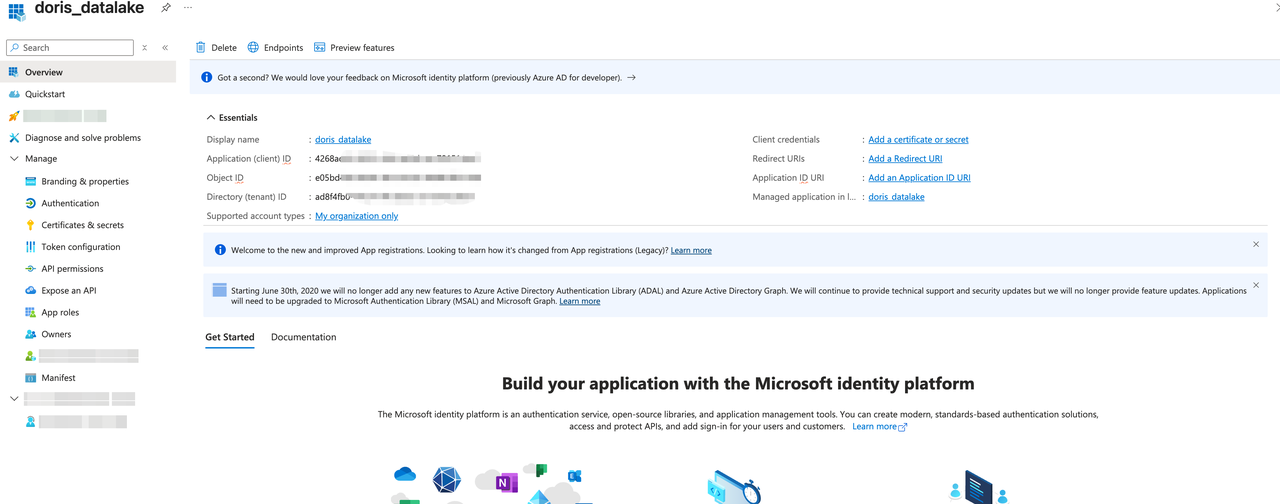
Open Azure Portal → App registrations → New registration, and note down the following values for later:
-
Application (client) ID
-
Directory (tenant) ID
-
-
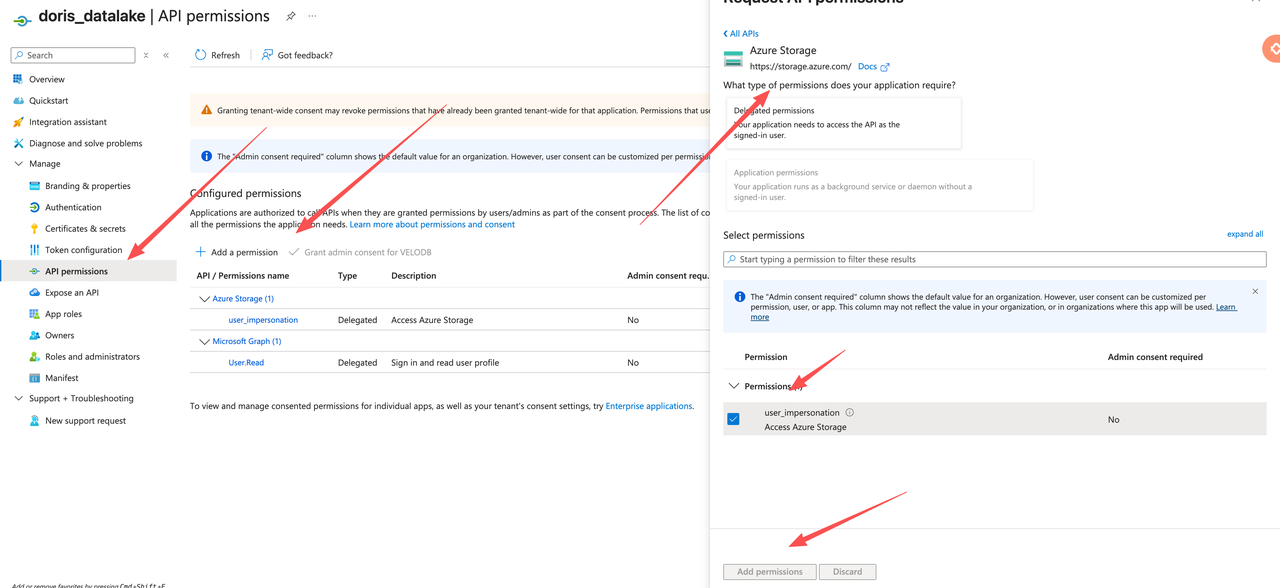
Under API Permissions, add the required permissions for Azure Storage (follow the principle of least privilege).
-
Under Certificates & secrets, create a client secret and store its value securely — it will be hidden once you leave the page.
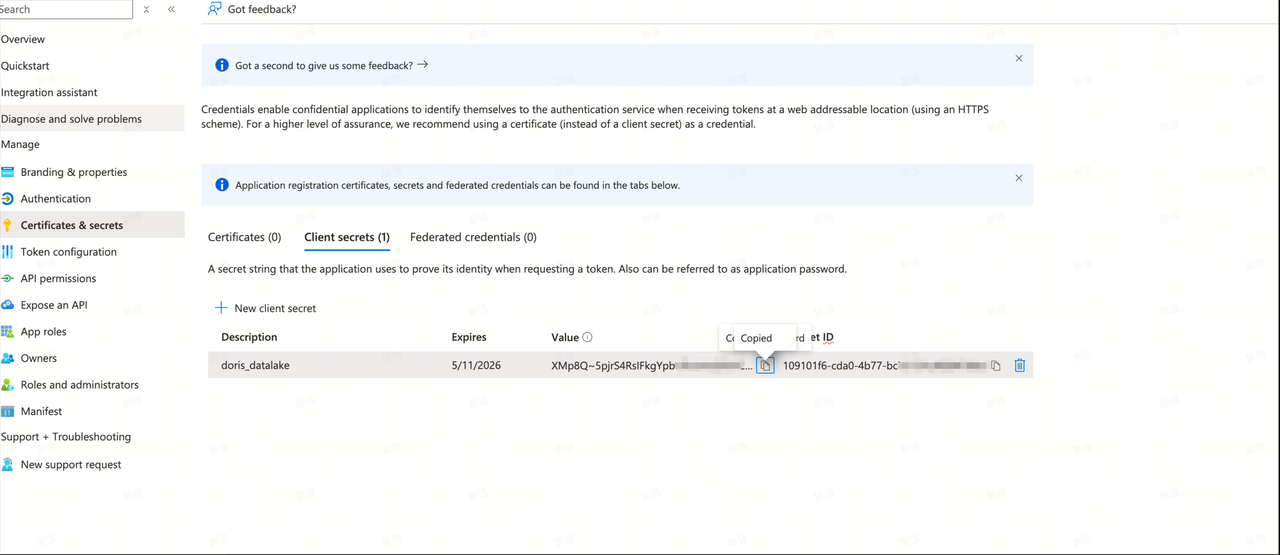
-
Return to the Fabric Workspace → Manage Access, and add the registered app (by its display name) as an access principal.
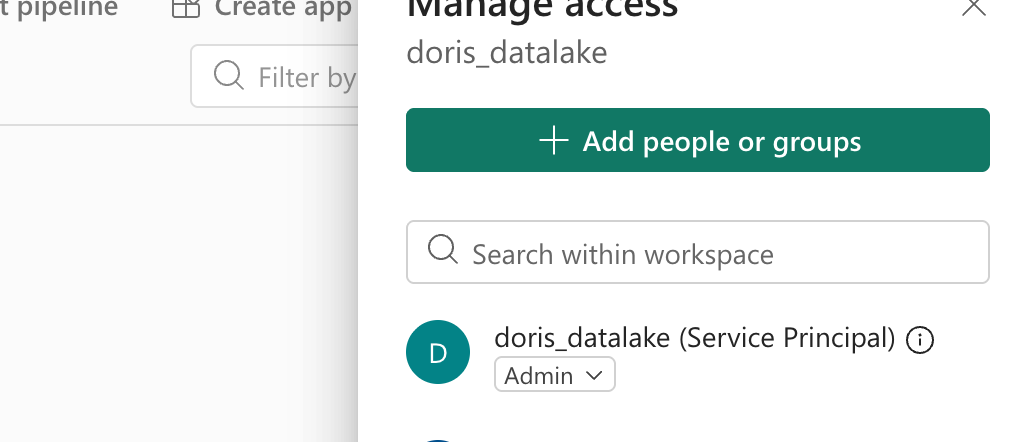
Once these steps are complete, your OneLake data and authentication setup are ready.
Connect to OneLake from VeloDB Cloud
Next, let’s create the Iceberg REST Catalog in VeloDB Cloud and connect to your OneLake data.
Create a catalog
Doris> CREATE CATALOG onelake_doris PROPERTIES (
            'type' = 'iceberg',
            'iceberg.catalog.type' = 'rest',
            'uri'='https://onelake.table.fabric.microsoft.com/iceberg',
            'warehouse'='<workerspace_id>/<data_item_id>',
            'iceberg.rest.security.type'='oauth2',
            'iceberg.rest.oauth2.server-uri'='https://login.microsoftonline.com/<tenant_id>/oauth2/v2.0/token',
            'iceberg.rest.oauth2.credential'='<oauth2.client_id>:<oauth2.client_secret>',
            'iceberg.rest.oauth2.scope'='https://storage.azure.com/.default',
            'fs.azure.support'='true',
            'azure.endpoint'='https://onelake.dfs.fabric.microsoft.com',
            'azure.auth_type'='OAuth2',
            'azure.oauth2_account_host'='onelake.dfs.fabric.microsoft.com',
            'azure.oauth2_server_uri'='https://login.microsoftonline.com/<tenant_id>/oauth2/v2.0/token',
            'azure.oauth2_client_id'='<oauth2.client_id>',
            'azure.oauth2_client_secret'='<oauth2.client_secret>'
        );
When creating the catalog, you’ll need the following parameters:
-
WORKSPACE_IDandDATA_ITEM_ID— available from your Lakehouse URL:https://app.fabric.microsoft.com/groups/<WORKSPACE_ID>/lakehouses/<DATA_ITEM_ID> -
Other parameters such as
client_id,client_secret, andtenantcorrespond to your Azure app registration details. -
For OneLake, configuration keys like
iceberg.rest.oauth2.scope,uri,azure.oauth2_account_host, andazure.endpointgenerally have fixed values — refer to the official documentation or sample configurations for specifics.
After configuration, you can query Iceberg tables in OneLake directly from VeloDB Cloud using standard SQL.
Run analytical queries
Here are a few common business analysis examples that demonstrate how VeloDB Cloud and OneLake can work together for unified analytics:
Doris> SWITCH onelake_doris;
Query OK, 0 rows affected

Doris> USE dbo;
Database changed

Doris> SHOW TABLES;
+----------------+
| Tables_in_dbo  |
+----------------+
| customer_order |
+----------------+
1 row in set
-
Track new orders over the past three days
Gain real-time insights into recent sales activity — including pending, paid, and completed orders — to improve fulfillment prioritization.
Doris> SELECT order_id, customer_name, product_name, total_price, status-> FROM customer_order-> WHERE order_date >= DATE_SUB(NOW(), INTERVAL 3 DAY)-> ORDER BY order_date DESC;+----------------+---------------+---------------------+-------------+-----------+| order_id | customer_name | product_name | total_price | status |+----------------+---------------+---------------------+-------------+-----------+| ORD20251112002 | Bob Li | Smart Watch | 1128 | Completed || ORD20251112001 | Alice Zhang | Wireless Headphones | 499 | Completed || ORD20251112003 | Chen Wei | Bluetooth Speaker | 299 | Pending |+----------------+---------------+---------------------+-------------+-----------+3 rows in set -
City-level sales performance
Aggregate total sales and order counts per city to guide regional sales strategy and inventory planning.
Doris> SELECT city,-> SUM(total_price) AS total_sales,-> COUNT(*) AS order_count-> FROM customer_order-> WHERE status = 'Completed'-> GROUP BY city-> ORDER BY total_sales DESC;+----------+-------------+-------------+| city | total_sales | order_count |+----------+-------------+-------------+| Beijing | 1128 | 1 || Shanghai | 499 | 1 || Shenzhen | 387 | 1 |+----------+-------------+-------------+3 rows in set -
Refund rate by payment method
Identify payment channels with unusually high refund rates to help finance or risk control teams adjust policies or enhance monitoring.
Doris> SELECT payment_method,-> SUM(CASE WHEN status = 'Refunded' THEN 1 ELSE 0 END) * 100.0 / COUNT(*)-> AS refund_rate_percent-> FROM customer_order-> GROUP BY payment_method-> ORDER BY refund_rate_percent DESC;+----------------+---------------------+| payment_method | refund_rate_percent |+----------------+---------------------+| Credit Card | 50.00000 || WeChat Pay | 0.00000 || Alipay | 0.00000 || UnionPay | 0.00000 |+----------------+---------------------+4 rows in set -
Cross-system user behavior comparison
When both legacy (e.g., Hive) and OneLake systems are active, you can analyze user overlap and behavioral changes post-migration to assess business impact.
-- "hive_catalog" is a Hive Catalog created in DorisDoris> SELECT-> a.customer_id,-> COUNT(DISTINCT b.order_id) AS new_order_count,-> SUM(b.total_price) AS new_total_amount-> FROM hive_catalog.order_db.hive_customer_order a-> JOIN onelake_doris.dbo.customer_order b-> ON a.customer_id = b.customer_id-> GROUP BY a.customer_id-> ORDER BY new_total_amount DESC-> LIMIT 100;+-------------+-----------------+------------------+| customer_id | new_order_count | new_total_amount |+-------------+-----------------+------------------+| CUST1002 | 1 | 1128 || CUST1001 | 1 | 499 || CUST1004 | 1 | 387 || CUST1003 | 1 | 299 || CUST1005 | 1 | 189 |+-------------+-----------------+------------------+5 rows in set
Query snapshots and historical data
Doris> SELECT * FROM customer_order$snapshots\G
*************************** 1. row ***************************
 committed_at: 2025-11-12 17:21:06.692000
  snapshot_id: 7623467350518045470
    parent_id: NULL
    operation: overwrite
manifest_list: abfss://181a804a-ea52-...
      summary: {"XTABLE_METADATA":"{"lastInstantSynced":"2025-11-12...
1 row in set (1.90 sec)

mysql> SELECT * FROM customer_order FOR VERSION AS OF 7623467350518045470 LIMIT 1\G
*************************** 1. row ***************************
      order_id: ORD20251112001
   customer_id: CUST1001
 customer_name: Alice Zhang
         email: alice.zhang@example.com
         phone: 13812345678
       country: China
          city: Shanghai
    order_date: 2025-11-10 22:23:00.000000
    product_id: PROD-A100
  product_name: Wireless Headphones
      category: Electronics
      quantity: 1
    unit_price: 499
   total_price: 499
payment_method: Credit Card
        status: Completed
1 row in set
See also
Common errors
| Symptom | Check and resolution |
|---|---|
| Connection timeout or hostname resolution failure | Check the catalog URI and connectivity from the warehouse, then check the storage endpoints in table metadata. Ask VeloDB Cloud support to investigate managed network access when needed. |
| Unauthorized or forbidden response | Check the catalog authentication method, token or client credentials, expiry, and permissions on the external catalog and namespace. |
| Catalog metadata loads but a table scan fails | Check storage credentials or credential vending, object permissions, and reachability of the data-file endpoint. Metadata access alone does not grant data access. |
Clean up test resources
Queries and writes consume warehouse compute, and the sample can create billable external storage or services. See Billing Overview. Remove only the test tables and external services you created when you finish. Check the external catalog's deletion behavior before dropping a table or namespace because it can also delete data files.