Amazon MSK
This guide walks through setting up an Amazon MSK cluster for use with VeloDB Cloud, enabling data ingestion from Kafka topics over a private multi-VPC connection.
Prerequisites
Before you begin, ensure you have:
- An AWS account with permissions to create and configure MSK clusters, Secrets Manager secrets, and IAM policies
- A VeloDB Cloud BYOC warehouse in the same AWS region as the MSK cluster
- MSK version 3.x or earlier (version 4.x and above is not supported)
Step 1: Create an MSK cluster
Cluster creation takes approximately 40 minutes. Configure the following settings during creation to avoid time-consuming updates later.
Disable ACL policy
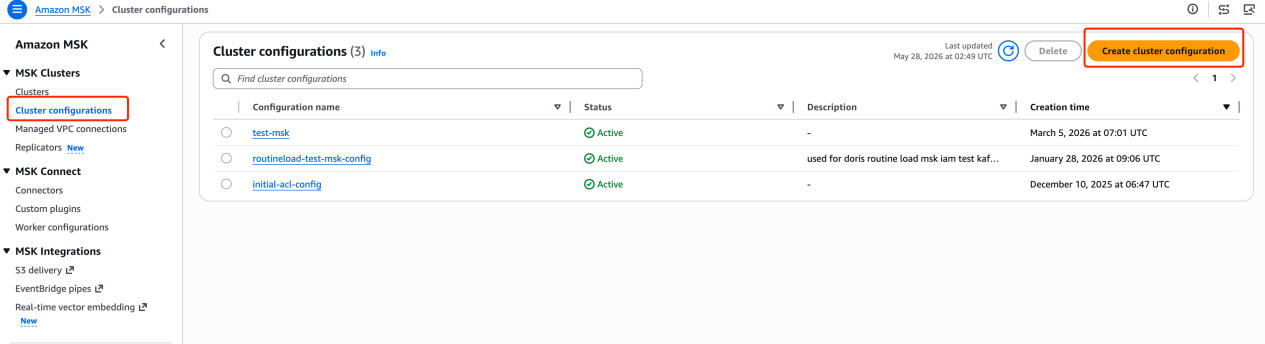
To enable SASL/SCRAM cross-VPC connectivity, you must disable the default ACL behavior before creating the cluster. In the MSK console, go to Cluster configurations and create a new configuration with the following property:
allow.everyone.if.no.acl.found=false
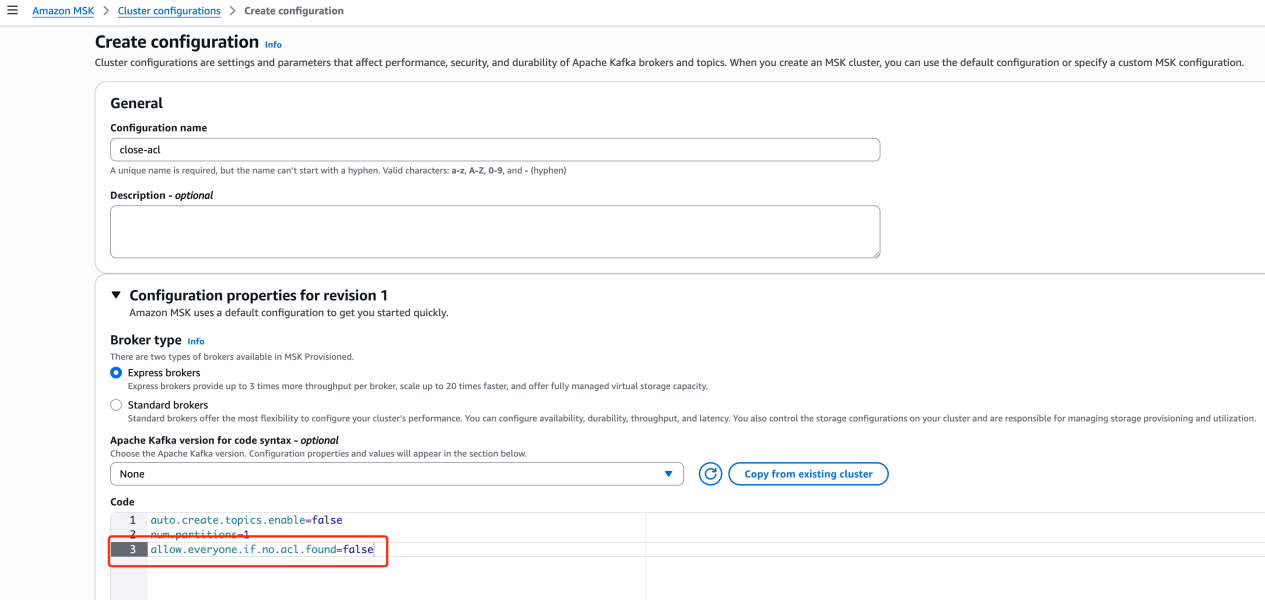
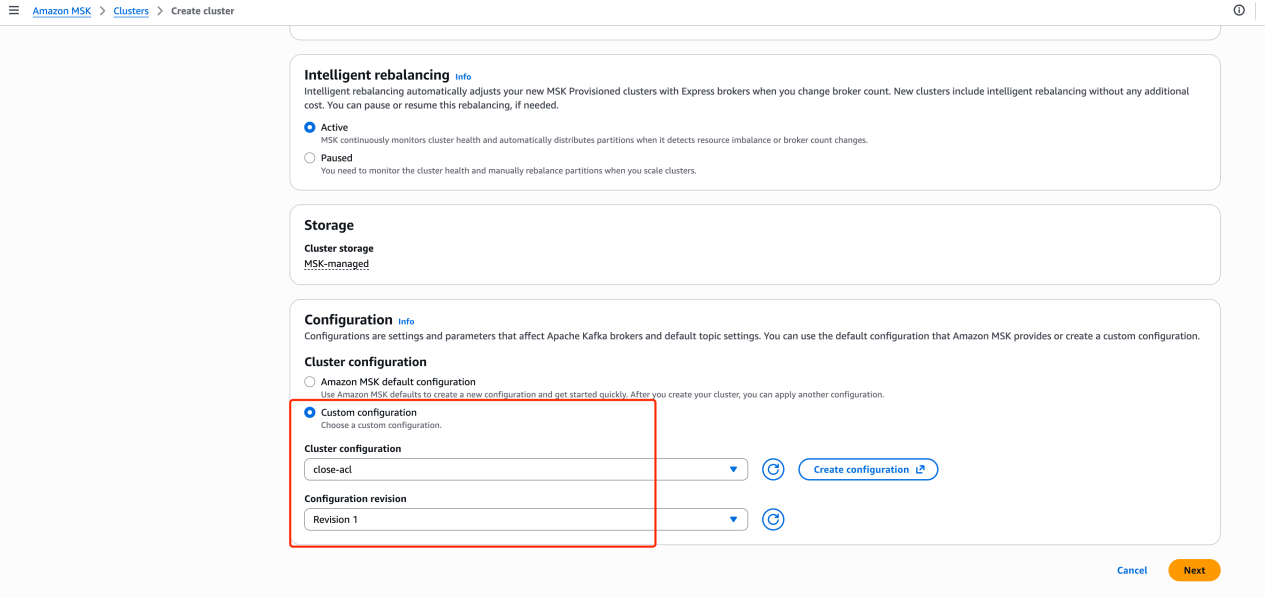
Apply this configuration when setting up the cluster properties.
Enable authentication
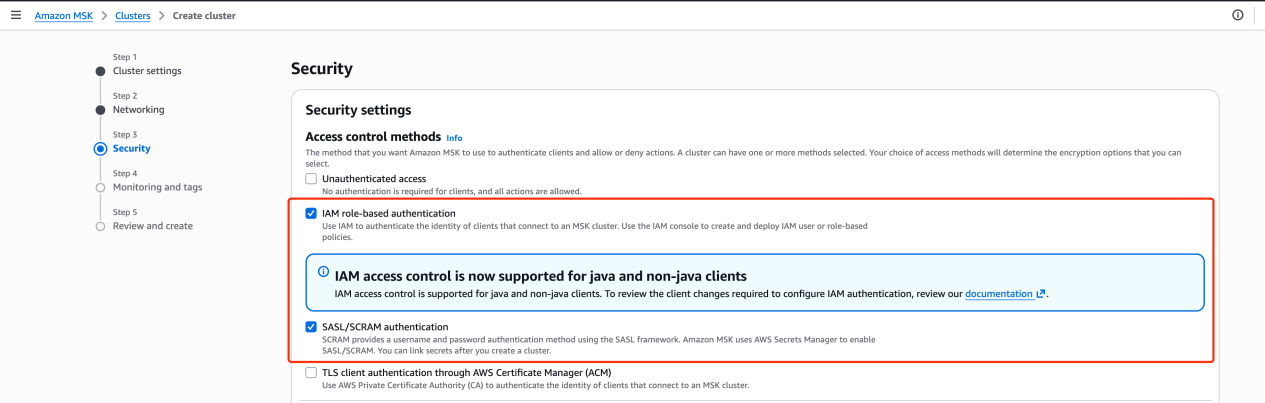
During cluster creation, under Security settings, enable both:
- SASL/SCRAM authentication — required for cross-VPC access with username/password credentials
- IAM role-based authentication — required for granting ACL permissions via kafka-cli
Associate an AWS Secrets Manager secret
MSK uses Secrets Manager to store SASL/SCRAM credentials. Associate a secret with the cluster during or after creation.
Requirements:
- The secret name must start with
AmazonMSK_ - The Encryption key must not be
aws/secretsmanager— use a customer-managed KMS key or the default AWS managed key for another service. Usingaws/secretsmanagerwill cause the MSK association to fail.
If you don't have an existing secret, create one in AWS Secrets Manager with the name prefixed AmazonMSK_, then associate it with the cluster.
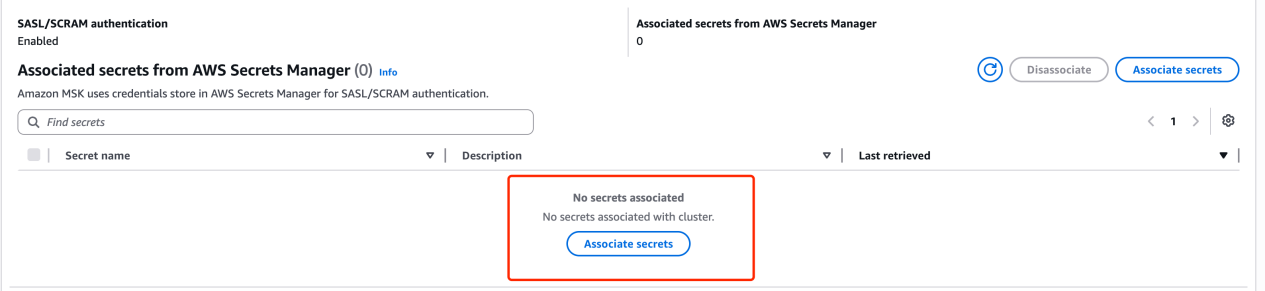
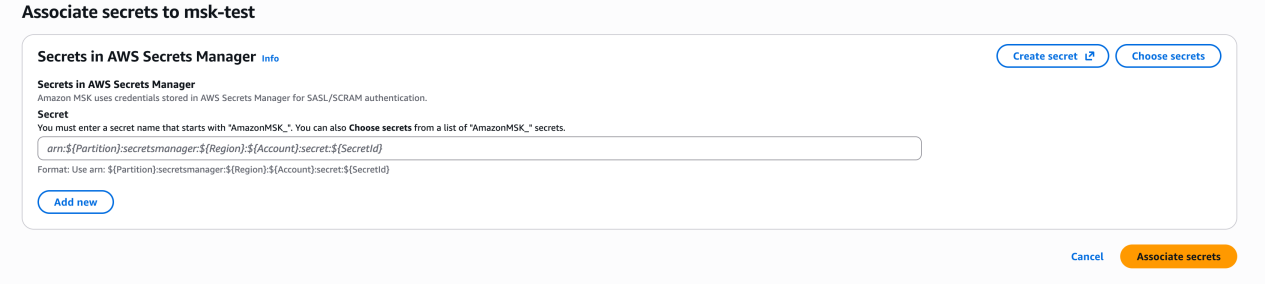
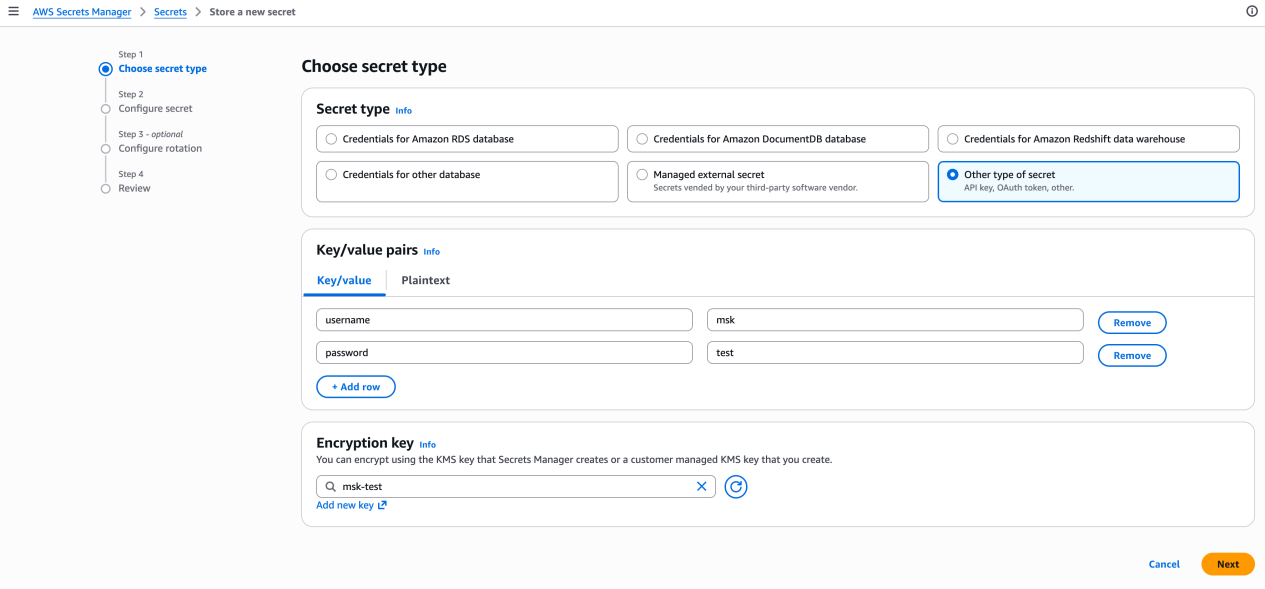
When creating a new secret, choose Other type of secret and enter the username and password as key/value pairs:
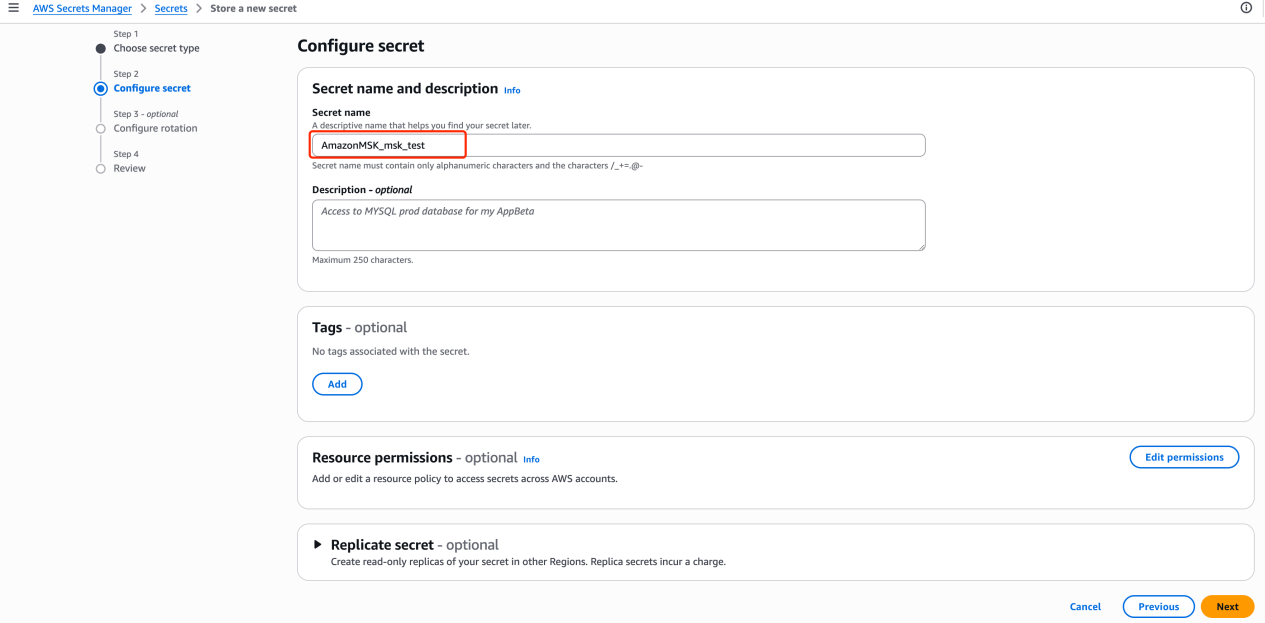
Update the security group (inbound)
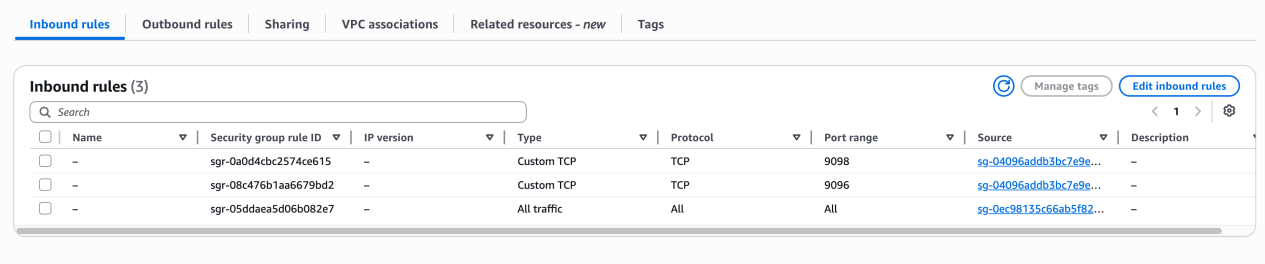
In the MSK cluster's security group, add inbound rules to allow traffic on ports 9096–9098 (SASL/SCRAM and TLS broker ports) from your VeloDB Cloud BYOC VPC CIDR. These ports are used for the IAM-based ACL grant in the next step, which runs from within the same VPC.
A second security group update is required in Step 4 to open ports 14098–14100 for VeloDB Cloud's multi-VPC private connection.
Grant ACL authorization for the associated user
Run the following commands from a machine inside the same VPC as the MSK cluster. You will need the Kafka CLI (requires Java JDK).
-
Configure AWS credentials. Run the following to verify credentials are set up:
aws sts get-caller-identityIf credentials are not configured, add an IAM role to the EC2 instance or run
aws configure. -
Add
client-msk-iam.propertiesto the Kafka CLIconfigdirectory:security.protocol=SASL_SSL
sasl.mechanism=AWS_MSK_IAM
sasl.jaas.config=software.amazon.msk.auth.iam.IAMLoginModule required;
sasl.client.callback.handler.class=software.amazon.msk.auth.iam.IAMClientCallbackHandler -
Download the IAM auth library and place it in the Kafka CLI
libsdirectory:aws-msk-iam-auth-1.1.9-all.jar -
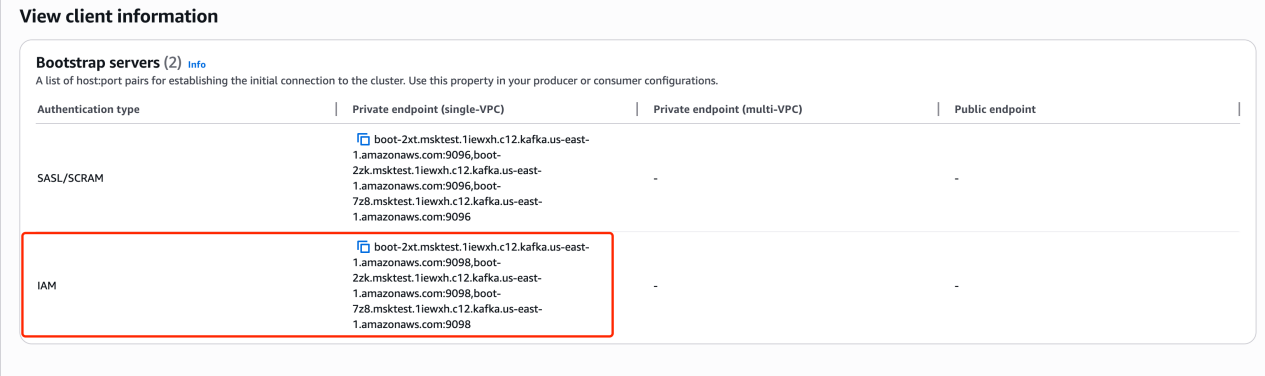
Get the IAM Private endpoint. In the MSK console, click View client information and copy the IAM bootstrap server endpoint.
-
Grant ACL permissions to the SASL/SCRAM username. Replace the placeholders with your MSK cluster's IAM Private endpoint and the associated username:
./bin/kafka-acls.sh --bootstrap-server <MSK_IAM_PRIVATE_ENDPOINT> \
  --command-config ./config/client-msk-iam.properties \
  --add --allow-principal User:<USERNAME> \
  --operation All --topic '*' --group '*' --cluster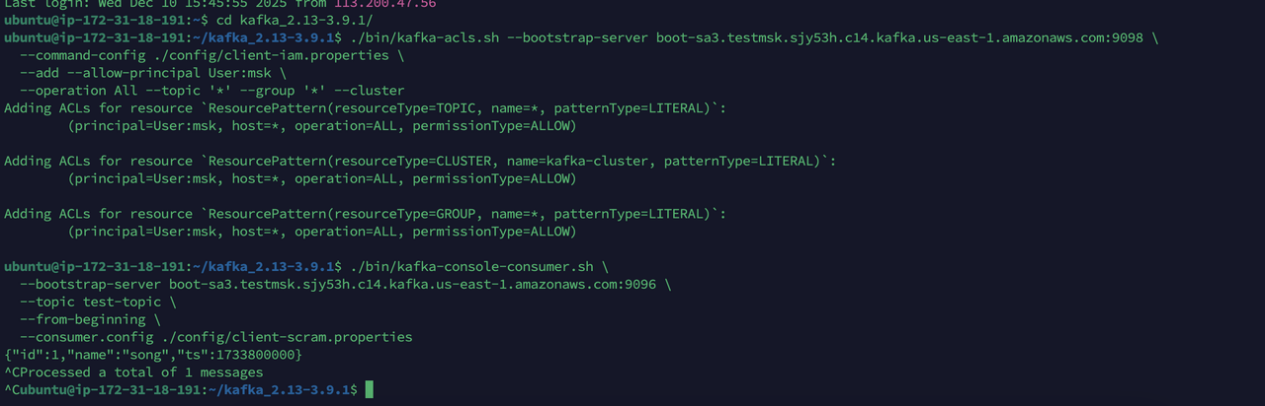
Step 2: Enable multi-VPC connectivity
Enabling multi-VPC connectivity takes approximately 40 minutes.
In the MSK cluster's Networking settings, enable Multi-VPC connectivity and select SASL/SCRAM authentication as the authentication type.
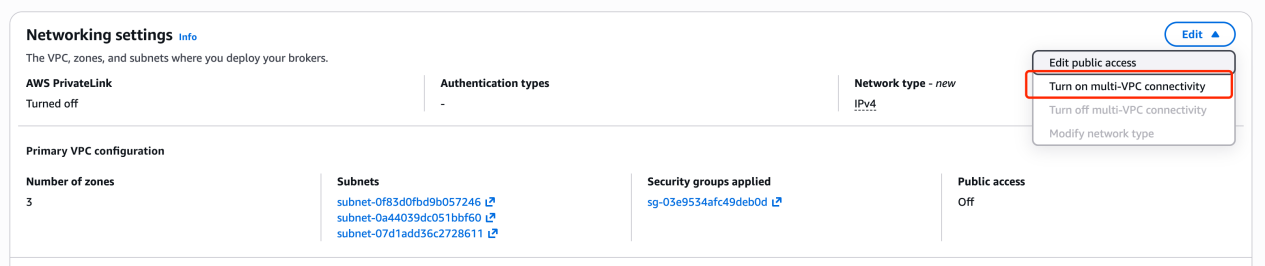
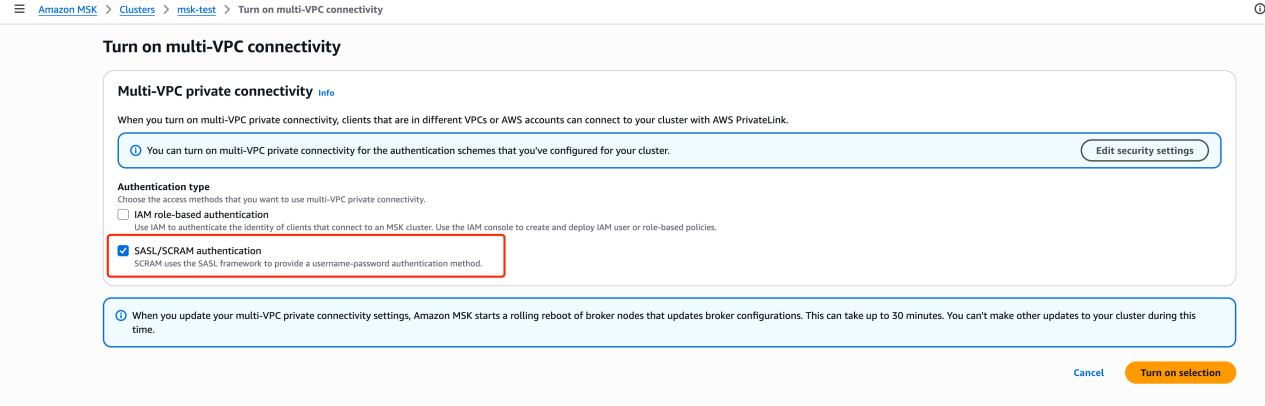
If the SASL/SCRAM option is not available, the cluster ACL policy has not been disabled. Update the cluster configuration (allow.everyone.if.no.acl.found=false) and try again.
Step 3: Grant VeloDB Cloud account access
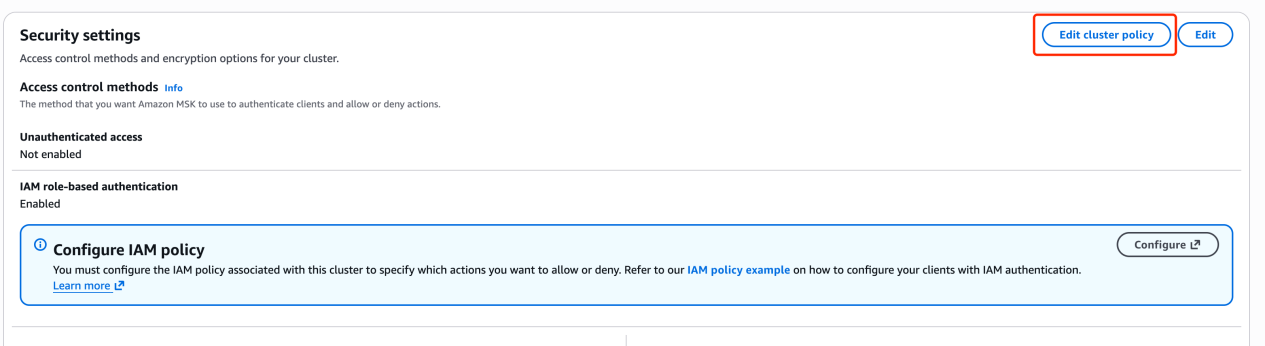
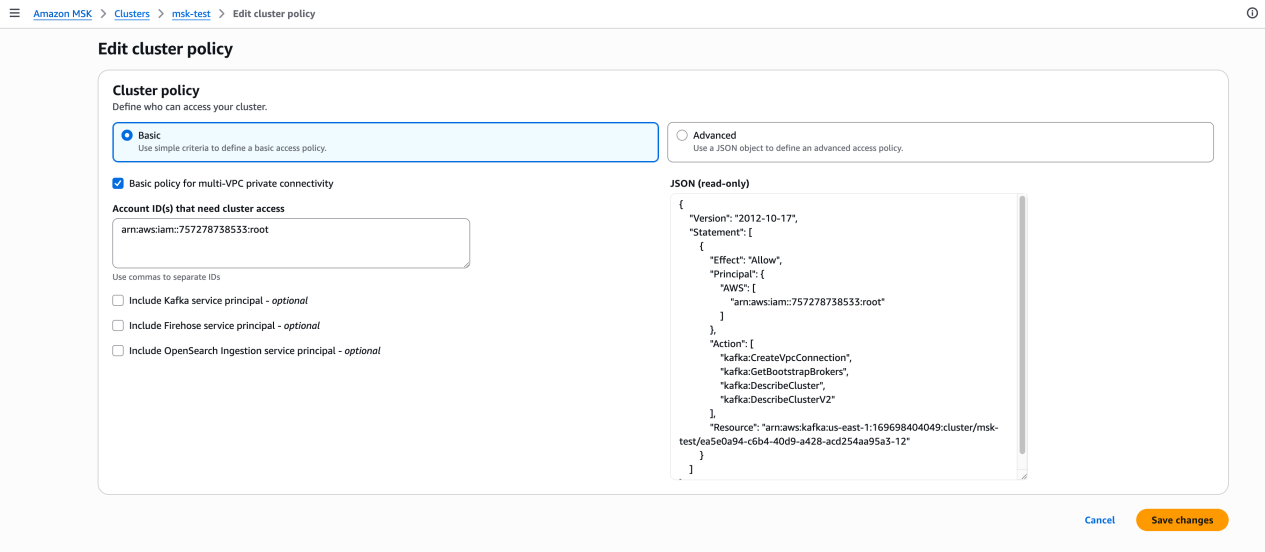
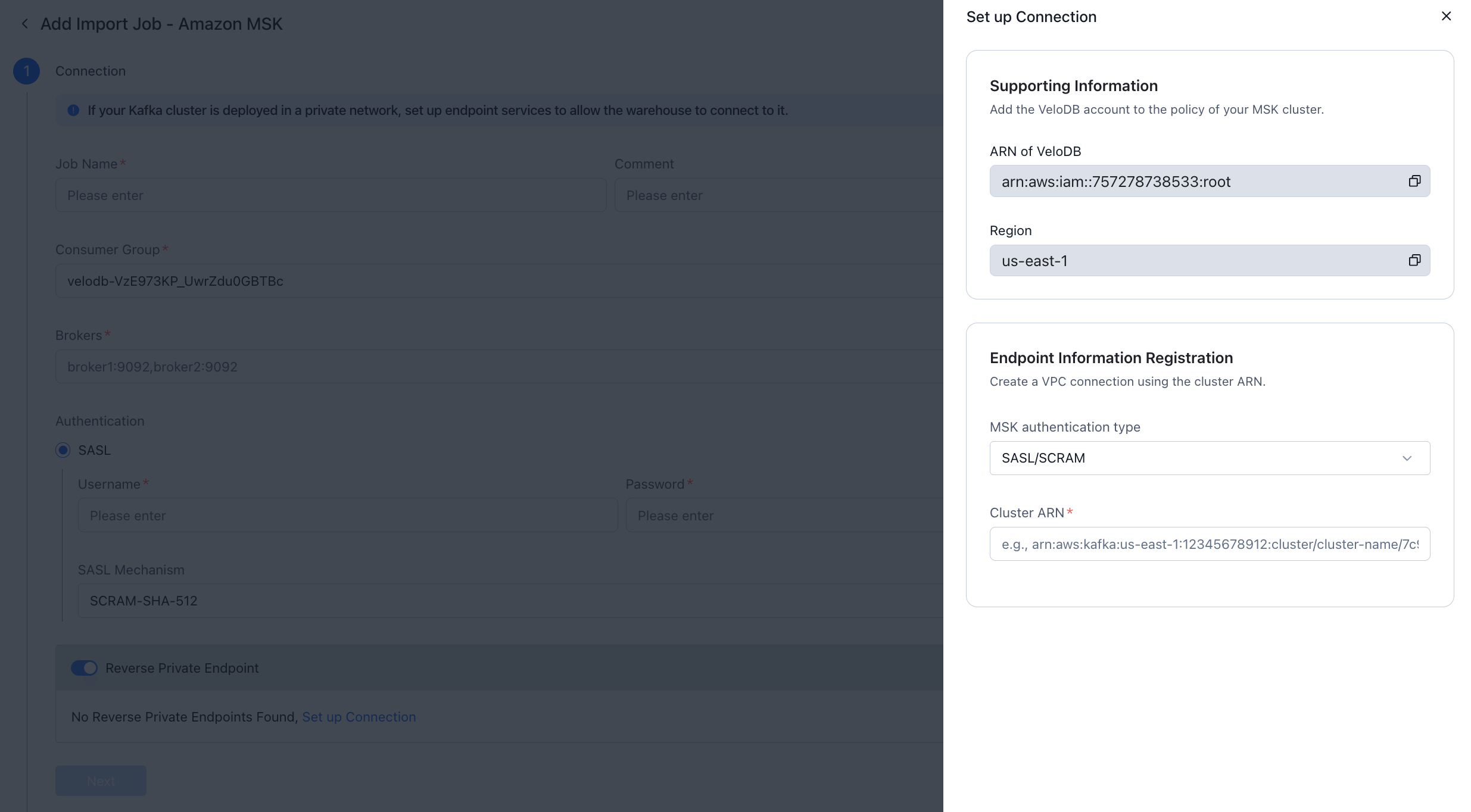
In the MSK console, go to Security and click Edit cluster policy. Attach the following resource-based policy to allow VeloDB Cloud to create a VPC connection and retrieve broker information. Replace the Resource ARN with your cluster's ARN.
{
  "Version": "2012-10-17",
  "Statement": [
    {
      "Effect": "Allow",
      "Principal": {
        "AWS": "arn:aws:iam::757278738533:root"
      },
      "Action": [
        "kafka:CreateVpcConnection",
        "kafka:GetBootstrapBrokers",
        "kafka:DescribeCluster",
        "kafka:DescribeClusterV2"
      ],
      "Resource": "arn:aws:kafka:<REGION>:<ACCOUNT_ID>:cluster/<CLUSTER_NAME>/<CLUSTER_ID>"
    }
  ]
}
Step 4: Update the security group for VeloDB access
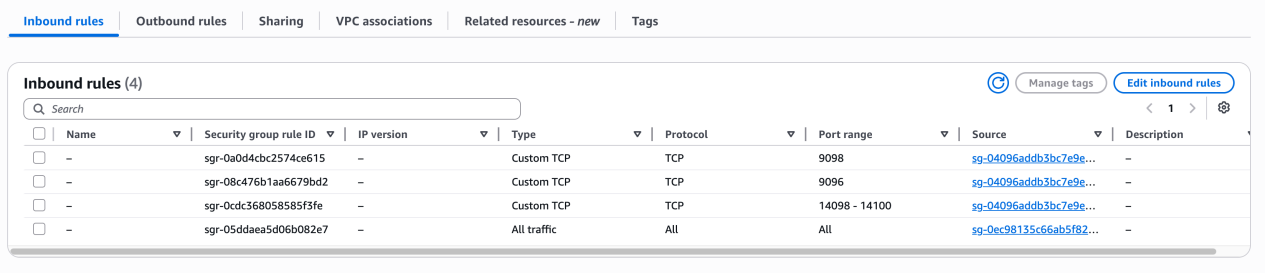
Add inbound rules to the MSK cluster's security group to allow traffic on ports 14098–14100 from the VeloDB Cloud BYOC VPC CIDR. These ports are used by VeloDB Cloud to connect over the multi-VPC private endpoint (distinct from the ports opened in Step 1, which are for same-VPC broker access).
Step 5: Connect VeloDB Cloud to MSK
In the AWS Console:
-
Navigate to your MSK cluster and copy the cluster ARN.

-
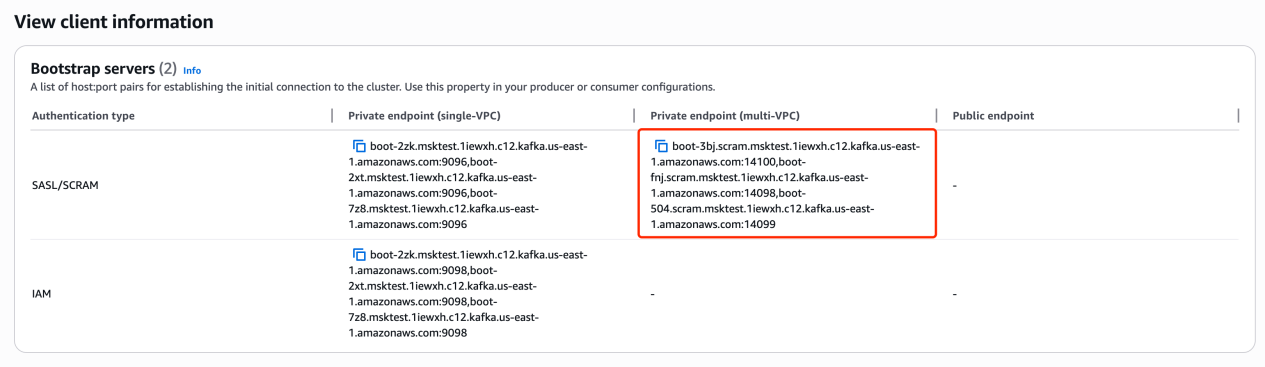
Go to View client information and copy the Private endpoint (multi-VPC) bootstrap servers for SASL/SCRAM. You will need this in the next step.
In VeloDB Cloud:
-
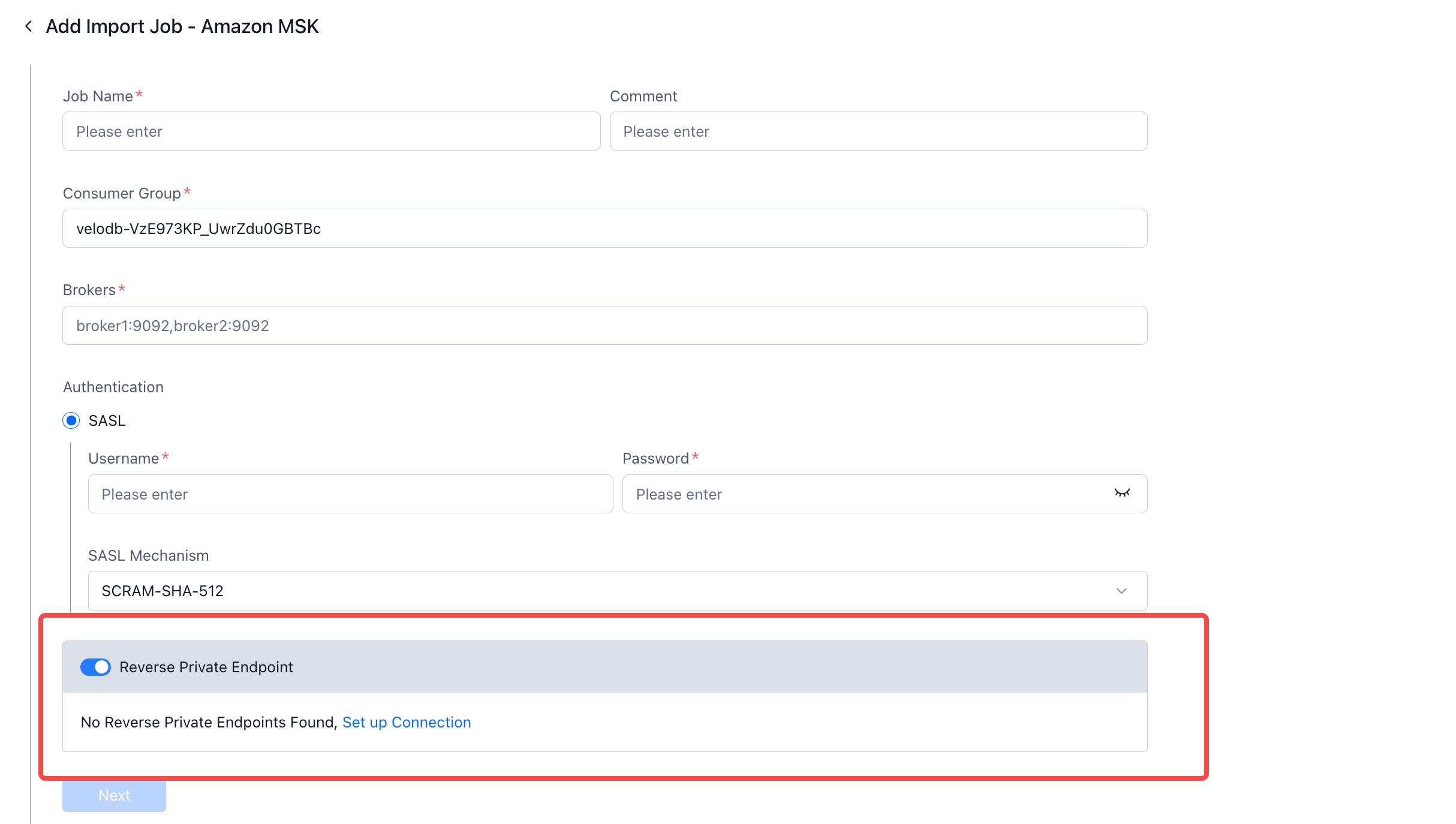
Go to Import and click Add Import Job. Enable Reverse Private Endpoint and click Set up Connection.
-
In the Set up Connection panel, select SASL/SCRAM as the authentication type and enter the cluster ARN.
-
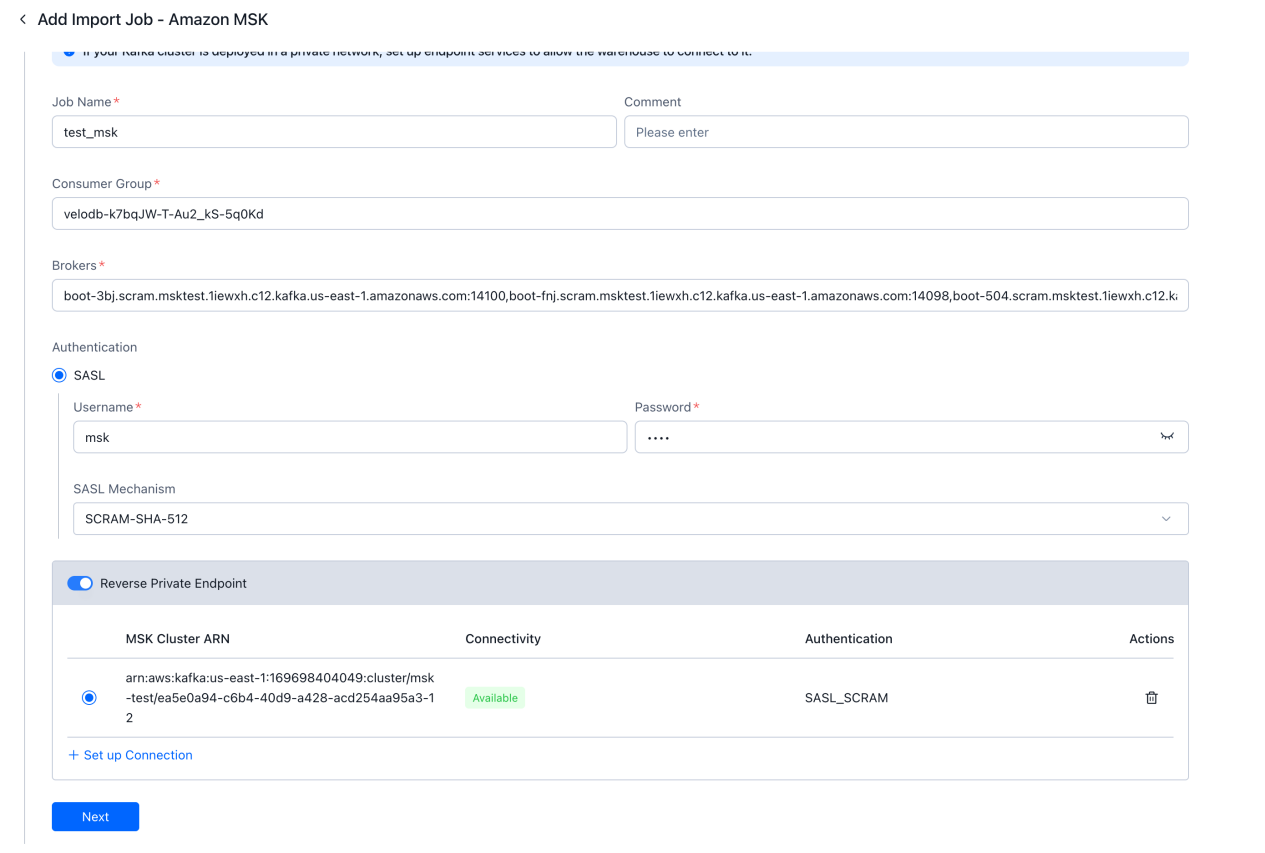
Fill in the import job details:
- Brokers: paste the multi-VPC bootstrap servers copied in step 2
- Authentication: select SASL, enter the SASL/SCRAM username and password, and set the SASL Mechanism to SCRAM-SHA-512
-
Click Next to complete the connection setup. VeloDB Cloud will establish a private endpoint (multi-VPC) to the MSK cluster.
Step 6: Access the MSK cluster
Once the connection is established, the MSK cluster appears in the Reverse Private Endpoint table with Available connectivity status.

Configure import jobs to consume data from Kafka topics in your MSK cluster via the Private endpoint (multi-VPC).