Delete a Warehouse
Open Settings from the Manage group, scroll to the bottom, and click Delete.
Deletion requires email verification to confirm you understand the impact.
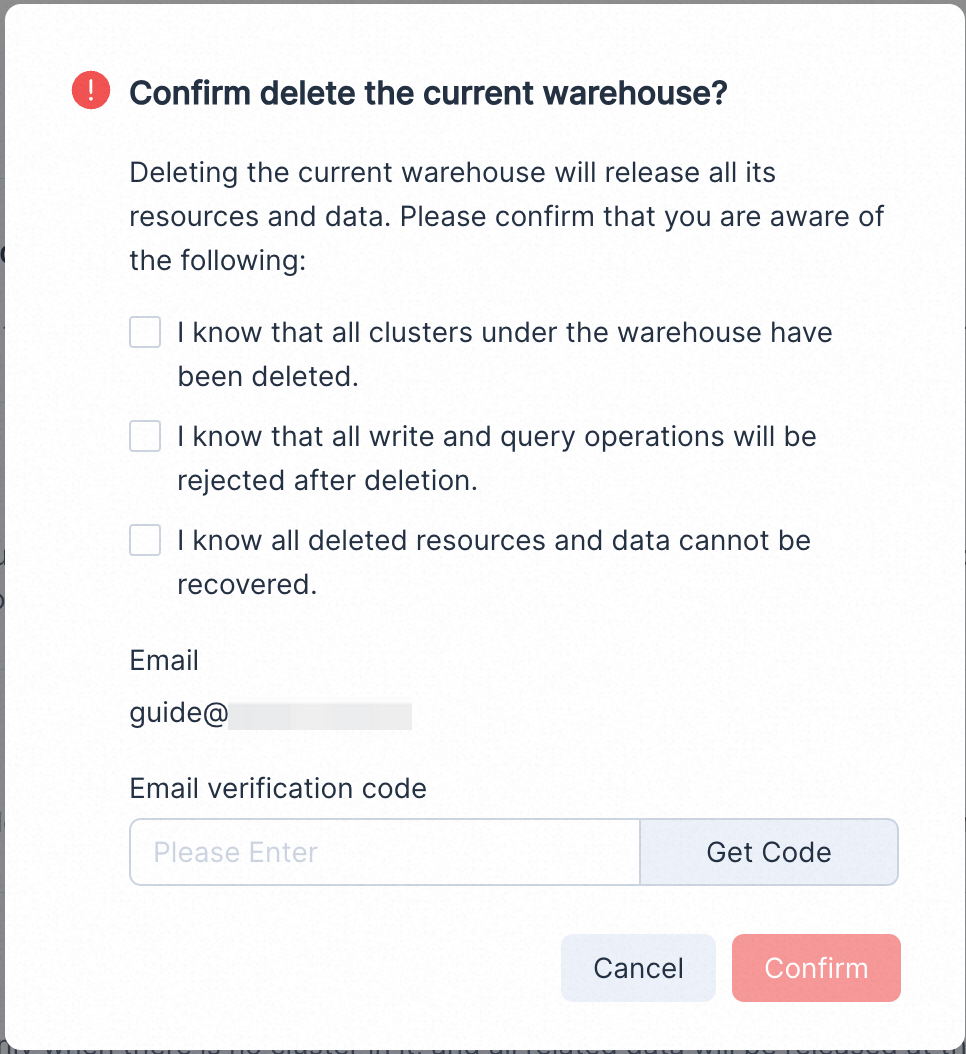
Warning Deleting a warehouse permanently removes all its resources and data. This action cannot be undone.
Delete a BYOC warehouse and destroy the infrastructure
If the warehouse being deleted is the last warehouse in its VPC, VeloDB Cloud will also prompt you to destroy the underlying BYOC infrastructure.
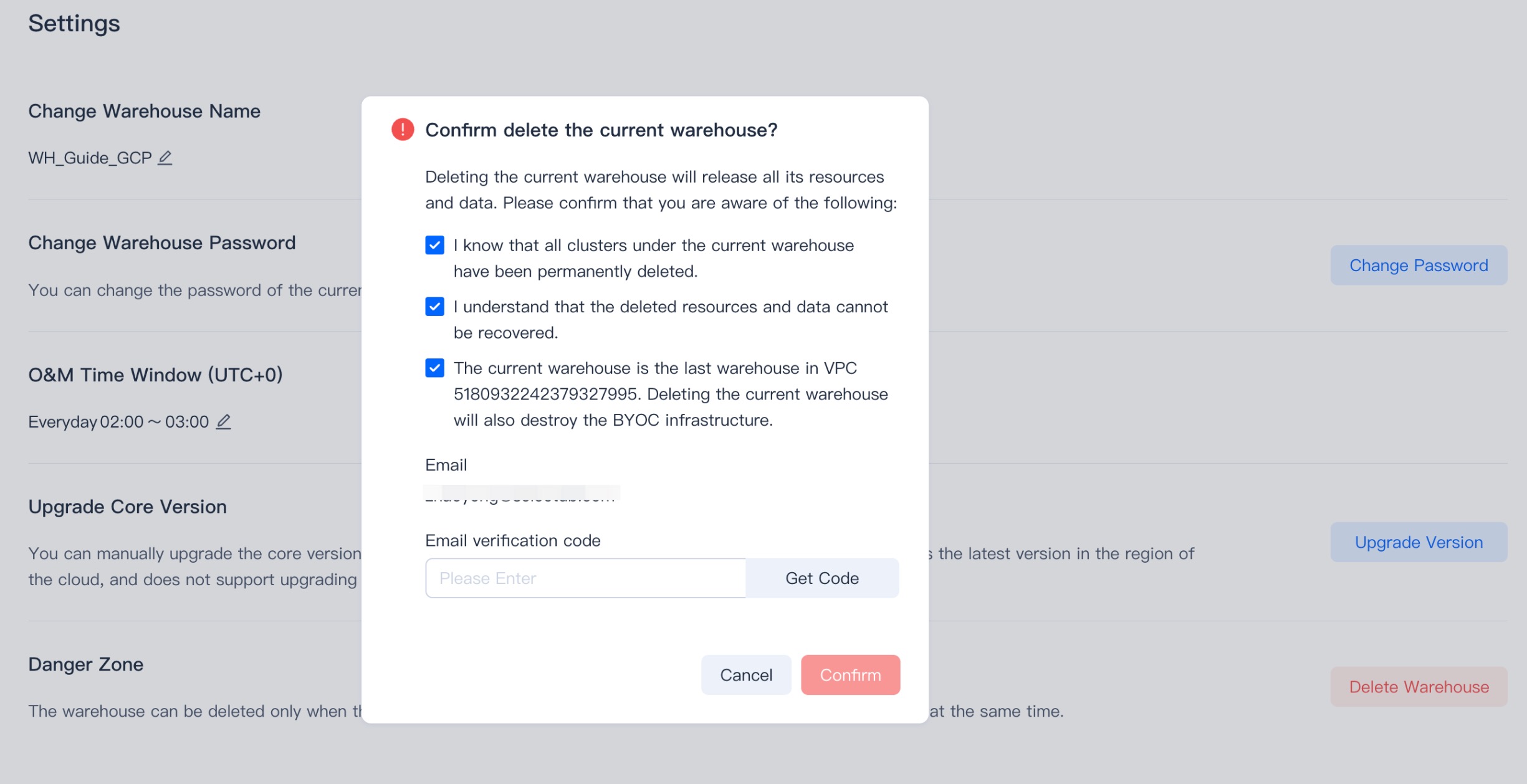
After clicking Delete, wait approximately 5 minutes for the warehouse to be removed, then complete the infrastructure teardown on your cloud platform.
AWS
After the warehouse is deleted, go to AWS CloudFormation and delete the resource stack.
1. Clear the S3 bucket
In the resource stack, open the Resources tab, search for Bucket, and note the bucket name. Go to the S3 console, select the bucket, click Empty, type permanently delete, and confirm.
Warning Emptying the bucket cannot be undone. Verify there are no files to retain before proceeding.
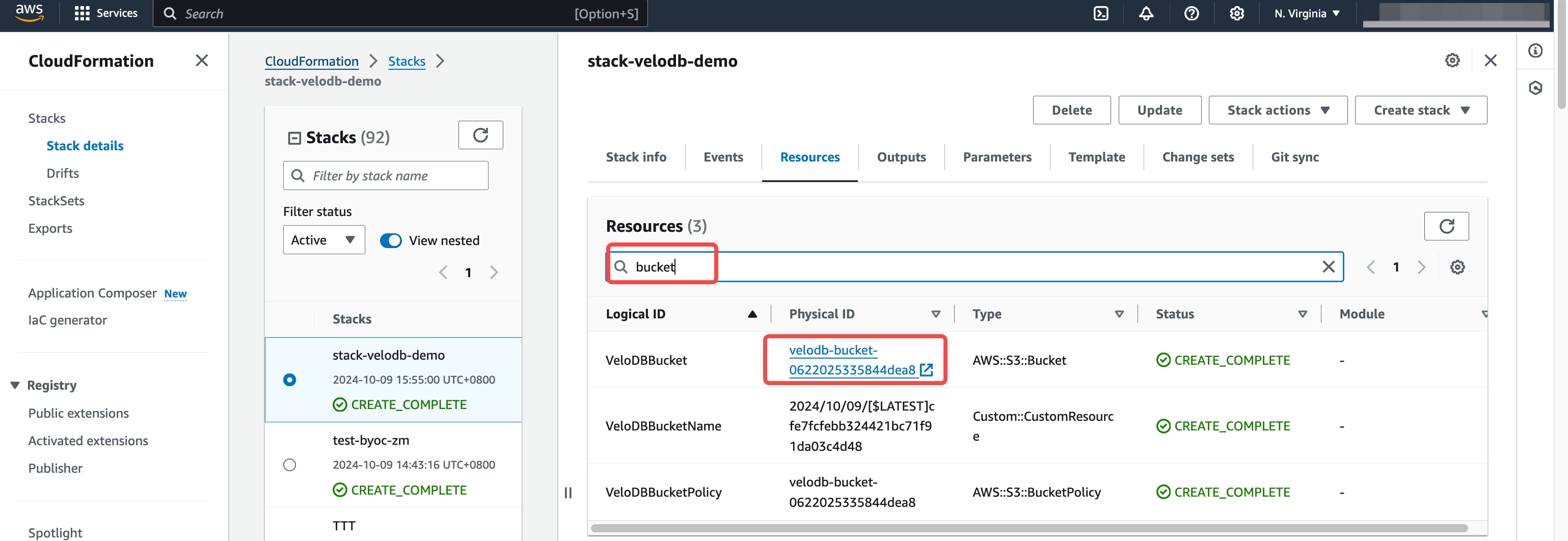
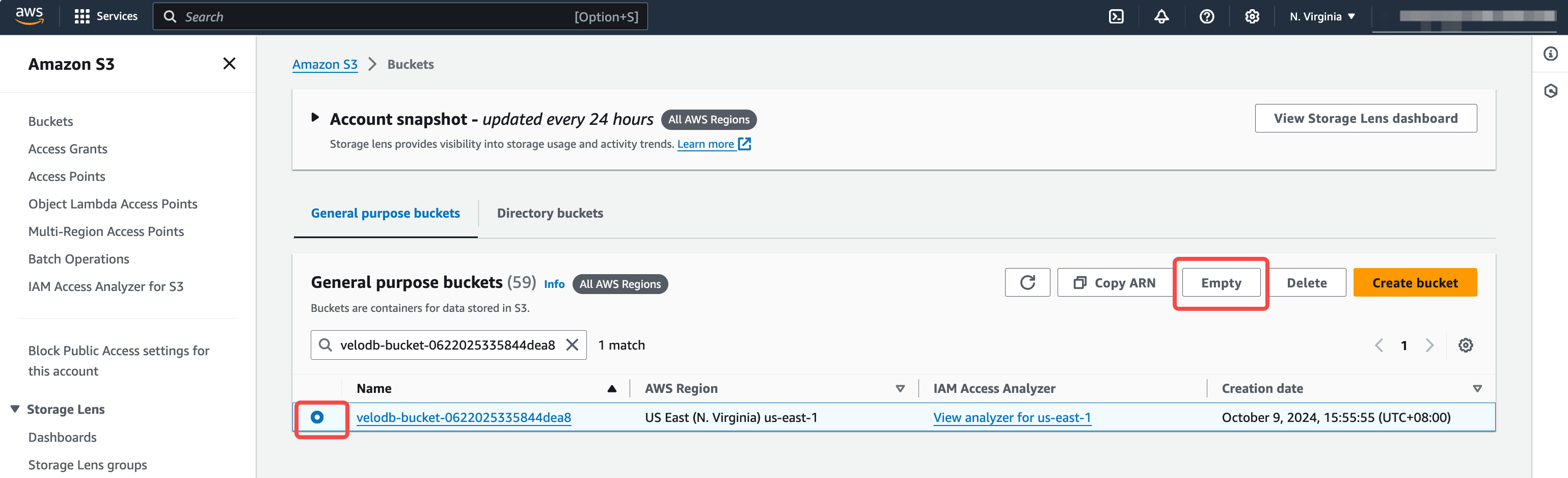
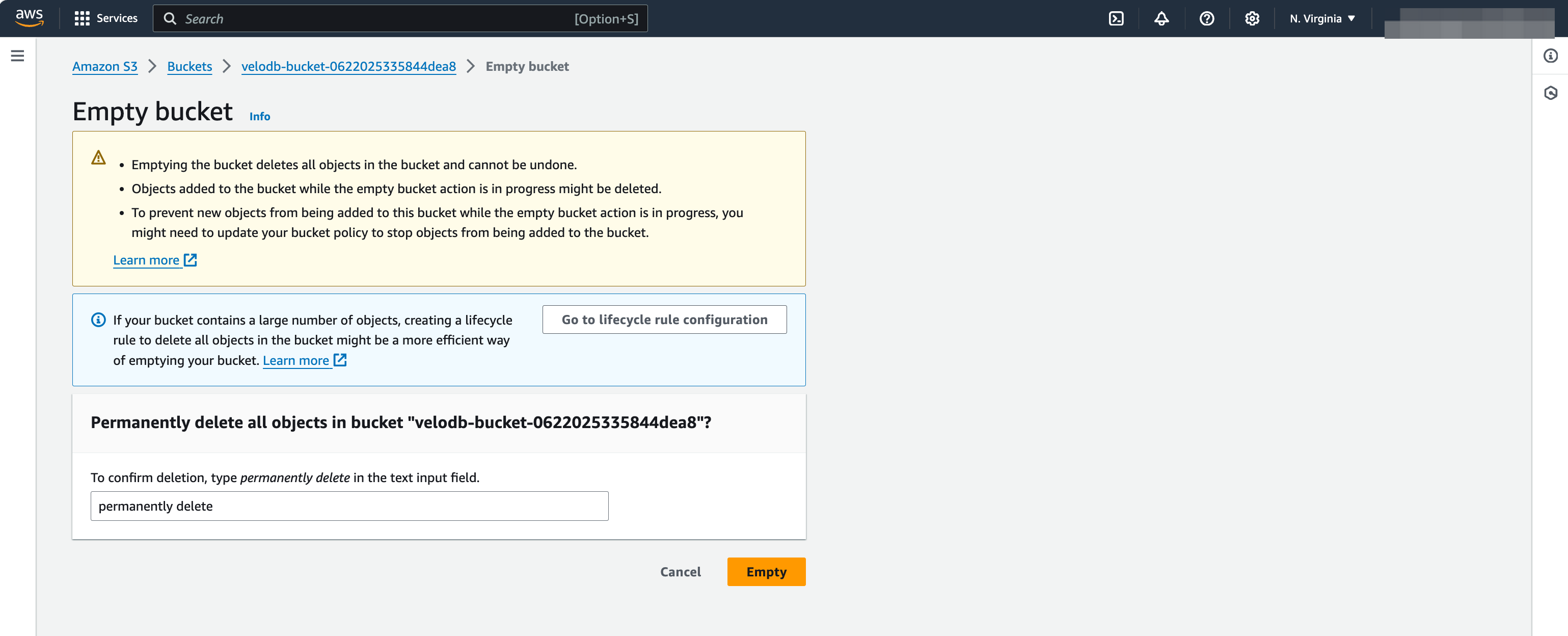
2. Delete the resource stack
Return to the resource stack, click Delete, and wait for completion.
GCP
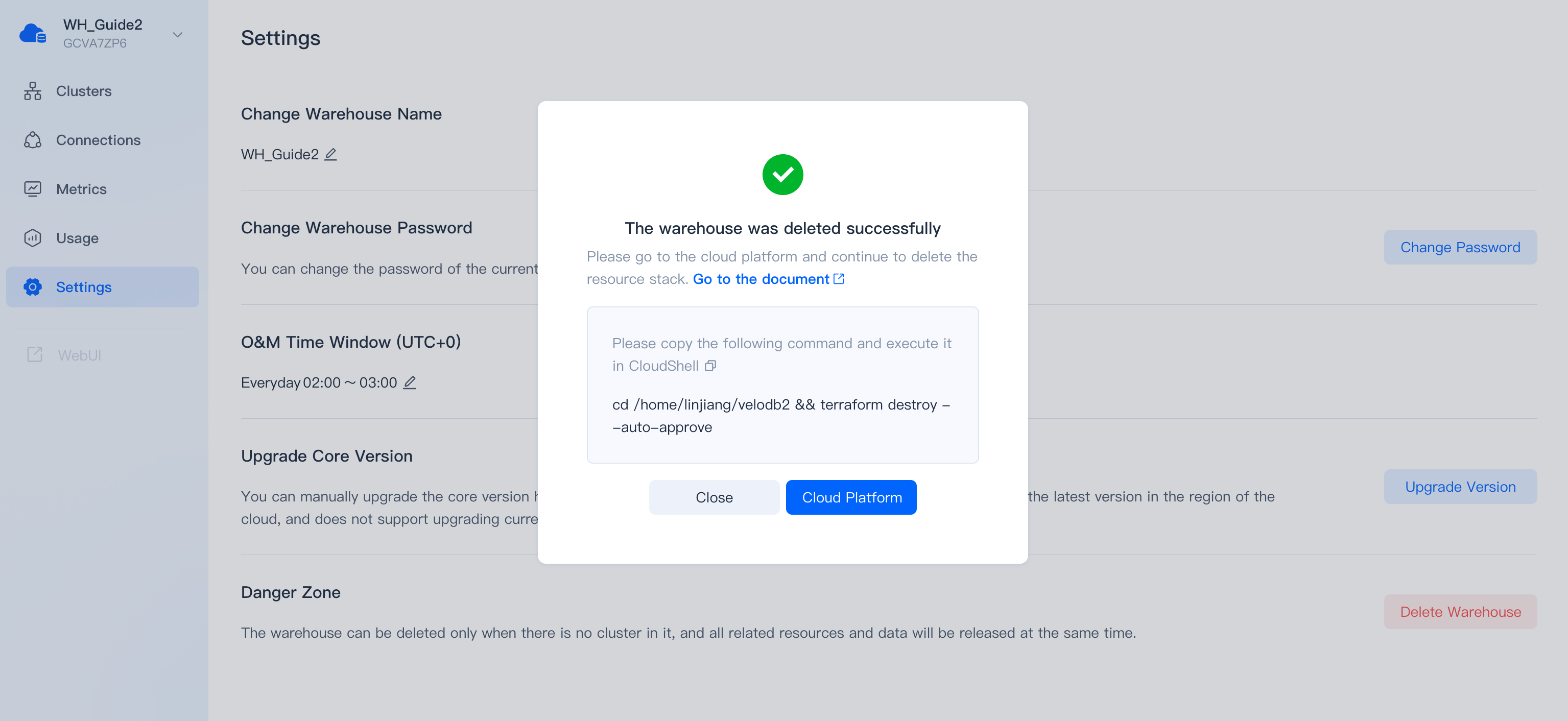
After the warehouse is deleted, copy the teardown command from the console, open GCP CloudShell, and run it.
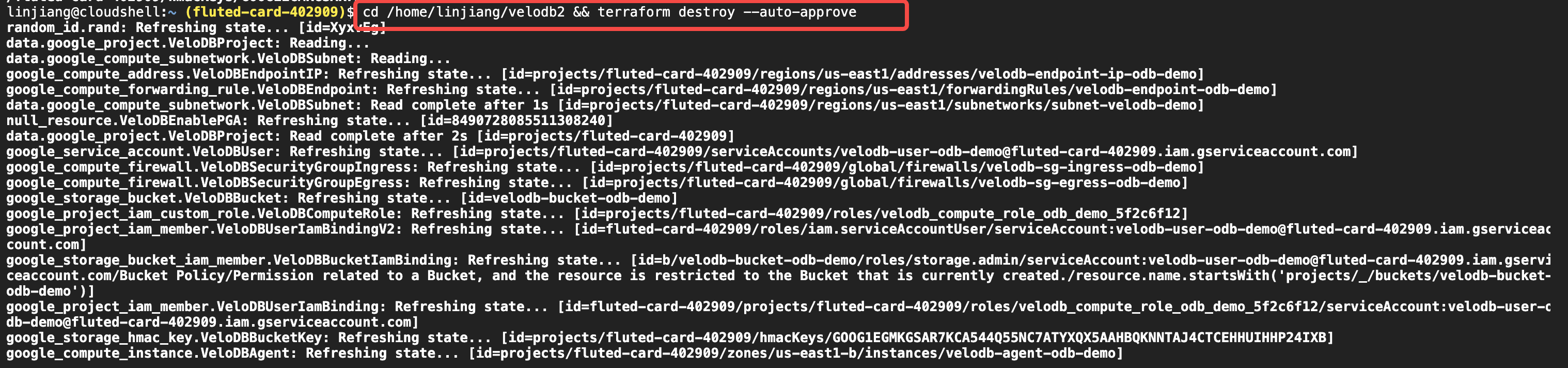
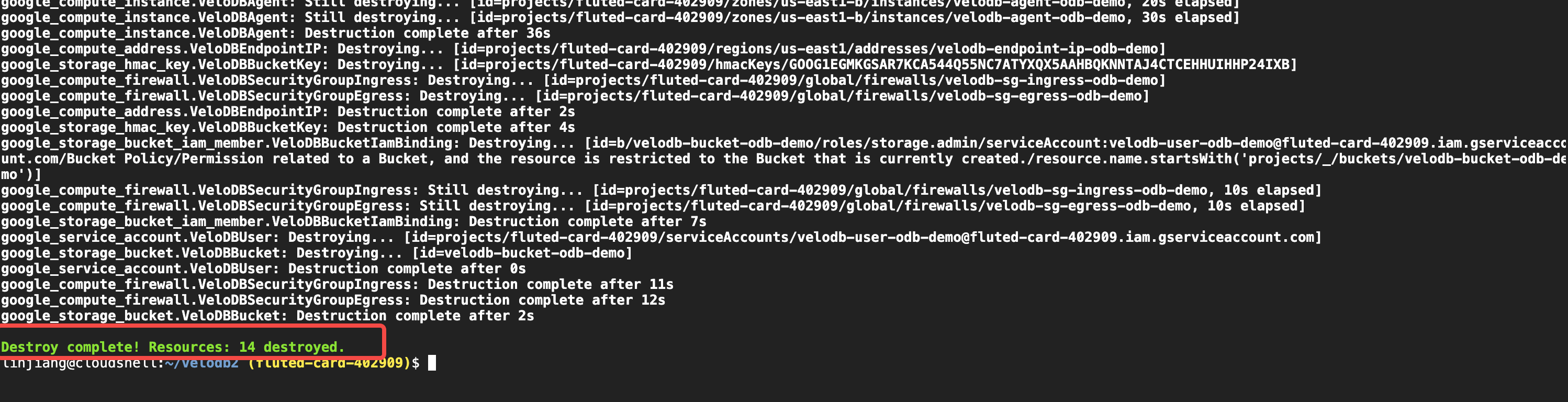
If the output shows Resources: xx destroyed where xx is not 0, the teardown succeeded. Otherwise, contact support.
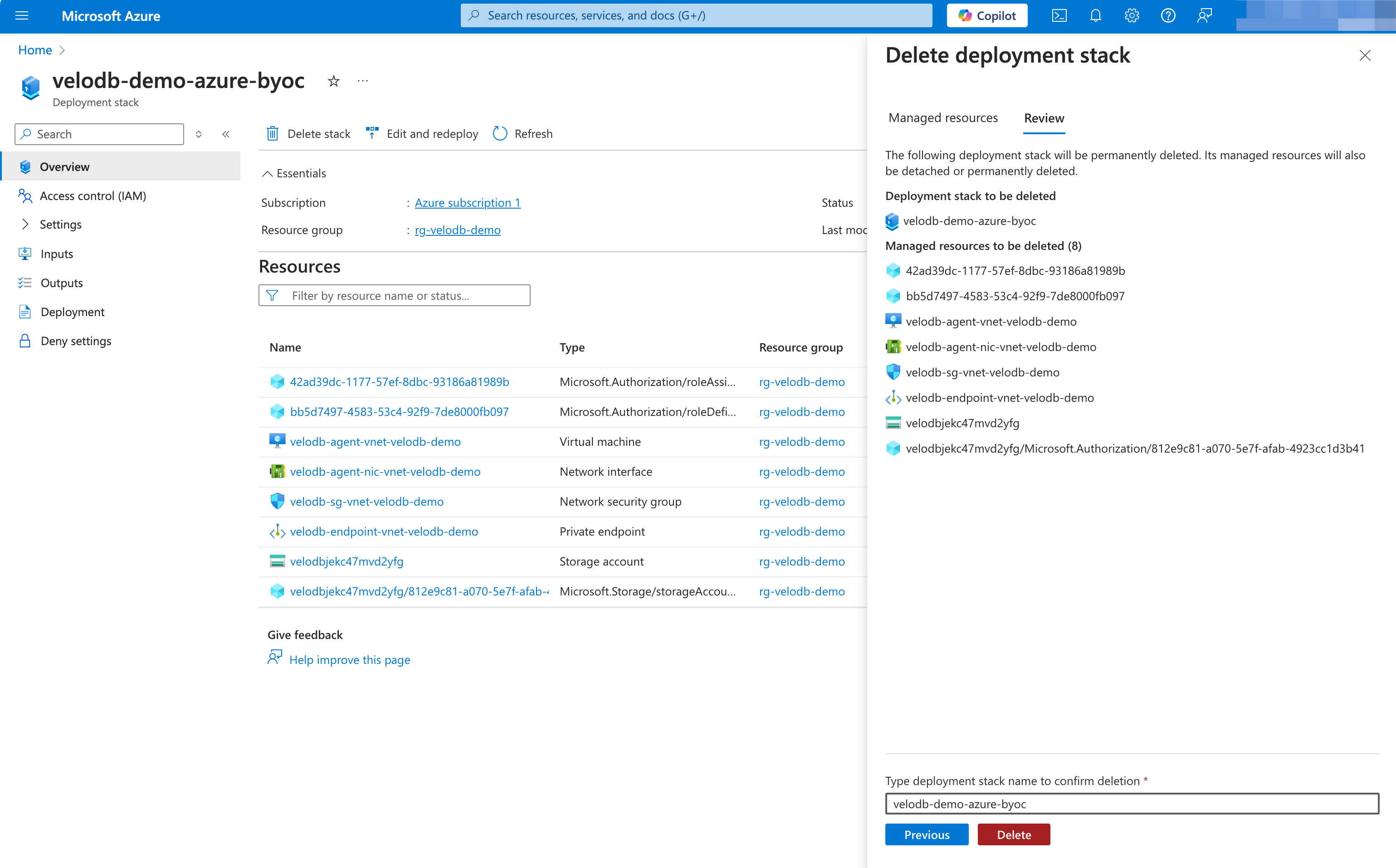
Azure
After the warehouse is deleted, go to Azure Deployment Stacks and delete the stack.
Click Delete stack, set Update behaviour to Delete all resources, detach resource groups and management groups, and click Next.
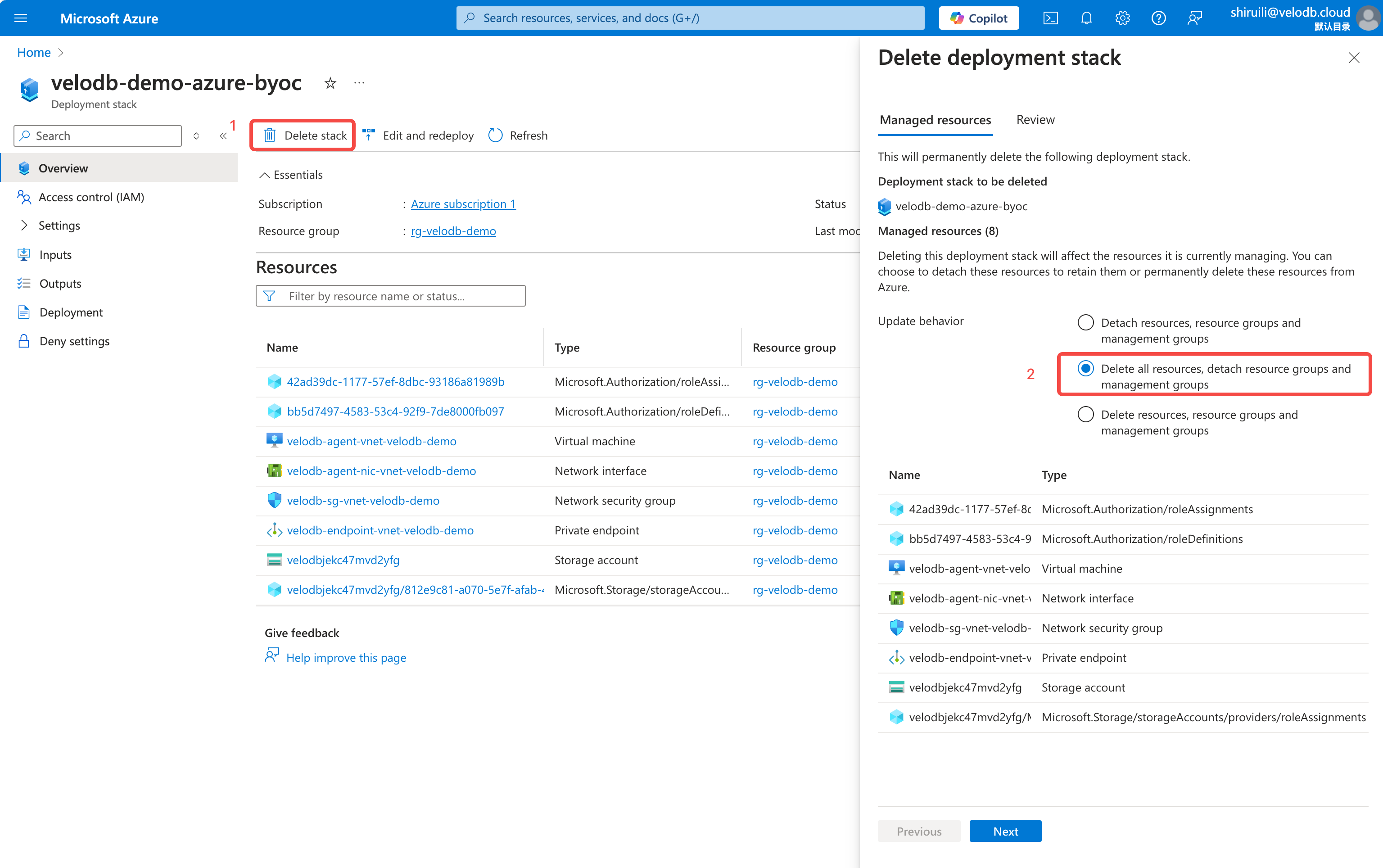
Enter the stack name and click Delete.