Databricks Unity Catalog
Overview
Databricks Unity Catalog is a unified governance layer for data and AI assets across clouds and data platforms. By integrating Unity Catalog with VeloDB Cloud, you can directly query data lake tables (including Iceberg tables) stored in cloud object storage with metadata managed by Unity Catalog, enabling seamless cross-platform data access and analysis.
This guide walks you through the complete setup process:
- Preparing your Databricks environment and Unity Catalog
- Creating an external catalog connection in VeloDB Cloud
- Querying data from Unity Catalog tables
Databricks Environment Preparation
Before creating a Databricks Unity Catalog connection in VeloDB Cloud, ensure your Databricks Unity Catalog environment is properly configured with the following prerequisites:
Create External Location
In Databricks Unity Catalog, an External Location is a security object that associates paths in cloud object storage (such as AWS S3) with Storage Credentials. External Locations support external access, and Unity Catalog can issue short-term credentials to external systems like VeloDB Cloud through the Credential Vending feature, allowing secure access to data stored in these paths.
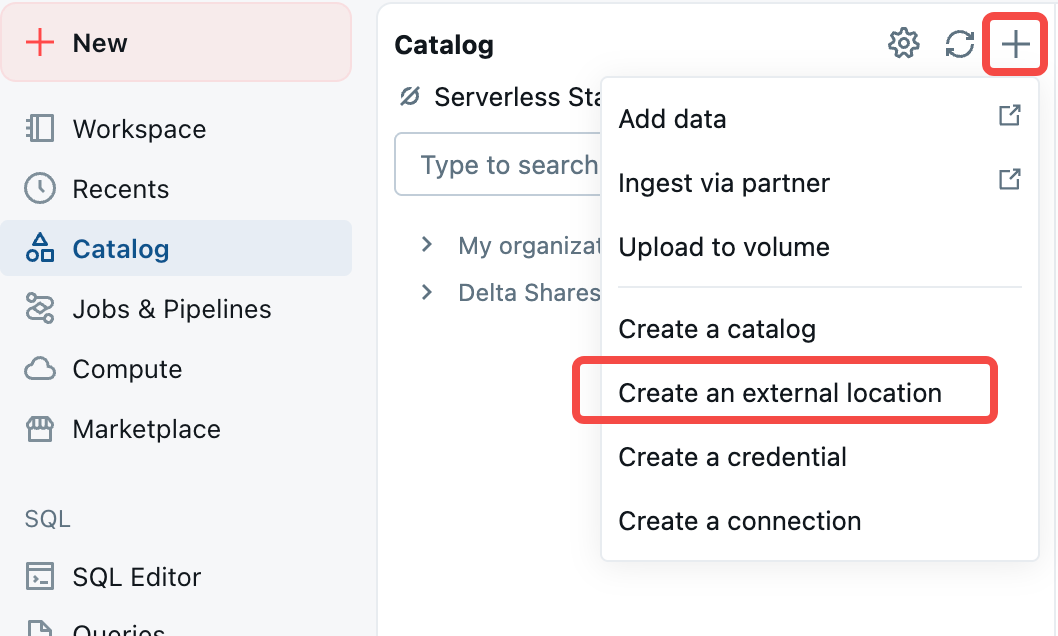
The following example demonstrates creating an External Location in AWS S3 using the Unity Catalog interface. Similar steps apply for other cloud storage providers supported by Unity Catalog.
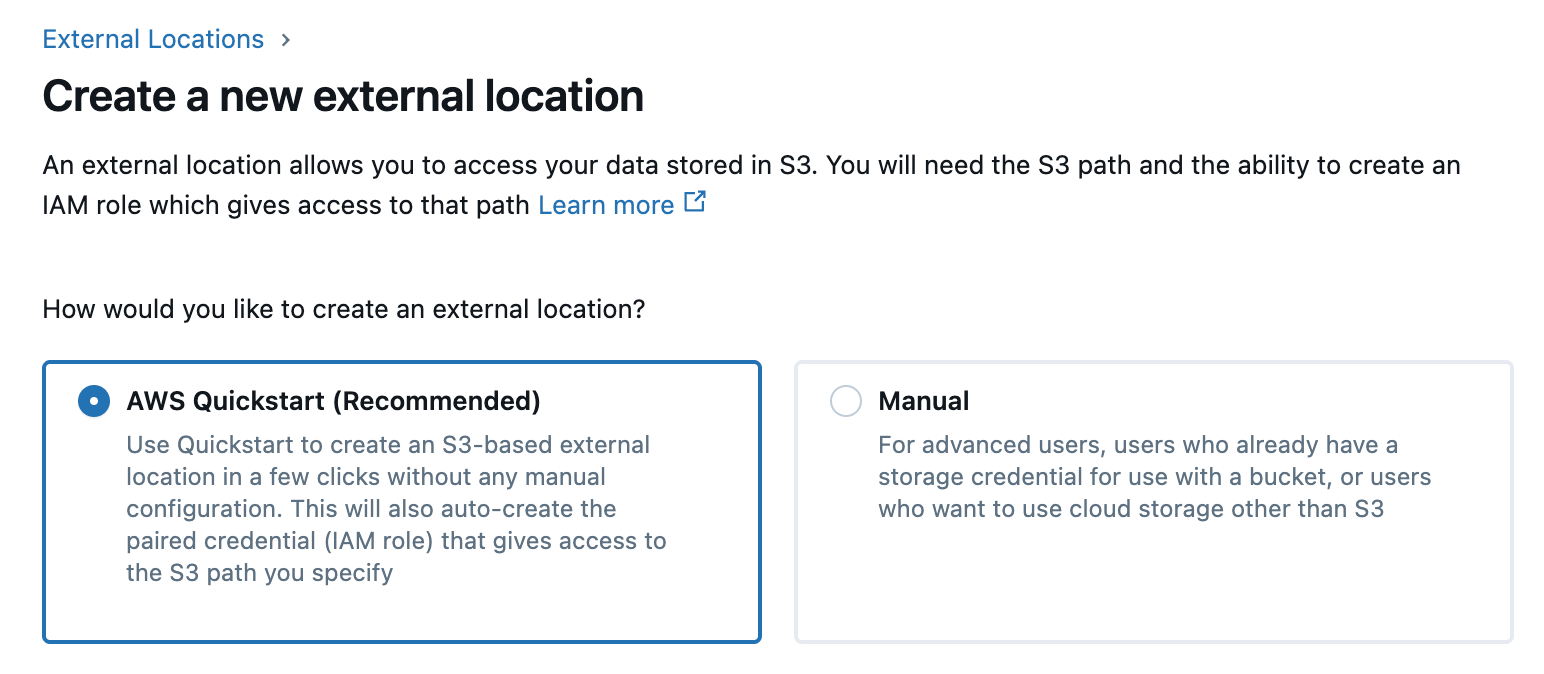
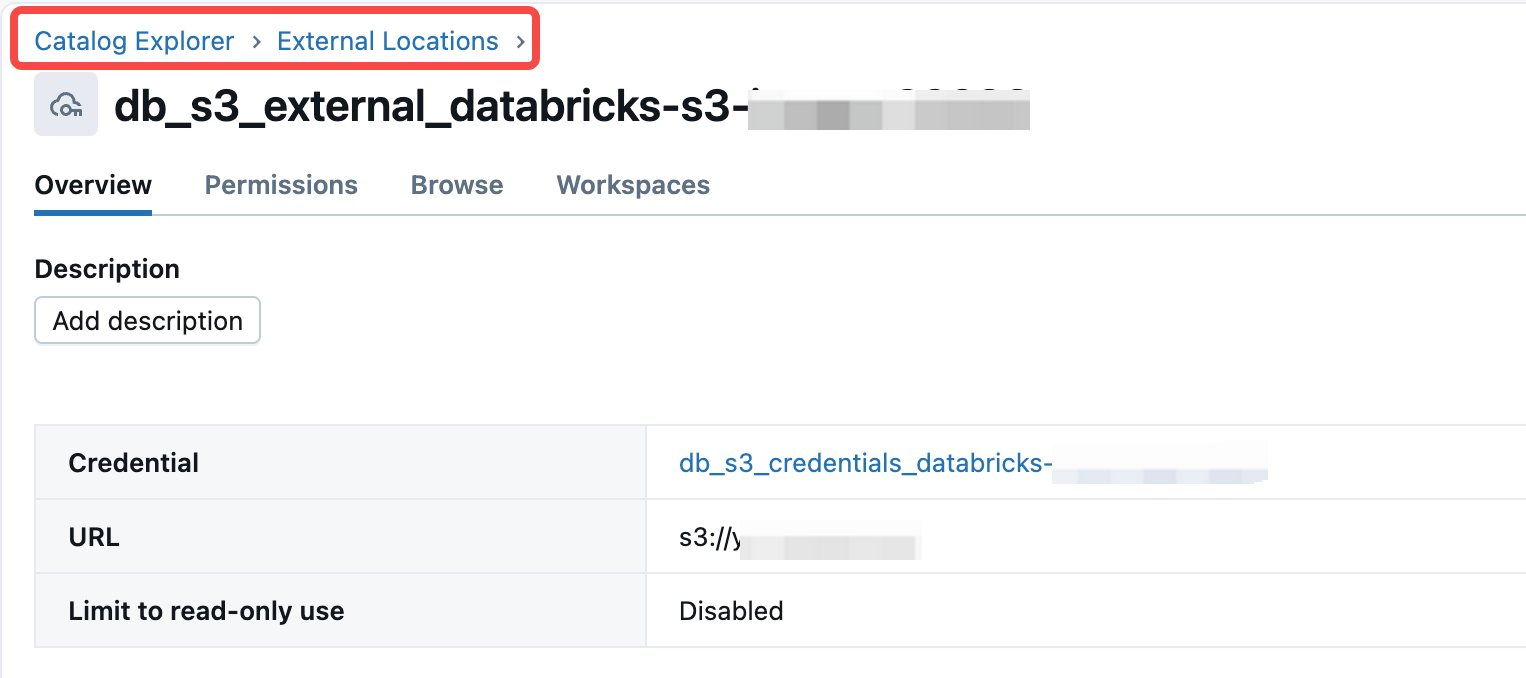
After creation, you can see the External Catalog and its corresponding Credential:
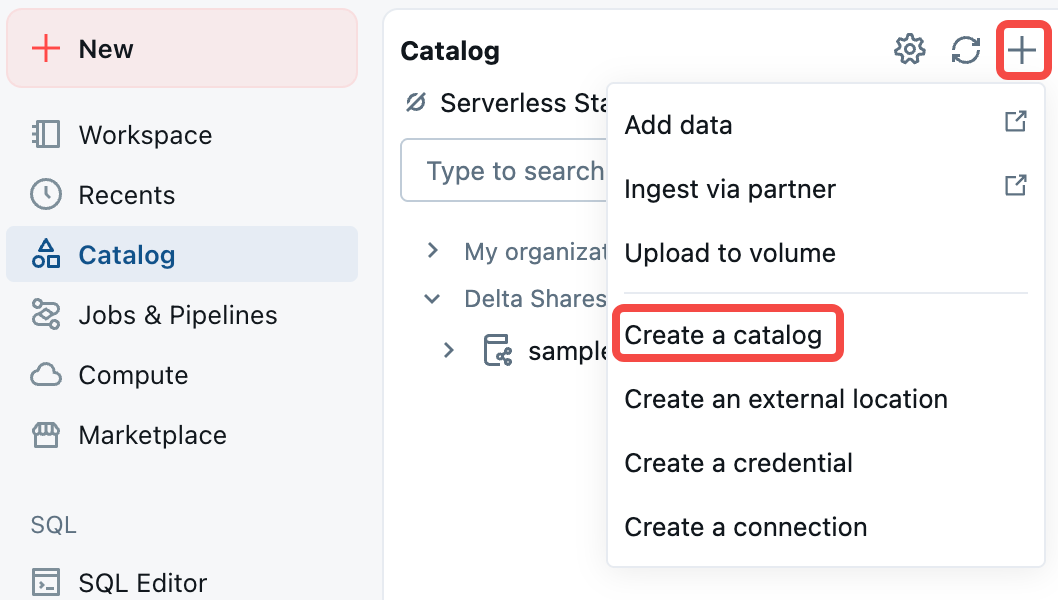
Create Catalog in Unity Catalog
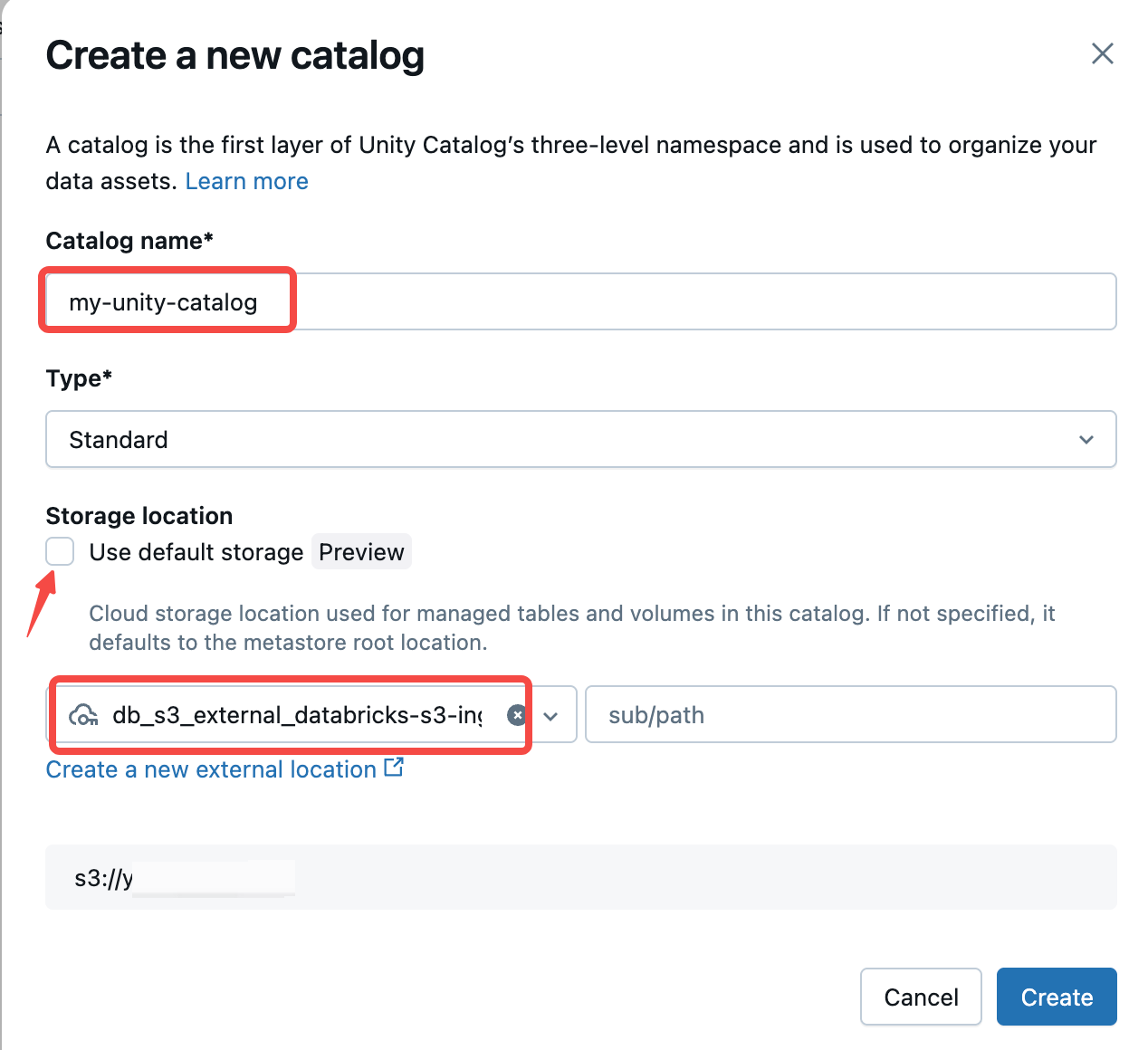
In your Databricks workspace, navigate to the Unity Catalog interface and click the Create Catalog option.
Enter the Catalog name. Uncheck Use default storage and select the External Location you just created.
Enable External Use Schema Permission
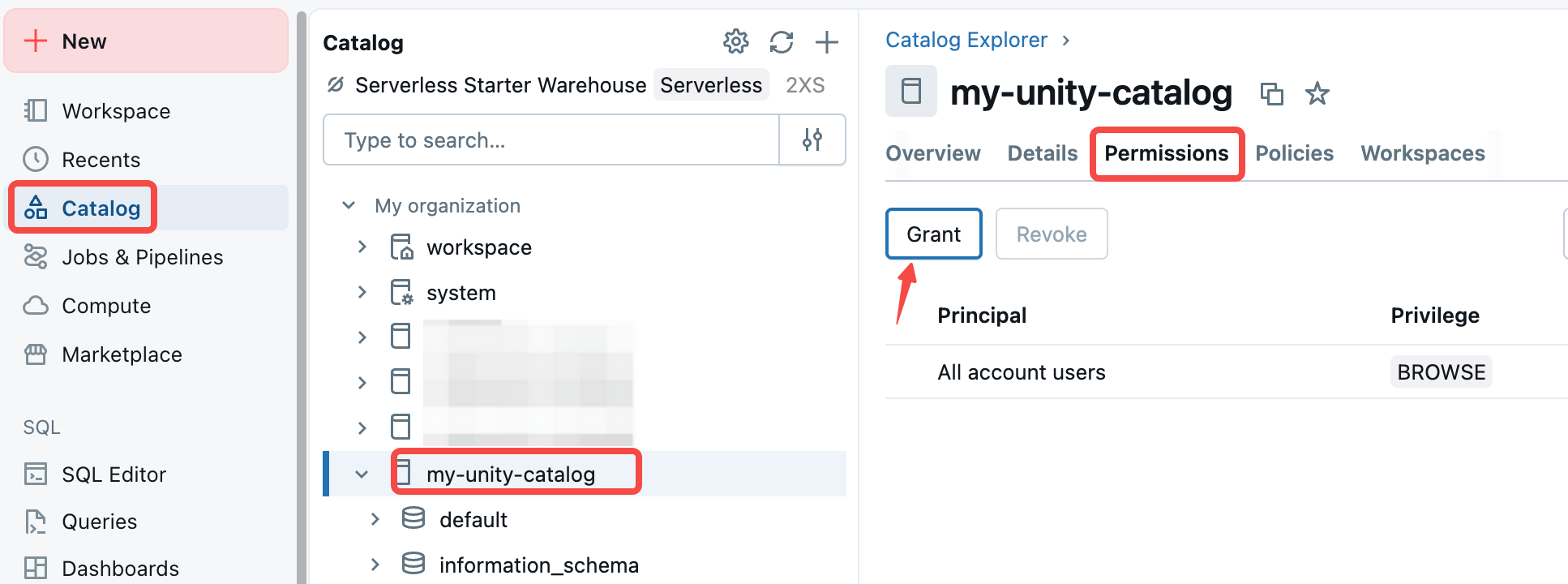
Click on the Catalog you just created → Permissions → Grant:
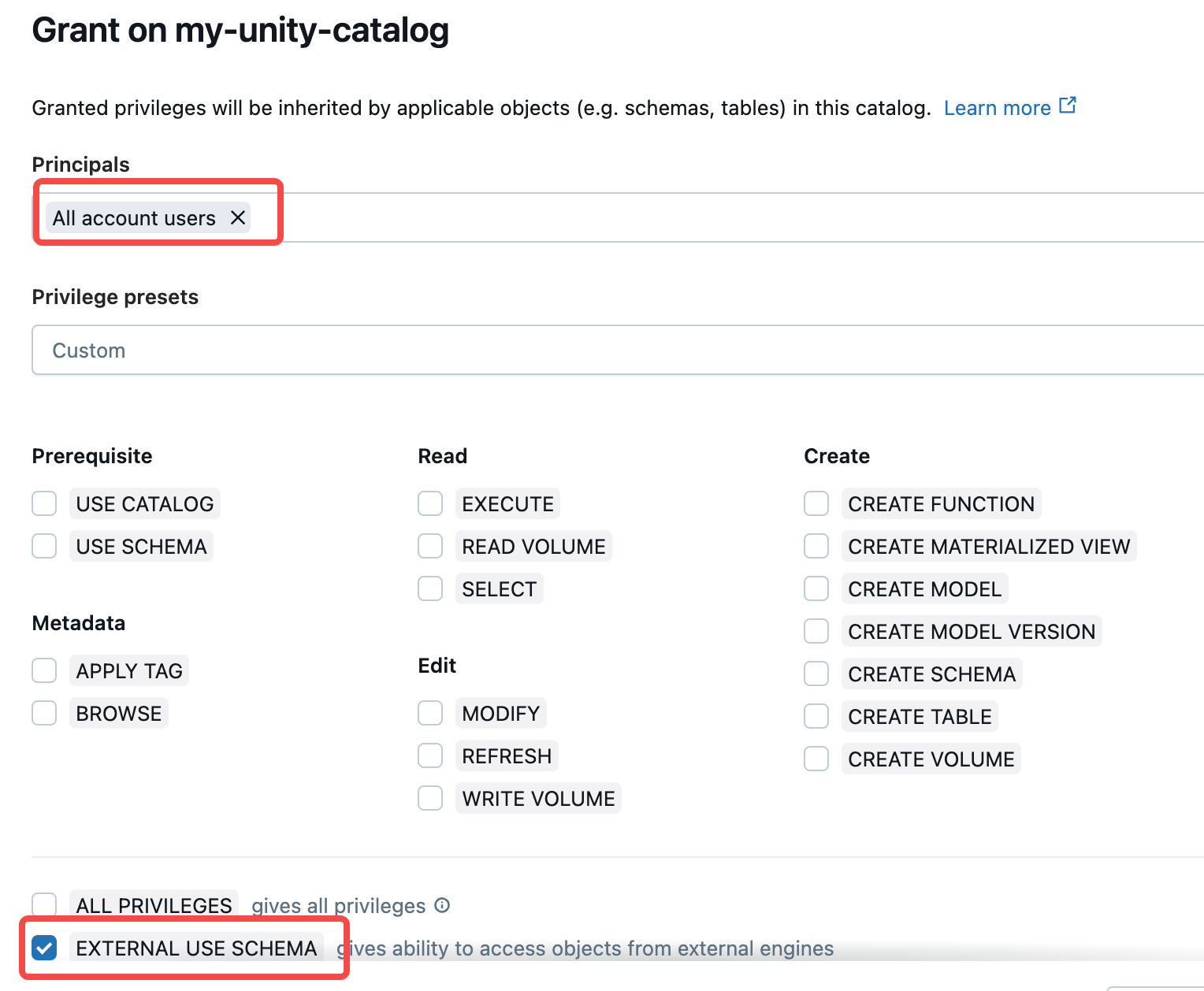
Select All account users and check the EXTERNAL USE SCHEMA option.
Create Iceberg Table and Insert Data
Execute the following SQL in Databricks SQL Editor to create an Iceberg table in your Unity Catalog and insert sample data:
CREATE TABLE `my_unity_catalog`.default.iceberg_table (
  id int,
  name string
) USING iceberg;

INSERT INTO `my_unity_catalog`.default.iceberg_table VALUES(1, "jack");
Create Databricks Unity Catalog Connection in VeloDB Cloud
Follow the steps below to create a Databricks Unity Catalog connection in VeloDB Cloud, enabling you to query Unity Catalog-managed tables directly from VeloDB.
Step 1: Enter the Creation Page
- Log in to the VeloDB Cloud console.
- In the left navigation bar, click Catalogs.
- Click the Add External Catalog button.
- Under the Data Lake category, select Databricks Unity Catalog.
Step 2: Fill in Basic Information
In the Basic Information section, configure the basic identification information for the Catalog.

| Field | Required | Description |
|---|---|---|
| Catalog Name | ✓ | The unique name of the Catalog, which will be used to identify this data source in SQL queries. |
| Comment | Optional description information. |
Step 3: Configure Metastore
In the Metastore section, configure the connection information for the Databricks Unity Catalog service.

| Field | Required | Description |
|---|---|---|
| Warehouse | ✓ | Specify the Catalog name configured in Unity Catalog. |
| Unity Catalog Iceberg REST URI | ✓ | The REST service endpoint of Unity Catalog. |
Authentication Type
There are 2 types of authentication: OAuth2 and Personal Access Token(PAT).
-
OAuth2
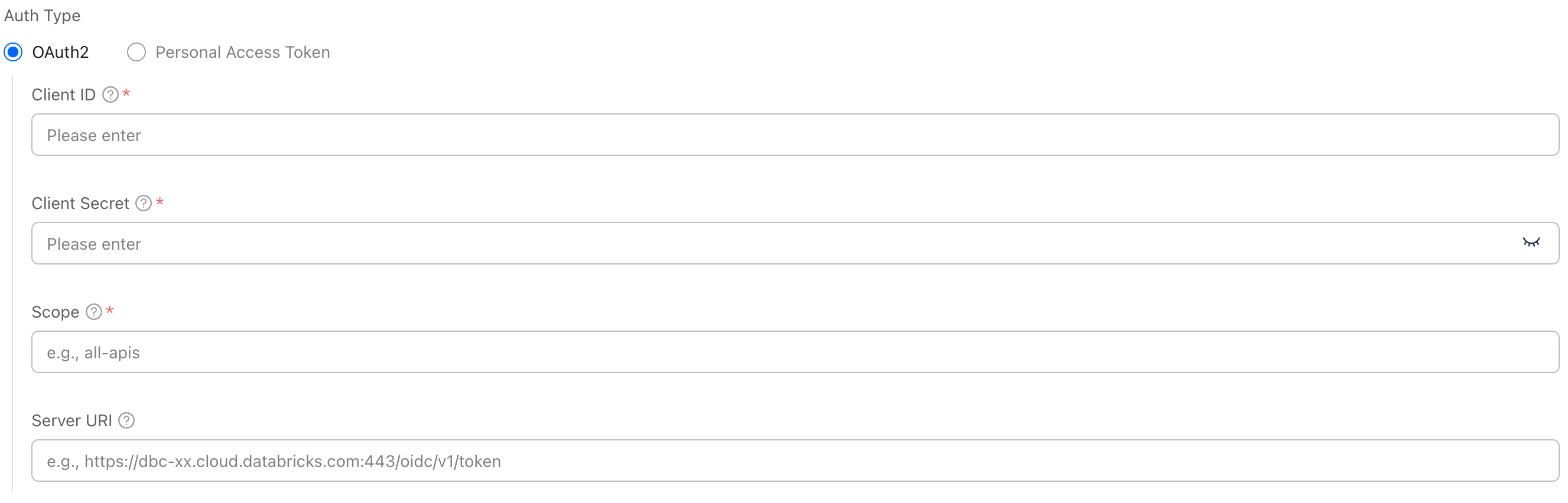
Field Required Description Client ID ✓ The client ID from the credentials used to access the OAuth2 service. Client Secret ✓ The client secret from the credentials used to access the OAuth2 service. Scope ✓ The scopes for OAuth2 access requests. Server URI The OAuth2 service endpoint used to obtain a token. This parameter is optional and may not need to be explicitly specified for some services. -
Personal Access Token

Field Required Description Token ✓ Personal access token of Unity Catalog
Step 4: Confirm Creation
- Check if all configuration information is correct.
- Click the Confirm button to create the Catalog.
- Wait for connection verification to complete.
After successful creation, you can see the newly created Databricks Unity Catalog connection in the Catalog list.
Query Data from Unity Catalog
Once the Databricks Unity Catalog connection is successfully created, you can use it to query data from Unity Catalog tables directly in the VeloDB Cloud SQL Editor. This allows you to leverage VeloDB's query engine while accessing metadata and data managed by Unity Catalog.
View Databases and Tables
Use the following SQL commands to explore your Unity Catalog structure:
-- View all databases under the Unity Catalog
SHOW DATABASES FROM my_unity_catalog;

-- View all tables under a database
SHOW TABLES FROM my_unity_catalog.`default`;

-- View table schema and metadata
DESCRIBE my_unity_catalog.`default`.iceberg_table;
Query Data from Unity Catalog Tables
Execute SQL queries to retrieve data from your Unity Catalog tables:
-- Query data with limit
SELECT * FROM my_unity_catalog.`default`.iceberg_table LIMIT 100;

-- Query with filtering conditions
SELECT column1, column2
FROM my_unity_catalog.`default`.iceberg_table
WHERE id = 10001;
You can now seamlessly query Iceberg tables and other data formats managed by Databricks Unity Catalog through VeloDB Cloud, combining the governance capabilities of Unity Catalog with the performance and features of VeloDB's query engine.