Hive Metastore Catalog
Hive Metastore Service (HMS) is the metadata management service for Apache Hive, widely used in the Hadoop ecosystem to manage metadata such as table schemas, partitions, and storage locations.
By creating a Hive Metastore Catalog, you can query Iceberg tables managed by a self-hosted HMS in VeloDB Cloud, with data stored on Amazon S3 or EMR HDFS.
Prerequisites
Before creating a Hive Metastore Catalog, please ensure the following conditions are met:
Hive Metastore Preparation
- The Hive Metastore Service is deployed and accessible from VeloDB Cloud.
- Hive Metastore uses the Thrift protocol, with the default port being 9083.
Storage Preparation
Prepare the corresponding access credentials based on the data storage location:
S3 Storage:
- Prepare an AWS Access Key or configure a Cross-account IAM Role.
- Ensure the credentials have permission to access the S3 bucket where the data resides.
Permission policy reference:
{
    "Version": "2012-10-17",
    "Statement": [
        {
            "Effect": "Allow",
            "Action": [
                "s3:GetObject",
                "s3:GetObjectVersion",
                "s3:PutObject",
                "s3:DeleteObject",
                "s3:ListBucket",
                "s3:GetBucketLocation",
                "s3:AbortMultipartUpload",
                "s3:ListMultipartUploadParts"
            ],
            "Resource": [
                "arn:aws:s3:::<bucket-name>",
                "arn:aws:s3:::<bucket-name>/*"
            ]
        }
    ]
}
EMR HDFS Storage:
- Ensure VeloDB Cloud can access all nodes of the EMR cluster.
- Prepare the
fs.defaultFSaddress of HDFS.
Network Requirements
- VeloDB Cloud must be able to access the Thrift port of Hive Metastore (default 9083).
- VeloDB Cloud must be able to access the data storage (S3 or HDFS).
For VeloDB Cloud in SaaS mode:
- Accessing your HMS service and HDFS may require allowing VeloDB to access your VPC. Please refer to velodb-accesses-your-vpc.
- Only S3 Buckets in the same region as the Warehouse can be accessed.
For VeloDB Cloud in BYOC mode:
- Accessing your HMS service and data storage (S3 or HDFS) requires referring to the network policies during deployment. Please refer to create-vpc-network-resources.
Create Catalog
Follow the steps below to create a Hive Metastore Catalog in VeloDB Cloud.
Step 1: Enter the Creation Page
- Log in to the VeloDB Cloud console.
- In the left navigation bar, click Catalogs.
- Click the Add External Catalog button.
- Under the Data Lake category, select Hive Metastore.
Step 2: Fill in Basic Information
In the Basic Information section, configure the basic identification information for the Catalog.

| Field | Required | Description |
|---|---|---|
| Catalog Name | ✓ | The unique name of the Catalog, which will be used to identify this data source in SQL queries. |
| Comment | Optional description information. |
Step 3: Configure Metastore
In the Metastore section, configure the connection information for Hive Metastore.
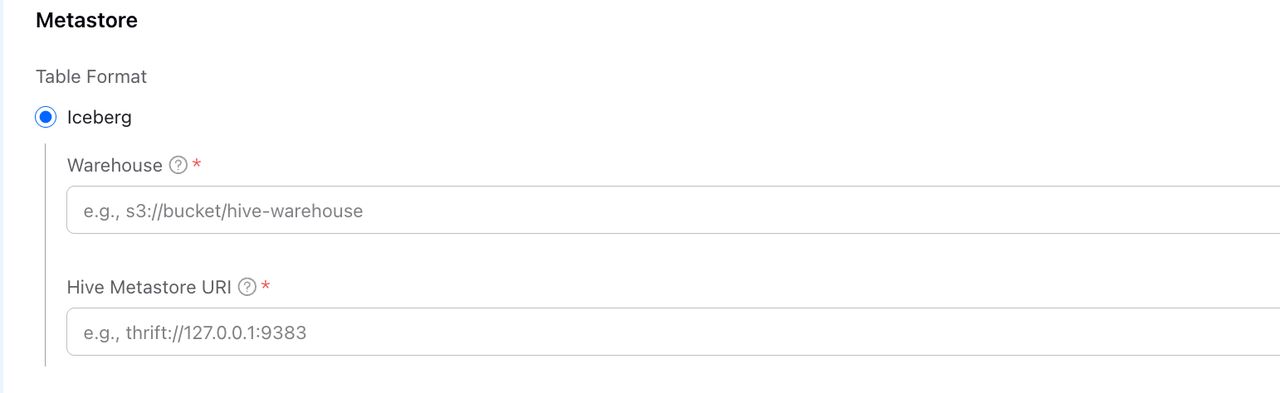
Table Format
Currently, VeloDB Cloud only supports the Iceberg table format via Hive Metastore.
Connection Configuration
| Field | Required | Description |
|---|---|---|
| Warehouse | ✓ | The default data file storage location when VeloDB creates an Iceberg database. Supports S3 and HDFS. Note: The S3 Bucket must be in the same region as the AWS Endpoint configured in the HMS service. |
| Hive Metastore URI | ✓ | The Thrift connection address of the Hive Metastore Service. |
Step 4: Configure Storage Access
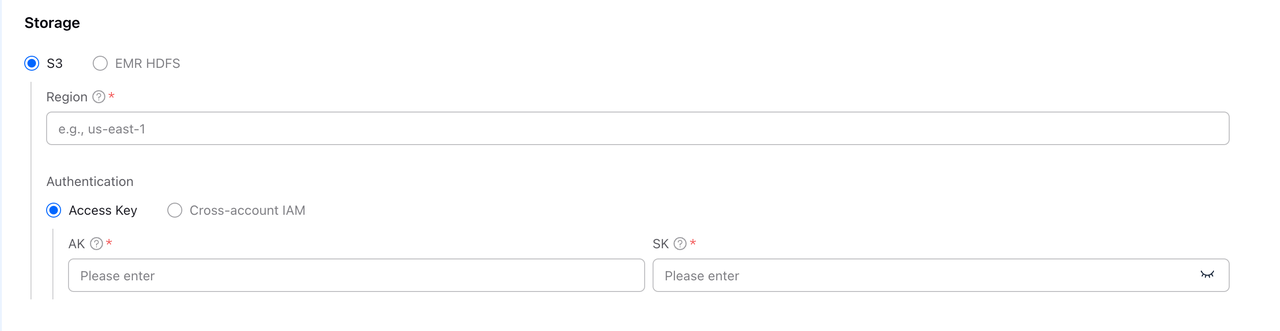
In the Storage section, configure how to access data files. Select S3 or EMR HDFS based on the data storage location.
Storage Type: S3
Select S3 when data is stored on Amazon S3.
| Field | Required | Description |
|---|---|---|
| Region | ✓ | The AWS region where the S3 bucket is located. Note: Must be in the same region as the AWS Endpoint configured in the HMS service. |
Authentication Method 1: Access Key
Use AWS IAM user access keys for authentication.
| Field | Required | Description |
|---|---|---|
| AK | ✓ | AWS Access Key ID |
| SK | ✓ | AWS Secret Access Key |
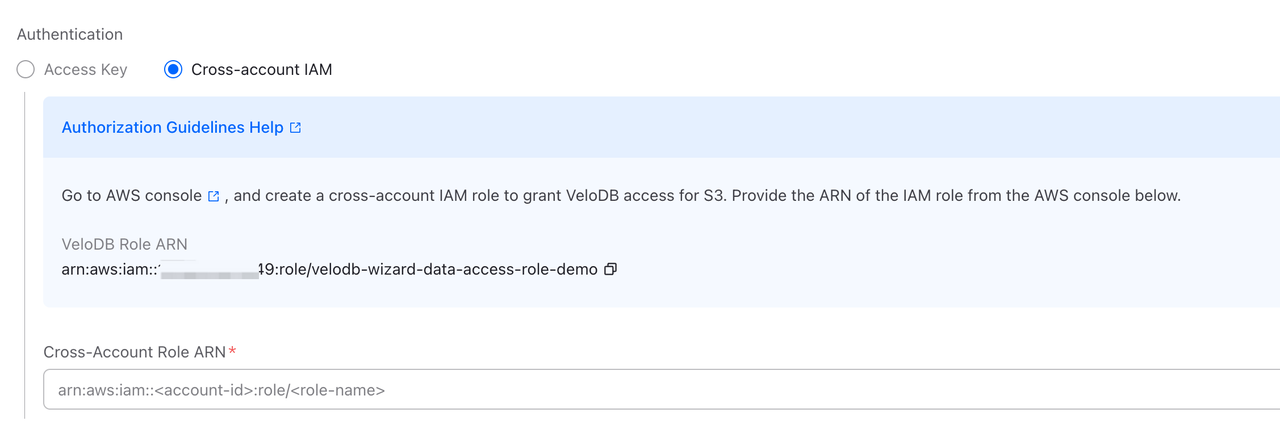
Authentication Method 2: Cross-account IAM
Use a cross-account IAM role for authentication. This is more secure and recommended for production environments.
| Field | Required | Description |
|---|---|---|
| Cross-Account Role ARN | ✓ | The ARN of the IAM role created in your AWS account. Format: arn:aws:iam::<your-account-id>:role/<role-name> |
Configuration Steps:
Click the Authorization Guidelines Help link to view detailed configuration instructions.
Storage Type: EMR HDFS
Select EMR HDFS when data is stored on HDFS in an AWS EMR cluster.

| Field | Required | Description |
|---|---|---|
| fs.defaultFS | ✓ | The NameNode address of HDFS. Format: hdfs://<namenode-host>:<port>, default port is 8020. |
Step 5: Advanced Settings (Optional)
Click Advanced Settings to expand more configuration options.

Advanced settings typically include:
- Metadata cache configuration
- Connection timeout settings
Tip: In most scenarios, the default values are sufficient.
Step 6: Confirm Creation
- Check if all configuration information is correct.
- Click the Confirm button to create the Catalog.
- Wait for the connection verification to complete.
After successful creation, you can see the newly created Hive Metastore Catalog in the Catalog list.
Use Catalog
After successful creation, you can query data using this Catalog in the SQL Editor.
View Databases and Tables
-- View all databases under the Catalog
SHOW DATABASES FROM hms_iceberg;

-- View all tables under a specific database
SHOW TABLES FROM hms_iceberg.my_database;

-- View table schema
DESCRIBE hms_iceberg.my_database.my_table;
Query Data
-- Query data
SELECT * FROM hms_iceberg.my_database.my_table LIMIT 100;

-- Query with conditions
SELECT column1, column2
FROM hms_iceberg.my_database.my_table
WHERE created_at >= '2024-01-01';