PostgreSQL Catalog
By creating a PostgreSQL Catalog, you can directly query data from PostgreSQL databases in VeloDB Cloud, enabling federated queries across data sources.
Prerequisites
- PostgreSQL database instance is running
- Database user with query permissions is prepared
- VeloDB Cloud can access the PostgreSQL instance through the network
AWS RDS/Aurora Configuration (Optional)
If you are using Amazon RDS for PostgreSQL or Amazon Aurora PostgreSQL, you need to complete the following preparation:
1. Obtain Database Endpoint and Port
-
Log in to the AWS RDS console
-
Select Databases in the left navigation bar
-
Click on your database instance name
-
In the Connectivity & security tab, find:
- Endpoint: Database connection address (e.g., mydb.xxxxxxxxxxxx.us-east-1.rds.amazonaws.com)
- Port: Database port (default is 5432 for PostgreSQL)
Aurora Cluster: If using Aurora PostgreSQL, it's recommended to use the Reader endpoint (read-only queries) or Cluster endpoint (read-write), depending on your actual needs.
2. Configure Security Group
Ensure that the RDS instance's security group allows access from VeloDB Cloud:
- In the Connectivity & security tab of the RDS instance details page, click the security group link under VPC security groups
- Select the Inbound rules tab, click Edit inbound rules
- Add a rule:
- Type: PostgreSQL
- Port range: 5432 (or your custom port)
- Source:
- SAAS Mode: IP address range of VeloDB Cloud connecting to your VPC through VPC Private Link
- BYOC Mode: Your VPC CIDR or security group
- Click Save rules
3. Configure Database User Permissions
Connect to the RDS instance and create a user with appropriate permissions:
-- Create user
CREATE USER velodb_user WITH PASSWORD 'your_password';
-- Grant database connection permission
GRANT CONNECT ON DATABASE your_database TO velodb_user;
-- Grant schema usage permission
GRANT USAGE ON SCHEMA public TO velodb_user;
-- Grant read-only permission (recommended for query scenarios)
GRANT SELECT ON ALL TABLES IN SCHEMA public TO velodb_user;
-- Grant read-only permission for future tables
ALTER DEFAULT PRIVILEGES IN SCHEMA public GRANT SELECT ON TABLES TO velodb_user;
-- Or grant read-write permission (if data write is needed)
GRANT SELECT, INSERT, UPDATE, DELETE ON ALL TABLES IN SCHEMA public TO velodb_user;
ALTER DEFAULT PRIVILEGES IN SCHEMA public GRANT SELECT, INSERT, UPDATE, DELETE ON TABLES TO velodb_user;
Security Recommendation: Follow the principle of least privilege and only grant necessary database and table permissions.
4. Network Requirements
- SAAS Mode: Accessing your PostgreSQL service requires allowing VeloDB to access your VPC. See velodb-accesses-your-vpc
- BYOC Mode: Accessing your PostgreSQL service requires referring to the network policies during deployment. See create-vpc-network-resources
Create Catalog
Step 1: Access the Creation Page
- Log in to the VeloDB Cloud console
- In the left navigation bar, click Catalogs
- Click the Add External Catalog button
- Under the Database category, select PostgreSQL
Step 2: Configure Connection Information
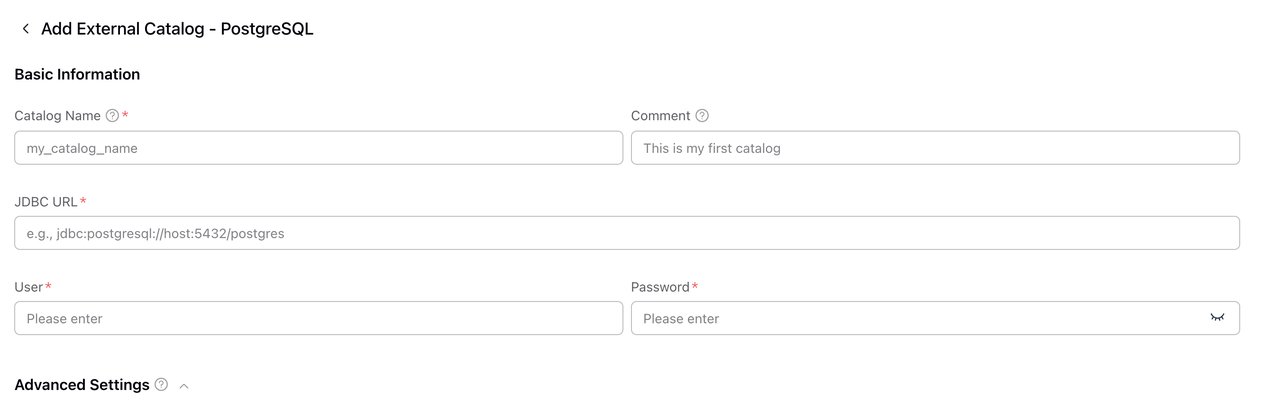
| Field | Required | Description |
|---|---|---|
| Catalog Name | ✓ | Unique name of the Catalog, used to identify this data source in SQL queries. |
| Comment | Optional description. | |
| JDBC URL | ✓ | JDBC connection string for PostgreSQL. Format: jdbc:postgresql://<host>:<port>/<database>. |
| User | ✓ | Database username. |
| Password | ✓ | Database password. |
JDBC URL Examples:
- Basic format:
jdbc:postgresql://pg.example.com:5432/postgres - With parameters:
jdbc:postgresql://pg.example.com:5432/mydb?sslmode=require
Note: PostgreSQL JDBC URL must specify a database name (e.g.,
postgres).
Step 3: Advanced Settings (Optional)
Click Advanced Settings to configure additional options such as connection pool size, timeout settings, etc.
Step 4: Confirm Creation
- Review the configuration information
- Click the Confirm button to create the Catalog
Using the Catalog
-- View schema list
SHOW DATABASES FROM pg_catalog;

-- View table list
SHOW TABLES FROM pg_catalog.public;

-- Query data
SELECT * FROM pg_catalog.public.my_table LIMIT 100;