Connect to Confluent Cloud
This guide walks you through connecting VeloDB Cloud to Confluent Cloud Kafka using the visual interface.
Prerequisites: Before proceeding, complete the Confluent Cloud Setup Guide to create your cluster, API keys, and sample data topic.
Step 1: Navigate to Import
In your VeloDB warehouse, go to the left sidebar and find the Data section, then click Import.
Click Create to start a new import job.
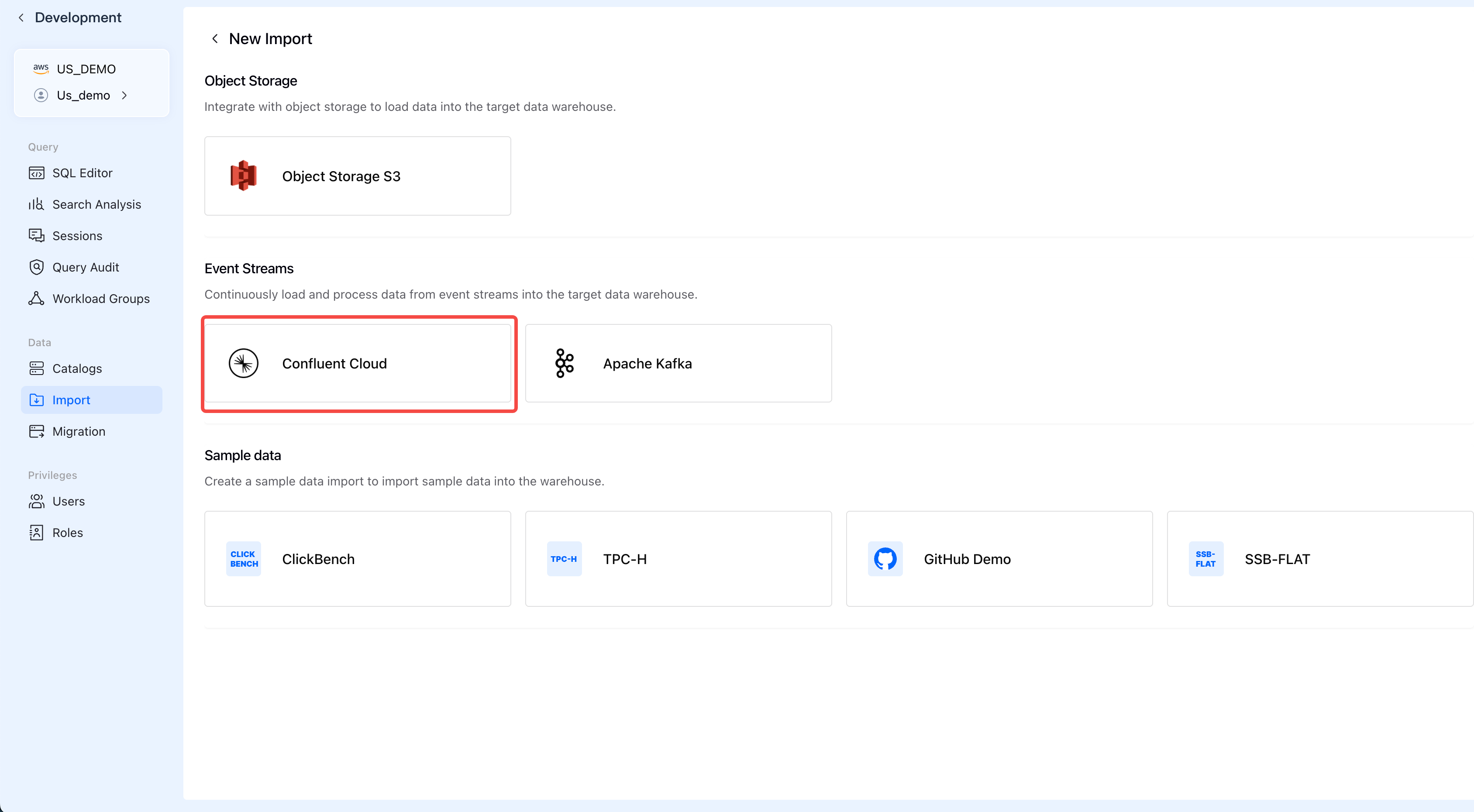
Step 2: Select Confluent Cloud
Under Event Streams, click Confluent Cloud to start the streaming import wizard.
Step 3: Configure Connection
Fill in the connection details from Confluent Cloud Setup:
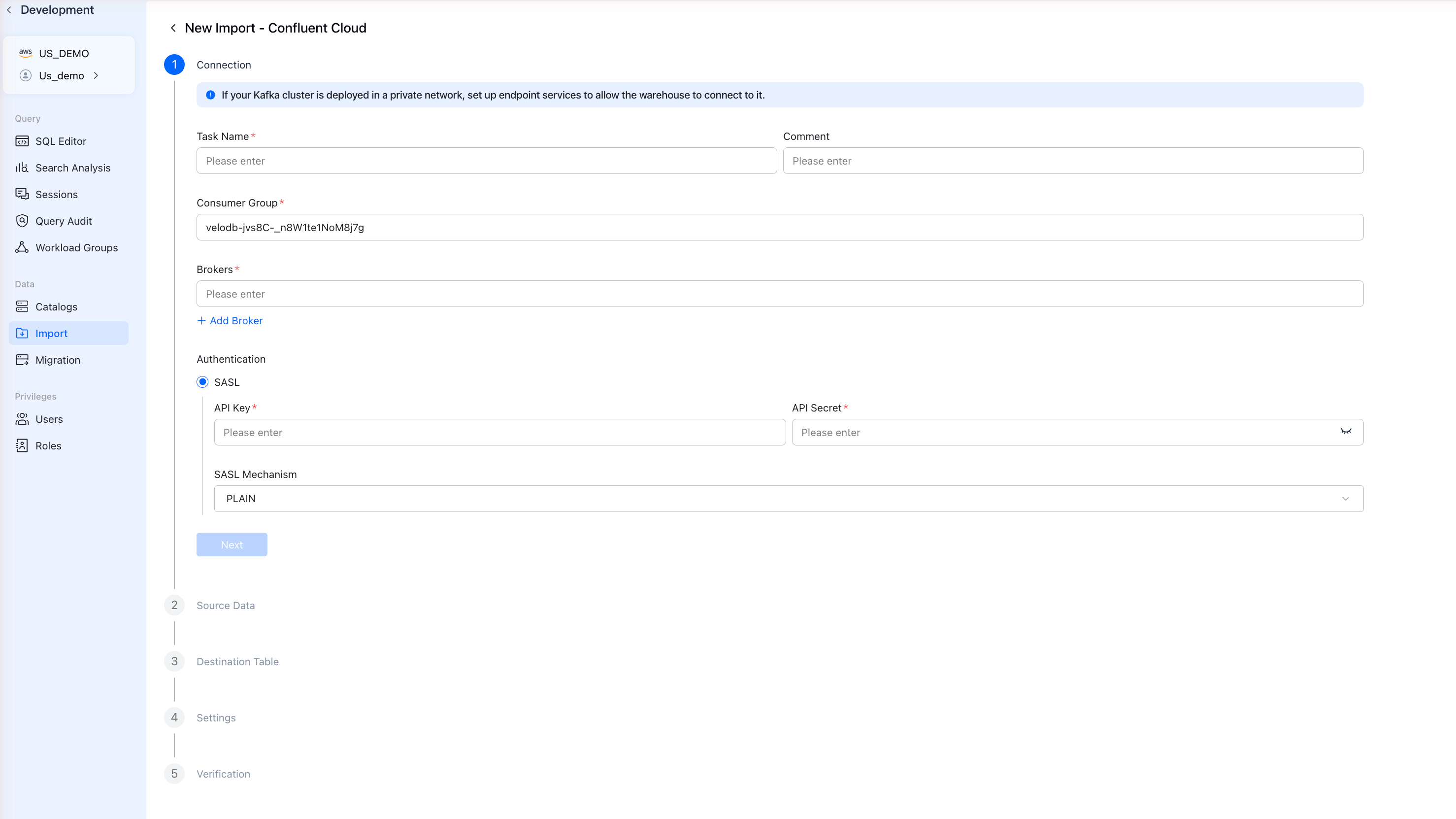
| Field | Description | Example |
|---|---|---|
| Task Name | Unique name for this import job | confluent_orders |
| Consumer Group | Kafka consumer group ID | velodb-consumer |
| Brokers | Bootstrap server URL | pkc-xxxxx.us-east-1.aws.confluent.cloud:9092 |
| API Key | Confluent Cloud API Key | Your API Key |
| API Secret | Confluent Cloud API Secret | Your API Secret |
| SASL Mechanism | Authentication method | PLAIN |
Click Next after filling in all fields.
Step 4: Select Source Data
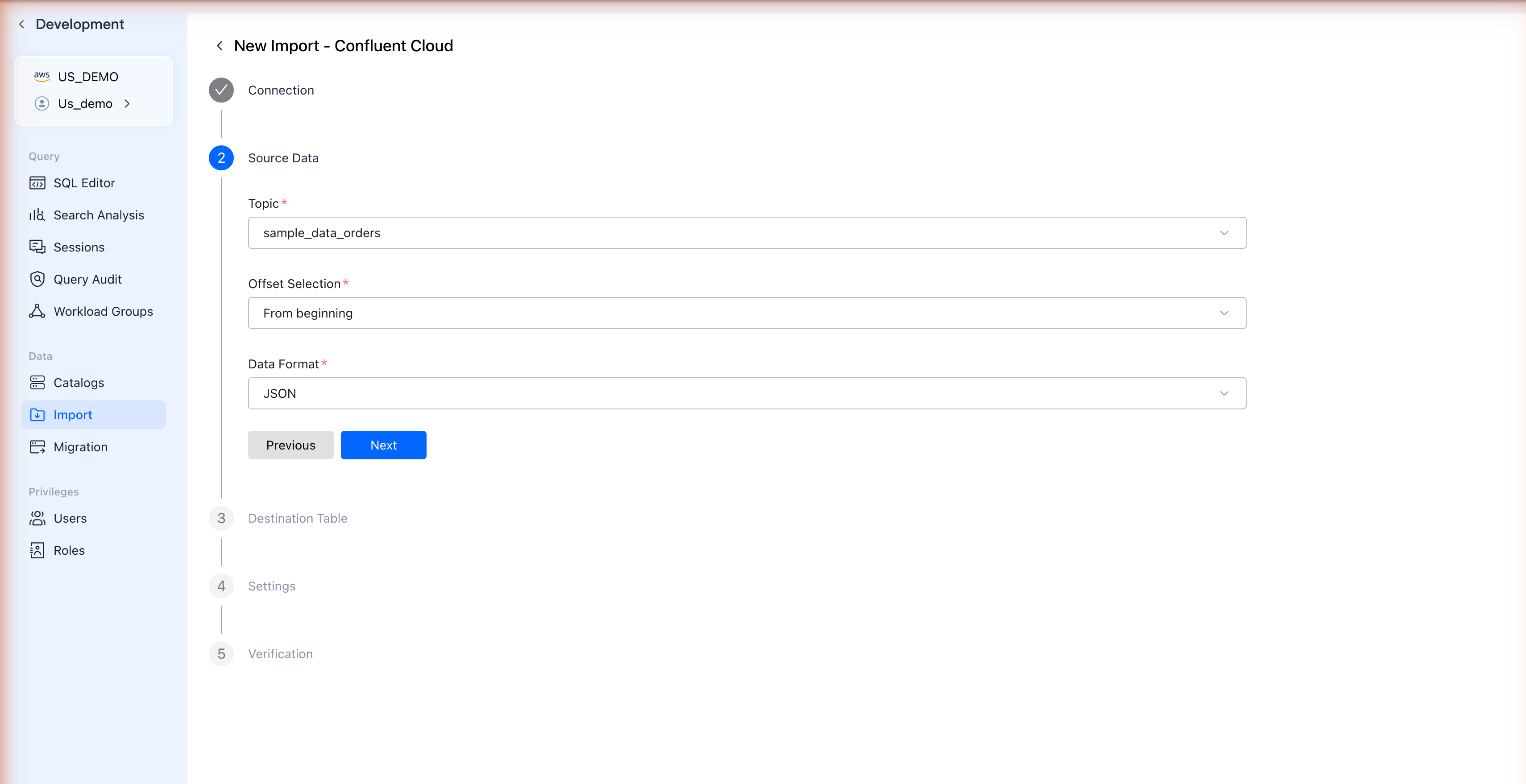
Configure the Kafka topic and data format:
| Field | Description |
|---|---|
| Topic | Select your Kafka topic from the dropdown |
| Offset Selection | From beginning to load all data, or From latest for new data only |
| Data Format | Select JSON |
VeloDB only supports JSON and CSV formats. If your Confluent topic uses AVRO, you'll need to create a new topic with JSON format in Confluent Cloud.
Click Next to proceed.
Step 5: Configure Destination Table
VeloDB automatically detects the schema from your Kafka messages:
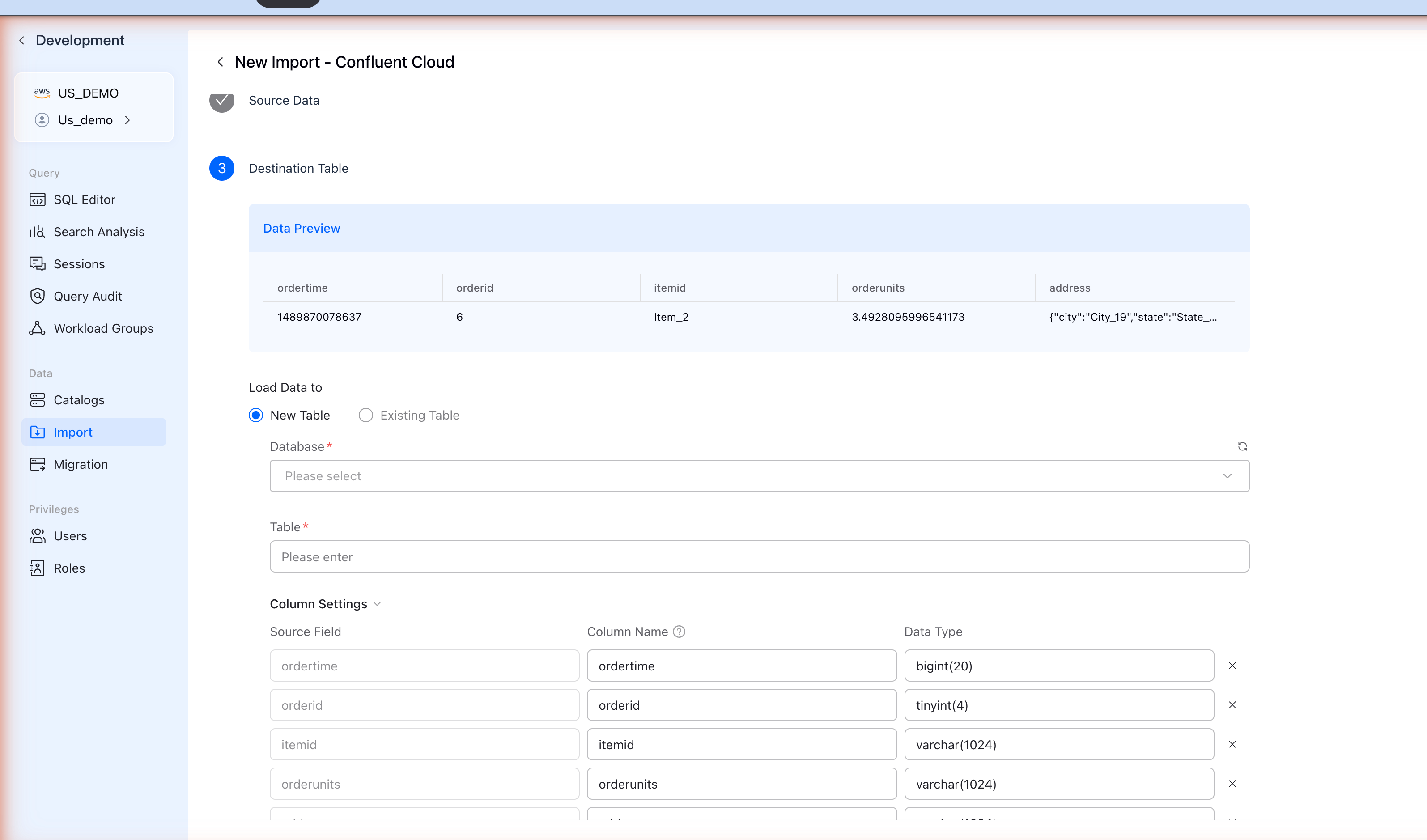
The Data Preview section shows sample records from your topic.
Configure Table Settings
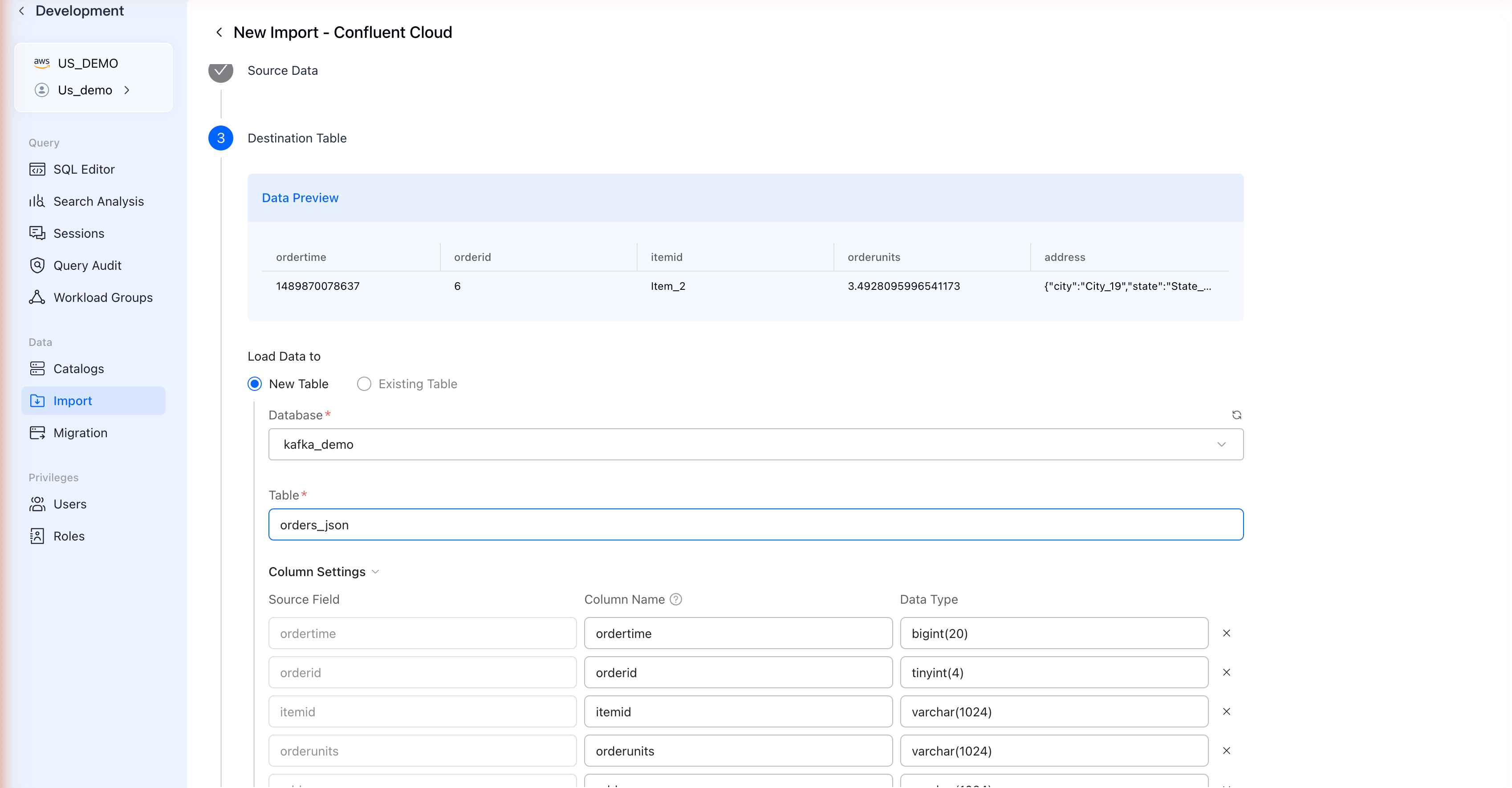
| Field | Description |
|---|---|
| Load Data to | Select New Table to create a new table |
| Database | Select or create a database |
| Table | Enter a table name |
Column Settings
Review and adjust the column mappings:
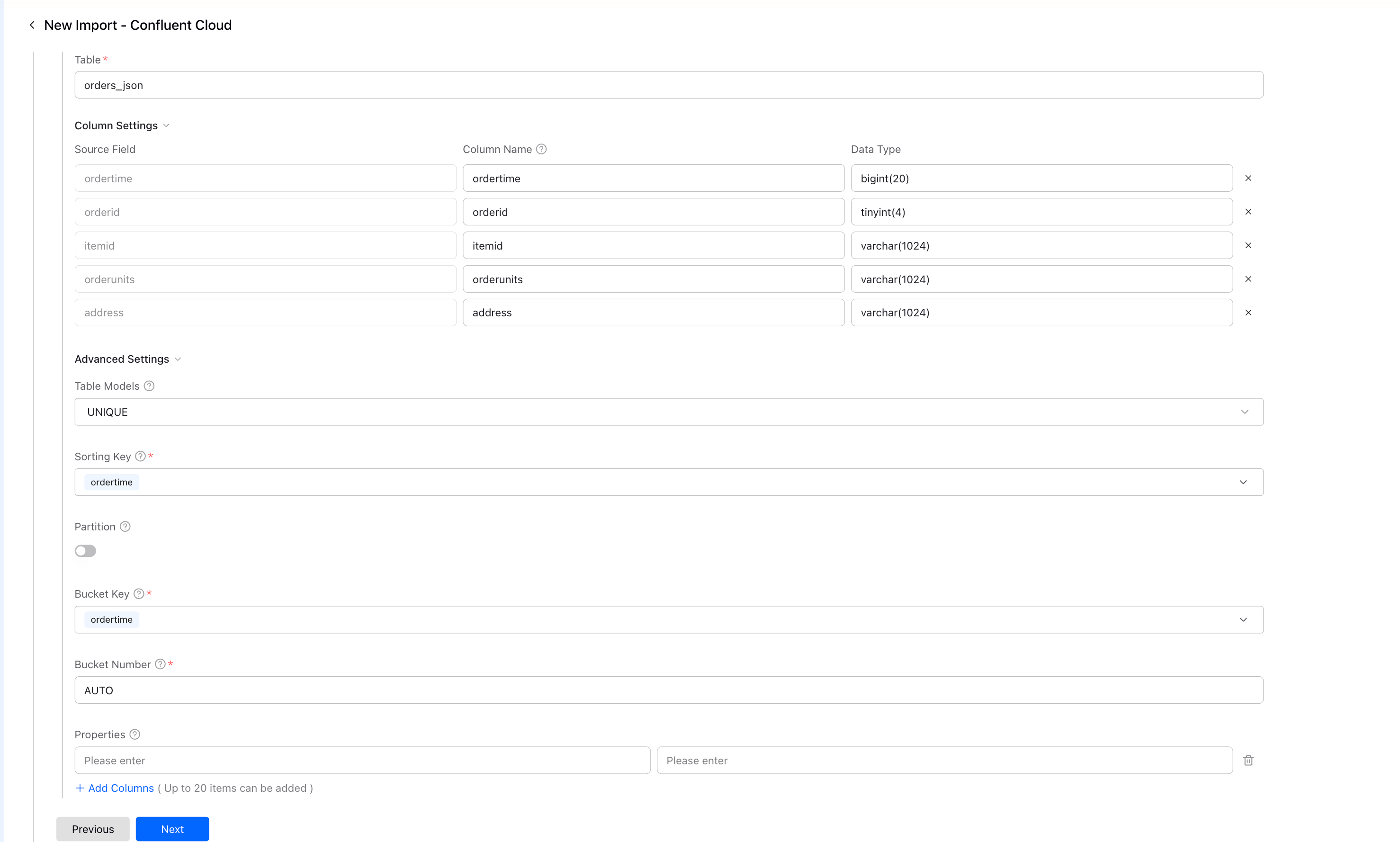
| Setting | Description |
|---|---|
| Source Field | JSON field from Kafka messages |
| Column Name | VeloDB table column name |
| Data Type | VeloDB data type (auto-detected) |
Advanced Settings
| Setting | Description |
|---|---|
| Table Models | DUPLICATE for append-only, UNIQUE for upserts |
| Sorting Key | Column(s) for data ordering |
| Bucket Key | Column(s) for data distribution |
| Bucket Number | AUTO recommended |
Click Next to continue.
Step 6: Configure Settings
Adjust the import job settings:
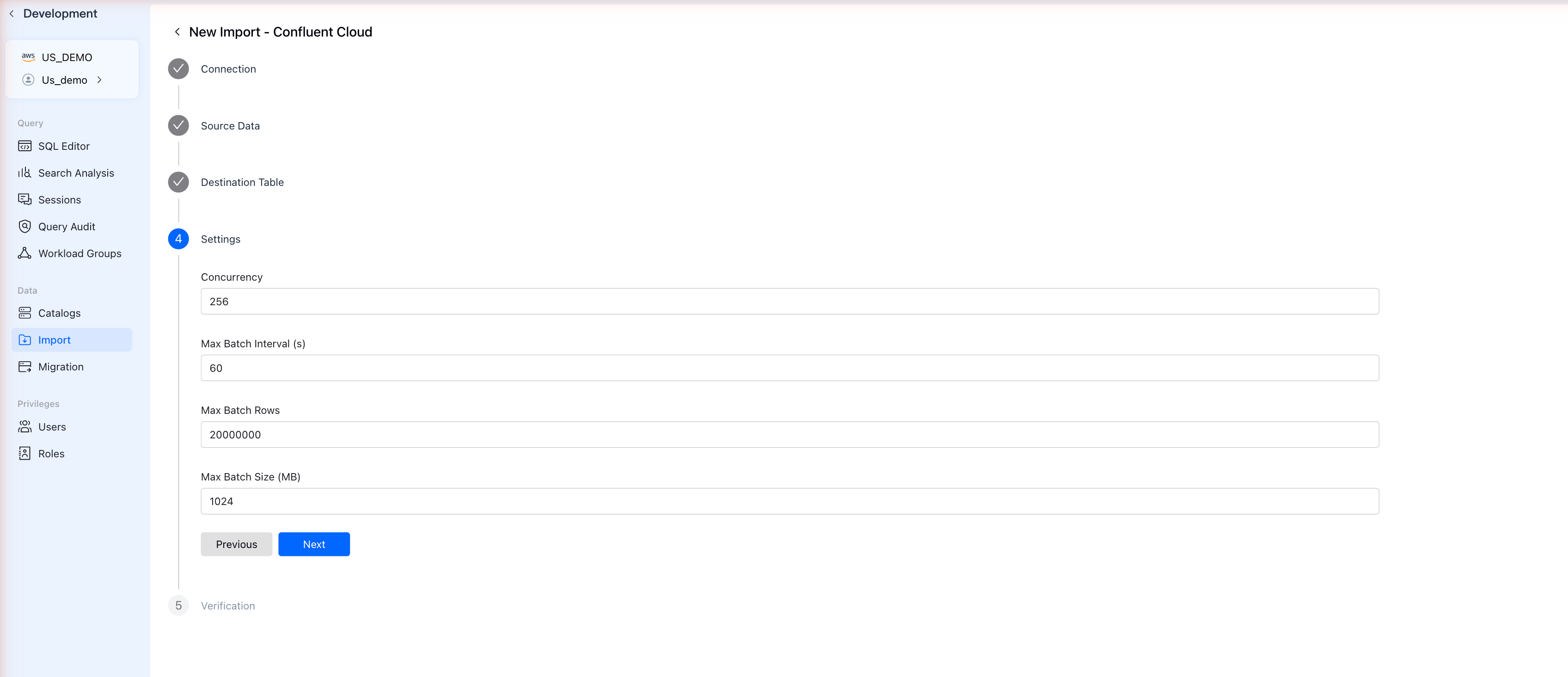
| Setting | Default | Description |
|---|---|---|
| Concurrency | 256 | Number of parallel consumers |
| Max Batch Interval (s) | 60 | Maximum wait time before committing |
| Max Batch Rows | 20000000 | Maximum rows per batch |
| Max Batch Size (MB) | 1024 | Maximum batch size |
The defaults work well for most use cases. Click Next to proceed.
Step 7: Verification
VeloDB validates your configuration:
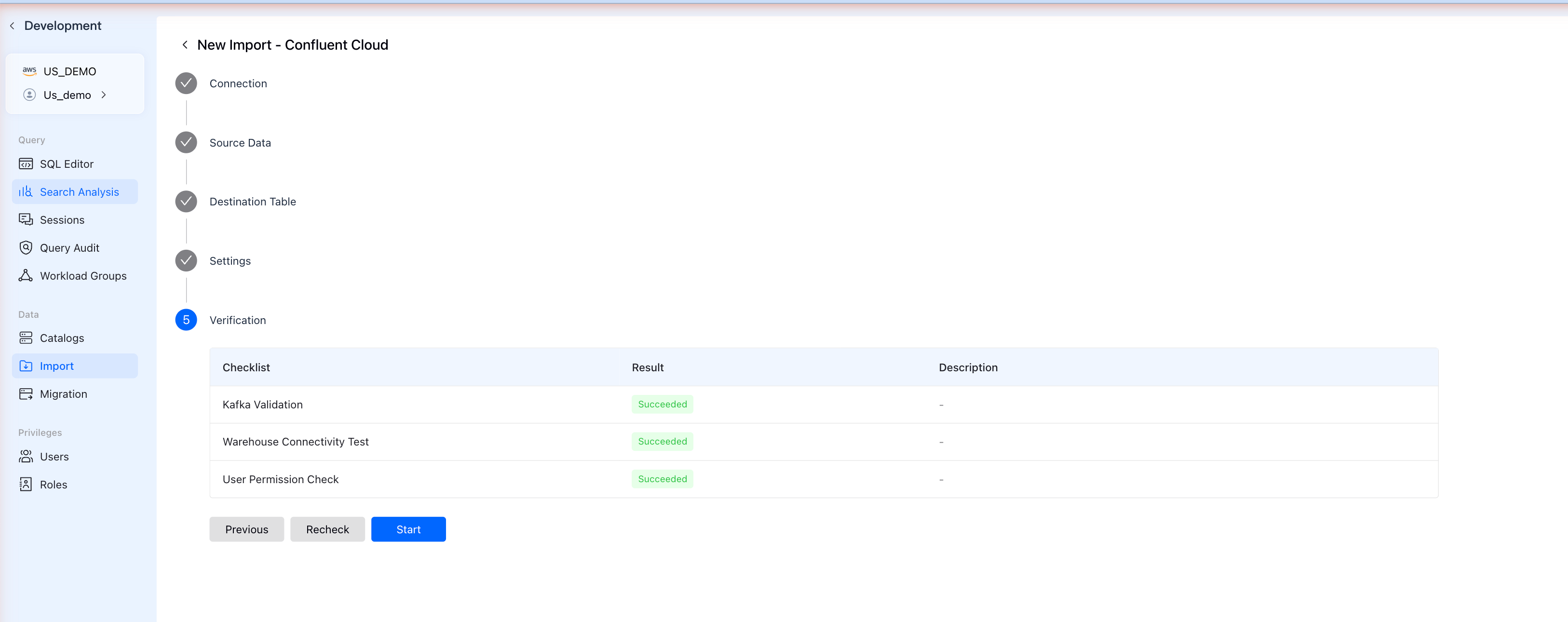
The checklist verifies:
- Kafka Validation - Connection to Confluent Cloud
- Warehouse Connectivity Test - VeloDB can reach Kafka
- User Permission Check - You have permission to create the import
If all checks show Succeeded, click Start to begin streaming data.
Verify Data Import
After starting the import, verify data is flowing:
Check Import Status
Go to Import in the sidebar to see your job status:
- RUNNING - Job is actively consuming data
- PAUSED - Job is paused (check for errors)
Query Your Data
Navigate to SQL Editor and run:
-- Check row count
SELECT COUNT(*) FROM your_database.your_table;

-- View sample data
SELECT * FROM your_database.your_table LIMIT 10;
Manage Import Jobs
| Action | How |
|---|---|
| Pause | Click the job, then Pause |
| Resume | Click the job, then Resume |
| Delete | Click the job, then Delete |
Or use SQL:
-- Pause job
PAUSE ROUTINE LOAD FOR database.job_name;

-- Resume job
RESUME ROUTINE LOAD FOR database.job_name;

-- Stop job
STOP ROUTINE LOAD FOR database.job_name;

-- View job status
SHOW ROUTINE LOAD FOR database.job_name;
Troubleshooting
| Issue | Solution |
|---|---|
| "Incorrect credentials" | Verify API Key and Secret from Confluent Cloud |
| "Broker transport failure" | Ensure SASL Mechanism is set to PLAIN |
| "Topic not found" | Check topic name matches exactly (case-sensitive) |
| JSON parse error | Ensure your Confluent topic uses JSON format, not AVRO |
| Job paused with errors | Check SHOW ROUTINE LOAD for error details |
References
- Confluent Cloud Setup Guide
- Kafka Integration Guide - For SQL-based setup and other Kafka providers
- CREATE ROUTINE LOAD