Confluent Cloud Setup
This guide covers setting up a Confluent Cloud Kafka cluster with sample data for connecting to VeloDB.
Prerequisites
- Confluent Cloud account (Sign up free)
Step 1: Create a Kafka Cluster
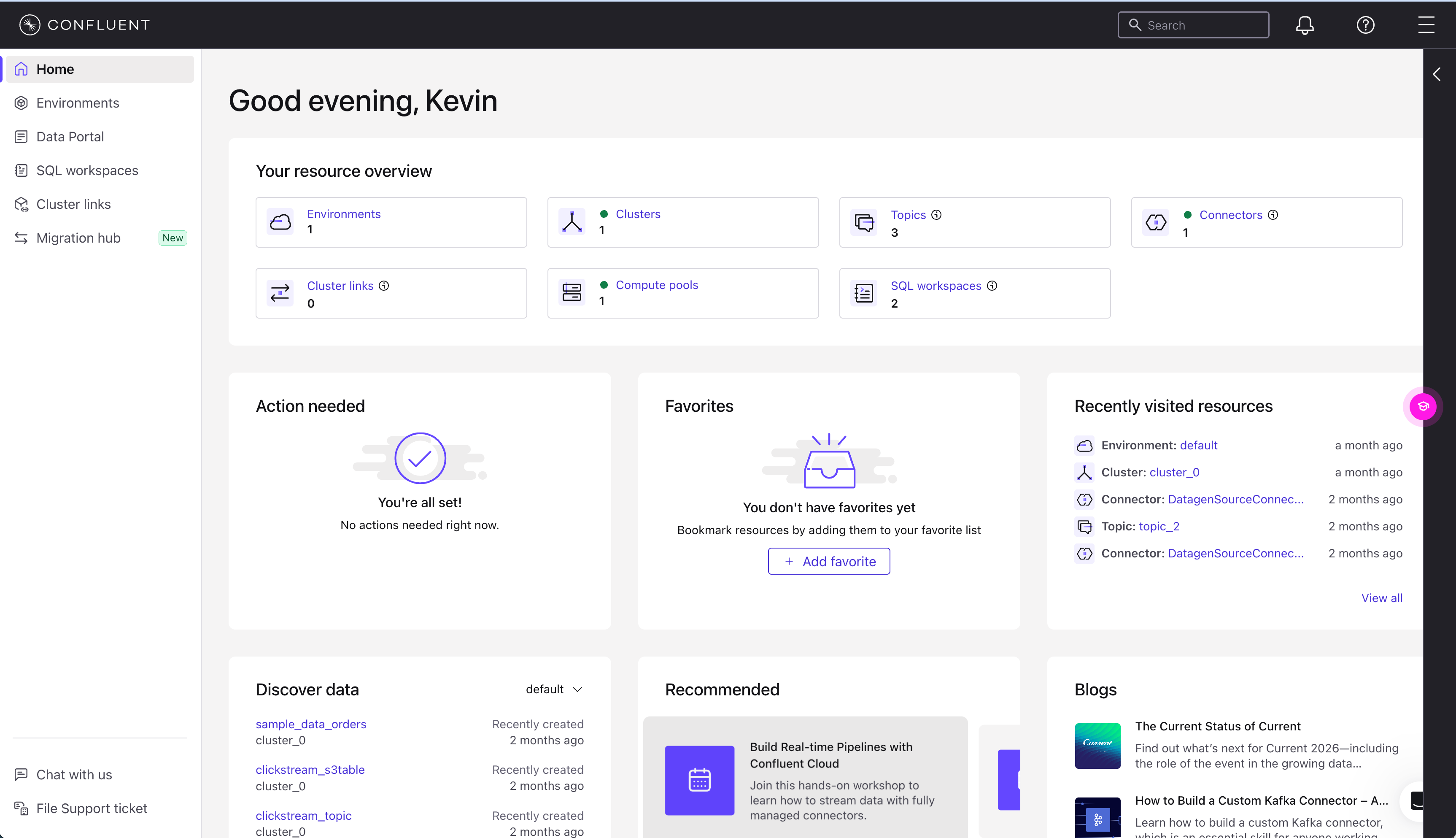
- Log in to Confluent Cloud
-
Click Add cluster or navigate to Environments > default > Add cluster
-
Select cluster type:
- Basic - Free tier, good for development and testing
- Standard - Production workloads with higher limits
-
Choose Provider and region:
- Select the same cloud provider and region as your VeloDB warehouse for best performance
- Example: AWS us-east-1
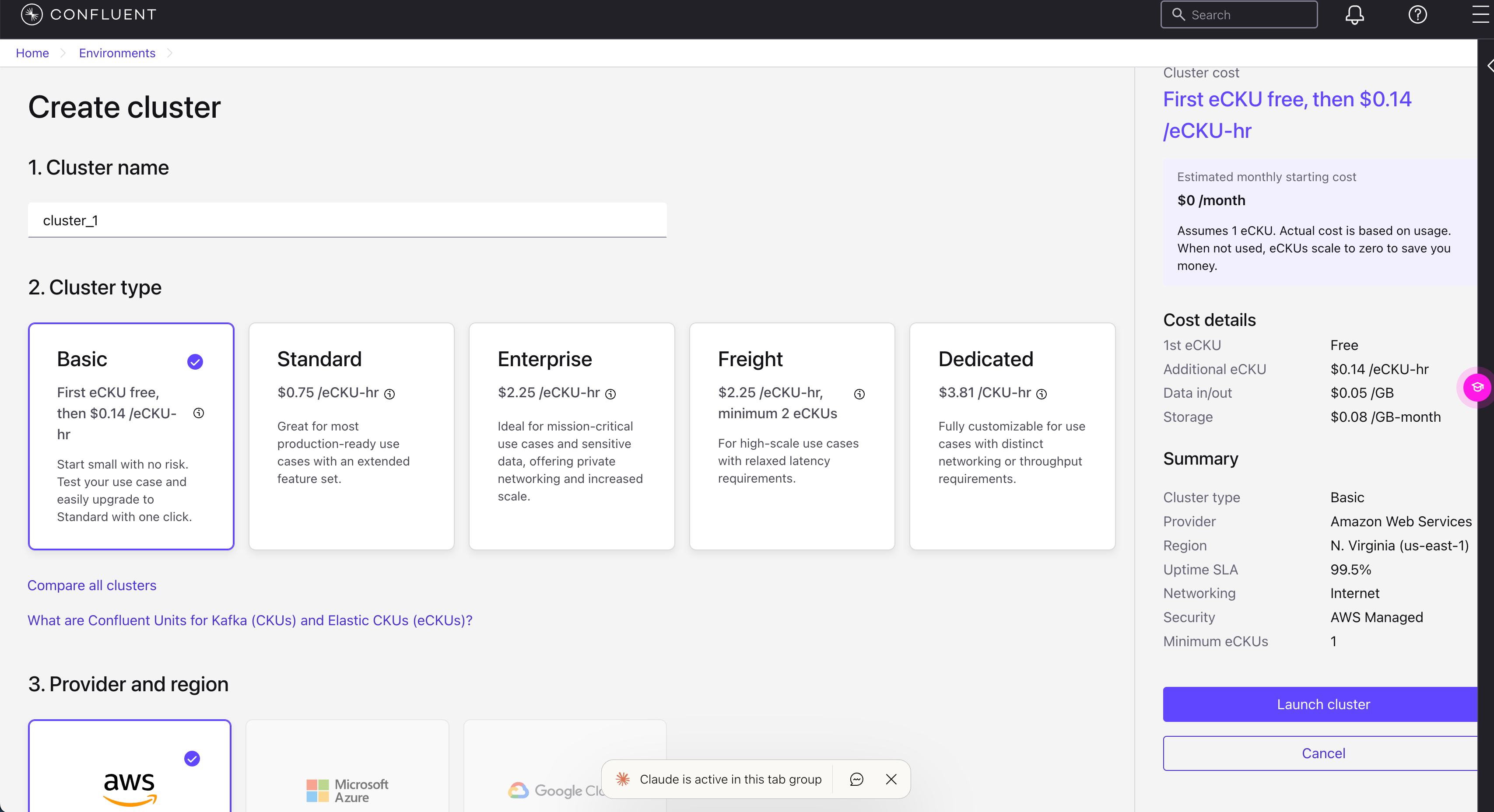
- Click Launch cluster
Step 2: Create Sample Data with Datagen
Use Confluent's built-in Datagen connector to generate sample data:
-
In your cluster, go to Connectors in the left sidebar
-
Click Add connector
-
Search for Sample Data or Datagen Source
-
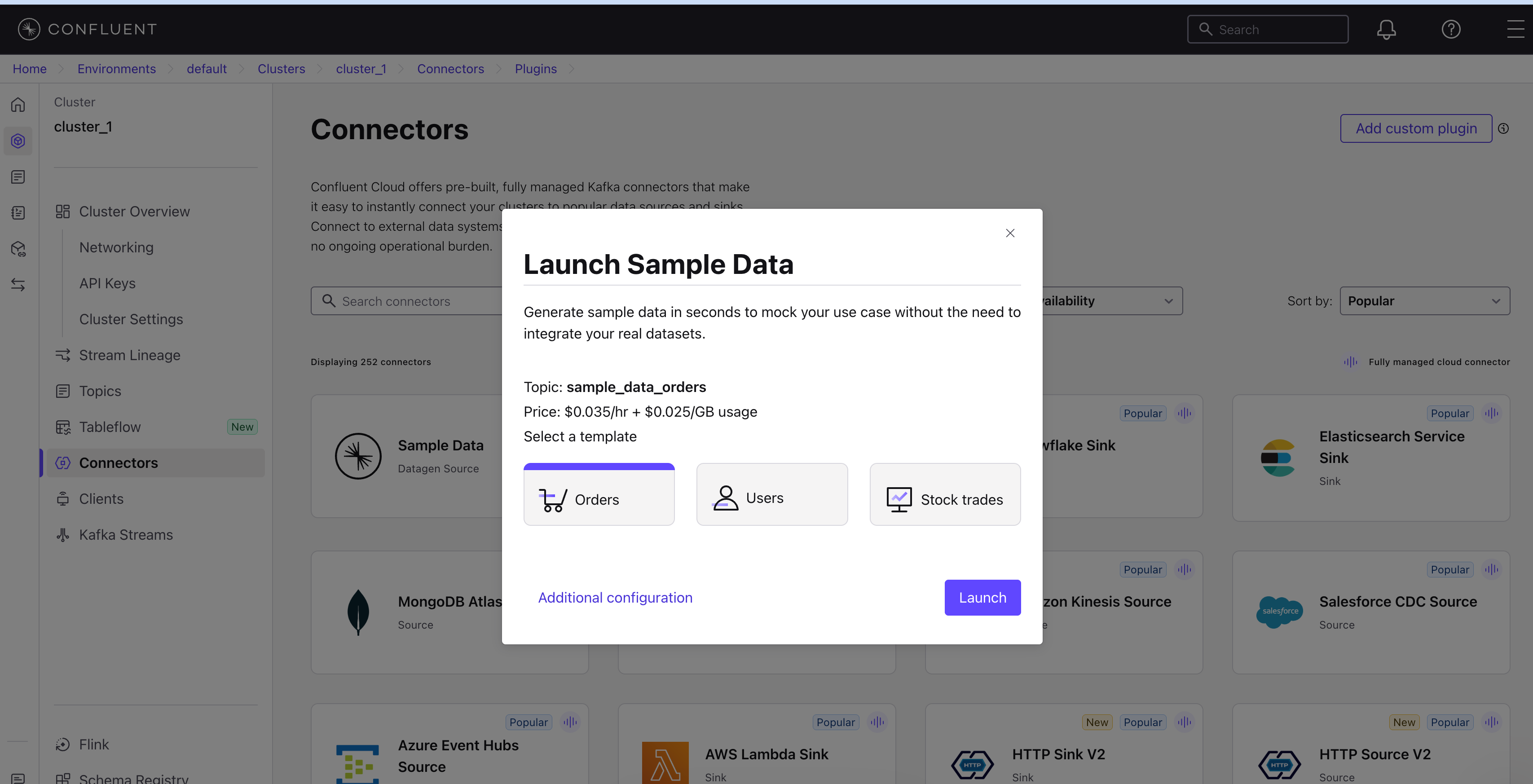
Click on Sample Data to open the quick launch dialog
-
Configure the connector:
- Topic:
sample_data_orders(or your preferred name) - Select a template: Choose Orders (recommended for this guide)
- Topic:
-
Click Launch
-
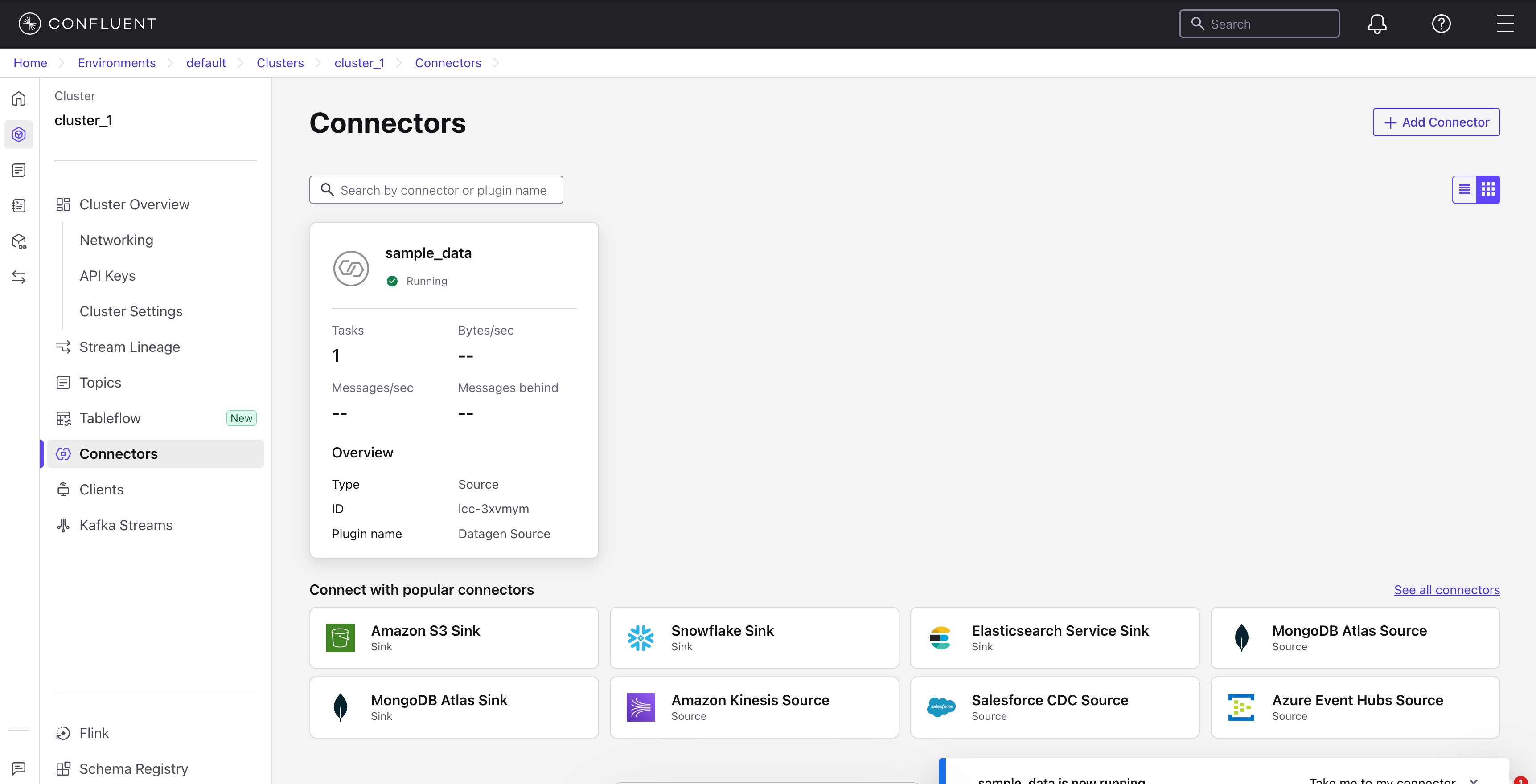
Wait for the connector status to show Running
The default Datagen connector produces AVRO format. VeloDB only supports JSON and CSV formats.
To use JSON format, click Additional configuration before launching and set:
- Output record value format:
JSON
If you already created the connector with AVRO, create a new topic with a new Datagen connector configured for JSON output.
Step 3: Create API Keys
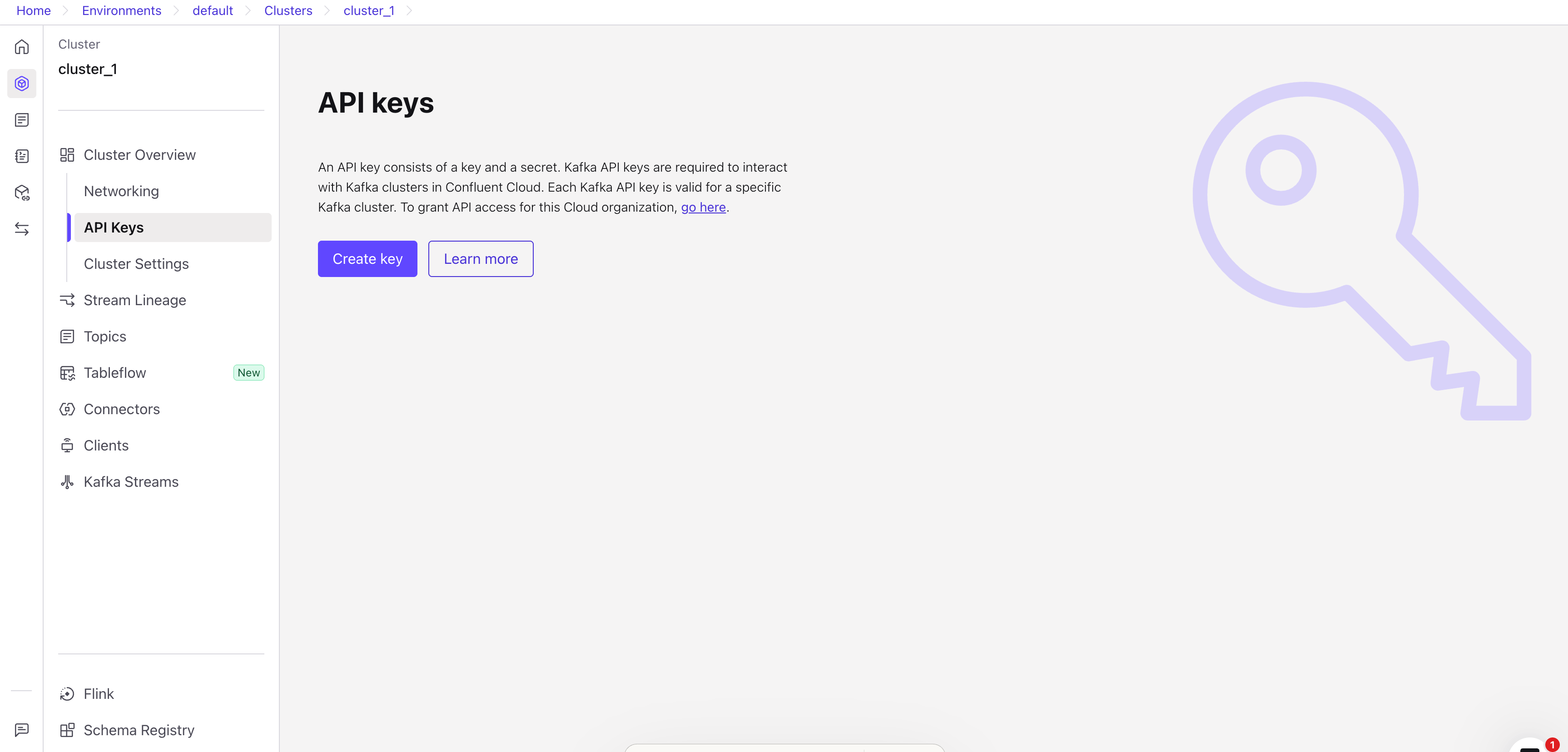
- Go to API Keys in the left sidebar under your cluster
-
Click Create key
-
Select Global access (or scope to specific resources)
-
Click Next and then Create
-
Save both values - you'll need them for VeloDB:
- API Key (username)
- API Secret (password)
The API Secret is only shown once. Save it securely before closing the dialog.
Step 4: Get Bootstrap Server
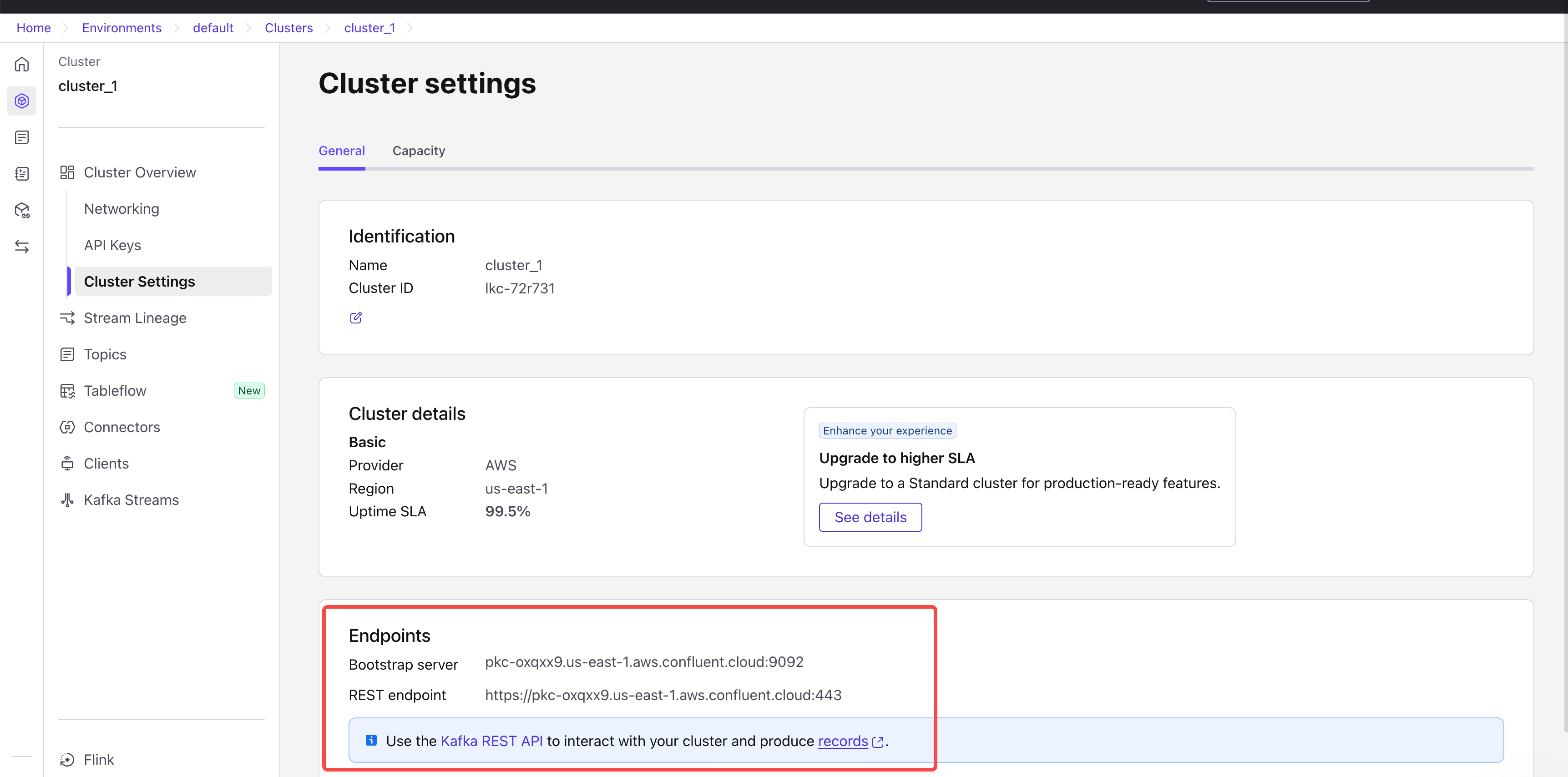
- Go to Cluster Settings in the left sidebar
-
Find the Endpoints section
-
Copy the Bootstrap server URL (e.g.,
pkc-xxxxx.us-east-1.aws.confluent.cloud:9092)
Values Needed for VeloDB
After completing setup, you'll need these values:
| Value | Description | Example |
|---|---|---|
| Bootstrap Server | Kafka broker endpoint | pkc-xxxxx.us-east-1.aws.confluent.cloud:9092 |
| API Key | Authentication username | ABCD1234EFGH5678 |
| API Secret | Authentication password | cflt37r+oeQB... |
| Topic Name | Topic to consume from | sample_data_orders |
Verify Your Setup
Check that your connector is producing data:
- Go to Topics in the left sidebar
- Click on your topic (e.g.,
sample_data_orders) - Go to the Messages tab
- You should see messages being produced
Next Steps
Once your Confluent Cloud setup is complete, proceed to Connect to Confluent Cloud to set up the streaming import in VeloDB.