Ingesting data from Kafka to VeloDB (using Routine Load)
Routine Load creates a persistent streaming job that continuously consumes messages from Kafka topics and loads them into VeloDB tables.
Prerequisites
VeloDB Cloud Account (Required)
You need a VeloDB Cloud account with an active cluster. If you don't have one, follow the VeloDB Quick Start Guide to create your account and cluster.
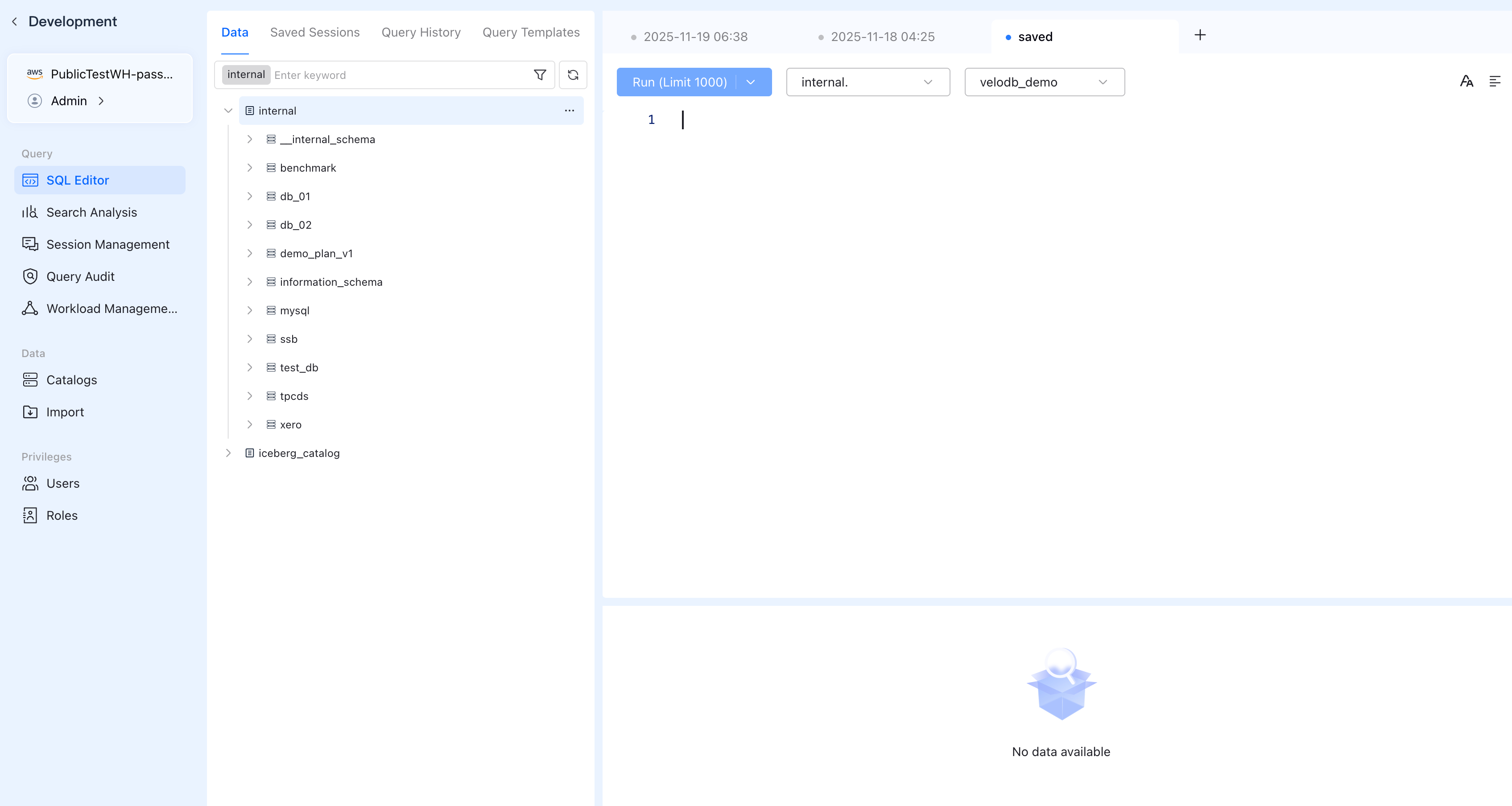
To run SQL queries and create databases in VeloDB, use the built-in SQL Editor in the VeloDB Console sidebar:
Kafka Source Requirements
| Requirement | Details |
|---|---|
| Kafka Version | 0.10.0.0 or higher (recommended) |
| Data Format | JSON or CSV |
| Network Access | Public endpoint or Private Link to VeloDB |
Cloud Kafka Providers
- Confluent Cloud
- Generic Kafka
- Amazon MSK
- Redpanda Cloud
Network: Public access enabled by default
Authentication: SASL/PLAIN with API Key and Secret
SSL Certificate: Not required (disable certificate verification)
Setup:
- Get Bootstrap server from Cluster Settings
- Create API Key in Cluster Overview → API Keys
- For sample data, use Datagen Source connector with JSON format
Network: Ensure VeloDB Cloud can reach your Kafka brokers (public IP or Private Link)
Authentication Options:
- SASL_SSL with SCRAM-SHA-512 (recommended for secure connections)
- PLAINTEXT for internal/trusted networks without authentication
SSL Certificate: Use your Kafka cluster's CA certificate
Network: Enable "Public access" in cluster settings, or use Private Link
Authentication: SASL/SCRAM-SHA-512 (store credentials in AWS Secrets Manager)
SSL Certificate: Amazon Root CA 1
Network: Public access enabled by default
Authentication: SASL/SCRAM-SHA-512
SSL Certificate: ISRG Root X1 (Let's Encrypt)
User Setup:
- Create user in Redpanda Console → Security → Users
- Select SCRAM-SHA-512 as the mechanism
- Grant ACL permissions via
rpkCLI:
rpk security acl create \
  --allow-principal "User:<USERNAME>" \
  --operation read,describe \
  --topic <YOUR_TOPIC> \
  --group "*"
- Confluent Cloud: Uses SASL/PLAIN authentication with API Key/Secret
- Other Kafka providers: Use SCRAM-SHA-512 (not SCRAM-SHA-256, which will fail with "Broker transport failure" errors)
1. Create SSL Certificate in VeloDB
In the SQL Editor, use CREATE FILE to upload the SSL certificate.
The certificate file must be created in the same database where you will create the Routine Load job. First create or select your database, then create the file.
- Confluent Cloud
- Generic Kafka
- Amazon MSK
- Redpanda Cloud
No SSL certificate required. Confluent Cloud handles SSL internally.
Skip this step and proceed to Create Target Table.
When creating the Routine Load job, use:
"property.enable.ssl.certificate.verification" = "false"
Upload your Kafka cluster's CA certificate. If your certificate is accessible via URL:
-- Create database first (if not exists)
CREATE DATABASE IF NOT EXISTS demo;
USE demo;

-- Create SSL certificate in this database
CREATE FILE "kafka-ca.pem"
PROPERTIES (
    "url" = "https://your-domain.com/path/to/ca.pem",
    "catalog" = "internal"
);
Or check CREATE FILE for uploading local certificates.
-- Create database first (if not exists)
CREATE DATABASE IF NOT EXISTS demo;
USE demo;

-- Create SSL certificate in this database
CREATE FILE "AmazonRootCA1.pem"
PROPERTIES (
    "url" = "https://www.amazontrust.com/repository/AmazonRootCA1.pem",
    "catalog" = "internal"
);
-- Create database first (if not exists)
CREATE DATABASE IF NOT EXISTS demo;
USE demo;

-- Create SSL certificate in this database
CREATE FILE "isrgrootx1.pem"
PROPERTIES (
    "url" = "https://letsencrypt.org/certs/isrgrootx1.pem",
    "catalog" = "internal"
);
After creating the file, it can be referenced in Routine Load as FILE:<filename>.pem.
To check existing certificates in current database: SHOW FILE;
2. (Optional) Create Sample Topic with Data
If you don't have an existing Kafka topic, create one with sample data for testing.
- Confluent Cloud
- Kafka CLI
- Redpanda (rpk)
Use the Datagen Source connector in Confluent Cloud Console:
- Go to Connectors in your cluster
- Click Add connector → search for Datagen Source
- Configure:
- Topic: Enter a topic name (e.g.,
orders) - Output record value format: Select JSON (required - VeloDB does not support AVRO)
- Template: Choose a template (e.g.,
Orders,Users,Pageviews)
- Topic: Enter a topic name (e.g.,
- Click Continue through the remaining steps
- Launch the connector
The connector will automatically create the topic and produce sample messages.
Select JSON as the output format. AVRO and JSON_SR formats are not supported by VeloDB Routine Load.
# Create topic
kafka-topics.sh --create --topic clickstream \
  --bootstrap-server <BROKER>:9092 \
  --partitions 3 --replication-factor 1

# Produce sample messages
echo '{"event_time": "2025-01-15 10:30:00", "user_id": 1001, "event_type": "page_view", "page": "/home"}
{"event_time": "2025-01-15 10:31:00", "user_id": 1002, "event_type": "click", "page": "/products"}
{"event_time": "2025-01-15 10:32:00", "user_id": 1001, "event_type": "purchase", "page": "/checkout"}' | \
kafka-console-producer.sh --topic clickstream --bootstrap-server <BROKER>:9092
# Create topic
rpk topic create clickstream

# Produce sample messages
echo '{"event_time": "2025-01-15 10:30:00", "user_id": 1001, "event_type": "page_view", "page": "/home"}
{"event_time": "2025-01-15 10:31:00", "user_id": 1002, "event_type": "click", "page": "/products"}
{"event_time": "2025-01-15 10:32:00", "user_id": 1001, "event_type": "purchase", "page": "/checkout"}' | rpk topic produce clickstream

# Verify messages
rpk topic consume clickstream --num 3
3. Create Target Table in VeloDB
Design your VeloDB table schema based on your Kafka message format.
Schema Mapping: Kafka to VeloDB
JSON Message Example:
{"event_time": "2025-01-15 10:30:00", "user_id": 1001, "event_type": "page_view", "page": "/home"}
Mapping to VeloDB Table:
| Kafka JSON Field | JSON Type | VeloDB Column | VeloDB Type |
|---|---|---|---|
event_time | string | event_time | DATETIME |
user_id | number | user_id | BIGINT |
event_type | string | event_type | VARCHAR(50) |
page | string | page | VARCHAR(255) |
Type Mapping Reference
For complete VeloDB data types, see Data Type Overview.
| Kafka/JSON Type | VeloDB Type |
|---|---|
| string (datetime) | DATETIME, DATE |
| string | VARCHAR(n), STRING, TEXT |
| integer | INT, BIGINT, SMALLINT, TINYINT |
| number (decimal) | DOUBLE, FLOAT, DECIMAL(p,s) |
| boolean | BOOLEAN |
| nested object | JSON, VARIANT |
| array | ARRAY<T>, JSON |
Create the Table
In the SQL Editor, create the database and table:
CREATE DATABASE IF NOT EXISTS demo;

USE demo;

CREATE TABLE events (
    event_time DATETIME NOT NULL,
    user_id BIGINT NOT NULL,
    event_type VARCHAR(50),
    page VARCHAR(255)
)
DUPLICATE KEY(event_time, user_id)
DISTRIBUTED BY HASH(user_id) BUCKETS 10;
The jsonpaths parameter in Routine Load maps JSON fields to table columns in order. Ensure your table columns match the order specified in jsonpaths.
4. Create Routine Load Job
Use CREATE ROUTINE LOAD to start consuming from Kafka:
- Confluent Cloud
- Cloud Kafka (SASL_SSL)
- Self-hosted Kafka (No Auth)
- CSV Format
CREATE ROUTINE LOAD demo.kafka_load ON events
COLUMNS(event_time, user_id, event_type, page)
PROPERTIES (
    "format" = "json",
    "jsonpaths" = "[\"$.event_time\",\"$.user_id\",\"$.event_type\",\"$.page\"]"
)
FROM KAFKA (
    "kafka_broker_list" = "<BOOTSTRAP_SERVER>",
    "kafka_topic" = "<YOUR_TOPIC>",
    "property.kafka_default_offsets" = "OFFSET_BEGINNING",
    "property.security.protocol" = "SASL_SSL",
    "property.sasl.mechanism" = "PLAIN",
    "property.sasl.username" = "<API_KEY>",
    "property.sasl.password" = "<API_SECRET>",
    "property.enable.ssl.certificate.verification" = "false",
    "property.group.id" = "velodb-consumer"
);
Replace the placeholders:
| Placeholder | Example |
|---|---|
<BOOTSTRAP_SERVER> | pkc-xxxxx.us-east-1.aws.confluent.cloud:9092 |
<YOUR_TOPIC> | orders |
<API_KEY> | Your Confluent Cloud API Key |
<API_SECRET> | Your Confluent Cloud API Secret |
- Bootstrap server: Cluster Overview → Cluster Settings
- API Key/Secret: Cluster Overview → API Keys → Create key
Confluent Cloud Datagen connector must use JSON format. AVRO and JSON_SR formats are not supported by VeloDB Routine Load.
CREATE ROUTINE LOAD demo.kafka_load ON events
COLUMNS(event_time, user_id, event_type, page)
PROPERTIES (
    "format" = "json",
    "jsonpaths" = "[\"$.event_time\",\"$.user_id\",\"$.event_type\",\"$.page\"]"
)
FROM KAFKA (
    "kafka_broker_list" = "<YOUR_BROKER>:9092",
    "kafka_topic" = "<YOUR_TOPIC>",
    "property.kafka_default_offsets" = "OFFSET_BEGINNING",
    "property.security.protocol" = "SASL_SSL",
    "property.sasl.mechanism" = "SCRAM-SHA-512",
    "property.sasl.username" = "<YOUR_USERNAME>",
    "property.sasl.password" = "<YOUR_PASSWORD>",
    "property.ssl.ca.location" = "FILE:isrgrootx1.pem",
    "property.group.id" = "velodb-consumer"
);
Replace the placeholders:
| Placeholder | Example |
|---|---|
<YOUR_BROKER> | abc123.any.us-west-2.mpx.prd.cloud.redpanda.com (Redpanda) |
<YOUR_TOPIC> | clickstream |
<YOUR_USERNAME> | velodb-user |
<YOUR_PASSWORD> | your-password |
Run rpk cluster info to see your broker addresses, or find it in Redpanda Console → Overview.
CREATE ROUTINE LOAD demo.kafka_load ON events
COLUMNS(event_time, user_id, event_type, page)
PROPERTIES (
    "format" = "json",
    "jsonpaths" = "[\"$.event_time\",\"$.user_id\",\"$.event_type\",\"$.page\"]"
)
FROM KAFKA (
    "kafka_broker_list" = "<YOUR_BROKER>:9092",
    "kafka_topic" = "<YOUR_TOPIC>",
    "property.kafka_default_offsets" = "OFFSET_BEGINNING",
    "property.group.id" = "velodb-consumer"
);
CREATE ROUTINE LOAD demo.kafka_load ON events
COLUMNS TERMINATED BY ",",
COLUMNS(event_time, user_id, event_type, page)
FROM KAFKA (
    "kafka_broker_list" = "<YOUR_BROKER>:9092",
    "kafka_topic" = "<YOUR_TOPIC>",
    "property.kafka_default_offsets" = "OFFSET_BEGINNING",
    "property.security.protocol" = "SASL_SSL",
    "property.sasl.mechanism" = "SCRAM-SHA-512",
    "property.sasl.username" = "<YOUR_USERNAME>",
    "property.sasl.password" = "<YOUR_PASSWORD>",
    "property.ssl.ca.location" = "FILE:isrgrootx1.pem",
    "property.group.id" = "velodb-consumer"
);
5. Verify
Check Routine Load job status:
SHOW ROUTINE LOAD FOR demo.kafka_load;
Expected output shows RUNNING state:
+-------+-------------+-----------+--------+-----------+
| Id    | Name        | TableName | State  | DataSource|
+-------+-------------+-----------+--------+-----------+
| 12345 | kafka_load  | events    | RUNNING| KAFKA     |
+-------+-------------+-----------+--------+-----------+
Check loaded data:
SELECT * FROM demo.events ORDER BY event_time LIMIT 10;
Expected result:
+---------------------+---------+------------+------------+
| event_time          | user_id | event_type | page       |
+---------------------+---------+------------+------------+
| 2025-01-15 10:30:00 |    1001 | page_view  | /home      |
| 2025-01-15 10:31:00 |    1002 | click      | /products  |
| 2025-01-15 10:32:00 |    1001 | purchase   | /checkout  |
+---------------------+---------+------------+------------+
Monitor task progress:
SHOW ROUTINE LOAD TASK WHERE JobName = "kafka_load";
6. Manage Routine Load Jobs
| Action | SQL Command |
|---|---|
| Pause job | PAUSE ROUTINE LOAD FOR demo.kafka_load; |
| Resume job | RESUME ROUTINE LOAD FOR demo.kafka_load; |
| Stop job | STOP ROUTINE LOAD FOR demo.kafka_load; |
| View all jobs | SHOW ALL ROUTINE LOAD; |
Network Connectivity
Option 1: Public Network Access
Use the public endpoint provided by your Kafka provider. Ensure VeloDB Cloud can reach the broker on port 9092 (or your configured port).
Option 2: Private Link (Recommended for Production)
For production workloads, configure Private Link to keep traffic within the cloud provider's network:
- Navigate to Settings → Endpoint Services in VeloDB Console
- Create a Private Link connection to your Kafka provider
- Use the private endpoint in your
kafka_broker_list
Routine Load Parameters
| Parameter | Description |
|---|---|
kafka_broker_list | Kafka broker addresses (comma-separated for multiple) |
kafka_topic | Topic to consume from |
property.security.protocol | SASL_SSL for cloud Kafka, PLAINTEXT for no auth |
property.sasl.mechanism | PLAIN for Confluent Cloud, SCRAM-SHA-512 for others (not SCRAM-SHA-256) |
property.sasl.username | SASL username |
property.sasl.password | SASL password |
property.ssl.ca.location | Path to uploaded CA certificate (e.g., FILE:isrgrootx1.pem). Not needed for Confluent Cloud |
property.enable.ssl.certificate.verification | Set to false for Confluent Cloud (no certificate needed) |
property.group.id | Consumer group ID |
property.kafka_default_offsets | OFFSET_BEGINNING, OFFSET_END, or specific offset |
Troubleshooting
| Issue | Solution |
|---|---|
| "Broker transport failure" | For Confluent Cloud: use PLAIN. For others: use SCRAM-SHA-512 (not SCRAM-SHA-256) |
| "SSL handshake failed" | Verify CA certificate matches your provider (ISRG Root X1 for Redpanda, Amazon Root CA 1 for MSK) |
| "Authentication failed" | Check username/password, ensure user has topic permissions |
| "Topic authorization failed" | Grant ACL permissions: rpk security acl create --allow-principal "User:xxx" --operation read,describe --topic xxx --group "*" |
| Connection timeout | Enable public access or configure Private Link |
| Job auto-paused: "max_error_number exceeded" | Schema mismatch between JSON and table. Check jsonpaths matches your JSON fields. Add "max_filter_ratio" = "0.5" to tolerate some errors |
Job status shows PAUSED | Check reason with SHOW ROUTINE LOAD FOR <job_name>; then fix and run RESUME ROUTINE LOAD FOR <job_name>; |
| File already exists | Check existing files with SHOW FILE; before creating |
Debugging Tips
Check job error details:
SHOW ROUTINE LOAD FOR demo.kafka_load;
-- Look at ReasonOfStateChanged and ErrorLogUrls columns
View task-level status:
SHOW ROUTINE LOAD TASK WHERE JobName = "kafka_load";
Test with new messages only (skip old data):
-- Use OFFSET_END to start from latest messages
"property.kafka_default_offsets" = "OFFSET_END"
References
- Routine Load Manual
- CREATE ROUTINE LOAD
- CREATE FILE
- Doris Kafka Connector (alternative method using Kafka Connect)