Import Data via Console
This guide walks you through importing data from object storage (AWS S3, Google Cloud Storage, Azure Blob Storage) into VeloDB using the Console visual interface.
Prerequisites
Before starting, ensure you have:
- Object storage bucket with data files
- Access credentials (Access Key ID and Secret Access Key)
- VeloDB Cloud account with an active cluster (see Quick Start)
Try it with Sample Data
Use these credentials to try the S3 import with our sample dataset:
| Field | Value |
|---|---|
| AK | AKIA3AUKURBS74337SNB |
| SK | ygbR1HGNvMZDTo4DNUWJx0mblpMTF+QpBCCBfxFF |
| Object Storage Path | https://velodb-import-data-us-east-1.s3.us-east-1.amazonaws.com/ssb-flat-sf1/*.parquet |
This sample dataset contains SSB (Star Schema Benchmark) data - a widely used benchmark for analytical databases. The dataset includes ~6 million rows of denormalized sales data with 42 columns covering orders, customers, suppliers, and products.
SSB Dataset Schema (42 columns)
| Column Group | Columns |
|---|---|
| Order | lo_orderkey, lo_linenumber, lo_orderdate, lo_commitdate, lo_orderpriority, lo_shippriority, lo_shipmode, lo_year, lo_month, lo_weeknum |
| Metrics | lo_quantity, lo_extendedprice, lo_discount, lo_revenue, lo_supplycost, lo_tax |
| Date | d_datekey, d_dayofweek, d_month, d_yearmonth |
| Customer | c_custkey, c_name, c_nation, c_region, c_city, c_mktsegment |
| Supplier | s_suppkey, s_name, s_nation, s_region, s_city |
| Product | p_partkey, p_name, p_brand, p_category, p_mfgr, p_color, p_type, p_size, p_container |
This is read-only sample data. You can use it to follow along with the tutorial steps below.
Step 1: Connection
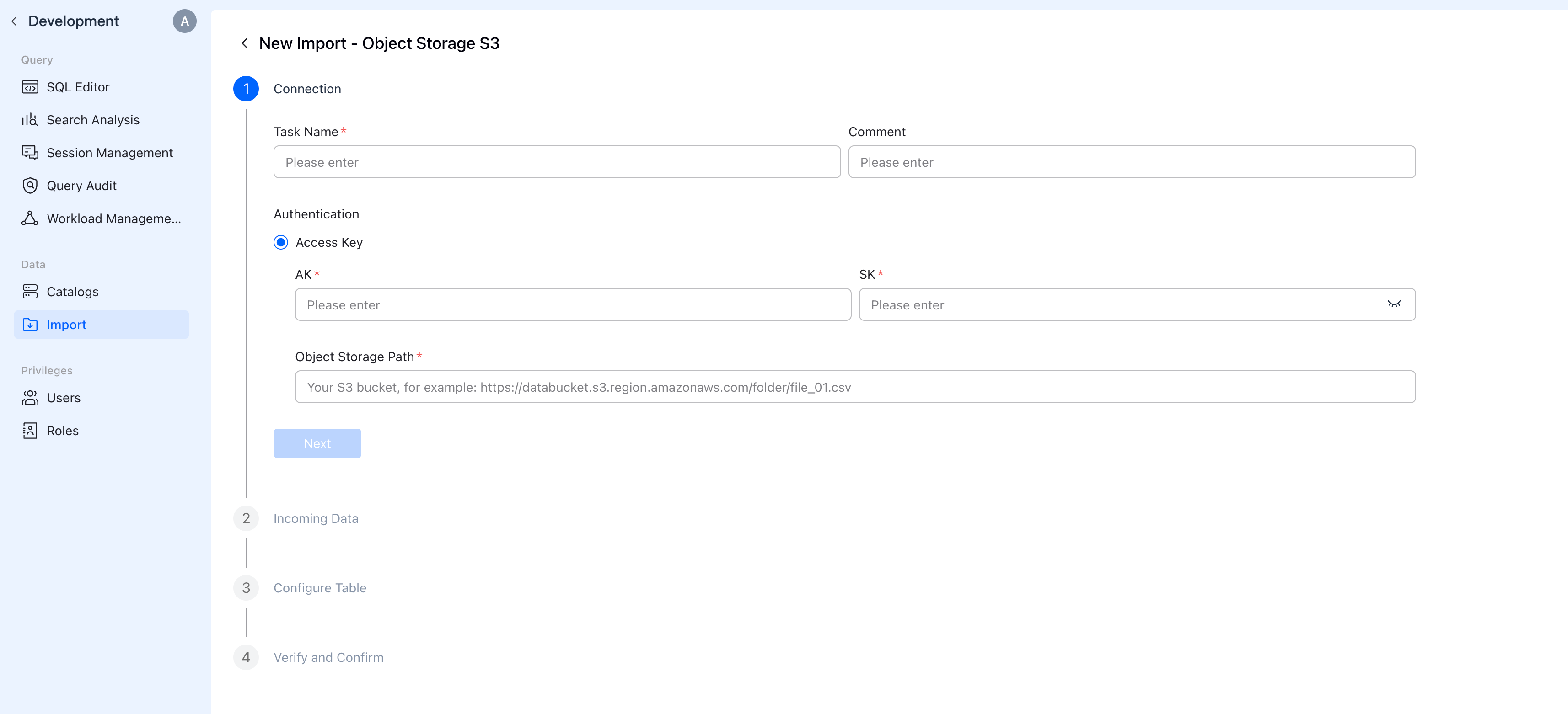
Navigate to Data > Import in the VeloDB Console sidebar, then click Create new and select Object Storage S3.
Configuration
| Field | Description |
|---|---|
| Task Name | A unique name for this import task (e.g., sales_data, user_logs) |
| Comment | (optional) Description of the import task |
| Authentication | Select Access Key authentication |
| AK | Your Access Key ID (e.g., AKIAIOSFODNN7EXAMPLE) |
| SK | Your Secret Access Key |
| Object Storage Path | URL to your data (see format below) |
Object Storage Path Format
https://<bucket-name>.s3.<region>.amazonaws.com/<path>/<filename>
Example path formats (replace with your actual bucket and file paths):
- Single file:
https://my-bucket.s3.us-west-1.amazonaws.com/data/orders.csv - Multiple files with wildcard:
https://my-bucket.s3.us-west-1.amazonaws.com/data/*.csv - Parquet files:
https://my-bucket.s3.us-west-1.amazonaws.com/warehouse/*.parquet
The object storage bucket must be in the same region as your VeloDB cluster for optimal performance.
Click Next to proceed.
Step 2: Incoming Data
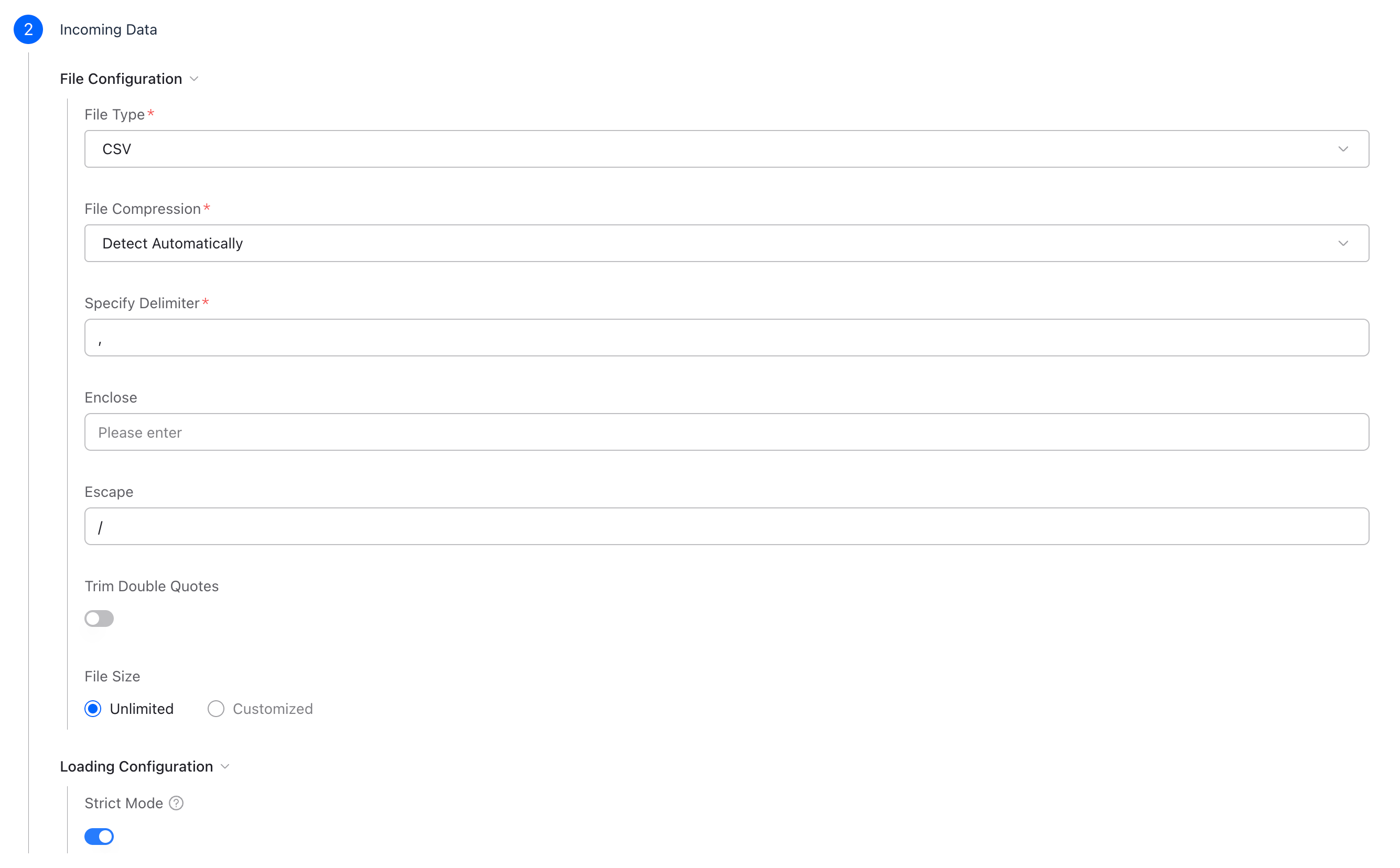
Configure how VeloDB should parse your data files.
File Configuration
| Field | Description |
|---|---|
| File Type | Select your file format: CSV, Parquet, ORC, or JSON |
| File Compression | Auto-detect or specify: GZ, BZ2, LZ4, LZO, DEFLATE, ZSTD, ZLIB |
| Specify Delimiter | Column separator (, for CSV, \t for TSV) |
| Enclose | Quote character for text fields (usually leave empty) |
| Escape | Escape character (usually leave empty) |
| Trim Double Quotes | Whether to trim quotes from values |
| File Size | Set a size limit or leave as Unlimited |
Loading Configuration
| Field | Description |
|---|---|
| Strict Mode | ON = reject rows with errors, OFF = skip bad rows |
For standard CSV files, the default settings usually work. Leave Enclose and Escape empty to avoid parsing errors.
Click Next to proceed.
Step 3: Configure Table
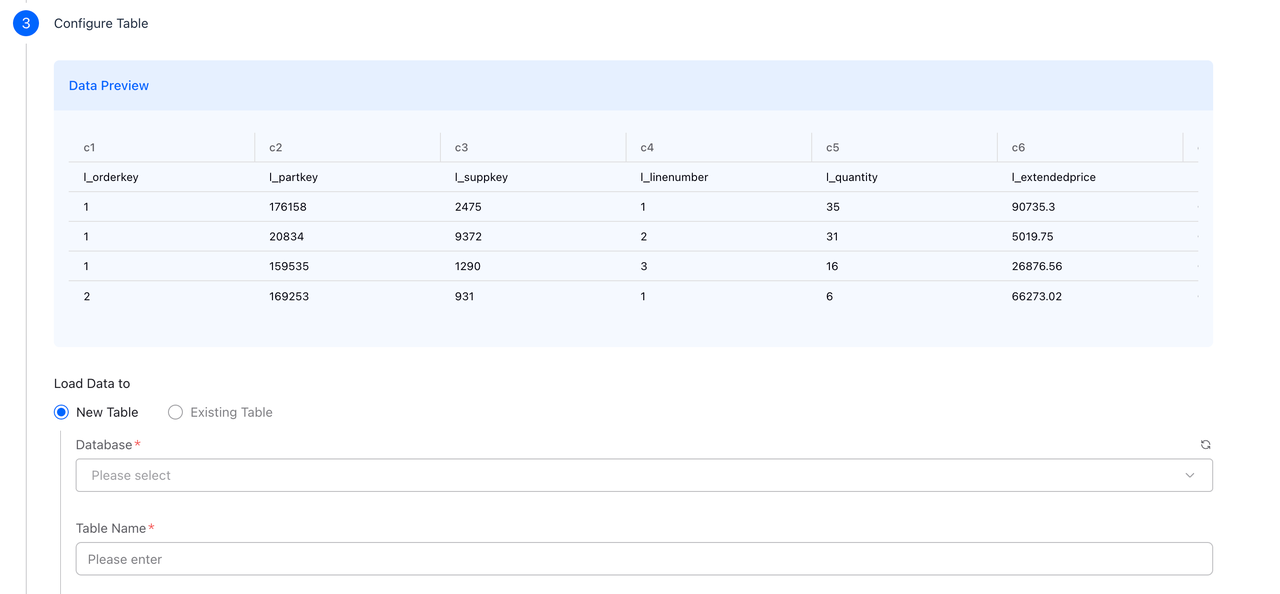
Preview your data and configure the destination table.
Data Preview
The console displays a preview of your data with:
- Auto-detected column names (c1, c2, c3, ... or from CSV header row)
- Sample data rows
- Inferred column types
Load Data To
| Option | Description |
|---|---|
| New Table | Create a new table with auto-generated schema |
| Existing Table | Load into an existing VeloDB table |
Table Configuration
| Field | Description |
|---|---|
| Database | Choose target database from dropdown |
| Table Name | Name for the new table (e.g., orders, user_events, products) |
Step 4: Advanced Settings
Configure table model and distribution settings.
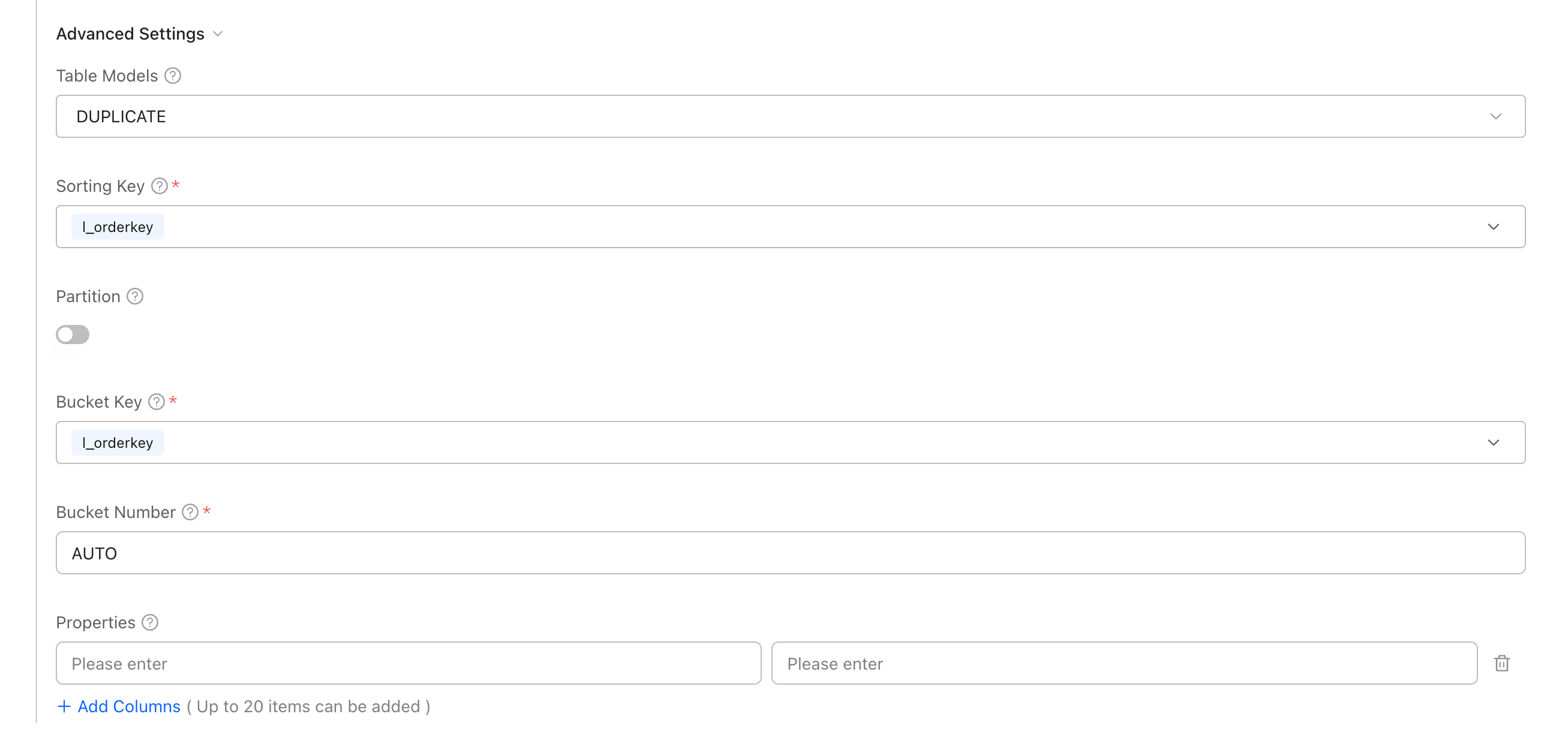
Table Models
| Model | Use Case | Example |
|---|---|---|
| DUPLICATE | Raw data, ad-hoc queries - retains all rows as written | Event logs, clickstream, raw transactions |
| UNIQUE | Data with updates - keeps only latest row per key | User profiles, product catalog, dimension tables |
| AGGREGATE | Pre-aggregated metrics - auto-aggregates by key columns | Sales summaries, time-series metrics, counters |
Distribution Settings
| Field | Description |
|---|---|
| Sorting Key | Column(s) for data ordering - choose columns frequently used in WHERE clauses or JOINs |
| Partition | Enable for partitioning by date/time or other dimensions to improve query performance |
| Bucket Key | Column for hash distribution across nodes (use tenant_id or user_id to improve query concurrency) |
| Bucket Number | Number of data buckets (AUTO is recommended for most cases) |
| Properties | Additional table properties (usually leave empty) |
Click Next to proceed, then Submit to start the import.
Step 5: Monitor Import
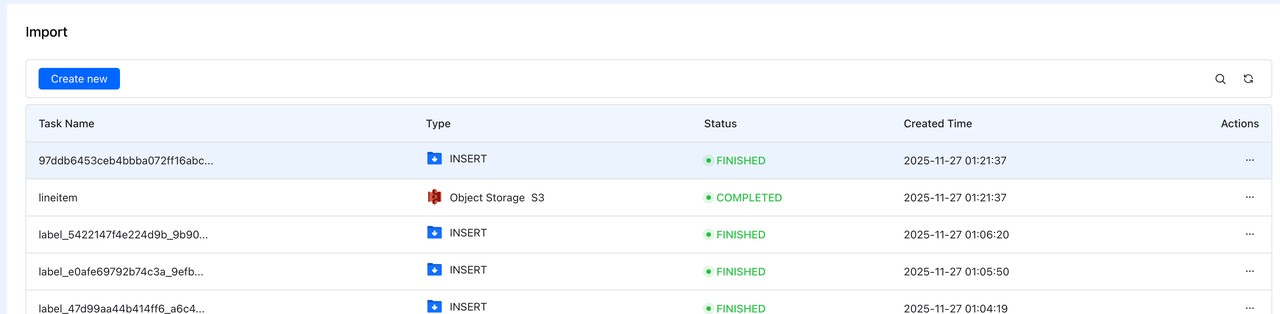
After submitting, you'll see your import task in the Import list.
Verify Import
After the import completes, verify your data in the SQL Editor:
-- Check row count
SELECT COUNT(*) FROM your_database.your_table;

-- Preview data
SELECT * FROM your_database.your_table LIMIT 10;

-- Check table schema
DESC your_database.your_table;
Sample Queries for SSB Data
If you imported the sample SSB dataset, try these analytical queries:
-- Total revenue by year
SELECT
    lo_year,
    SUM(lo_revenue) as total_revenue
FROM ssb_flat
GROUP BY lo_year
ORDER BY lo_year;

-- Top 10 customers by revenue
SELECT
    c_name,
    c_nation,
    SUM(lo_revenue) as total_revenue
FROM ssb_flat
GROUP BY c_name, c_nation
ORDER BY total_revenue DESC
LIMIT 10;

-- Revenue by region and year
SELECT
    c_region,
    lo_year,
    SUM(lo_revenue) as revenue,
    COUNT(*) as order_count
FROM ssb_flat
GROUP BY c_region, lo_year
ORDER BY c_region, lo_year;

-- Product category performance
SELECT
    p_category,
    p_brand,
    SUM(lo_revenue) as revenue,
    AVG(lo_discount) as avg_discount
FROM ssb_flat
GROUP BY p_category, p_brand
ORDER BY revenue DESC
LIMIT 20;
Troubleshooting
| Issue | Solution |
|---|---|
| "Can not found files" | Check object storage path format and trailing slash |
| "Access Denied" | Verify AK/SK credentials and IAM permissions |
| Connection timeout | Ensure bucket is in same region as VeloDB |
| Parsing errors | Leave Enclose and Escape fields empty |
| Wrong column types | Use Existing Table with predefined schema |