Marketplace on GCP
This page describes how to use GCP Marketplace as a deduction channel for VeloDB Cloud.
Note GCP Marketplace adds an additional 3% commission on the paid amount.
1. Open the VeloDB Cloud product page on GCP Marketplace
You can reach the product page in two ways:
-
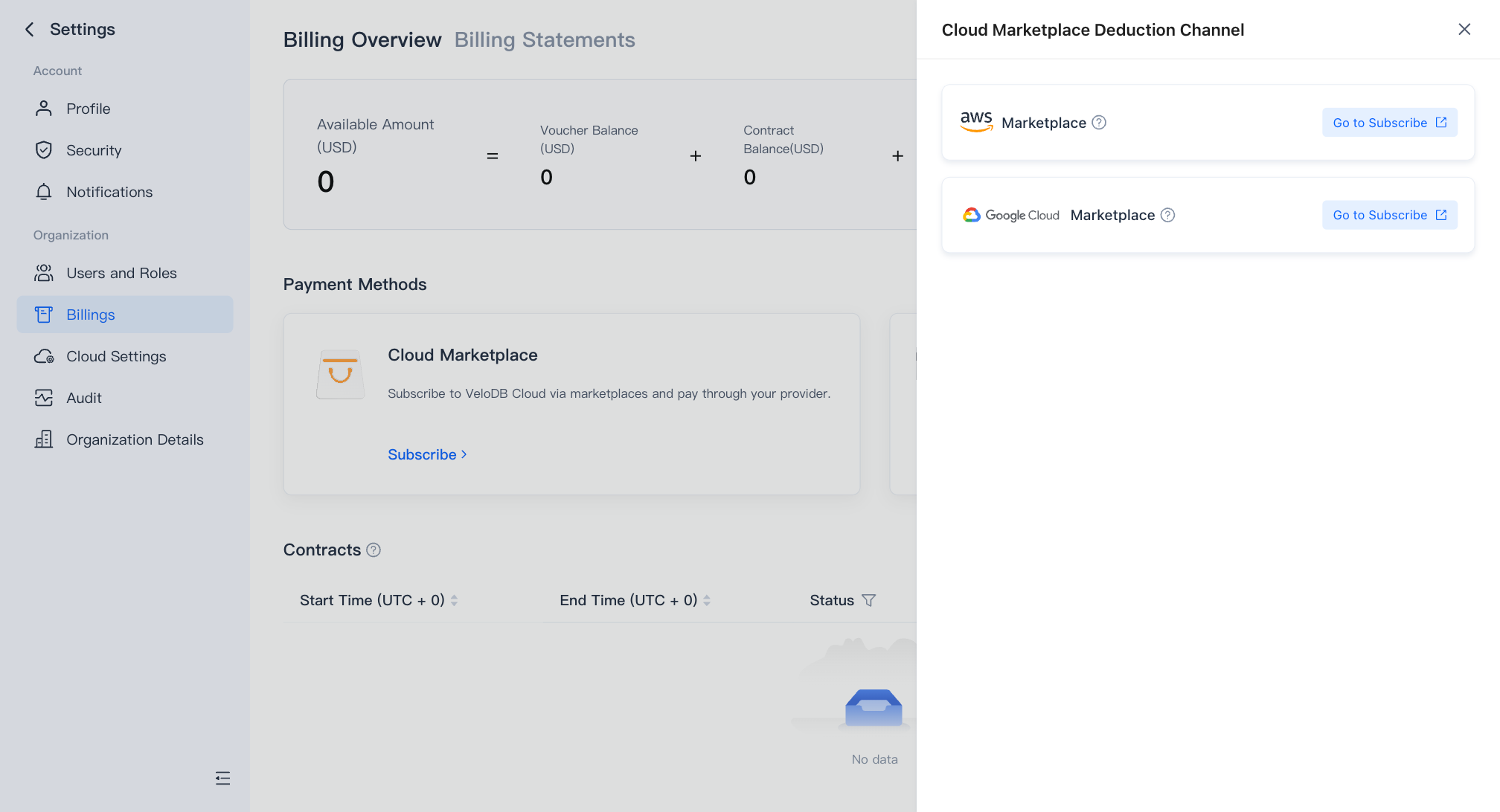
From VeloDB Cloud: on the Billing Overview page, click Open on the Cloud Marketplace Deduction Channel card, find GCP Marketplace in the drawer, and click Go to Subscribe.
-
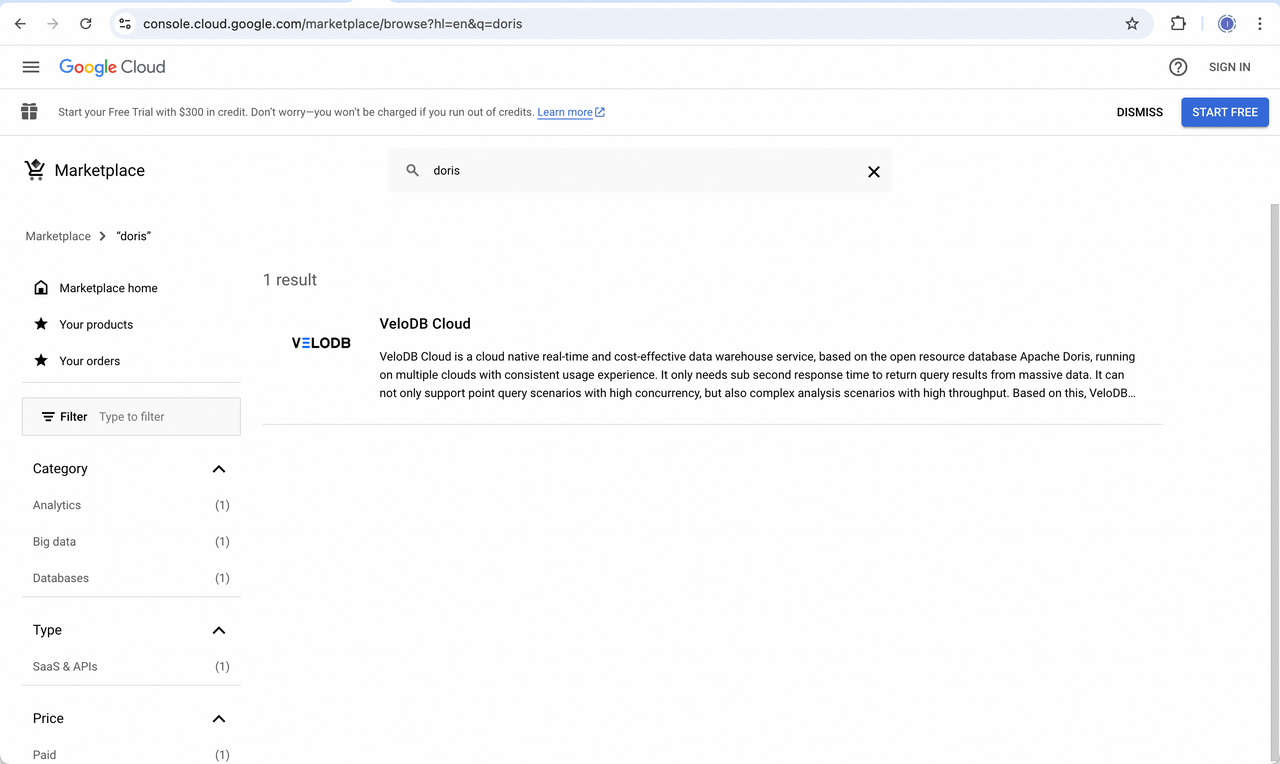
Directly on GCP Marketplace: open GCP Marketplace and search for VeloDB or Doris.
2. Subscribe to VeloDB Cloud
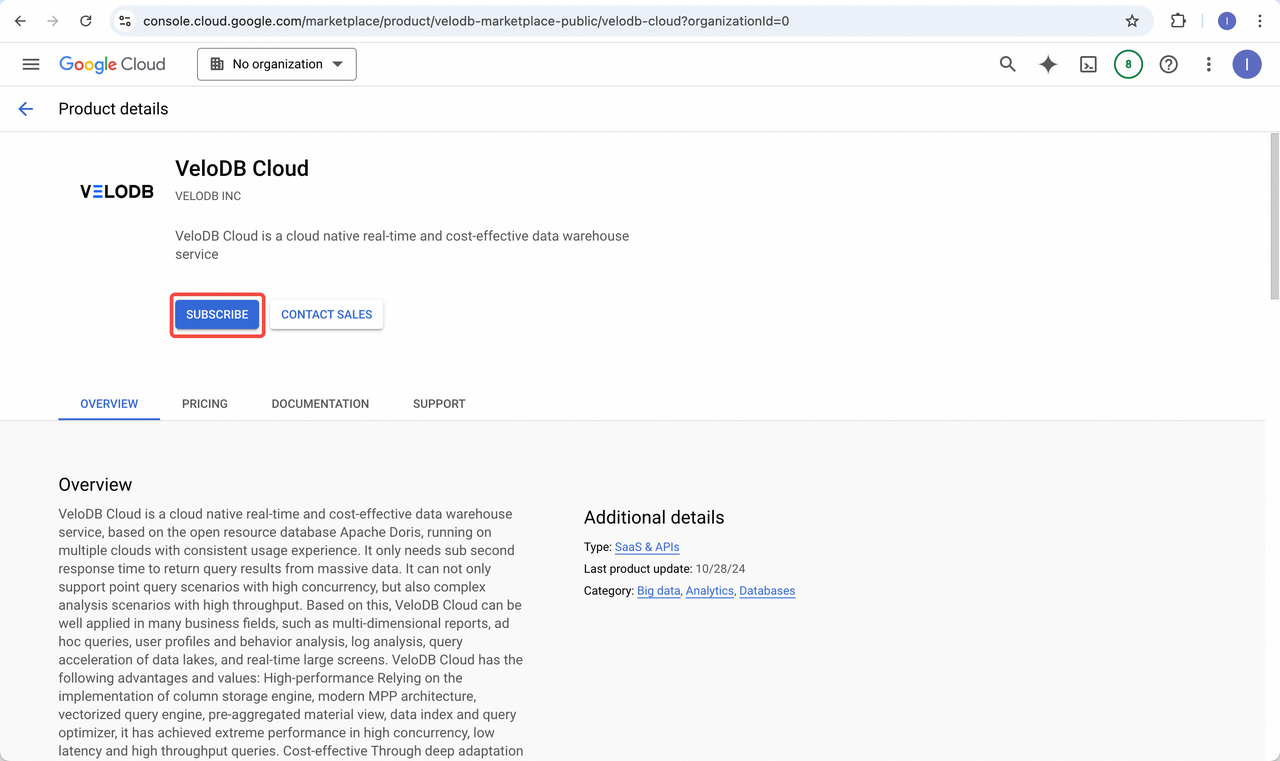
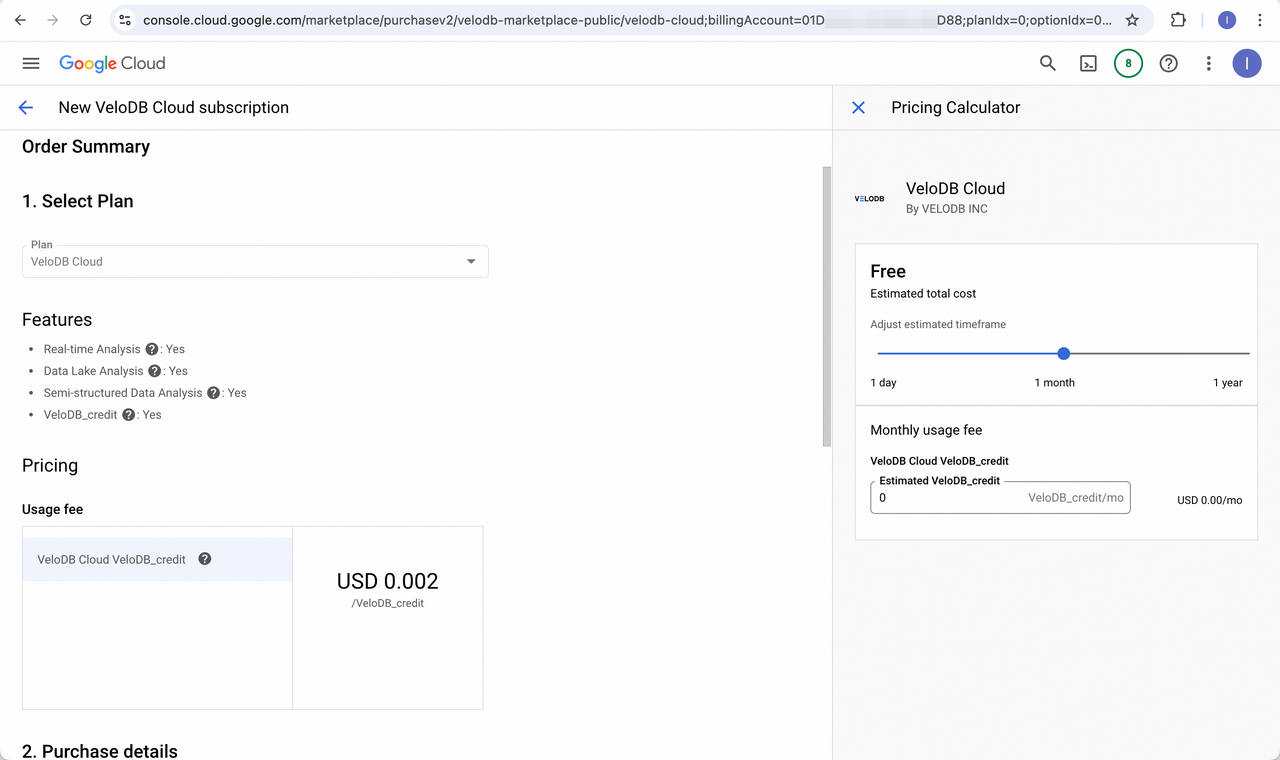
On the VeloDB Cloud product page, click SUBSCRIBE to open the order confirmation page.
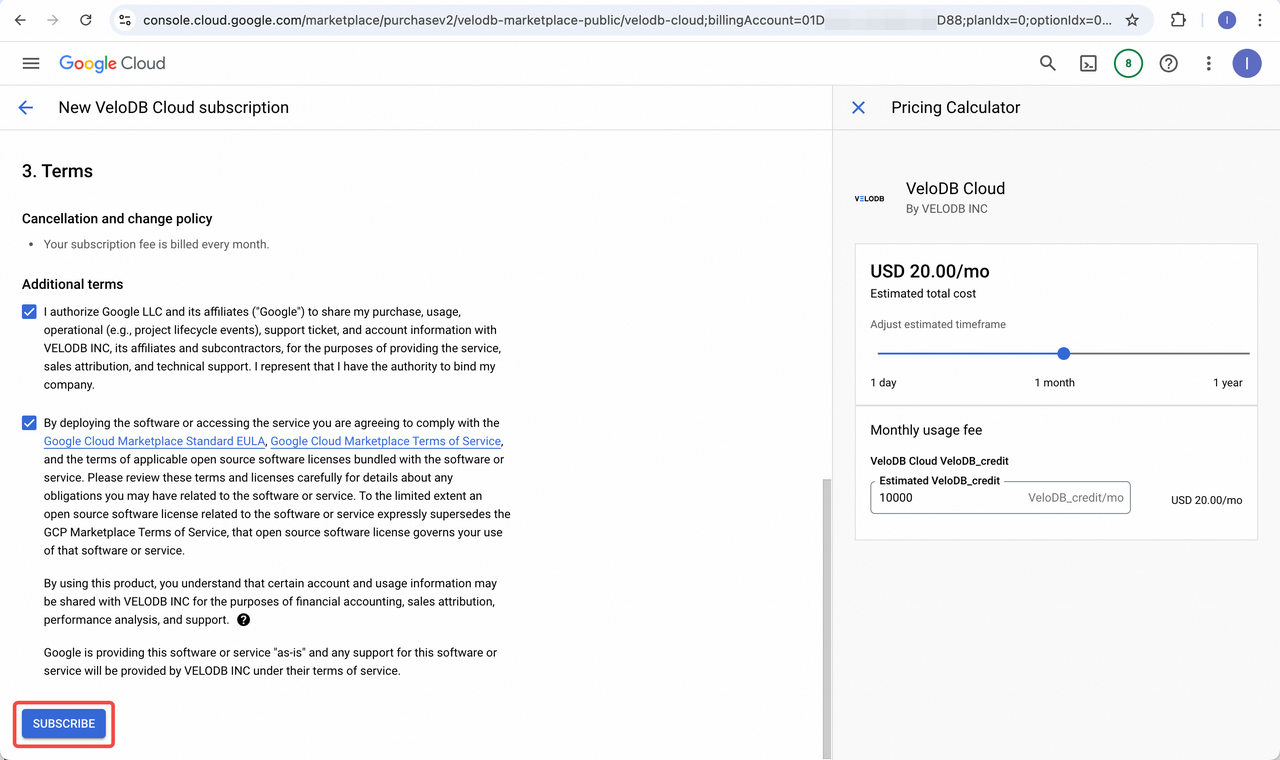
Accept the terms and click SUBSCRIBE again on the confirmation page.
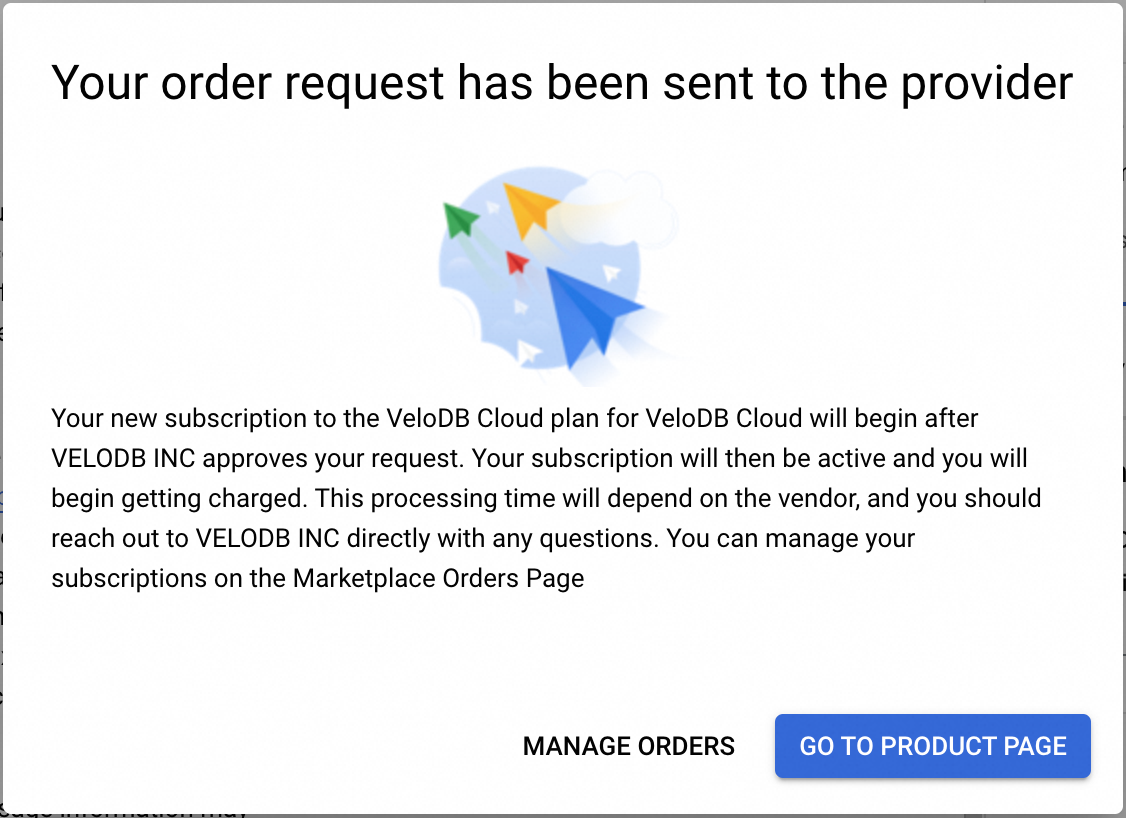
In the secondary confirmation dialog, click GO TO PRODUCT PAGE to view the subscription effect, or MANAGE ORDERS to view the order changes.
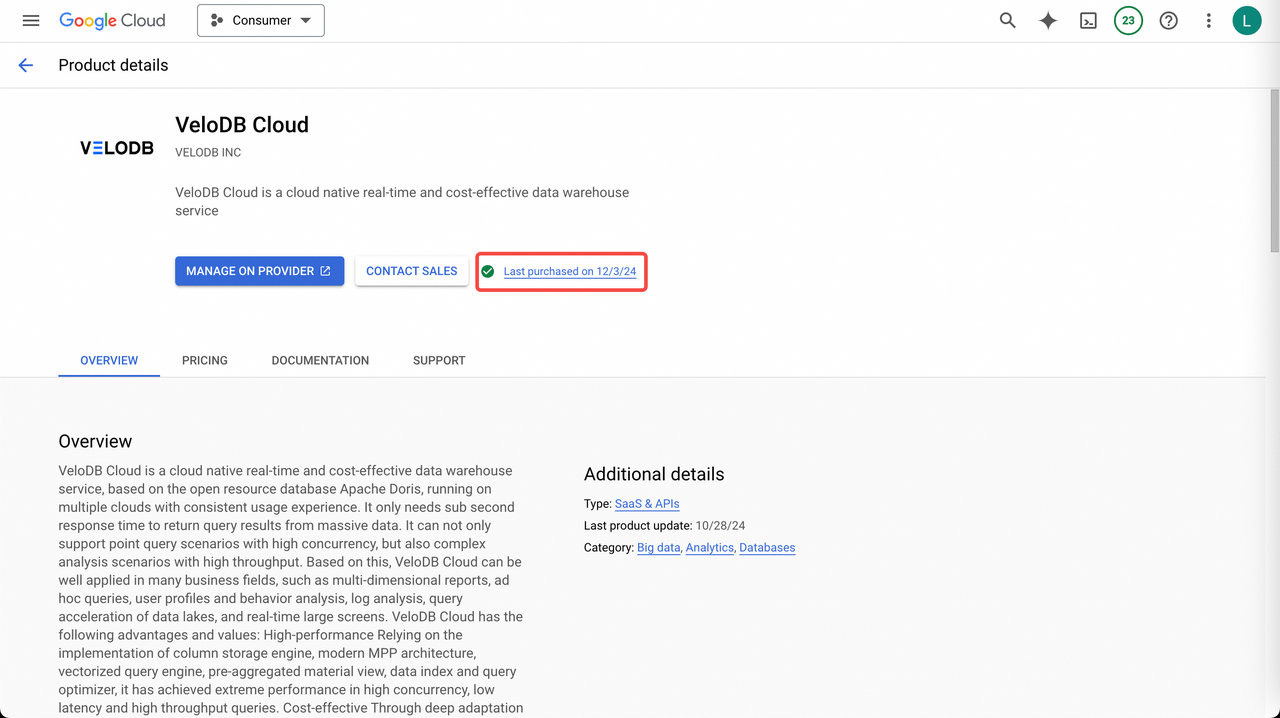
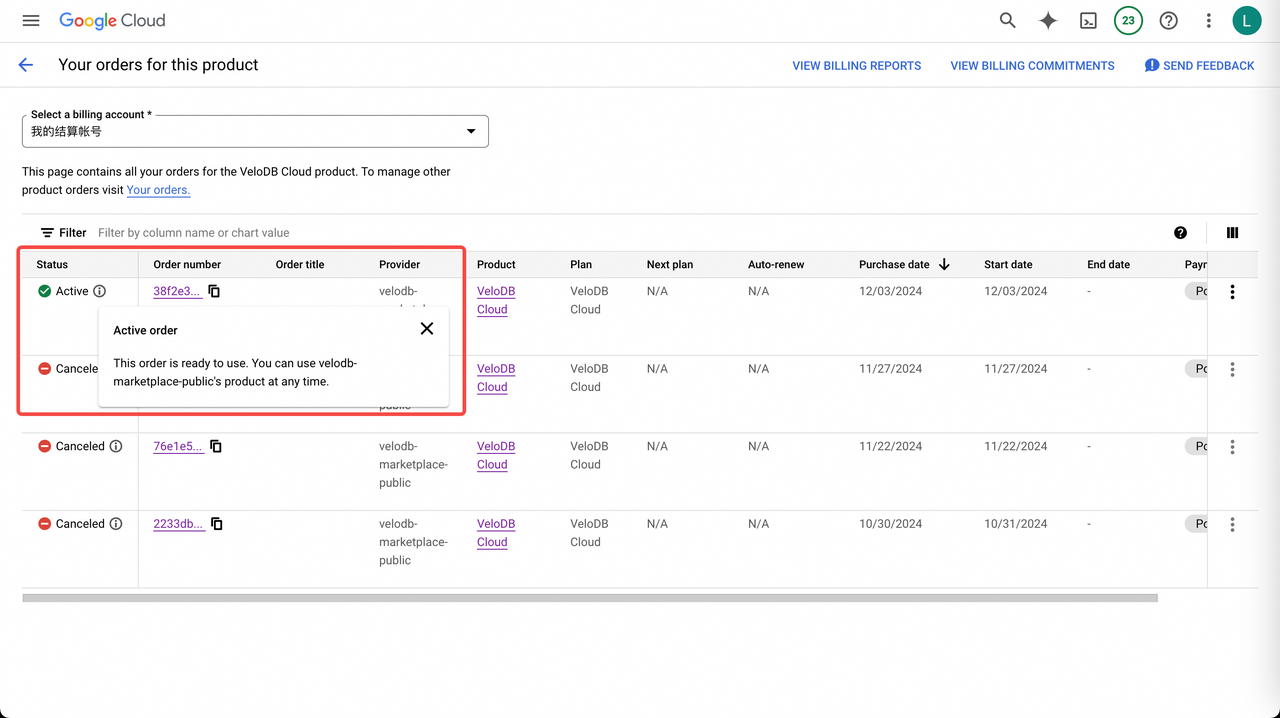
On the product page, click MANAGE ON PROVIDER to return to VeloDB Cloud.
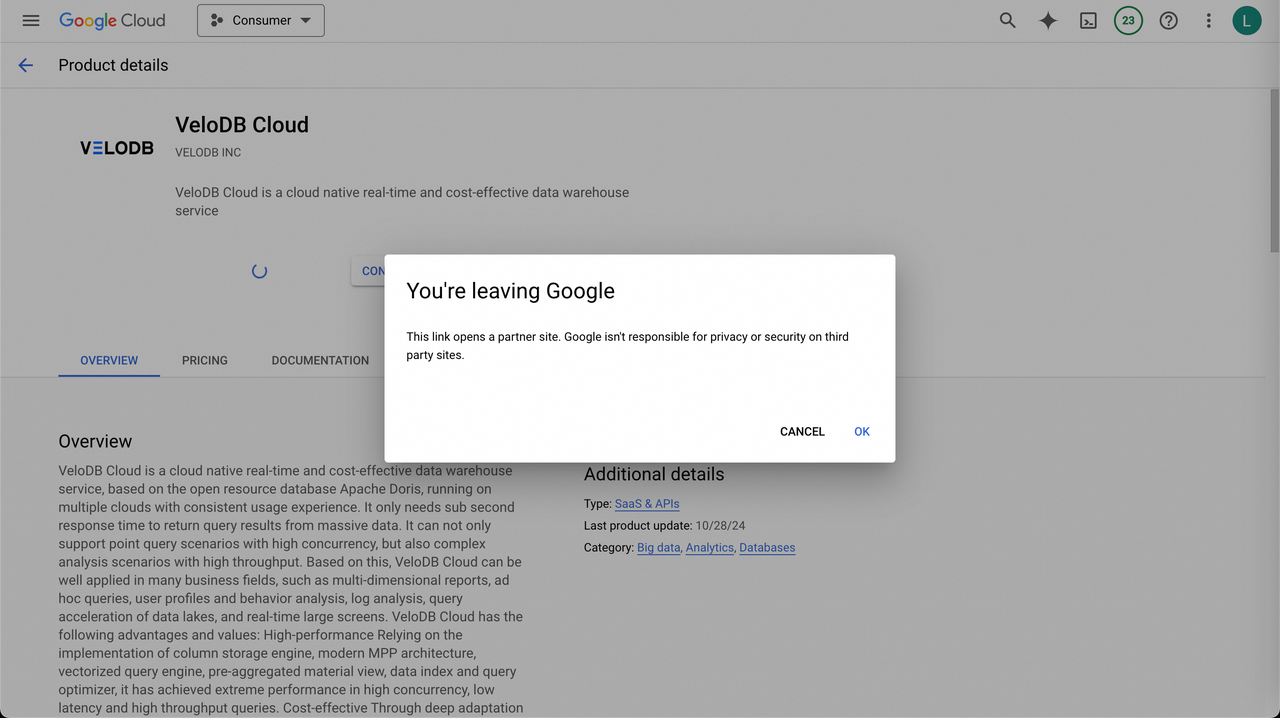
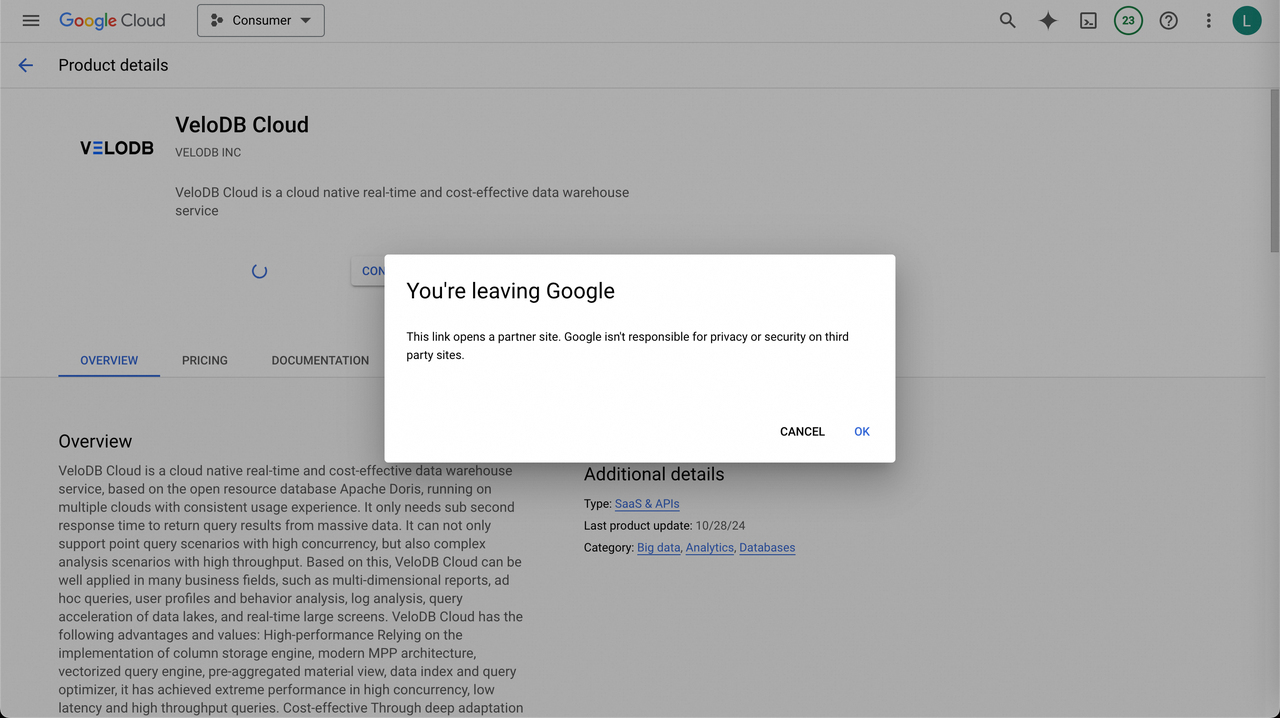
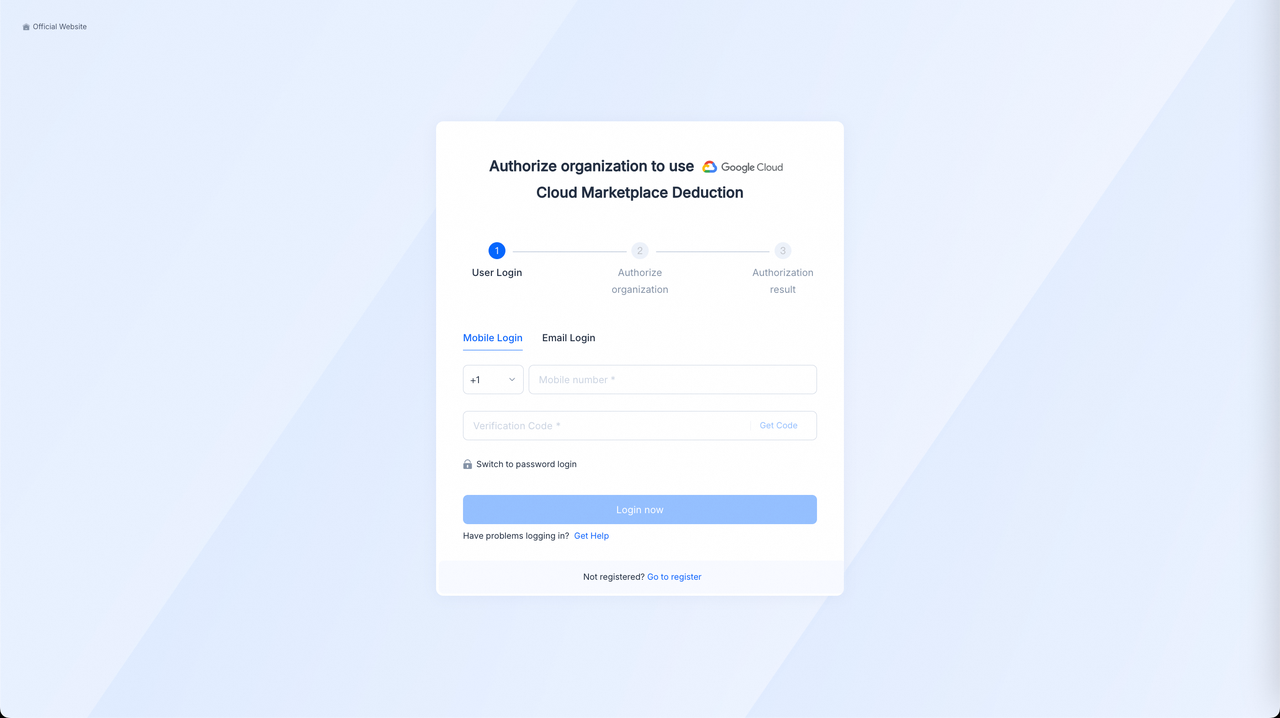
If you have not yet registered on VeloDB Cloud, register now. Otherwise, sign in.
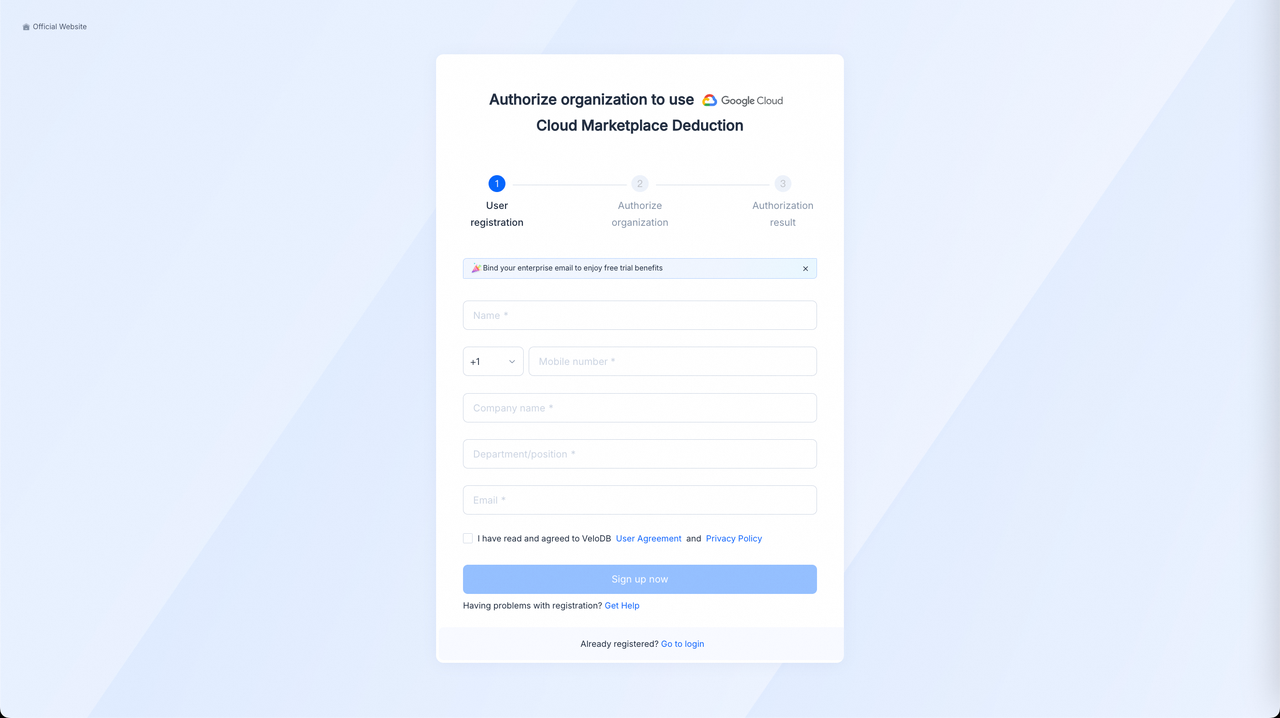
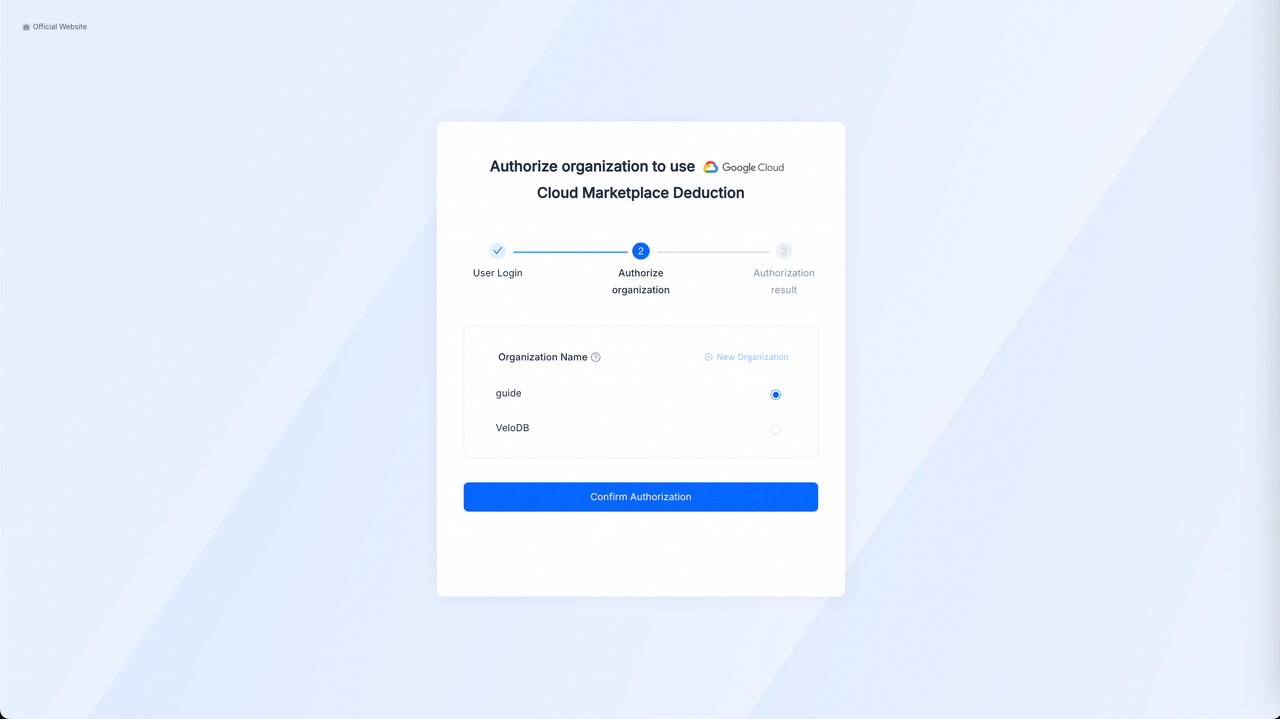
You can sign in by mobile number or email. Then proceed to the second step: Authorize Organization.
Pick the target organization and click Confirm Authorization.
Note The order status may lag — wait about a minute before the authorization step.

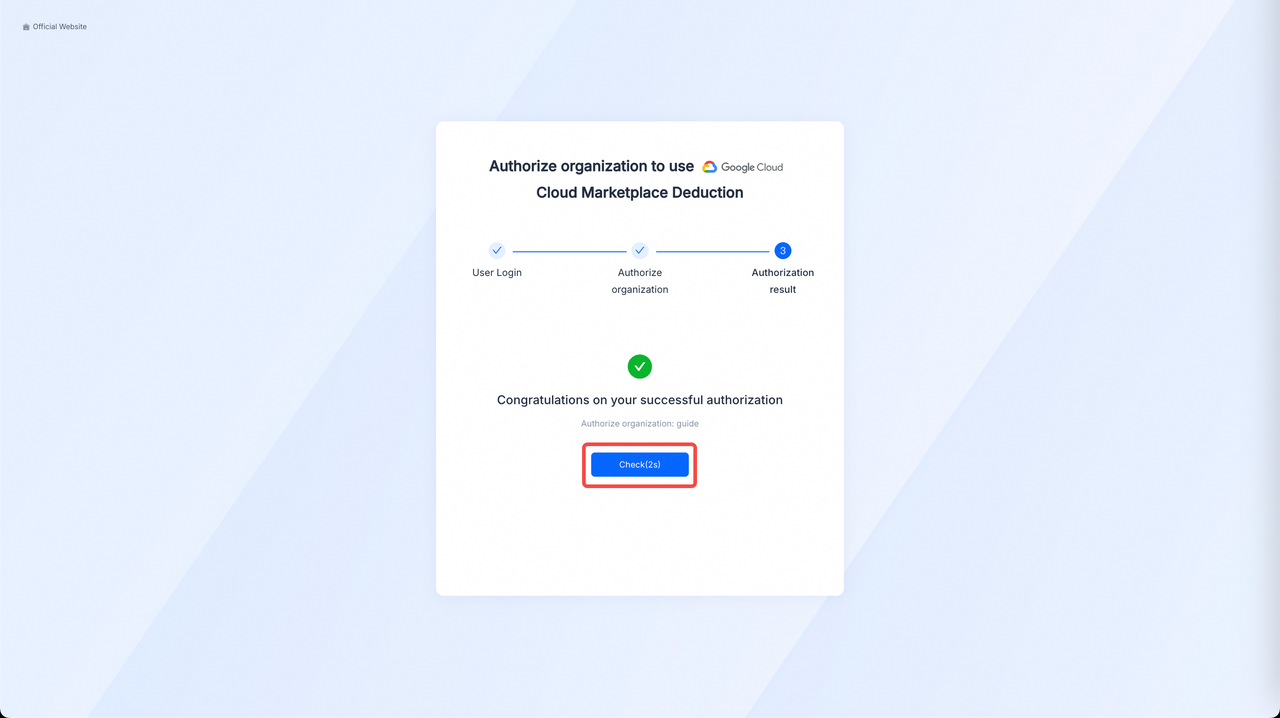
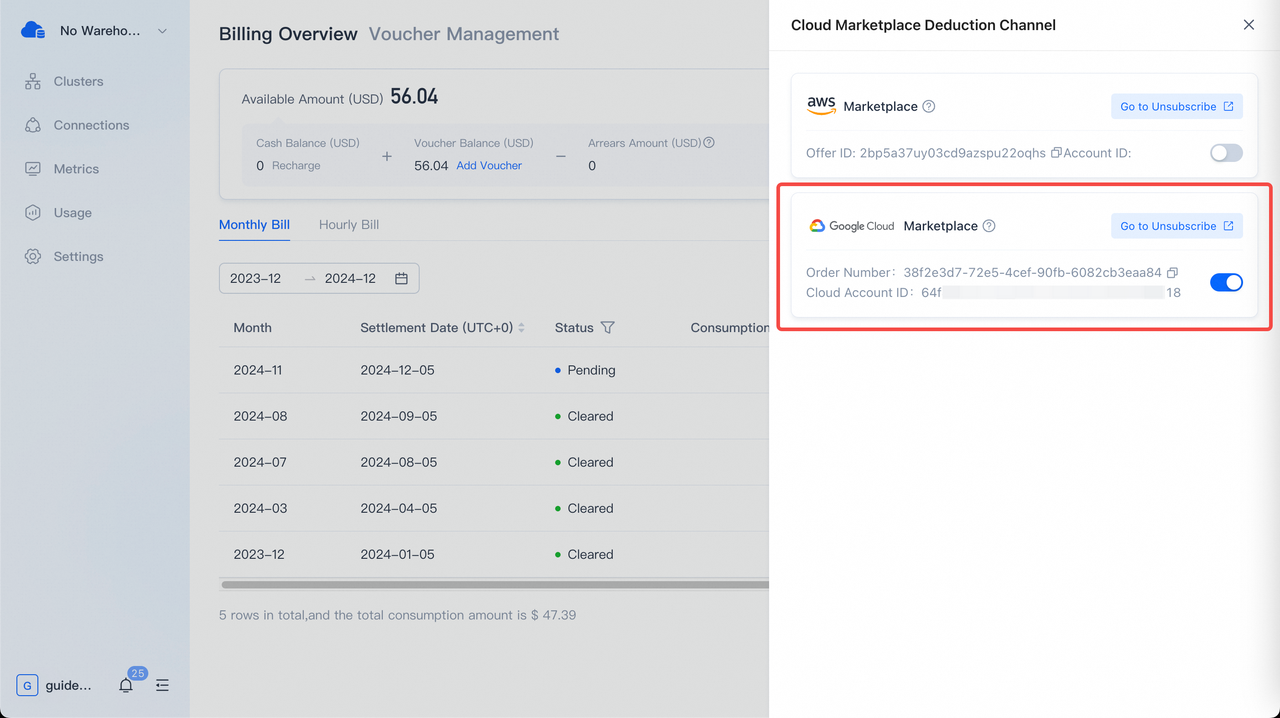
After authorization, proceed to the third step: View Authorization Result. Click Check to return to the Billing Overview page and confirm the channel is active.
3. Unsubscribe
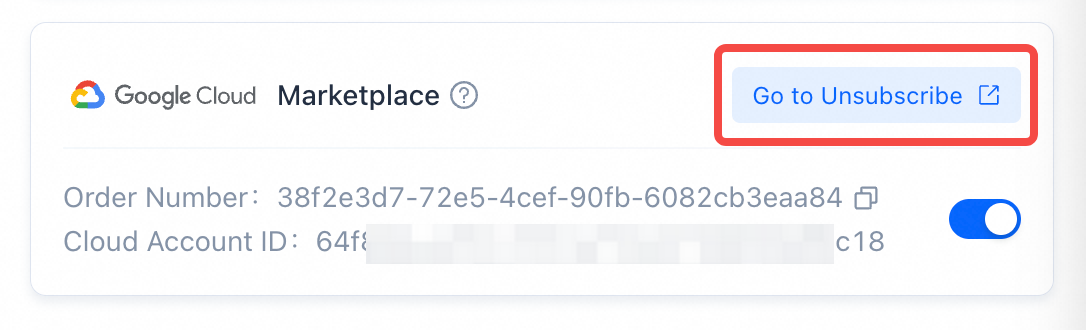
On the Billing Overview page, click Change on the Cloud Marketplace Deduction Channel card, find GCP Marketplace, and click Go to Unsubscribe to open the order page on GCP Marketplace.
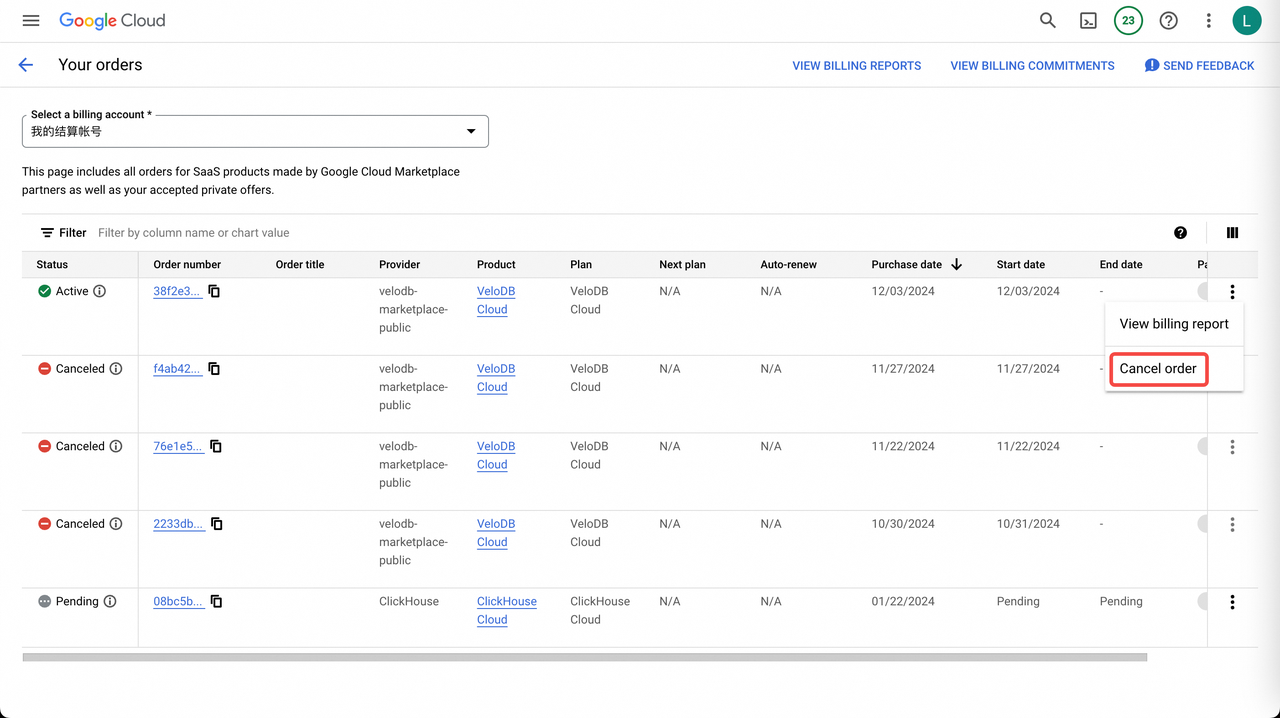
On the order page, find the active order by Order Number, click the action column on the right, expand the dropdown, and click Cancel order.
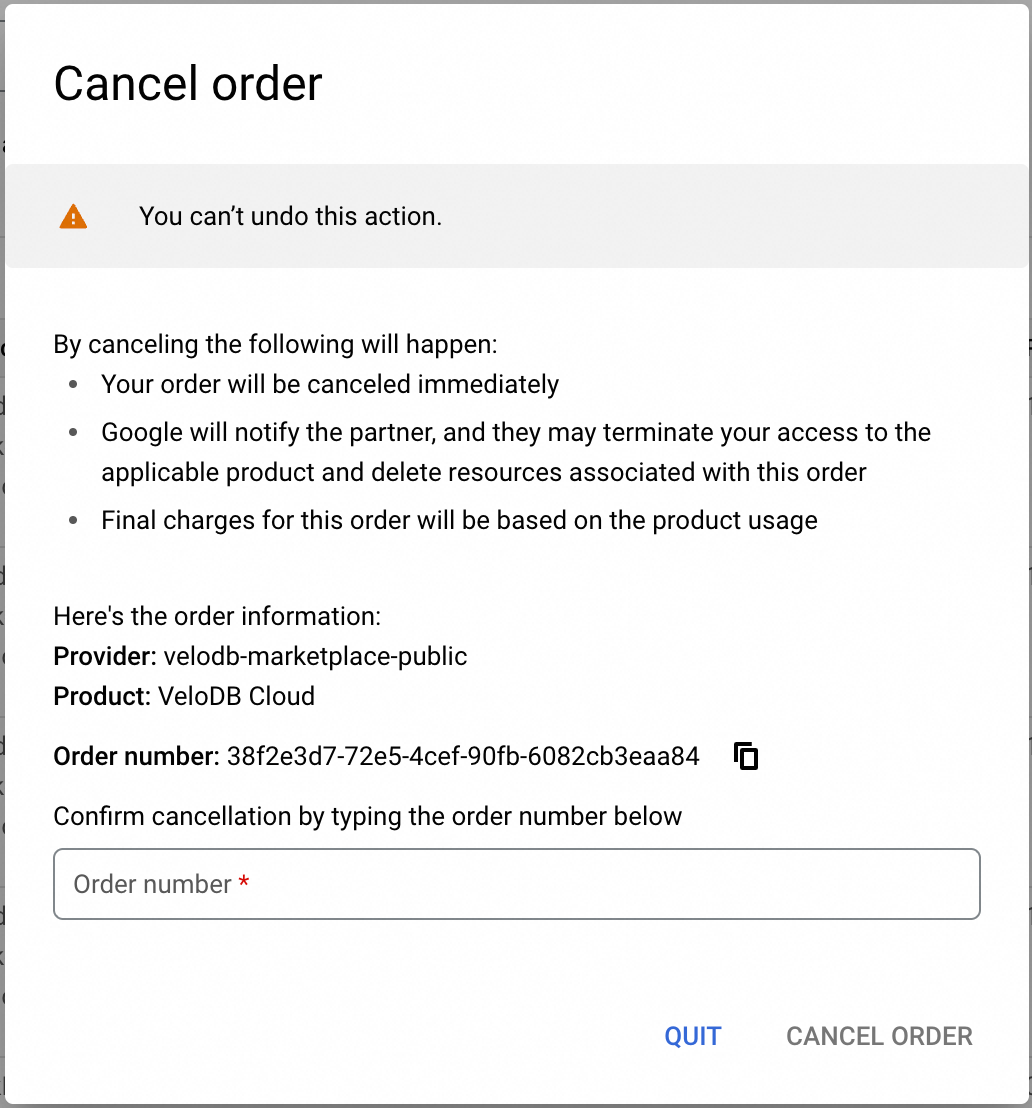
In the secondary confirmation dialog, type the Order Number and click CANCEL ORDER.
When the order's status is Canceled, the GCP Marketplace deduction channel returns to its initial state in VeloDB Cloud.

Note The status may lag — wait about a minute and refresh the Billing Overview page in VeloDB Cloud console to see the change.
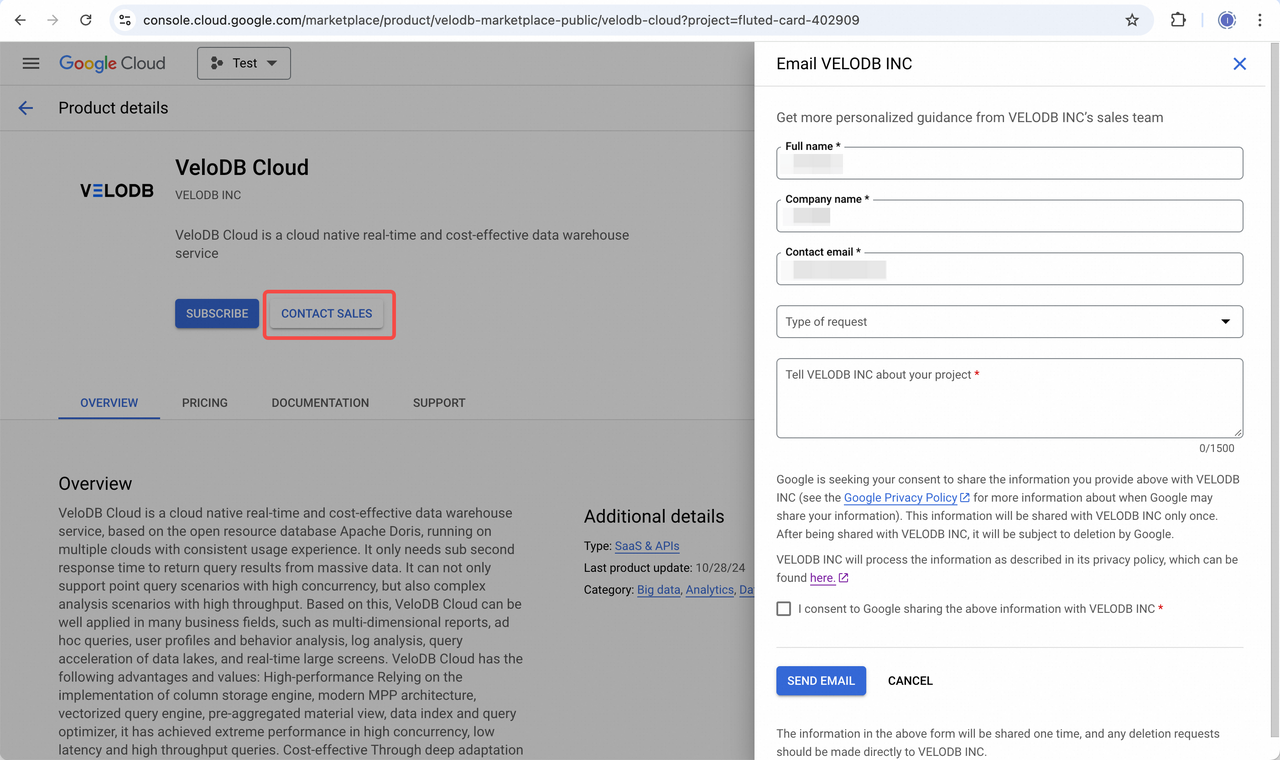
4. Contact Sales
If you want to know more about the product, you can contact sales by email.