Cluster Management
Inside a paid warehouse you can create multiple clusters to support different workloads — writing data, customer-facing reporting, user profiles, behavior analytics, and so on. A cluster contains only compute resources, cache resources, and cached data; all clusters in the same warehouse share the stored data.
Open Compute from the Manage group in the left navigation.
Create a cluster
On the Compute page, click New Cluster. If no cluster exists yet, a setup wizard appears; if one already exists, click New Cluster on the Cluster Overview page.
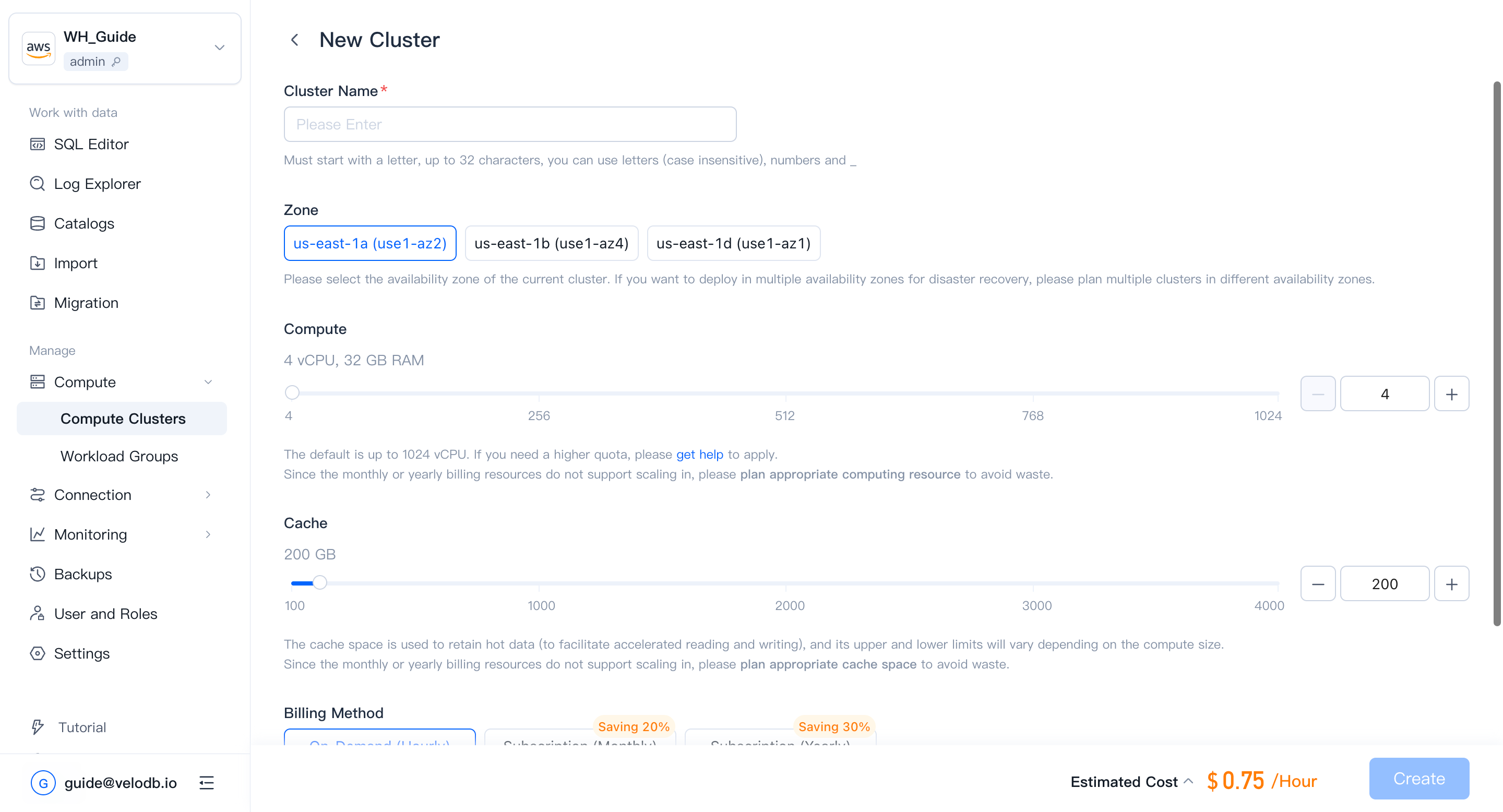
| Parameter | Description |
|---|---|
| Cluster Name | Required. Must start with a letter; up to 32 characters; letters (case-insensitive), digits, and underscores. |
| Compute | Default range is 4 – 1024 vCPU per cluster. To raise this quota, contact support. vCPU-to-memory ratio is fixed at 1:8. |
| Cache | Cache-space limits scale with compute size. |
| Storage | Pay-as-you-go; no storage pre-allocation. All clusters in the warehouse share the stored data. |
| Billing Method | Default is On-Demand (Hourly), suitable for workloads that need to be changed or deleted at any time. |
| Auto Pause/Resume | When enabled, the cluster pauses automatically after a period of inactivity and resumes on the next query. |
Creating a cluster incurs charges. Before confirming, make sure the organization has sufficient cash balance or has opened a cloud-marketplace deduction channel. Otherwise you will see the following error.

Note
- After you confirm, the new cluster appears on the Cluster Overview page. Creation takes about 3 minutes; status transitions from Creating to Running.
- SaaS free-trial warehouses do not support creating additional clusters.
Reboot a cluster
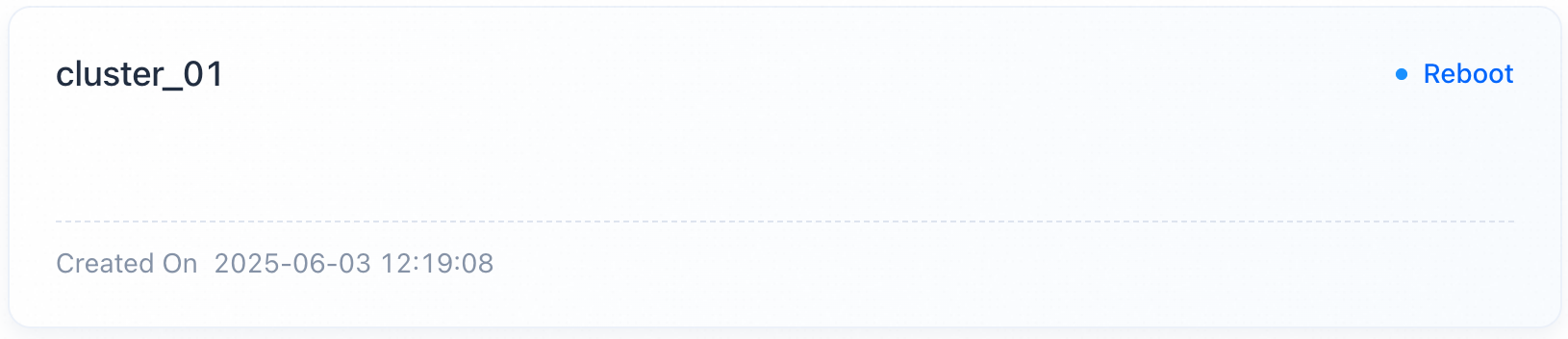
In some cases (a cluster exception, parameter change, and so on) you need to reboot a cluster. On the Cluster Overview page, find the target cluster card, click Reboot, and confirm. The status changes to Rebooting, and no other operation is allowed until it comes back.
Note
- Reboot takes about 3 minutes; status transitions from Rebooting back to Running.
- Rebooting may cause business requests to crash or be delayed.
- VeloDB Cloud continues to meter and charge the cluster during reboot.
Pause and resume a cluster
Manual pause / resume
To save costs when a cluster is idle, find the target cluster card, confirm no workload is active, click Pause, and confirm. The status changes to Pausing, and no other operation is allowed until it completes. VeloDB Cloud releases the compute resources and keeps the cache space and its data.


Note
- Pause takes about 3 minutes; status transitions from Pausing to Paused.
- A paused cluster does not respond to business requests.
- Metering and charging for compute stops during the pause; cache space continues to be metered.
- Clusters containing monthly/yearly billing resources do not support pause/resume.
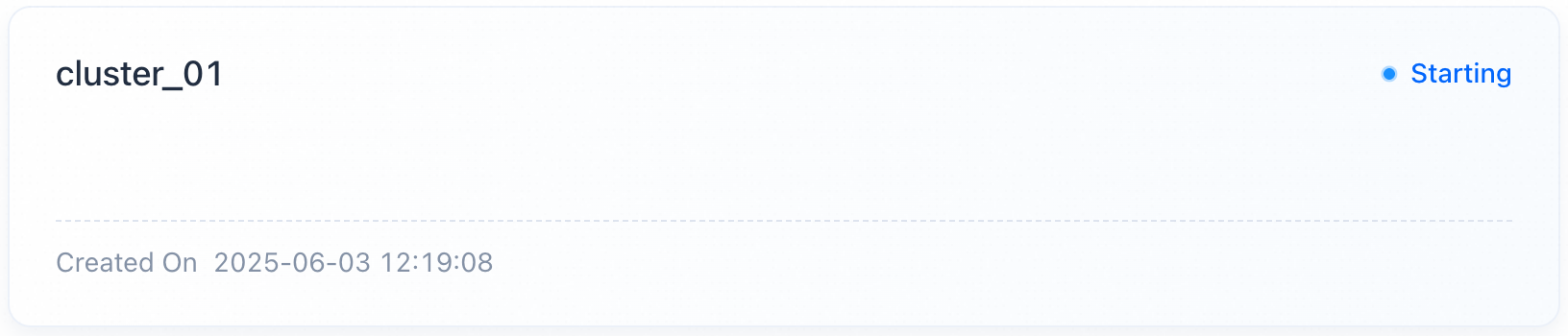
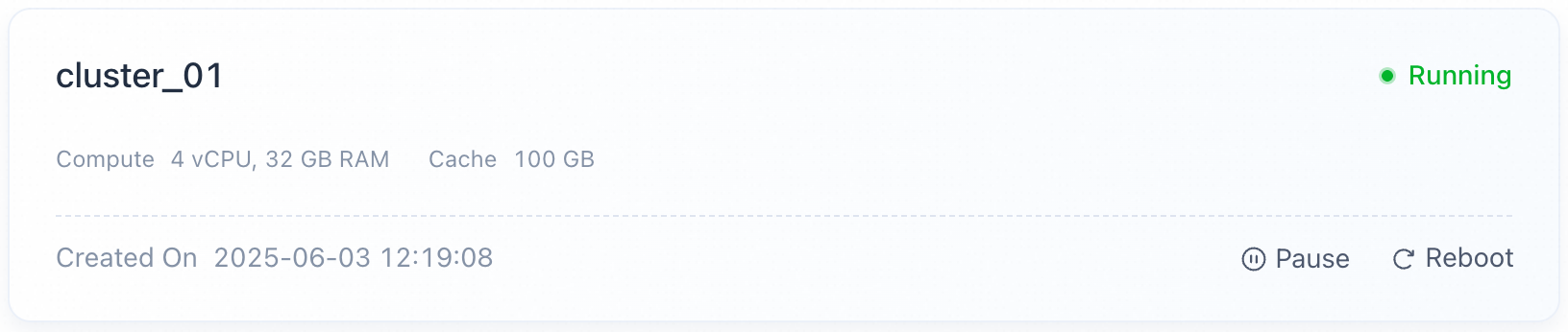
To resume a paused cluster, click Resume on its card and confirm. The status changes to Resuming; VeloDB Cloud brings compute resources back up and mounts the retained cache.
Note
- Resume takes about 3 minutes; status transitions from Resuming to Running.
- The cluster does not respond to requests during resume.
- After resume, metering and charging for the restored compute resumes.
- Clusters containing monthly/yearly billing resources do not support pause/resume.
Auto pause / resume
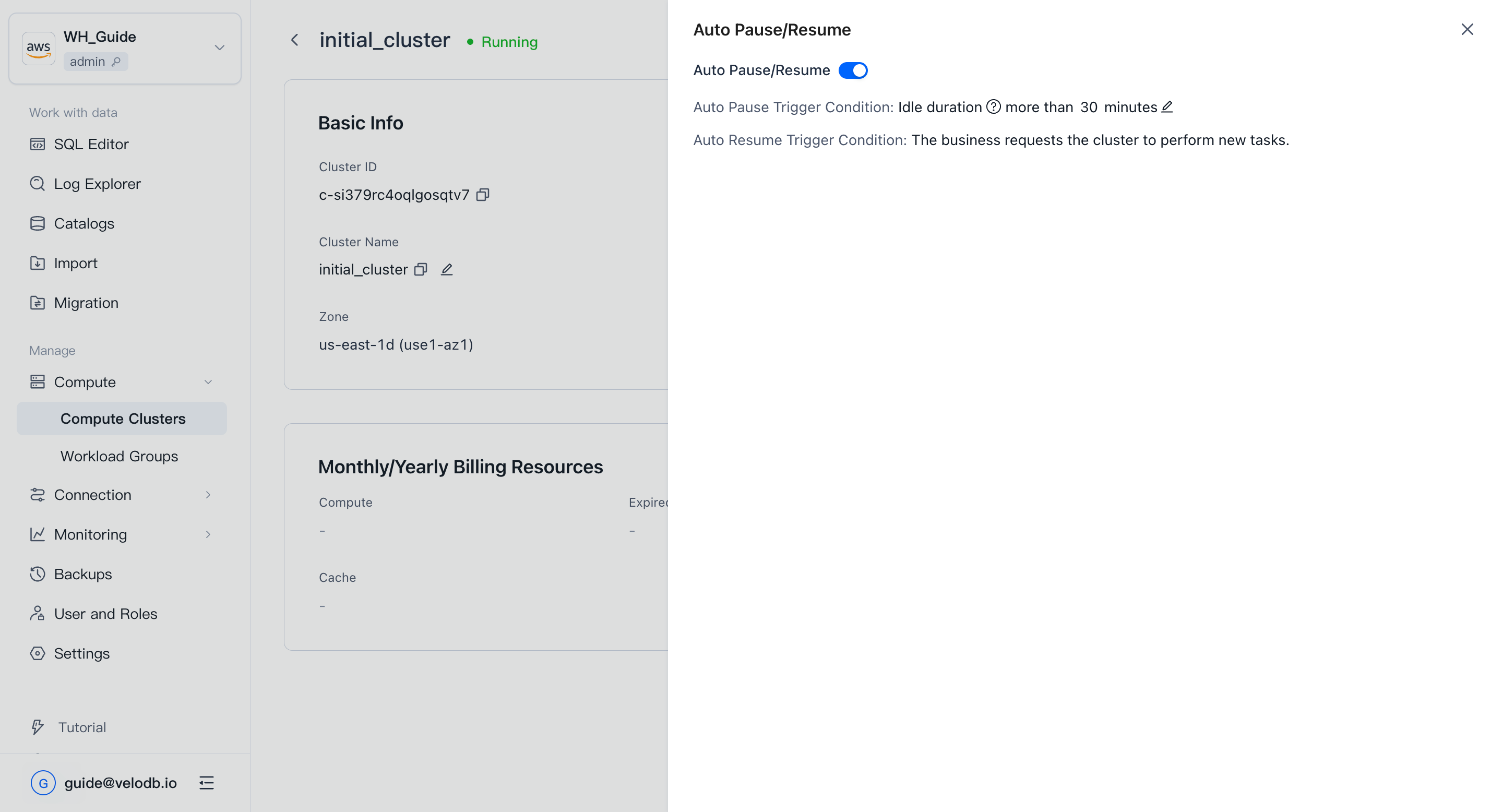
To start and stop idle clusters automatically, open the cluster's Details page and click Set Auto Start/Stop next to Started On, then turn on Auto Start/Stop and set the idle-duration threshold.
Cluster details
On the Cluster Overview page, click a cluster card to open its Cluster Details page (available when the cluster's status allows it).
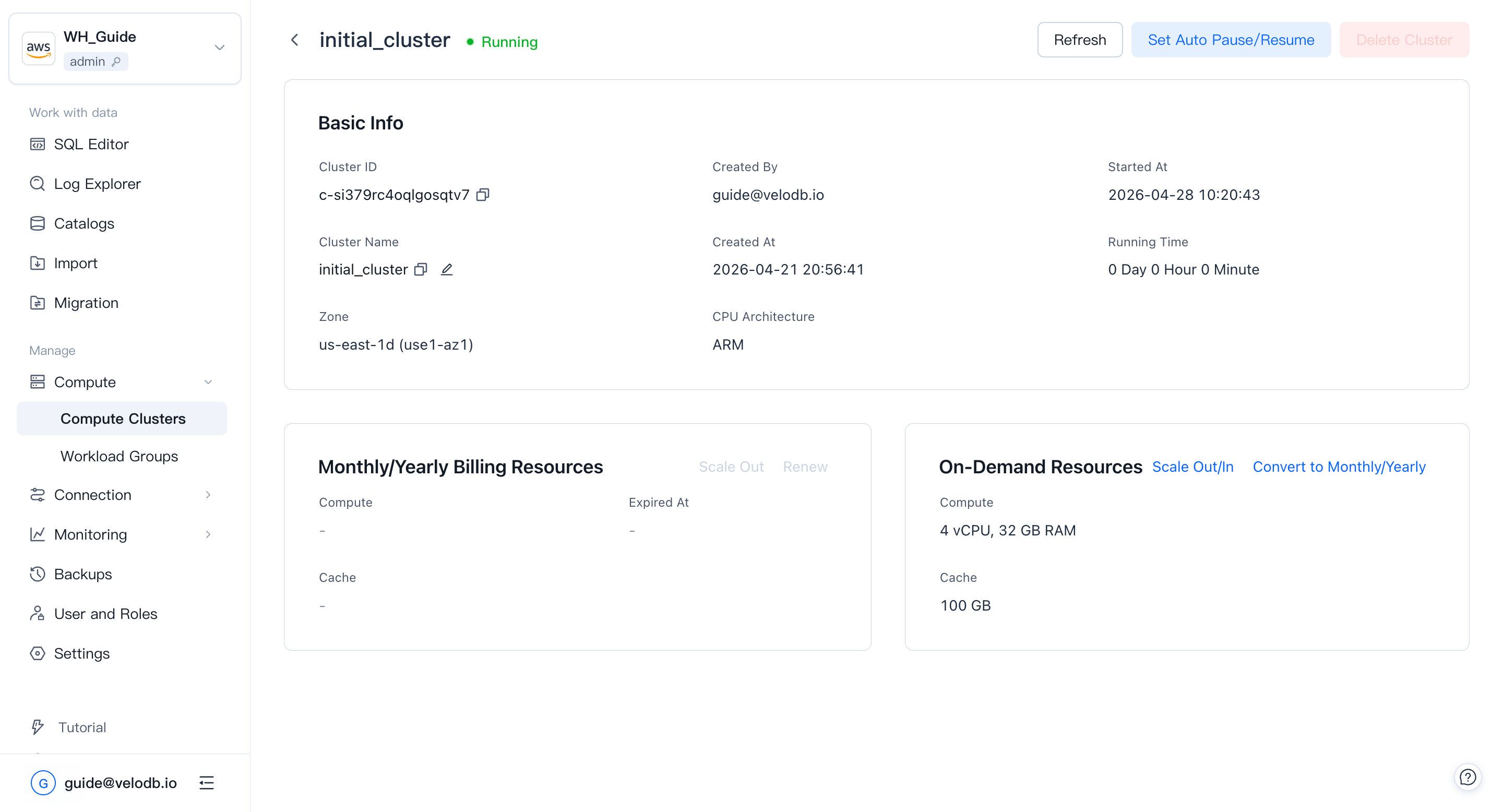
Basic information:
| Parameter | Description |
|---|---|
| Cluster ID | Globally unique. Starts with c-, followed by 18 characters from 26 lowercase letters and 10 digits. |
| Cluster Name | Unique within a warehouse; supports one-click copy and in-place rename. Click the edit icon, enter the new name, and confirm twice. The name must start with a letter; up to 32 characters; letters (case-insensitive), digits, and underscores. |
| Created By | The user who created the cluster. |
| Created At | When the cluster was created. |
| Started At | When the cluster was last rebooted or resumed. |
| Running Time | Running time since the last reboot or resume. |
| Zone | The availability zone the cluster runs in. |
| CPU Architecture | Compute CPU architecture (x86 or ARM). Only visible for AWS-based warehouses today. Requires core version 4.0.4 or above to create ARM clusters; at the same specification, ARM delivers more than 30% higher performance than x86. Architecture cannot be changed after creation. |
Note Renaming a cluster affects SQL (
USE { [catalog_name.]database_name[@cluster_name] }) and any connection string that references the cluster. After renaming, update your clients or set a default cluster for the relevant database users — otherwise related requests will fail.
On-demand resources:
| Parameter | Description |
|---|---|
| Compute | Current compute resources of the cluster. |
| Cache | Current cache space of the cluster. |
| Scale Out / In | Adjust compute or cache by clicking Scale Out/In. |
Scaling
Manual scaling
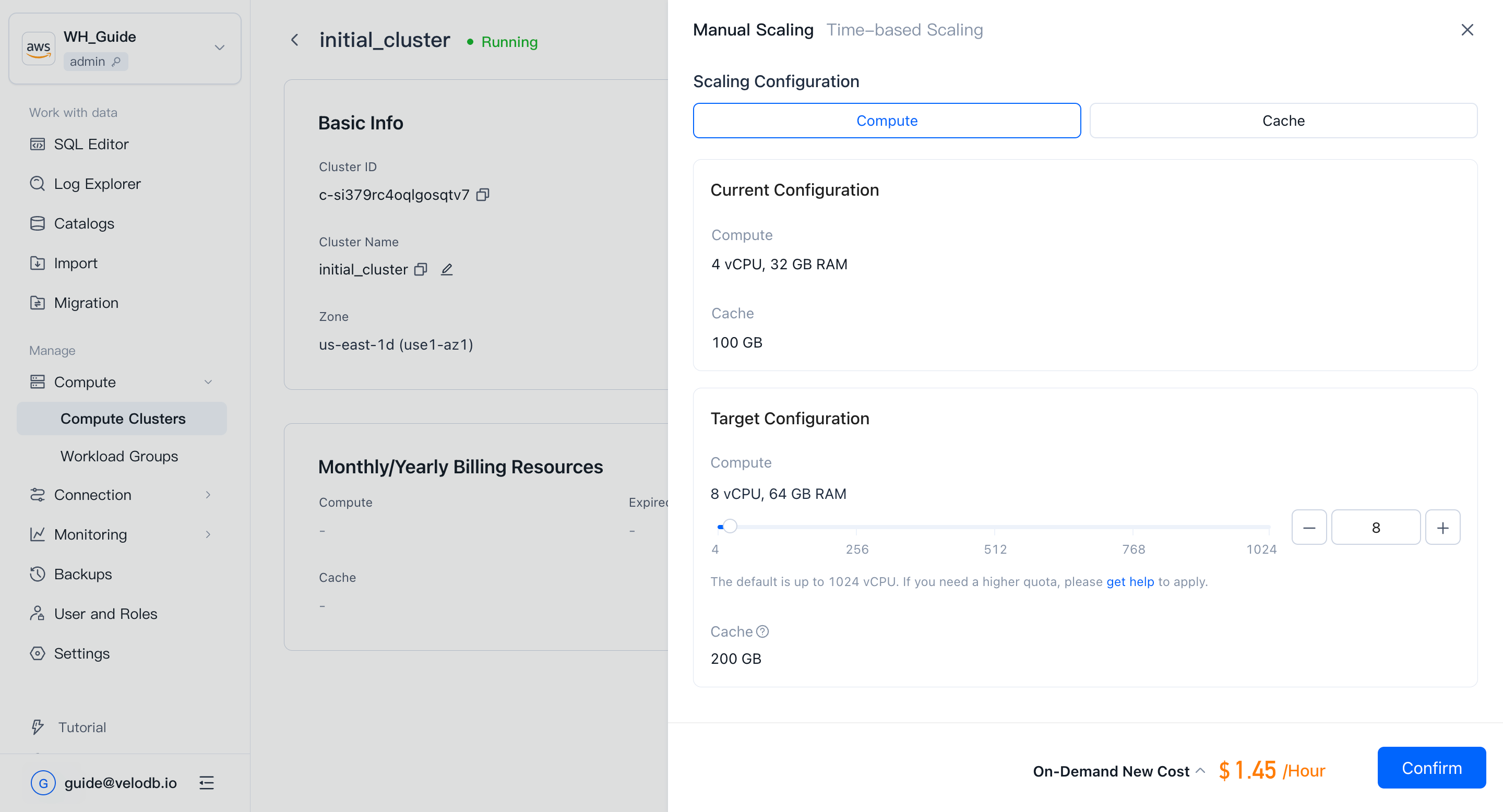
On the cluster Details page, under On-Demand Resources, click Scale Out/In → Manual Scaling to resize the cluster.
Note
- Scaling takes about 3 minutes; status transitions from Running to Scaling and back.
- SaaS free-trial clusters do not support scaling.
Time-based scaling
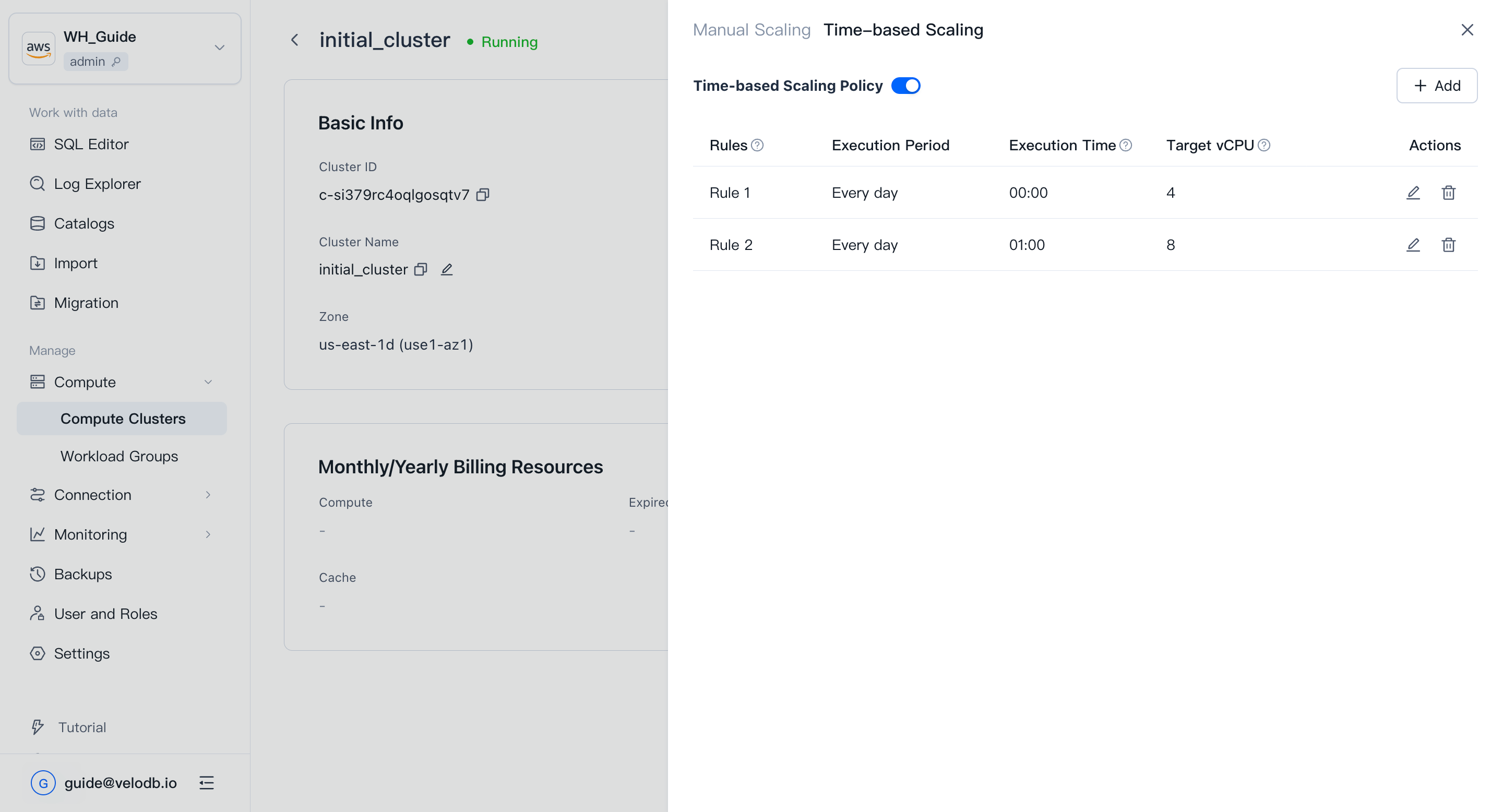
If your workload has predictable peaks and troughs, configure time-based scaling. On the Details page, click Scale Out/In → Time-based scaling, add at least two rules with different target vCPU values, and enable the policy.
Note
- SaaS free-trial clusters do not support scaling.
- On-demand clusters cannot have a rule with a target vCPU of 0.
- Rules execute only while the cluster is running normally. When the cluster is paused, rebooting, or upgrading, the rule waits for a retry; if it cannot execute within 30 minutes, it is skipped.
- If the organization does not have enough cash balance or a cloud-marketplace deduction channel, the rule is invalidated.
- The schedule is fixed to daily; editing the period is not supported.
- Rules must be at least one hour apart, so at most 23 rules per cluster.
- Rule execution times cannot overlap with existing rules.
- Scaling may cause some requests to crash or be delayed.
- When scaling in, cache space shrinks proportionally with compute (vCPU), and data in excess is evicted. Some requests may be noticeably slower during this period.
Primary–standby (virtual cluster)
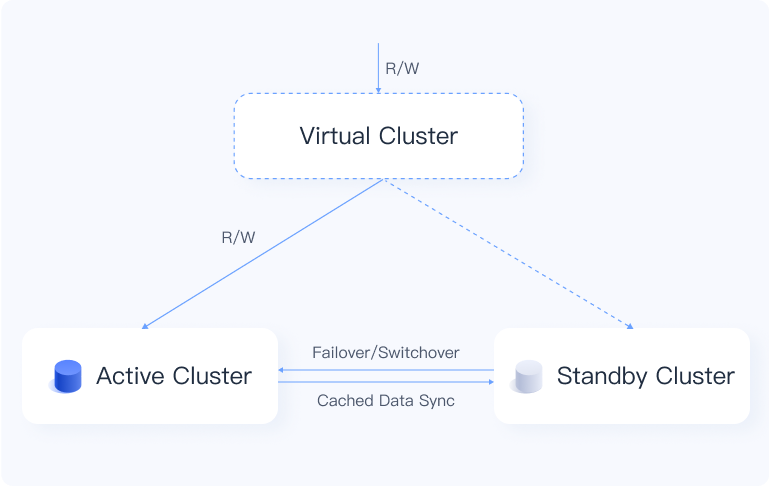
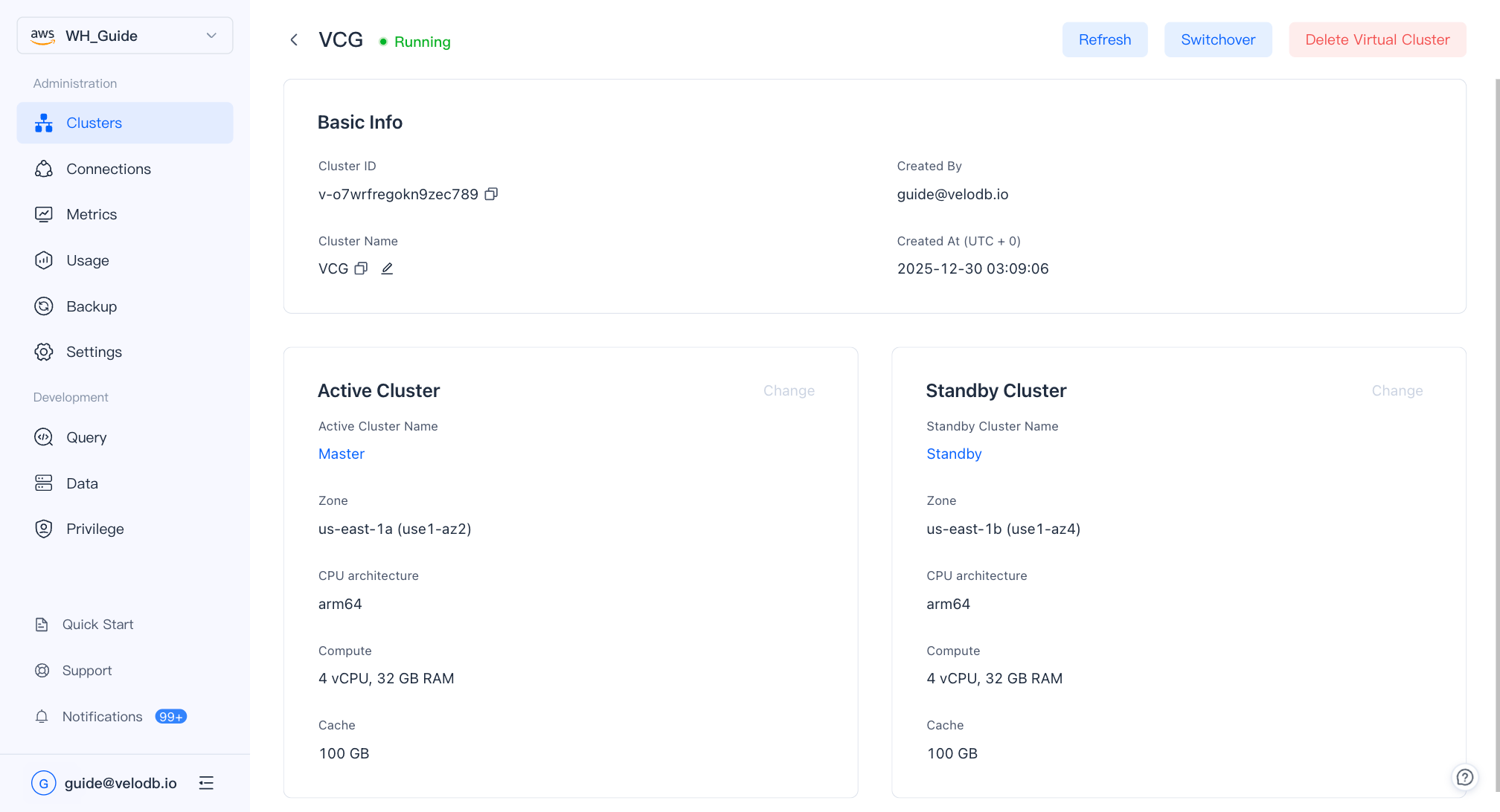
The virtual cluster pairs two physical clusters as active / standby across availability zones to provide cross-AZ high availability and disaster recovery. On a failure in the primary AZ, VeloDB automatically fails over to the standby cluster; real-time data synchronization prevents interruptions and data loss.
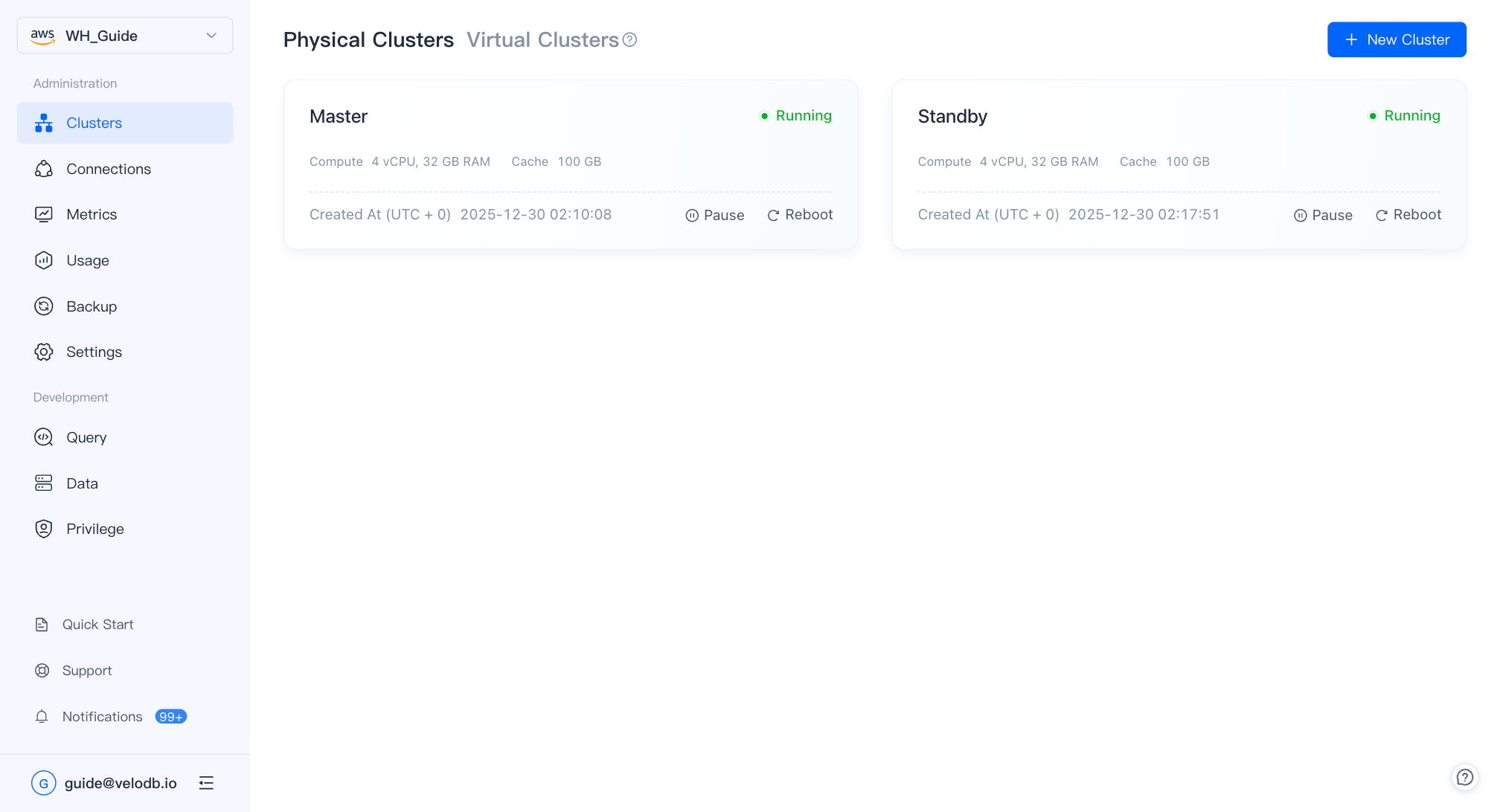
Before creating a virtual cluster, prepare two physical clusters that are Running and located in different availability zones.
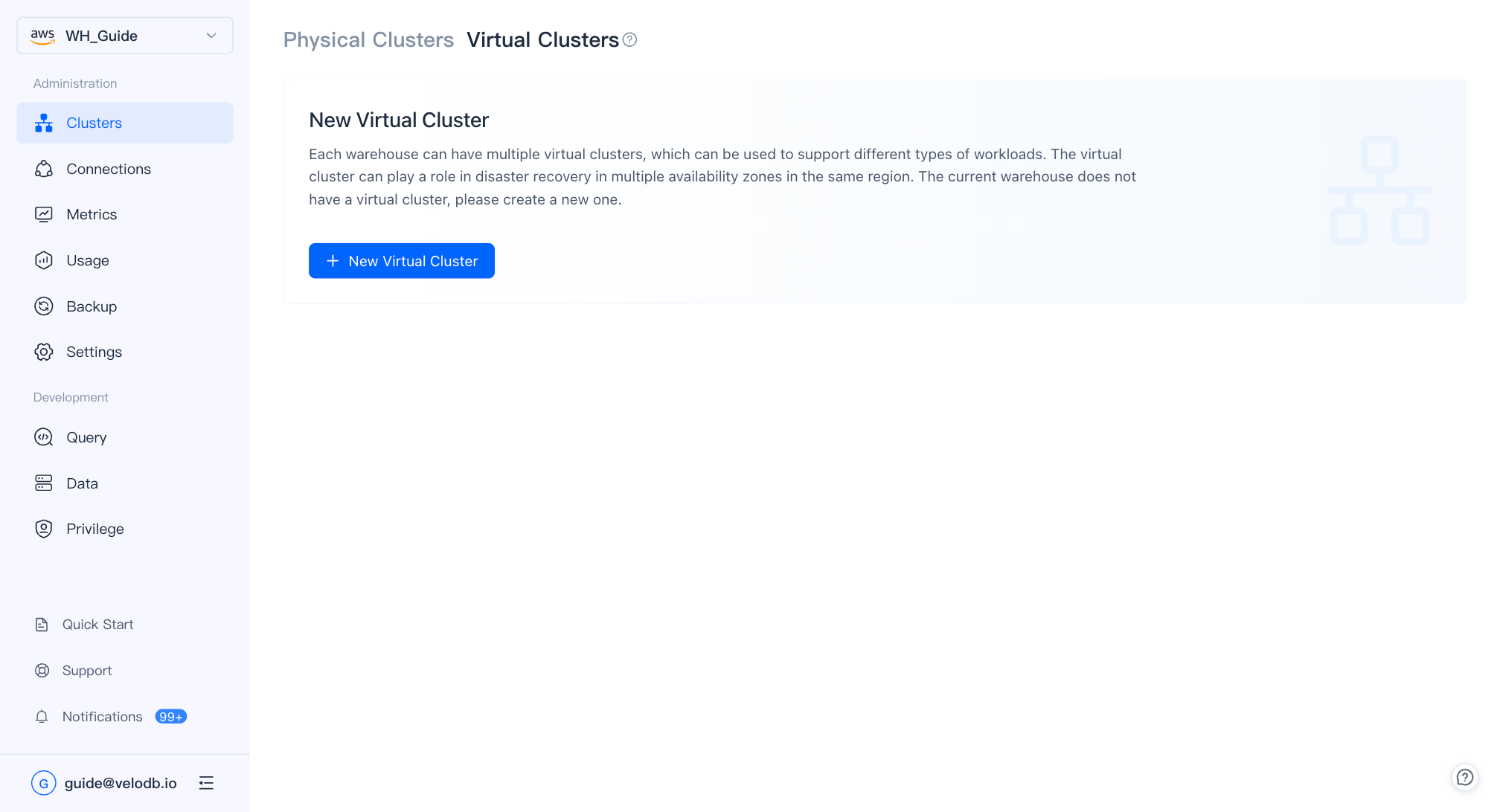
On the Virtual Cluster page, click New Virtual Cluster.
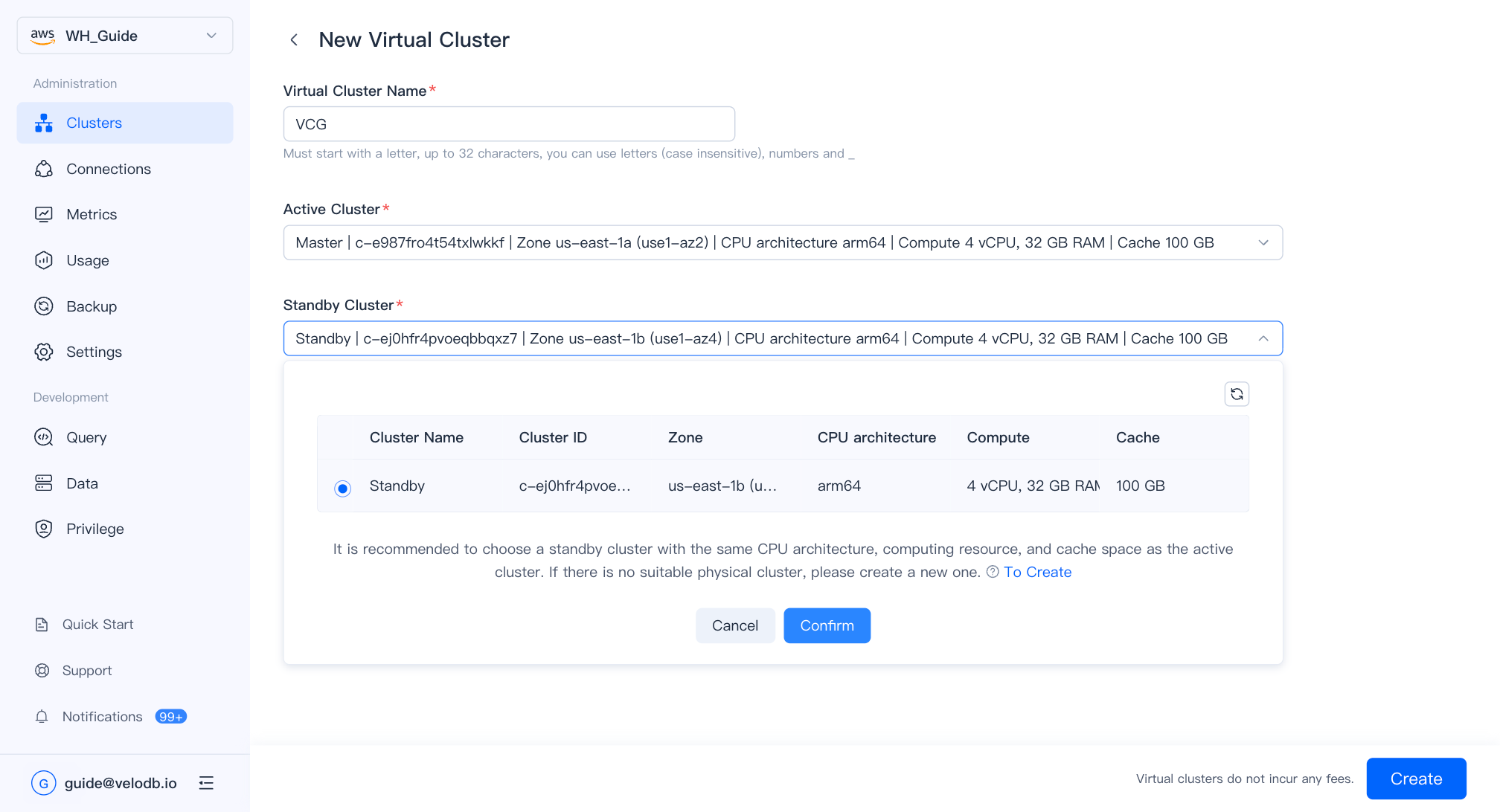
| Parameter | Description |
|---|---|
| Virtual Cluster Name | Must start with a letter; up to 32 characters; letters, digits, and underscores. |
| Active Cluster | The cluster actively serving traffic. |
| Standby Cluster | The standby cluster that takes over on failover. Identical specifications are recommended. |
After the virtual cluster is created, click its card on the overview page to open the detail page, where you can change the active/standby assignment or delete the virtual cluster.
Delete a cluster
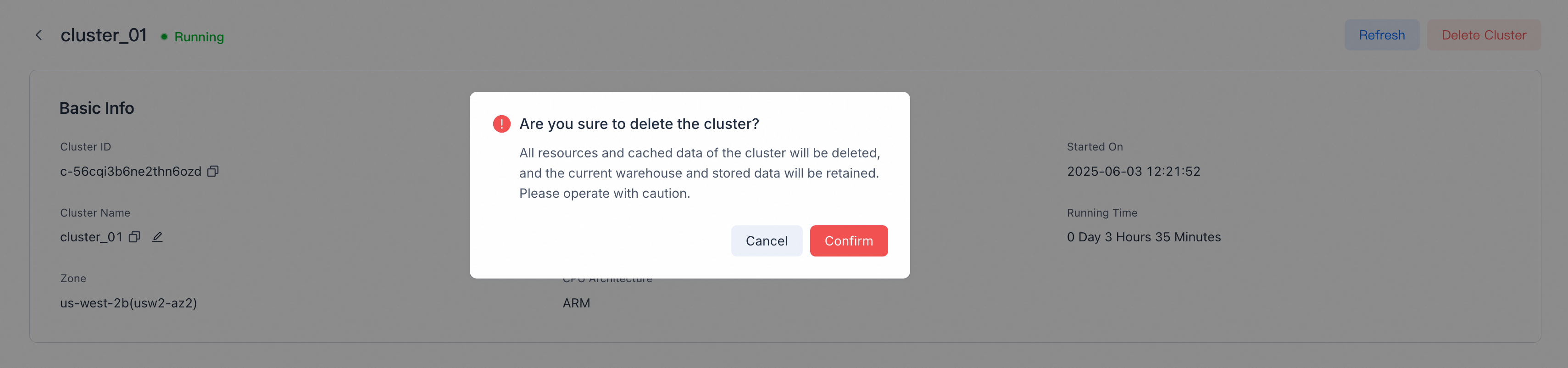
On the Details page, click Delete Cluster in the top-right corner and confirm.
Note
- Deleting a SaaS free-trial cluster also deletes the free-trial warehouse, its storage, and its data.
- Clusters that contain monthly/yearly billing resources cannot be deleted early. Wait until they expire and convert to on-demand billing; make sure auto-renew is off, or the cluster will keep renewing.
- All resources and cached data are deleted by VeloDB Cloud. Update or redirect any business that accesses the cluster before deletion, or related requests will fail.