Console Overview
VeloDB Cloud is a cloud-native data warehouse that runs on AWS, Azure, and GCP, with a consistent user experience and a fully managed service. It is fast, cost-effective, unified, and easy to use.
This topic introduces the VeloDB Cloud console at a glance and helps you find the right chapter for your task.
Main features
The VeloDB Cloud console brings the following features together in one place:
- Warehouse Management — create and manage SaaS or BYOC warehouses, pick regions, upgrade, encrypt, and delete.
- Work with data — SQL Editor, Log Explorer, Catalogs, Import, and Migration.
- Cluster Management — create clusters, pause and resume them, scale them manually or on a schedule, and run them across multiple availability zones or in primary-standby pairs. (Menu name: Compute.)
- Connection — expose your warehouse to applications through the public network or PrivateLink.
- Monitoring — track metrics, configure alerts, audit queries, and review usage.
- Backups — back up and restore the data in your warehouse.
- User and Roles — manage database-level users, roles, and permissions.
- Billing — manage payment methods (credit card, cash, vouchers) and subscribe through AWS or GCP Marketplace.
- Warehouse Settings — rename, change password, configure encryption, set the maintenance window, manage tags, upgrade the core, and delete the warehouse. (Menu: Manage → Settings.)
- API Keys — create and manage API keys for programmatic access to the VeloDB Cloud management API.
- Account and Organization — account and organization settings, including Members, Plans, Cloud Settings, and Activity Logs. (Opened from your avatar in the bottom-left corner.)
Sign up and sign in
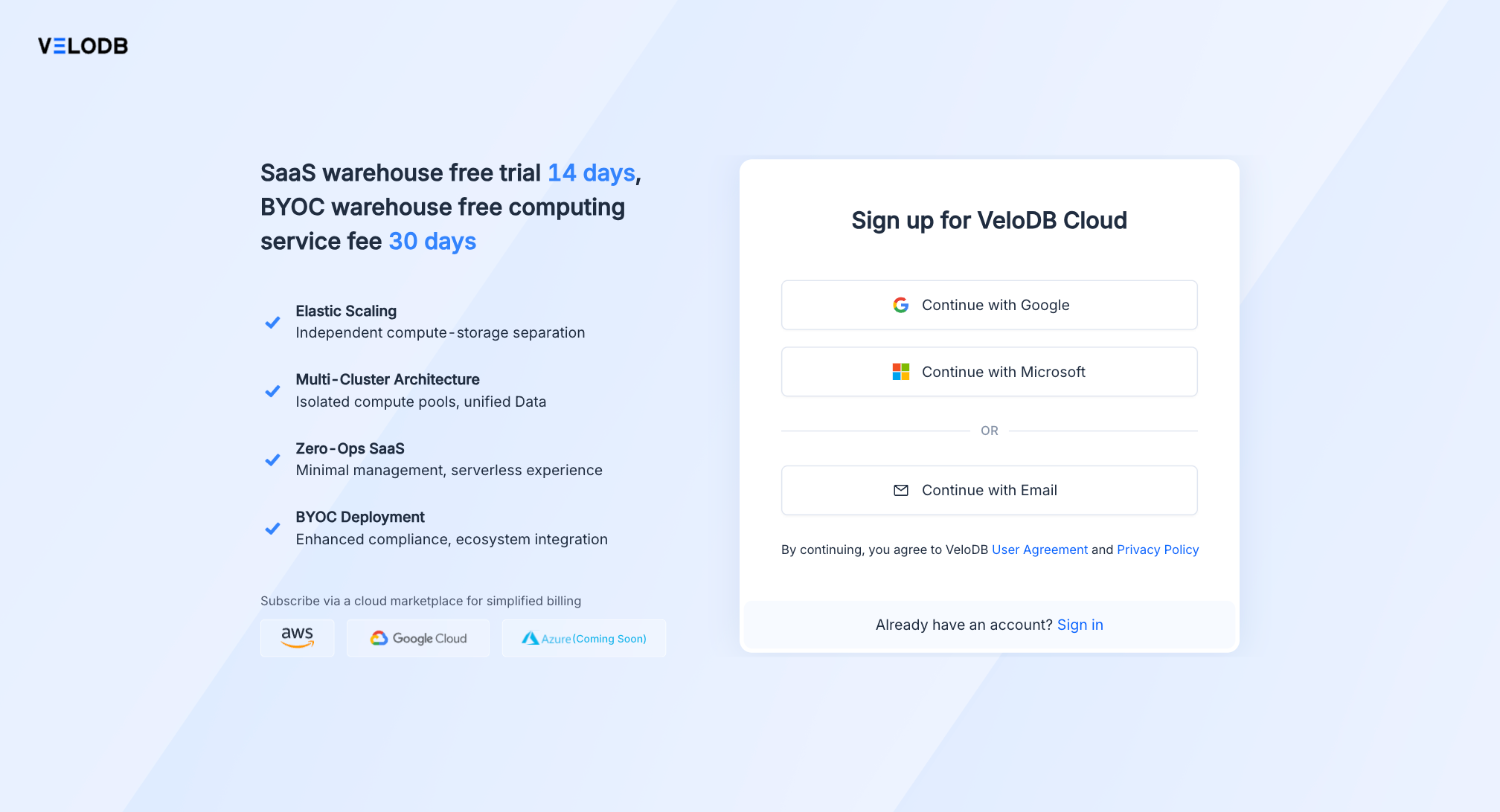
Register and sign in from https://www.velodb.cloud/.
When you register, an organization is created automatically and you become its Organization Admin. You can invite teammates later from Settings → Organization → Members.
If you already have an account, use the sign-in page directly.
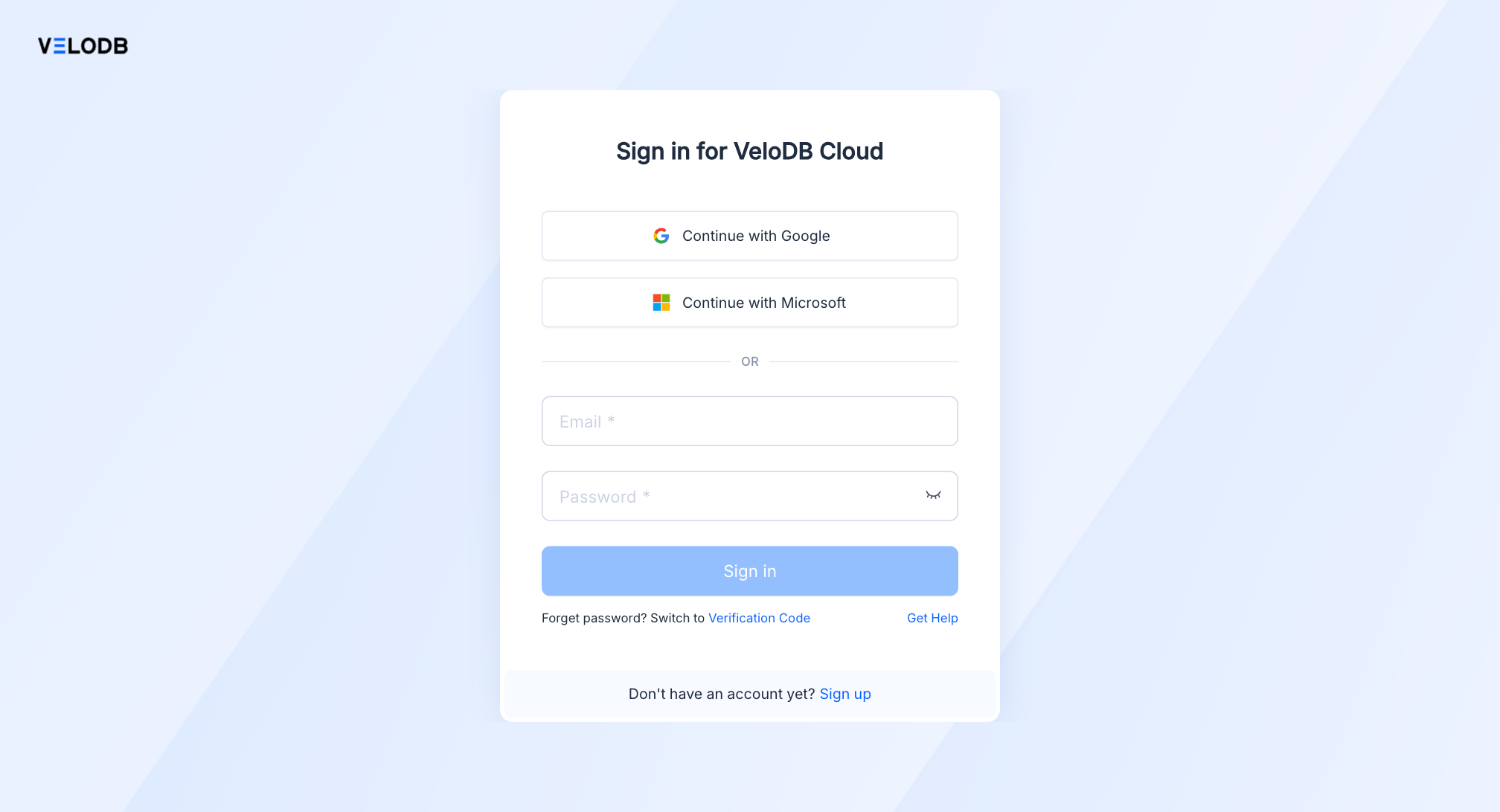
Note VeloDB Cloud uses two independent account systems:
- Console accounts are used to sign in to the web console.
- Database accounts are used by applications and BI tools to connect to a warehouse. See User and Roles and the connection strings in Connection.
If your organization has enabled multi-factor authentication, you are also asked for a one-time verification code from your authenticator app. See Settings → Account → Security in Account and Organization for how to turn MFA on.
To change your console password, open the menu from your avatar in the bottom-left corner, then click Security under Account.
Console layout
The console has four areas:
┌─ Top of nav ─────────────────────────────┐
│  Warehouse selector  ← switches context  │
├──────────────────────────────────────────┤
│  Work with data  ← per-warehouse         │
│  Manage          ← per-warehouse         │
├──────────────────────────────────────────┤
│  Tutorial / Support / Notifications      │
│  Avatar / email  ← Account and Org panel │
└──────────────────────────────────────────┘
Warehouse selector
The selector at the top of the left navigation shows the current warehouse. Click it to switch warehouses, view warehouse details, or create a new warehouse.
After you switch warehouses, every menu item below is scoped to the warehouse you just chose.
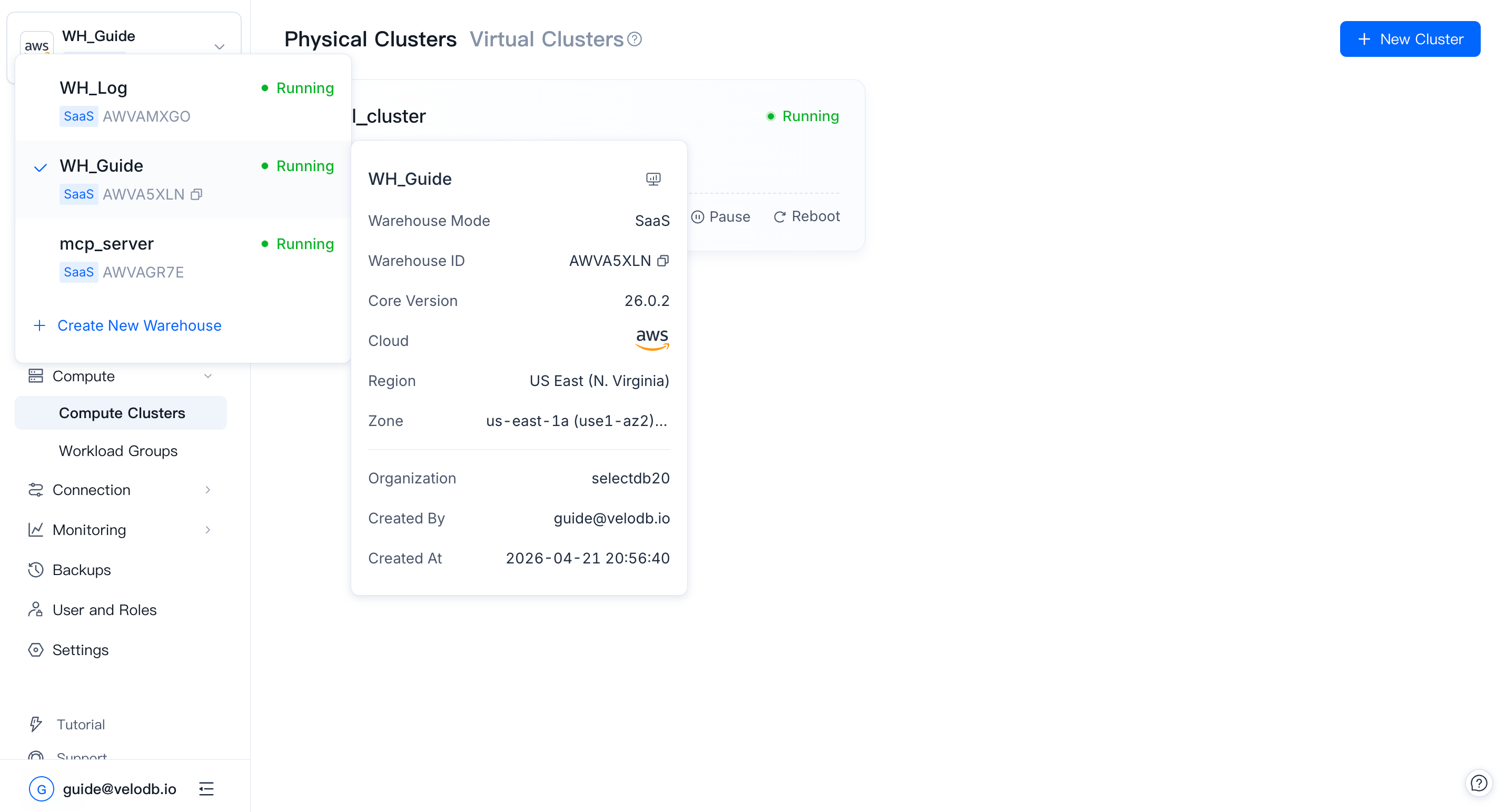
Left navigation — Work with data and Manage
The left navigation is divided into two groups. Work with data covers day-to-day data tasks:
| Menu item | Documentation |
|---|---|
| SQL Editor | SQL Editor |
| Log Explorer | Log Explorer |
| Catalogs | Catalogs |
| Import | Import |
| Migration | Migration |
Manage covers administrative tasks for the warehouse:
| Menu item | Documentation |
|---|---|
| Compute | Cluster Management |
| Connection | Connection |
| Monitoring | Monitoring |
| Backups | Backups |
| User and Roles | User and Roles |
| Settings | Warehouse Settings |
Bottom row
Just above your avatar at the bottom-left, three quick-access entries are always visible: Tutorial launches the in-product walkthrough, Support lets you contact VeloDB support, and Notifications is the message center for system events, alerts, and scheduled events.
Below them, your avatar / email opens the Account and Organization panel (Profile, Security, Members, API Keys, Billings, Plans, Cloud Settings, Activity Logs, Organization Details).
Organization and warehouse
The console works at two levels:
- A warehouse is the entity you provision and pay for. It has its own clusters, data, connections, and users. The left navigation — Work with data and Manage — is scoped to a single warehouse.
- An organization is the container around warehouses, and the billing unit. Organization settings (members, billing, activity log, organization details) live in the Account and Organization panel, opened from your avatar in the bottom-left corner.
One user can belong to multiple organizations, and one organization can hold multiple warehouses. Data is isolated between warehouses.