SAML Single Sign-On
Security Assertion Markup Language (SAML) is an open standard that lets an identity provider securely tell an application who a user is and that the user has been authenticated. With SAML single sign-on (SSO), organization members use their corporate identity to access the VeloDB Cloud console. They do not need a separate VeloDB Cloud password for the SAML sign-in flow.
The SAML flow involves two parties:
- The Identity Provider (IdP) authenticates the member and applies your organization's sign-on policies, such as multi-factor authentication (MFA). Okta, Google Workspace, Microsoft Entra ID, and Cisco Duo can act as the IdP.
- The Service Provider (SP) relies on the IdP to authenticate the member. VeloDB Cloud acts as the SP.
When a member signs in, the following process occurs:
- The member starts the sign-in from VeloDB Cloud.
- VeloDB Cloud redirects the member's browser to the configured IdP.
- The IdP authenticates the member and applies its sign-on policies.
- The IdP sends a signed SAML assertion to VeloDB Cloud. The assertion identifies the member by email and confirms the authentication result. The member's corporate credentials are not sent to VeloDB Cloud.
- VeloDB Cloud validates the assertion and starts a console session. Depending on the JIT provisioning policy, VeloDB Cloud can also create a user and organization membership for a first-time member.
Use SAML SSO when your organization manages workforce identities centrally and wants members to use the same corporate sign-in for VeloDB Cloud. It helps administrators apply IdP authentication and MFA policies consistently, control who can access the SAML application, and reduce separate passwords. This configuration applies to console access for one VeloDB Cloud organization. It does not authenticate warehouse users, SQL clients, or Management API requests, and it does not synchronize organization roles or the complete member lifecycle from the IdP.
Prerequisites
Before you configure SAML SSO, make sure that:
- Your organization uses the Premium plan.
- You are an Organization Admin in VeloDB Cloud.
- You can create and assign a SAML application in your identity provider.
- You can create DNS TXT records for at least one corporate email domain.
- Your identity provider provides a publicly accessible HTTPS SAML metadata URL.
- You have configured the required MFA or sign-on policies in your identity provider.
- At least one Organization Admin retains access while you configure and test SSO.
The provider-specific setup requires the following additional access:
| Identity provider | Additional prerequisite |
|---|---|
| Okta | Permission to create and assign applications, and an Okta user or group to test. |
| Google Workspace | Google Workspace administrator permission to create and assign SAML applications. |
| Microsoft Entra ID | Permission to create enterprise applications and assign users or groups. The SAML email claim must match the member's VeloDB Cloud email address. |
| Cisco Duo | Duo Single Sign-On configured with an authentication source, and permission to add and configure applications in the Duo Admin Panel. |
Step 1: Add an application in VeloDB Cloud
- Log in to the VeloDB Cloud console as an Organization Admin.
- In the upper-left corner, click the organization name to open Organization Overview.
- In the left navigation pane, click Organization Settings.
- Under Access & Security, find SAML Single Sign-on and enable it.
- In Add Application, copy the Single Sign-On URL and Service Provider Entity ID.
Keep the setup page open while you configure your identity provider. Click the provider tab for the remaining application setup and metadata import steps.
Step 2: Configure your identity provider
Click the tab for your identity provider to create a SAML application and import the metadata URL into VeloDB Cloud.
- Okta
- Google Workspace
- Microsoft Entra ID
- Cisco Duo
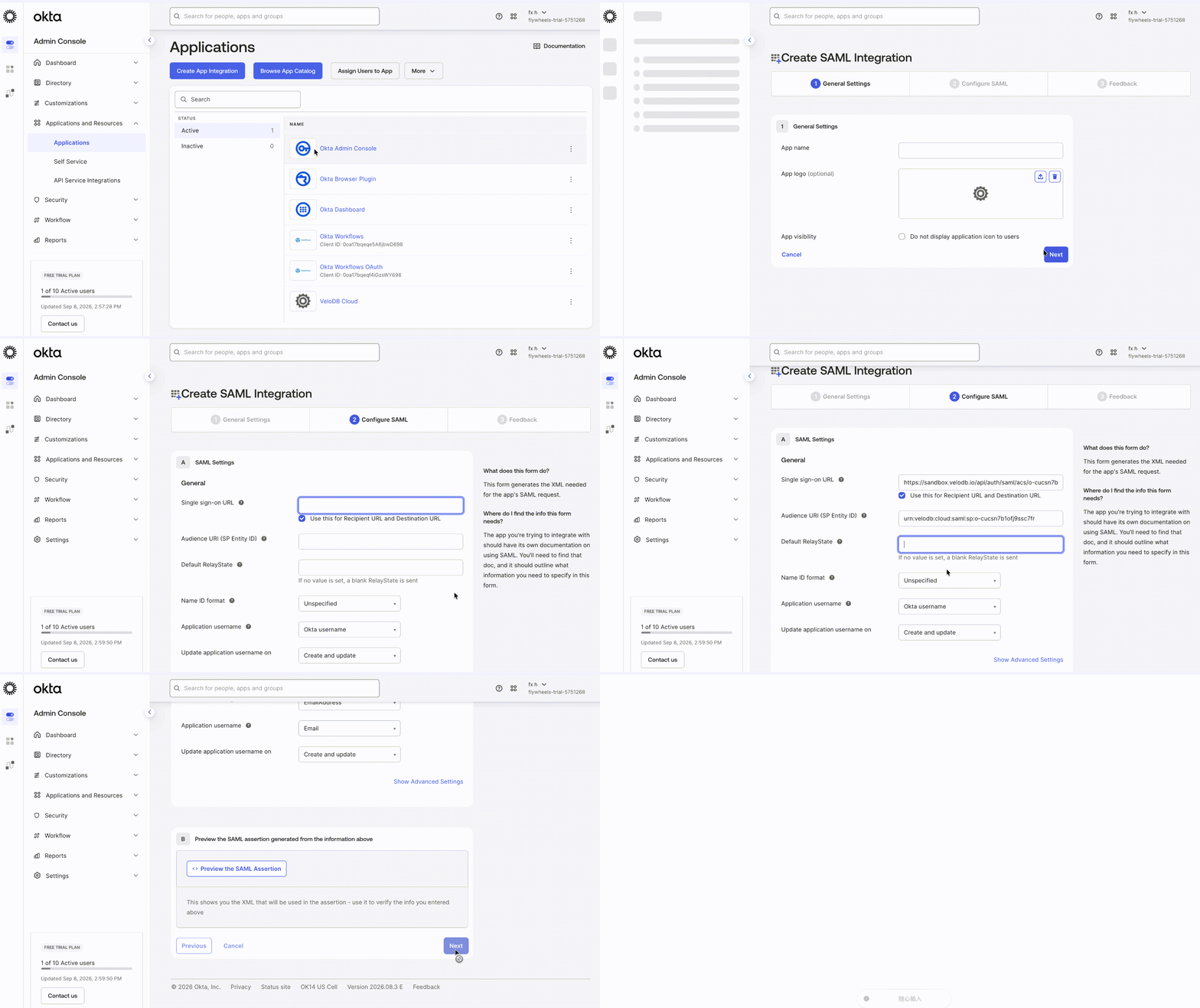
Create the Okta application
-
Log in to the Okta Admin Console.
-
Go to Applications and Resources > Applications.
-
Click Create App Integration.
-
Select SAML 2.0, and then click Next.
-
Enter an application name, such as
VeloDB Cloud, update an app logo, set the app visibility, and click Next. -
Configure the SAML settings:
Okta field Value Single sign-on URL Enter the VeloDB Cloud Single Sign-On URL Audience URI (SP Entity ID) Enter the VeloDB Cloud Service Provider Entity ID Default RelayState Leave blank Name ID format Select EmailAddressApplication username Select EmailUpdate application username on Select Create and update -
If Okta displays Use this for Recipient URL and Destination URL, enable it.
-
If needed, add the following attribute statement:
Name Name format Value emailBasicuser.email -
Click Next, optionally complete the Okta feedback form, and then click Finish.
-
Click the Assignments tab, and then assign the users or groups that can access VeloDB Cloud.
For more information, see Create SAML app integrations in the Okta documentation.
Import Okta metadata
- In the Okta application, click the Sign On tab.
- Locate the active SAML signing certificate and copy the Identity Provider metadata URL. Depending on the Okta interface, this may be labeled Copy metadata URL or View IdP metadata.
- Return to VeloDB Cloud, continue to Configure Identity Provider, and paste the URL into Metadata URL.
- Click Verify.
- Confirm that VeloDB Cloud displays the imported IdP SSO URL and certificate.
Create the Google Workspace application
-
Log in to the Google Admin console. You must be logged in as a super administrator for this task.
-
Go to Apps > Web and mobile apps.
-
Click Add App > Add custom SAML app.
-
Enter an application name, such as
VeloDB Cloud, and then click Continue. -
On the Google Identity Provider details page, copy the Metadata URL, then click Continue.
-
Configure the Service Provider details:
Google Workspace field Value ACS URL Enter the VeloDB Cloud Single Sign-On URL Entity ID Enter the VeloDB Cloud Service Provider Entity ID Start URL Leave blank Signed response Enabled Name ID format EMAILName ID Basic Information > Primary email -
Click Continue.
-
Add this attribute mapping:
Google directory attribute App attribute Primary email email -
Click Finish.
-
Open User access and enable the application for the appropriate groups or organizational units.
For more information, see Set up your own custom SAML application in the Google Workspace documentation.
Import Google Workspace metadata
- Return to VeloDB Cloud, continue to Configure Identity Provider, and paste the Google Workspace metadata URL into Metadata URL.
- Click Verify.
- Confirm that VeloDB Cloud displays the imported IdP SSO URL and certificate.
Create the enterprise application
-
Log in to the Microsoft Entra admin center.
-
Go to Identity > Applications > Enterprise applications.
-
Click New application, then click Create your own application.
-
Enter an application name, such as
VeloDB Cloud. -
Click Integrate any other application you don't find in the gallery (Non-gallery), and then click Create.
-
Open Users and groups, and assign the users or groups that can access VeloDB Cloud.
-
Open Single sign-on, and click SAML.
-
In Basic SAML Configuration, click Edit.
-
Configure the following fields:
Microsoft Entra ID field Value Identifier (Entity ID) Enter the VeloDB Cloud Service Provider Entity ID Reply URL (Assertion Consumer Service URL) Enter the VeloDB Cloud Single Sign-On URL Sign on URL Leave blank Relay State Leave blank Logout URL Leave blank -
Save the Basic SAML Configuration.
-
In Attributes & Claims, edit Unique User Identifier (Name ID). Set Name identifier format to Email address, and select a source attribute that contains the member's VeloDB Cloud email address, typically
user.mail. -
Add an
emailclaim that uses the same source attribute:
| Claim name | Source attribute |
|---|---|
email | user.mail, or the attribute containing the member's VeloDB Cloud email address |
For more information, see Enable SAML single sign-on for an enterprise application in the Microsoft documentation.
Import Microsoft Entra ID metadata
- On the Set up Single Sign-On with SAML page, locate SAML Certificates and copy the App Federation Metadata Url.
- Return to VeloDB Cloud, continue to Configure Identity Provider, and paste the URL into Metadata URL.
- Click Verify.
- Confirm that VeloDB Cloud displays the imported IdP SSO URL and certificate.
Create the Duo application
-
Log in to the Duo Admin Panel.
-
Go to Applications > Protect an Application.
-
Search for Generic SAML Service Provider with the SSO label, and add the application.
-
In the Service Provider section, configure the following fields:
Duo field Value Entity ID Enter the VeloDB Cloud Service Provider Entity ID Assertion Consumer Service (ACS) URL Enter the VeloDB Cloud Single Sign-On URL Service Provider Login URL Leave blank Default Relay State Leave blank -
Configure the NameID settings:
Duo field Value NameID format urn:oasis:names:tc:SAML:1.1:nameid-format:emailAddressNameID attribute Email Address -
Add an attribute mapping from the Duo email attribute to
emailin the SAML response. -
Configure application access and Duo policies for the appropriate users or groups.
-
Save the application.
For more information, see Duo Single Sign-On for Generic SAML Service Providers in the Duo documentation.
Import Duo metadata
- In the Duo application, locate the Metadata section and copy the Metadata URL.
- Return to VeloDB Cloud, continue to Configure Identity Provider, and paste the URL into Metadata URL.
- Click Verify.
- Confirm that VeloDB Cloud displays the imported IdP SSO URL and certificate.
The metadata URL must be publicly accessible over HTTPS for every provider.
Step 3: Verify your domain and configure provisioning
- Continue to Verify Domain.
- Click Add Domain, and enter your corporate email domain without
@, for example,example.com. - At your DNS provider, create a TXT record using the TXT Record Name and Record Value displayed by VeloDB Cloud.
- Wait for the DNS change to propagate, and then click Verify for the domain.
- Select the Default Role assigned to users created through JIT provisioning.
- Select a JIT Provisioning Policy. It is recommended that you use Verified domain only to restrict new members to verified corporate email domains. See the following policy table for details.
- Click Continue.
Just-in-time (JIT) provisioning controls whether VeloDB Cloud creates a user and organization membership after a successful SAML sign-in.
| Policy | Behavior |
|---|---|
| Verified domain only | Creates users only when their email address belongs to a verified domain. This is the recommended policy. |
| Allow All SSO Users | Creates users whom the identity provider allows to authenticate, regardless of their email domain. |
| Disable Automatic Provisioning | Allows only existing active organization members to sign in with SAML. |
New members created through JIT provisioning receive the Default Role selected during setup. Select the least-privileged role required for new members. SAML group attributes do not change or assign VeloDB Cloud roles.
Caution:
With Allow All SSO Users, any user whom the identity provider permits to authenticate can be provisioned in the organization. Restrict application assignments in the identity provider before selecting this policy.
You cannot use public email domains, such as gmail.com and outlook.com, as verified domains.
Step 4: Test SSO Login
Test SSO before enabling it for your organization. The test validates the SAML request, response, certificate, Entity ID, ACS URL, and user email without creating a new member or a persistent organization SSO session.
- In Test SSO Login, click Test SSO Login.
- Log in through the configured identity provider with an account assigned to the SAML application.
- Complete any provider-specific authentication challenge.
- Confirm that VeloDB Cloud reports SSO Test Successful.
- Click Continue.
Changing the identity provider metadata URL requires another successful test before SSO can be enabled again.
Step 5: Enable or enforce SSO
VeloDB Cloud provides two access policies:
-
Enable SSO
This policy makes SAML SSO available while retaining password and verification-code sign-in. Users whose email matches a verified domain are normally directed to the identity provider.
-
Enforce SSO
This policy requires a valid SAML sign-in before a member can access the organization.
Before you enforce SSO, an active Organization Admin must complete a regular SAML sign-in:
- Log out of VeloDB Cloud.
- Start a new sign-in at VeloDB Cloud using the Organization Admin's email address.
- Authenticate through the identity provider, and confirm that the administrator can access the organization.
- Return to Organization Settings, open Access & Security, and open the SAML SSO configuration.
- Click Configure next to Enable SSO, choose Enforce SSO, and confirm the change.
VeloDB Cloud supports Service Provider-initiated sign-in only. Start sign-in from VeloDB Cloud, not from an identity provider application tile or portal.
When SSO is enabled but not enforced, the email sign-in page remains available for password or verification-code sign-in. This page does not bypass SSO enforcement.
Step 6: Sign in after SSO is enabled
Members normally log in at VeloDB Cloud:
- Enter an email address associated with a verified domain.
- Continue to the identity provider.
- Authenticate with the identity provider.
- Return to VeloDB Cloud.
MFA with SAML SSO
For members who sign in with SAML, the identity provider is responsible for authentication and MFA. VeloDB Cloud does not prompt these members for its own MFA after the identity provider completes authentication. Configure and enforce your MFA policy in the identity provider before you enable SSO.
VeloDB Cloud MFA still applies to members who sign in with a password or verification code. It does not add a second MFA challenge to a SAML sign-in.
| Sign-in method | MFA policy that applies |
|---|---|
| SAML SSO | The identity provider's MFA policy. |
| Password or verification code | The organization's VeloDB Cloud MFA policy. |
To require MFA consistently, enforce MFA in the identity provider before you enable or enforce SSO. When SSO is enabled but not enforced, members who can still use password or verification-code sign-in remain subject to the VeloDB Cloud MFA policy.
Manage SSO members
SAML authenticates members, but it does not synchronize member lifecycle or organization roles from the identity provider. Removing an application assignment, disabling an identity provider account, or changing group membership does not remove an existing VeloDB Cloud organization membership or change its role. SAML group attributes also do not assign VeloDB Cloud roles.
To offboard a member:
- Remove the member's assignment to the SAML application or disable the account in your identity provider to prevent future SAML sign-ins.
- Remove the member from the VeloDB Cloud organization on the Members page.
- Review the remaining organization members and roles, especially members created through JIT provisioning.
New JIT-provisioned members receive the Default Role selected during SSO setup. Review these members regularly and assign the least-privileged role required.
Manage or disable SSO
To review or change the configuration, open Organization Settings, go to Access & Security, and select View Configuration for SAML SSO. Use Configure next to an editable step to change its settings.
Warning:
Changing the identity provider metadata URL disables SSO and invalidates the previous SSO test. Keep an active Organization Admin session open, run Test SSO Login again, and re-enable SSO before ending the session.
To disable SSO, turn off SAML Single Sign-on on the Organization Settings page under Access & Security and confirm the change. Disabling SSO retains the configuration but removes the SAML requirement from the organization.
Troubleshooting
| Issue | Recommended action |
|---|---|
| VeloDB Cloud cannot import the metadata URL. | Confirm that the URL uses HTTPS, is publicly accessible, and returns valid SAML metadata containing an Identity Provider Entity ID, an SSO service, and an active signing certificate. |
| The SSO test returns to VeloDB Cloud with an error. | Confirm that the ACS URL, Service Provider Entity ID, NameID, and email claim in the identity provider match the values for the same VeloDB Cloud organization. |
| VeloDB Cloud cannot identify the member. | Configure the SAML NameID and the email attribute with the member's VeloDB Cloud email address. |
| A member cannot start SSO. | Confirm that SSO is enabled and that the member is assigned to the SAML application in the identity provider. |
| A new member is not created. | Review the JIT provisioning policy, the verified domain, the Default Role, and the identity provider application assignment. |
| Enforce SSO is rejected. | Enable SSO first, and have an active Organization Admin complete a regular SAML sign-in before enforcing SSO. |
Limitations
- An organization can only have one SAML identity provider configuration.
- Identity Provider-initiated SSO is not supported.
- SAML Single Logout is not supported. Signing out of the identity provider does not terminate an existing VeloDB Cloud session, and signing out of VeloDB Cloud does not sign the member out of the identity provider.
- SCIM provisioning is not supported.
- SAML group-to-role mapping is not supported.