Network Configuration
A network configuration references a credential and defines where the warehouse runs: the subnets, security group, and optional VPC endpoint for private connectivity.
What to prepare
Register the network configuration by entering these AWS resource IDs in the VeloDB Cloud console:
| What VeloDB Cloud needs | You enter in the VeloDB Cloud console | Create it in AWS |
|---|---|---|
| Subnets where the warehouse runs | Subnet ID, starting with subnet- | Create or verify the VPC and subnets |
| A network firewall for the warehouse instances | Security Group ID, starting with sg- | Create or verify security groups |
| A private path to VeloDB Cloud (optional unless the selected subnets require it) | VPC Endpoint ID, starting with vpce- | Create a private endpoint to VeloDB Cloud |
If you already have a VPC, subnets, and security group that meet the requirements, enter their IDs when you register the configuration. The security group still needs the inbound rules in Create or verify security groups, and private connectivity still needs the VeloDB Cloud-specific private endpoint to VeloDB Cloud.
Warning:
The VPC, subnets, security group, and any VPC endpoint must be in the same region as the warehouse. If the network configuration is in a different region, deployment stalls. Create the VPC in the target region, and register the network under that same region in Add New Network Configuration.
Before you start
- Create a credential configuration first. The console uses its cross-account role to validate the network resources.
- Select Single-AZ or Multi-AZ. Multi-AZ requires three subnets in different availability zones, all in the same VPC.
- Decide whether the warehouse needs private connectivity. If it does, create a VPC endpoint to VeloDB Cloud before registering the network.
Complete the network configuration
- Prepare or verify the VPC, subnets, security group, and, if required, VPC endpoint. See Create or verify AWS network resources.
- Register the network configuration in the VeloDB Cloud console with the resource IDs.
- Confirm that the console validates and saves the configuration. You can then select it for a warehouse deployed on Custom Infrastructure.
Register the network configuration in the console
Register the network configuration in the VeloDB Cloud console. You can do this from the Cloud Resources page, or inline while creating a warehouse deployed on Custom Infrastructure.
- Open the Cloud Resources page.
- Click Add New Configuration and choose Network Configuration from the dropdown to open Add New Network Configuration.
- In Network Configuration Name, enter a name (up to 32 characters: letters, numbers, hyphens, and underscores).
- Set Cloud Platform to AWS and Region to the region where you created the VPC, subnets, and security group. The console validates the subnets against this region, so it must match. These two fields appear only when you open Add New Network Configuration from the Cloud Resources page. When you add a network inline during warehouse creation, they are inherited from the warehouse and hidden.
- In Choose Credential Configuration, select the credential this network uses. The console validates the subnets with this credential's cross-account role, so select it before entering the subnet IDs.
- Choose the availability-zone layout and enter the subnet IDs (each starts with
subnet-). To create subnets, see Create or verify the VPC and subnets. To find an existing ID, open the AWS VPC Console under Subnets and copy each private subnet's Subnet ID.- Multi-AZ (recommended): enable Multiple Availability Zones, then enter three different subnets in Subnet ID (AZ 1), Subnet ID (AZ 2), and Subnet ID (AZ 3), one per availability zone.
- Single-AZ: enter one subnet in Subnet ID.
- In Security Group ID, enter the ID of the EC2 security group (starts with
sg-, for examplesg-0123456789abcdef0), not the VPC-endpoint security group. To create it, see Create or verify security groups. To find an existing ID, open the AWS VPC Console under Security groups. - (Optional) Expand Advanced Network Settings and, in VPC Endpoint ID, enter the endpoint to VeloDB Cloud (starts with
vpce-) for private connectivity. This field is required when the console detects that your subnets need PrivateLink. The panel shows the Endpoint Service Name to create the endpoint against: see Create a private endpoint to VeloDB Cloud. - Click Confirm. VeloDB Cloud validates the subnets, security group, and endpoint against the selected credential before it saves the configuration. If a subnet or security group is in a different region, or an ID is wrong, the check reports the specific field so you can correct it.
Create or verify AWS network resources
Create these resources in the AWS console if you do not already have them. Each one maps to a field in the Add New Network Configuration form above.
Create or verify the VPC and subnets
A VPC that matches VeloDB Cloud's network requirements is a prerequisite for the Existing VPC and Custom Infrastructure options. For Existing VPC, you select the prepared VPC in the creation flow. For Custom Infrastructure, you register its subnets through Add New Network Configuration. For New VPC, the template creates the VPC and subnets for you.
Multi-AZ deployment is available in every option and is determined by the subnets the warehouse uses. Multi-AZ is recommended for greater resilience.
- Multi-AZ (recommended): use three subnets, each in a different availability zone. In the Existing VPC and Custom Infrastructure options you provide the three subnets. In Custom Infrastructure, you also enable Multiple Availability Zones in Add New Network Configuration.
- Single-AZ: use one subnet.
Use a public and a private subnet in each availability zone, with VeloDB Cloud deployed in the private subnets.
-
Sign in to the AWS VPC Console as an administrator.
-
Select the target region and click Create VPC.
-
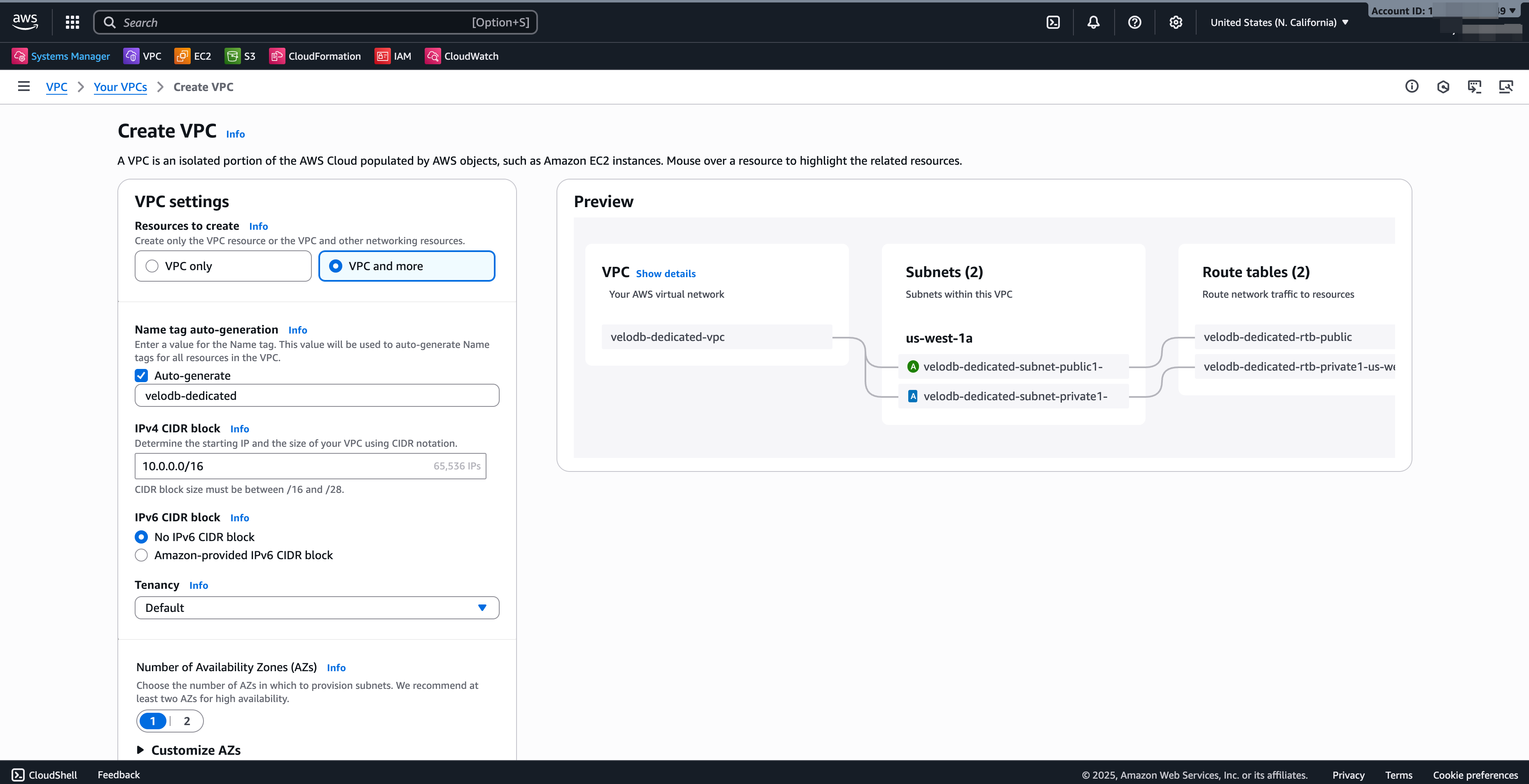
Resources to create: VPC and more.
-
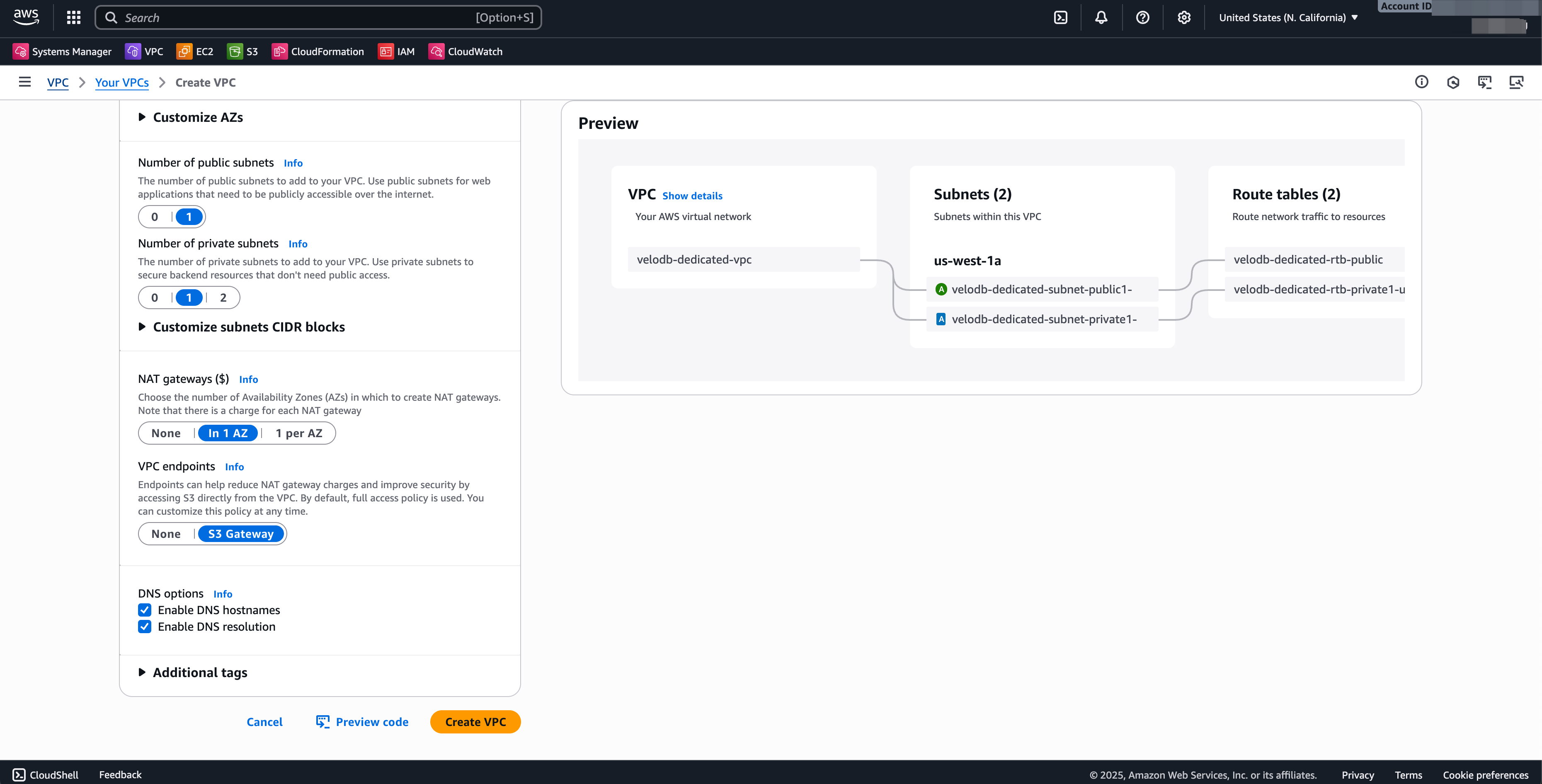
Adjust these fields (keep other defaults):
Field Value Name tag e.g. velodb-vpcIPv4 CIDR block Your preferred starting IP and size. Number of Availability Zones 3 for Multi-AZ (default), or 1 for Single-AZ Number of public subnets 1 per availability zone Number of private subnets 1 per availability zone NAT gateways 1 per availability zone VPC Endpoints S3 Gateway (reduces NAT charges; access S3 privately) -
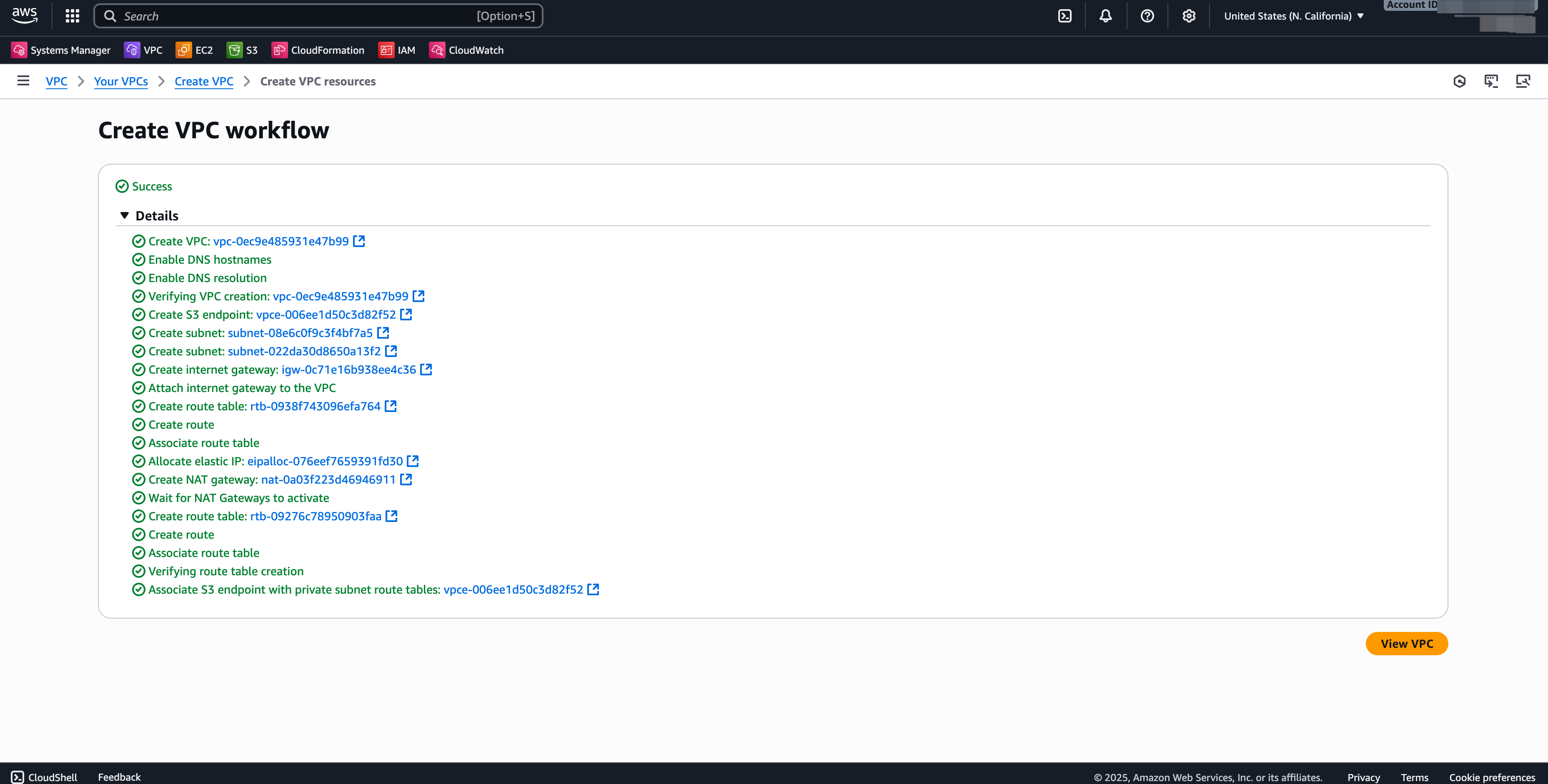
Click Create VPC, then View VPC when the workflow completes.
Use the VPC and more option because it provisions the subnets, NAT gateways, and endpoints together. Selecting S3 Gateway under VPC Endpoints creates the S3 gateway endpoint as part of this workflow, so you can skip the standalone step below.
For more information, see the AWS documentation for creating a VPC.
Create or verify security groups
A security group is a virtual firewall that controls traffic to its associated AWS resources. You typically need two security groups for BYOC:
- EC2 security group: you provide this one to the VeloDB Cloud console as the Security Group ID in your network configuration. VeloDB Cloud attaches it to the EC2 instances it creates for the warehouse.
- VPC-endpoint security group: you attach this one to the private endpoint to VeloDB Cloud.
Create the EC2 security group
- In the AWS VPC Console, go to Security groups → Create security group.
- Name it (for example,
velodb-server-sg) and select the VPC. - Add two inbound rules:
- Rule 1: Type All TCP, Source this security group.
- Rule 2: Type Custom TCP, Port range 8000-10000, Source the CIDR of the VPCs that need to reach the warehouse.
- Leave outbound rules as the default.
- Click Save rules and copy the Security group ID for the VeloDB Cloud console.
For more information, see the AWS documentation for security groups.
Create the VPC-endpoint security group
- In the AWS VPC Console, go to Security groups → Create security group.
- Name it (for example,
velodb-endpoint-sg) and select the VPC. - Add an inbound rule:
- Type: HTTPS.
- Source: Anywhere-IPv4.
- Leave outbound rules as the default.
- Click Save rules.
For more information, see the AWS documentation for security groups.
Create a private endpoint to VeloDB Cloud
To keep BYOC traffic on the AWS backbone, create a private endpoint so your warehouse connects to the VeloDB Cloud service over PrivateLink instead of the public internet.
-
In the AWS VPC Console, go to Endpoints → Create endpoint.
-
Fill in:
Field Value Name e.g. vpce-for-velodbService category PrivateLink Ready partner services Service name Copy the VeloDB PrivateLink service name for the warehouse region. It is shown in the Endpoint Service Name field under Advanced Network Settings in the Add New Network Configuration drawer, and is also listed in AWS PrivateLink for VeloDB Services. Click Verify service: you should see "Service name verified". VPC The VPC to create the endpoint in. Subnets The private subnets for the endpoint's network interfaces. Security group The VPC-endpoint security group you created above (e.g. velodb-endpoint-sg).Policy Full access (typical). -
Click Create endpoint.
For more information, see the AWS documentation for creating an interface endpoint.
Create an S3 gateway endpoint
An S3 gateway endpoint gives instances in your VPC private connectivity to S3, avoiding the public internet and reducing NAT-gateway charges when S3 traffic would otherwise use a NAT gateway.
Note:
If you selected S3 Gateway while creating the VPC with VPC and more, this endpoint already exists and you can skip this section.
-
In the AWS VPC Console, go to Endpoints → Create endpoint.
-
Fill in:
Field Value Name e.g. vpce-for-s3-gatewayService category AWS services Services Search S3, pickcom.amazonaws.{region}.s3with type Gateway.VPC The VPC to create the endpoint in. Route tables The route tables associated with your private subnets. Policy Full access or Custom. -
Click Create endpoint.
For more information, see the AWS documentation for creating a gateway endpoint.
See also
- Credential configuration: create the credential that validates the network resources.
- Encryption key configuration: register an optional AWS KMS key for the warehouse.
- AWS PrivateLink for VeloDB Services: find the VeloDB PrivateLink service name for the warehouse region.
- Deploy on Custom Infrastructure: create a warehouse with the registered configurations.