Warehouse Home Page
Use the Home page in the VeloDB Cloud console to check the selected warehouse's status, resource utilization, and recent workload activity. From this page, you can open detailed metrics, review backups and public access settings, and check for core version upgrades.
Open Warehouse Home
- Log in to the VeloDB Cloud console.
- In the upper-left corner, select the organization and warehouse that you want to inspect.
- In the left navigation pane, click Home. If the page shows Setup Guide, select the Overview tab.
The overview is available for SaaS and BYOC warehouses. It shows information for the selected warehouse. To inspect another warehouse, use the warehouse selector in the upper-left corner.
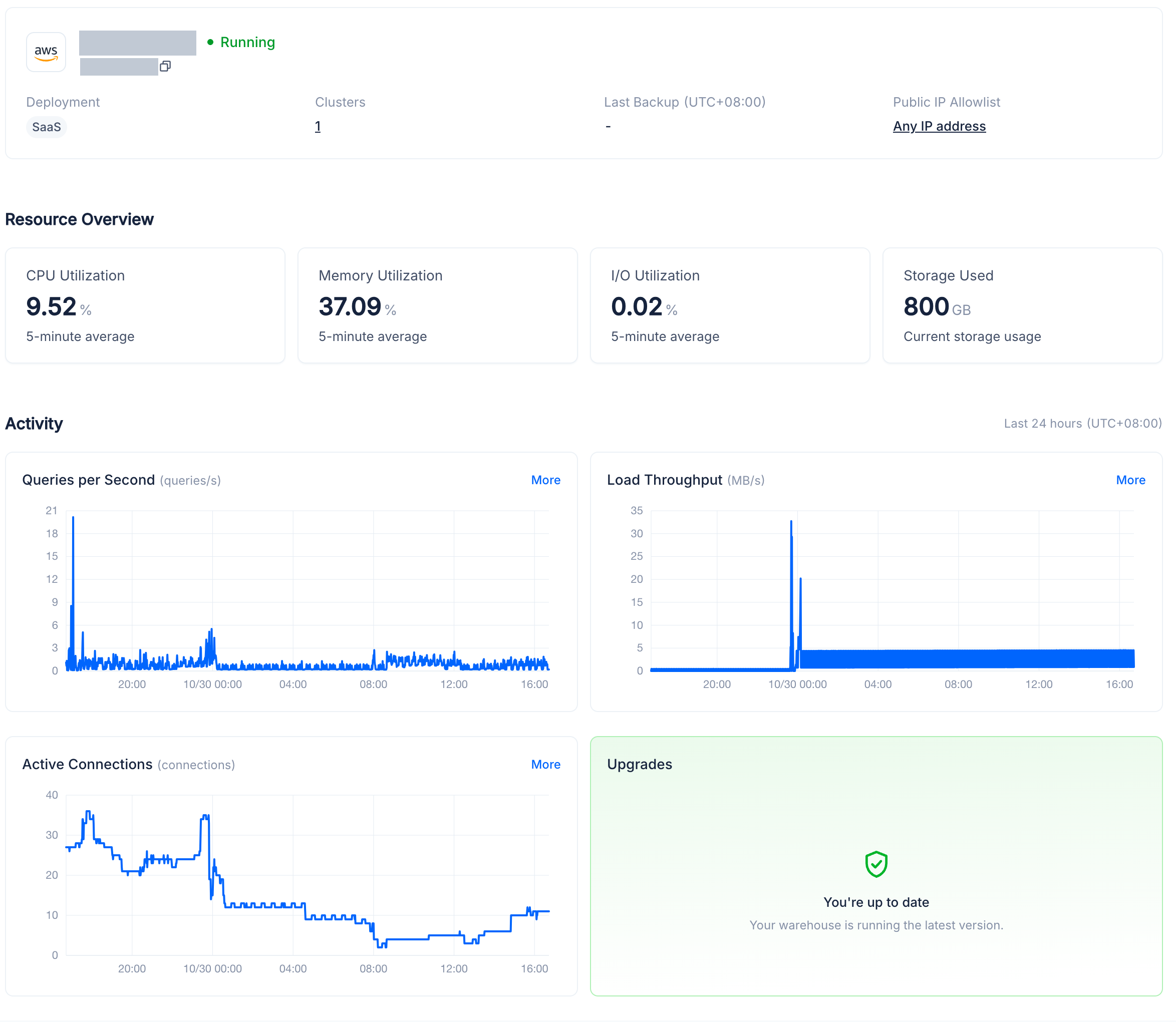
Review warehouse information
The top card shows the cloud provider, warehouse name, status, and warehouse ID. Click Copy next to the ID when you need to identify the warehouse in a support request.
| Field | What it shows | Where to go next |
|---|---|---|
| Deployment | The deployment model: SaaS or BYOC. | See Deployment Models for the differences. |
| Clusters | The number of clusters in the warehouse. | Click the count to open Clusters and manage compute resources. |
| Last Backup | The time of the most recent successful backup. Check the UTC offset beside the label. | Click the timestamp to open Backups and review backup details. |
| Public IP Allowlist | The public access policy: Any IP address, No public access, or Specific IP addresses. | Click the policy to open the public IP allowlist settings. |
For SaaS warehouses, the public IP allowlist controls public warehouse connections and console data-plane operations. For BYOC warehouses, it controls console data-plane operations. Direct BYOC warehouse connections use your cloud network controls.
A dash (-) means that a value is unavailable. If Last Backup shows a dash, open Backups from the left navigation pane to check the backup configuration and task history.
Check resource utilization
Resource Overview summarizes resource usage for the warehouse.
| Card | What it shows | Click to open |
|---|---|---|
| CPU Utilization | Average CPU utilization over the last 5 minutes, as a percentage. | The corresponding chart in Metrics. |
| Memory Utilization | Average memory utilization over the last 5 minutes, as a percentage. | The corresponding chart in Metrics. |
| I/O Utilization | Average disk I/O utilization over the last 5 minutes, as a percentage. | The corresponding chart in Metrics. |
| Storage Used | Current warehouse storage usage, in GB. | Usage. |
Use these cards to identify resource pressure, then open Metrics to inspect trends and compare warehouse and cluster metrics. The utilization cards show averages, so inspect individual clusters and nodes when investigating uneven load. For storage and resource consumption details, open Usage.
If a card shows a dash, the value is unavailable. Do not interpret it as zero utilization or zero storage usage.
Review recent activity
Activity shows warehouse workload trends over the Last 24 hours. Check the displayed UTC offset when comparing charts with application events.
| Chart | What it shows |
|---|---|
| Queries per Second | Query throughput, in queries per second. Use it to identify changes in query demand. |
| Load Throughput | Data ingestion throughput, in MB/s. Use it to identify changes in ingestion volume. |
| Active Connections | The number of active warehouse connections. Use it to identify changes in client connection activity. |
Hover over a chart to inspect values at a specific time. Click More on a chart to open the corresponding metric in Metrics, where you can change the time range and investigate further.
If metrics are unavailable, check the warehouse status and open Metrics for more detail. A missing chart or an unavailable-data message does not establish that the warehouse has no activity.
Check for upgrades
The Upgrades card summarizes available core version upgrades for the warehouse:
- You're up to date: No newer core version is currently available for this warehouse.
- Updates available: The card shows the current version and the number of available versions. Click Review versions to open the version upgrade section in Warehouse Settings.
Before scheduling an upgrade, review the target version and expected impact. Follow Upgrade Core Version to schedule the upgrade, change an existing schedule, or review upgrade history. Opening Review versions does not start an upgrade.
If the card cannot load upgrade information, click Retry.
See also
- Metrics: investigate warehouse and cluster performance over time.
- Usage: review compute, cache, and storage consumption.
- Backups and Restore: choose a backup mode and plan recovery.
- Warehouse Settings: manage maintenance and security settings.
- Upgrade Core Version: schedule upgrades and review upgrade history.