Alerts
VeloDB Cloud provides monitoring and alerting at no additional charge (beyond SMS alert notifications). You can configure alert rules so you are notified when cluster monitoring metrics change.
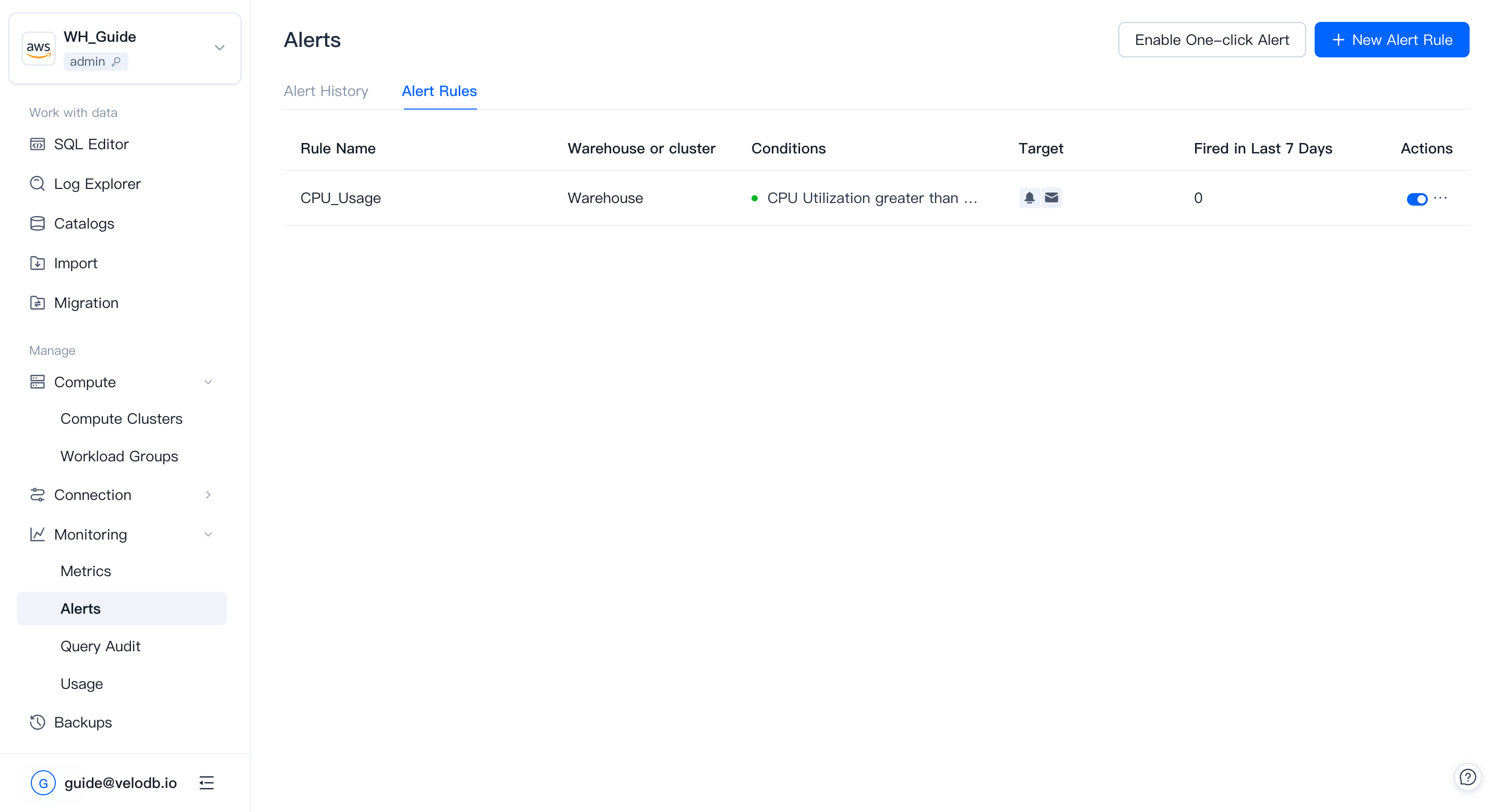
View Alert Rules
The Alerts list shows existing alert rules and their current alerting status: a red dot means the rule is firing; a green dot means the rule is not triggered.
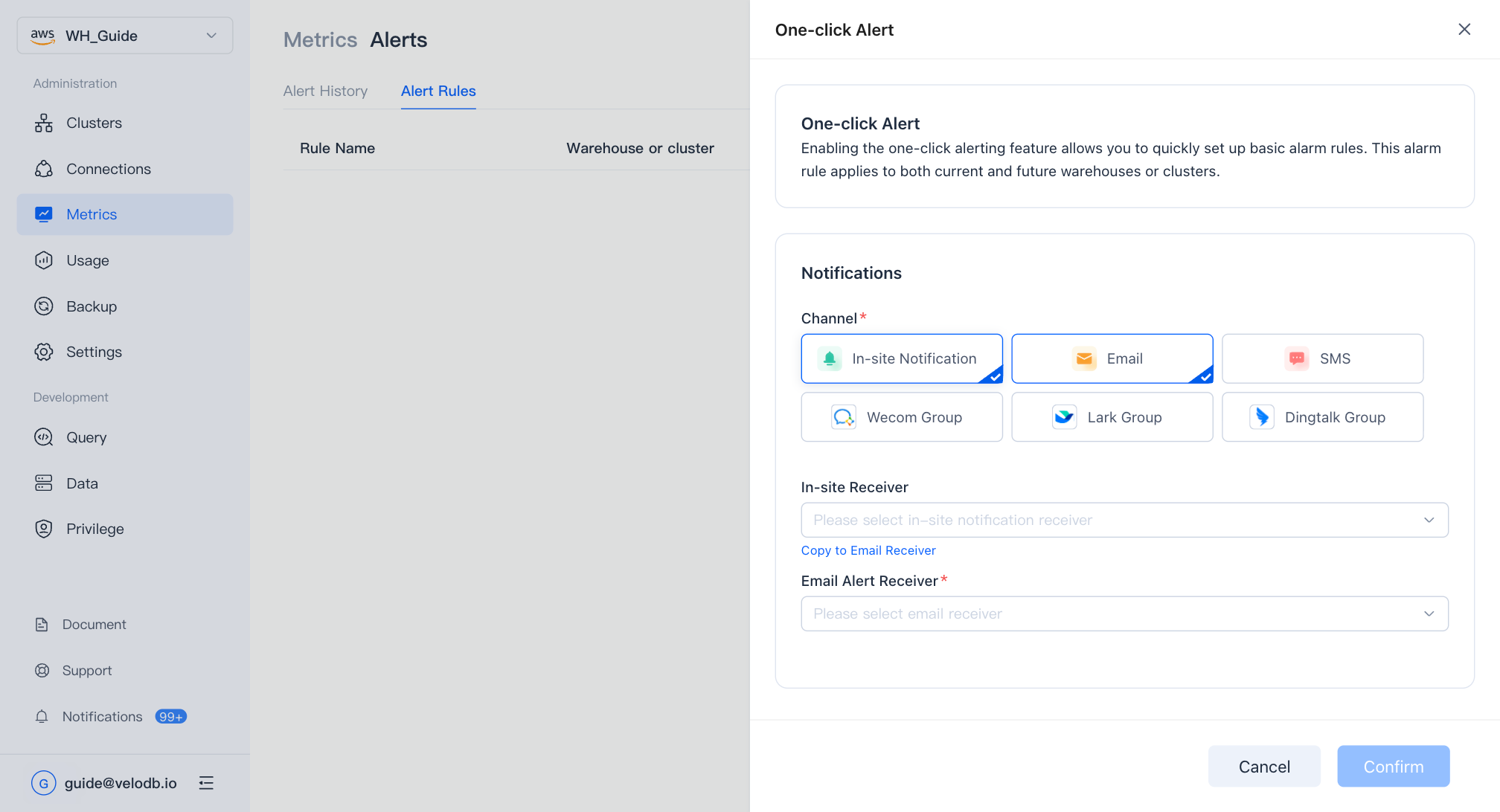
One-Click Alerts
Click Enable One-Click Alert to set up a basic rule set automatically. The rule set applies to both current warehouses and clusters and any you create later.
Create Or Edit An Alert Rule
Click New Alert Rule or copy an existing rule.
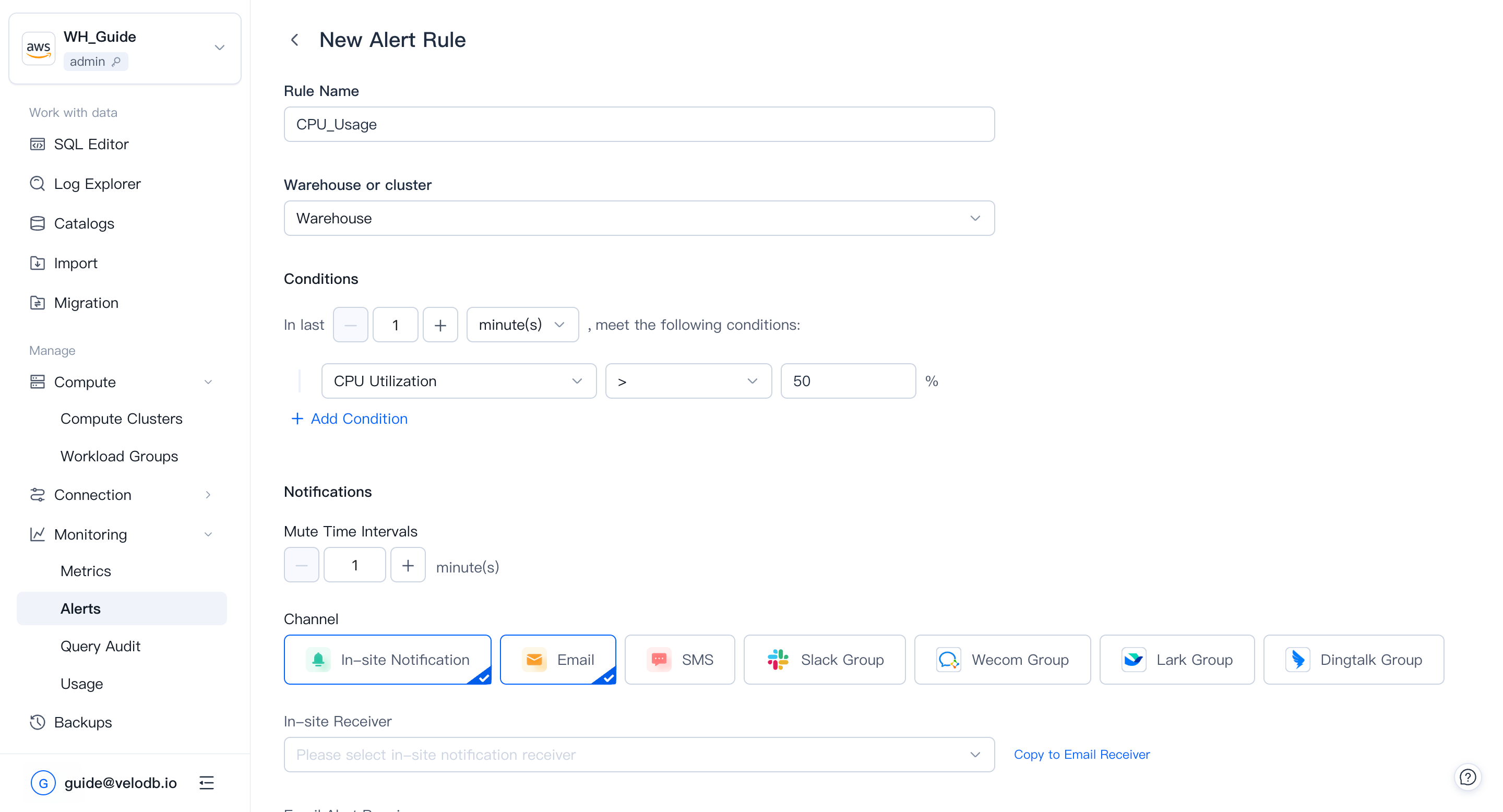
An alert rule has four parts:
| Part | Description |
|---|---|
| Rule Name | A name unique within the warehouse. |
| Cluster | Clusters the rule applies to. When a cluster is deleted, its rules are not deleted, but they are invalidated. |
| Conditions | One or more metric thresholds, combined with and / or. |
| In Last | How long the conditions must hold before the rule fires. Balance timeliness and noise. |
Notification Channels
Every alert rule can push to one or more channels; each channel pushes the alert message independently.
In-site notification and Email — pick the users to notify.
SMS — pick users or enter phone numbers directly.
Slack Group — paste one or more Slack robot webhook URLs (separate multiple URLs with a semicolon ;).
- In Slack, open Apps and search for Incoming WebHooks, then click Add to Slack.
- Choose the channel that should receive alerts and click Add Incoming WebHooks Integration.
- Copy the webhook URL into the alert channel configuration.
Note To restrict message sources, configure a webhook IP allowlist. The VeloDB Cloud server IP is
3.222.235.198.
Webhook — paste a URL to forward alert payloads to any external system that accepts HTTP callbacks. VeloDB Cloud sends a POST request with a JSON body to the URL when an alert fires. Your endpoint must respond with HTTP 200; otherwise the delivery is retried.
PagerDuty — route alerts directly into PagerDuty incidents using a service integration key.
- In PagerDuty, go to Services → Service Directory and open the target service (or create a new one).
- Click the Integrations tab → Add Integration.
- Search for and select Events API V2, then click Create Service.
- Copy the Integration Key shown on the integration detail page.
- Paste the integration key into the alert channel configuration in VeloDB Cloud.
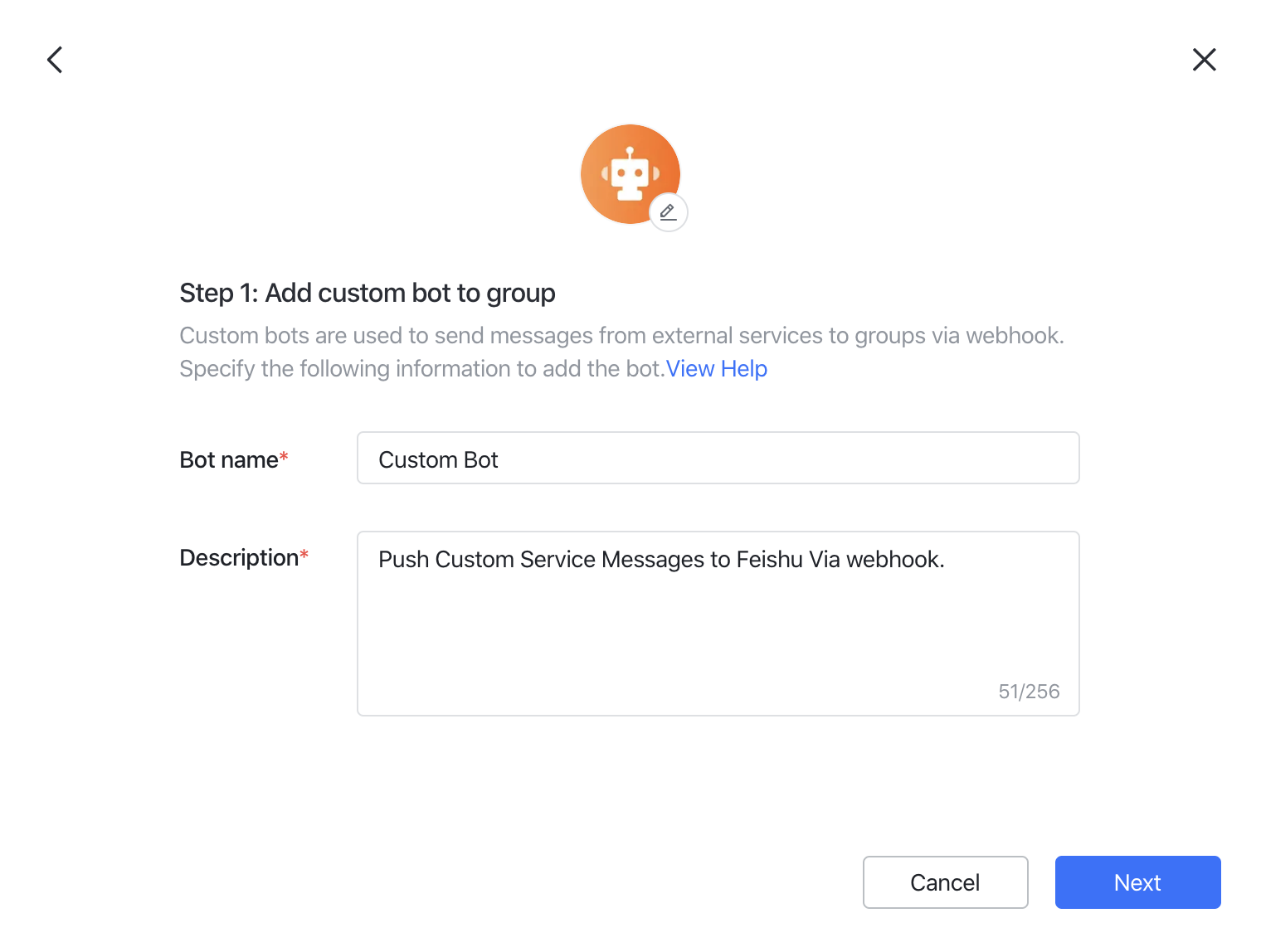
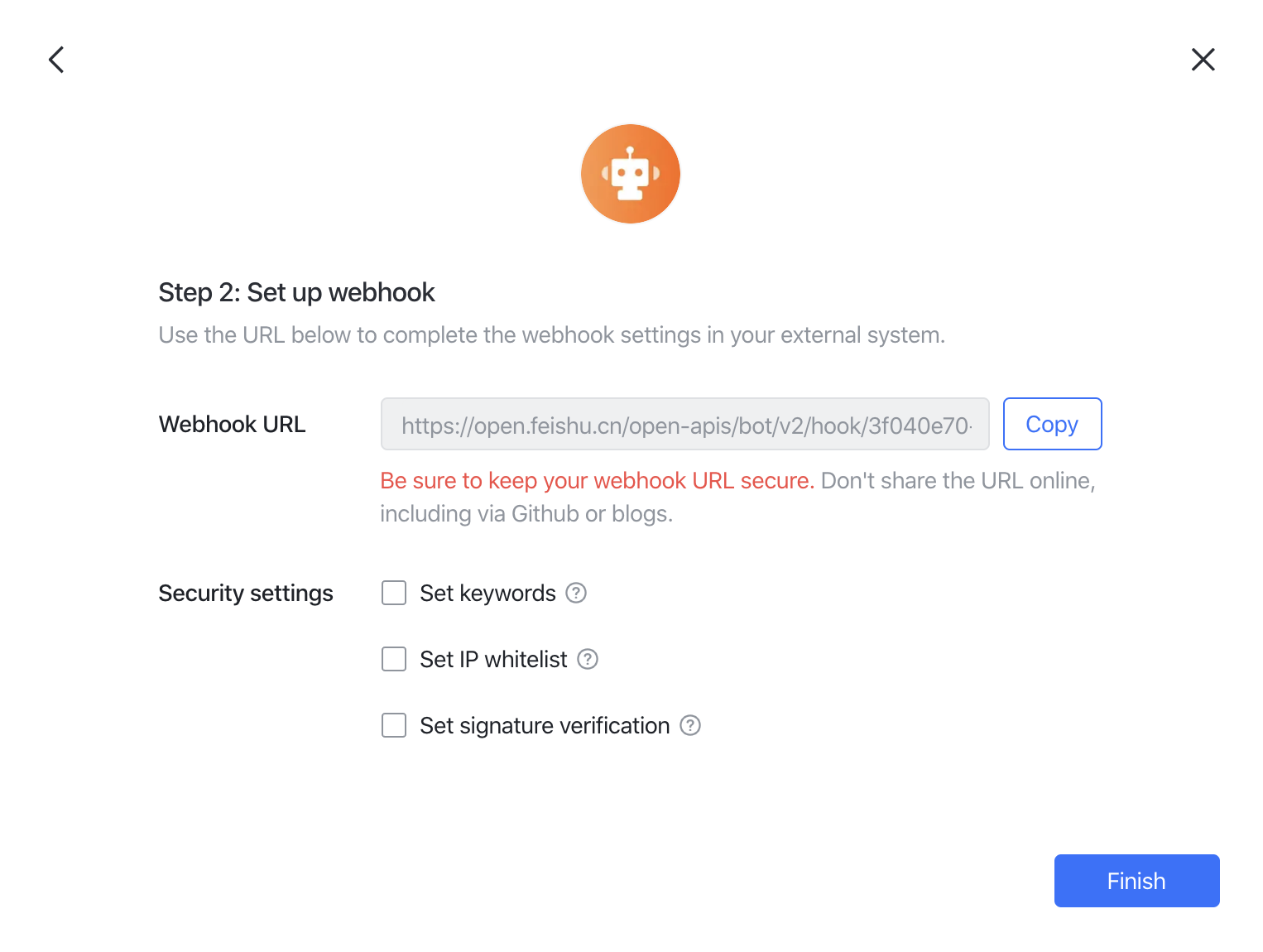
Lark — add a custom bot and paste its webhook URL.
- In the target group, click Settings → BOTs → Add Bot → Custom Bot.
- Give the bot a name and description, click Next.
- Copy the webhook URL into the alert channel configuration.
Note To restrict message sources, configure a webhook IP allowlist. The VeloDB Cloud server IP is
3.222.235.198.
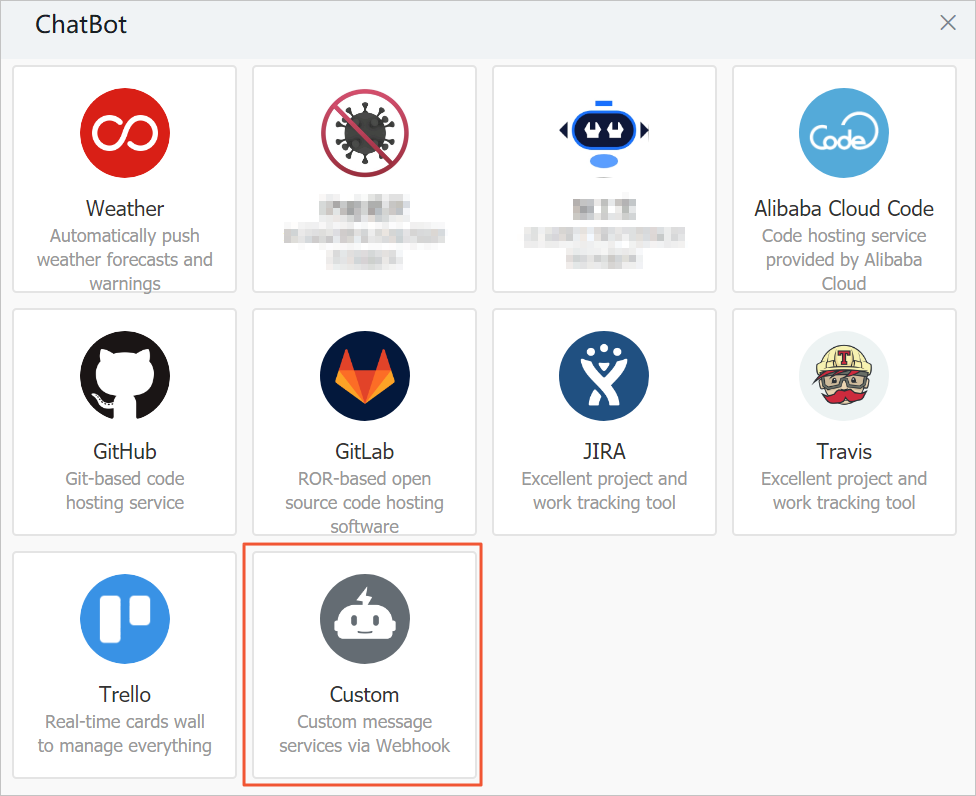
DingTalk — add a custom robot and paste its webhook URL. See DingTalk's guide for the full procedure. In summary:
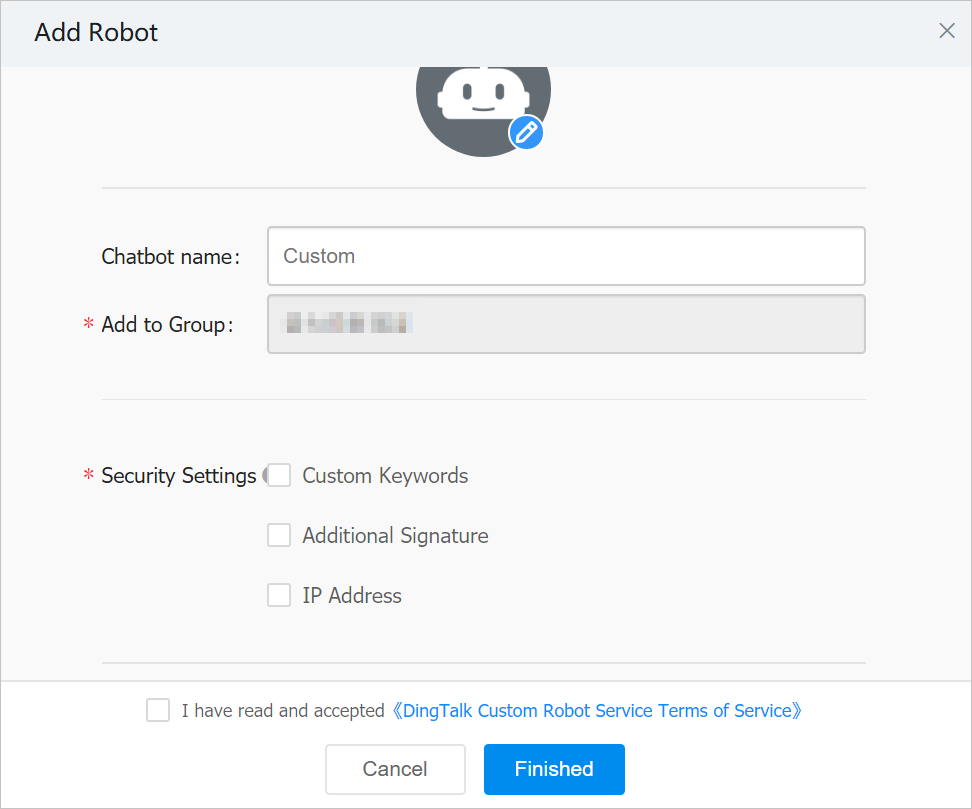
- In the target DingTalk group, open Group Settings → Group Assistant → Add Robot → Custom.
- Set a profile picture, name, and security settings (use Custom Keywords and enter
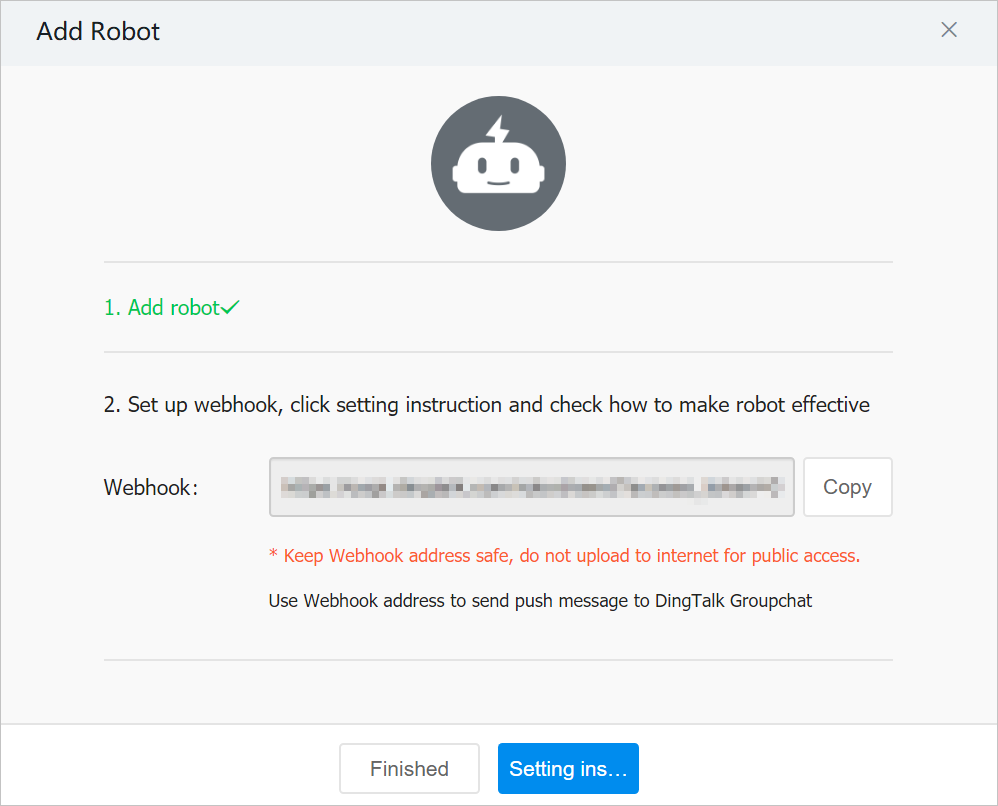
alert). - Accept the terms and click Finished.
- Copy the webhook URL into the alert channel configuration.
Note To restrict message sources, configure a webhook IP allowlist. The VeloDB Cloud server IP is
3.222.235.198.
Alert History
You can view the alert firing history on the Alerts page and filter it by time, rule, or cluster.