Upgrade Core Version
Open Settings from the Manage group, then go to Upgrade Core Version.
Manual upgrade
To upgrade to a specific version, switch to Manually Upgrade Core Version, select the target version, then choose when to run it.
- Execute Now — the upgrade starts immediately.
- Execute Later — choose the O&M time window or a custom window. The scheduled event appears in the Message Center; you can modify or cancel it before it runs.
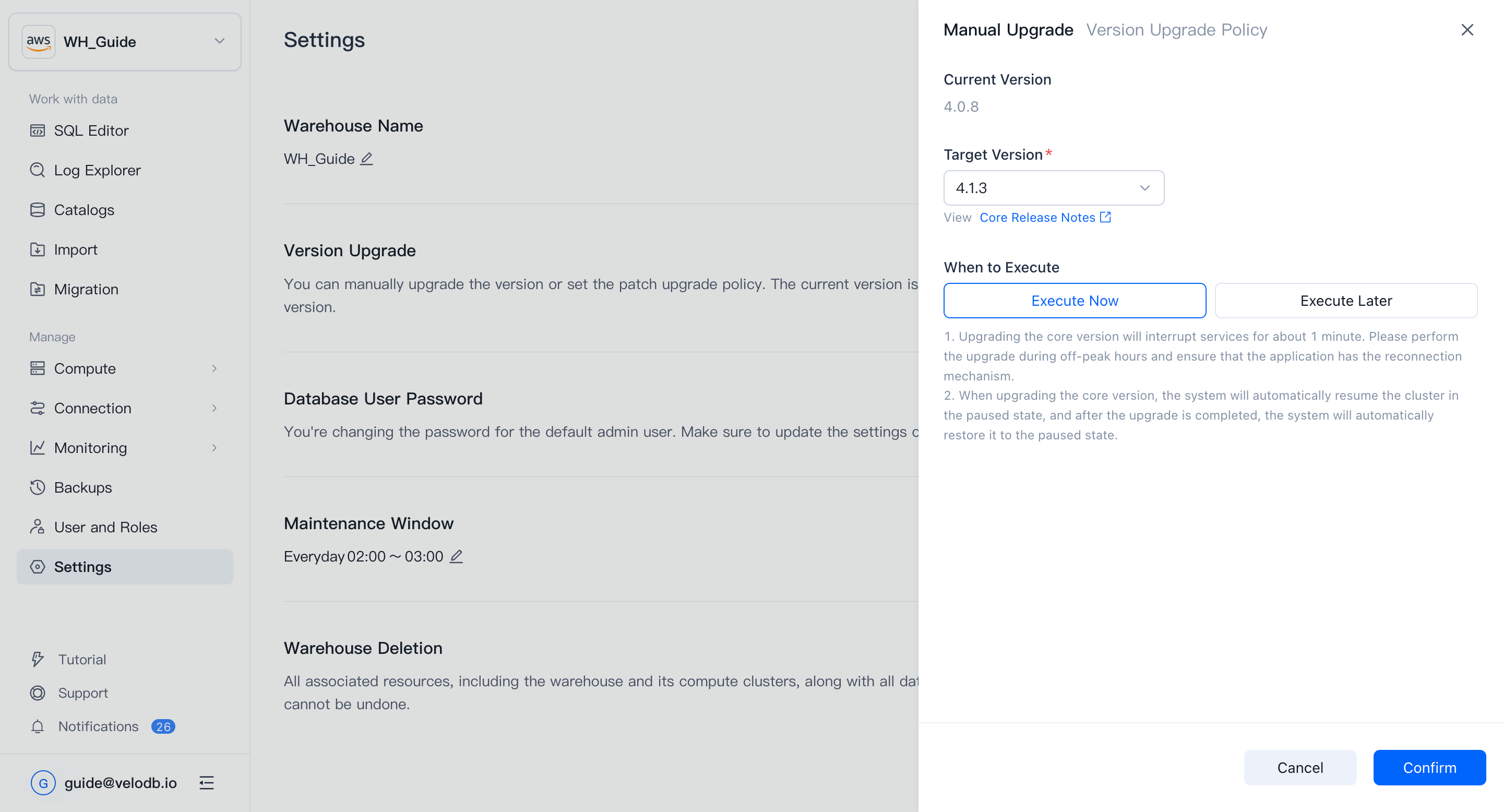
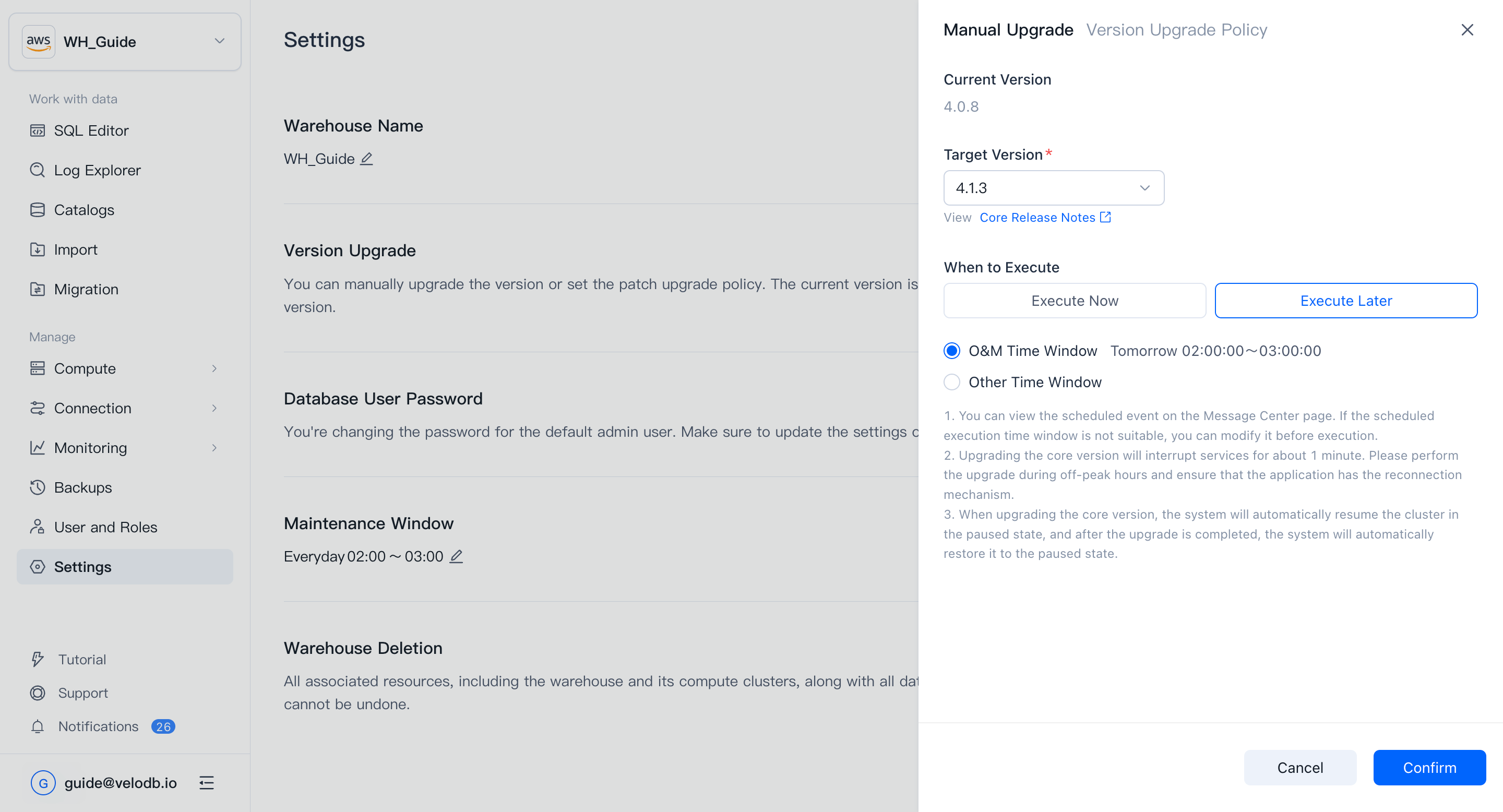
Once the upgrade starts, the warehouse status changes from Running to Upgrading and returns to Running when done (approximately 1 minute).
Notice
- The upgrade interrupts service for about 1 minute. Run it during off-peak hours and ensure your application has a reconnection mechanism.
- Clusters not in Running or Stopped state will block an Execute Now upgrade. Resolve any in-progress cluster operations first.
- If an upgrade task is already in progress or scheduled, a new one cannot be started until the existing task completes or is cancelled.
- Clusters in Stopped state are automatically started for the upgrade and returned to Stopped afterwards.
Patch version upgrade policy
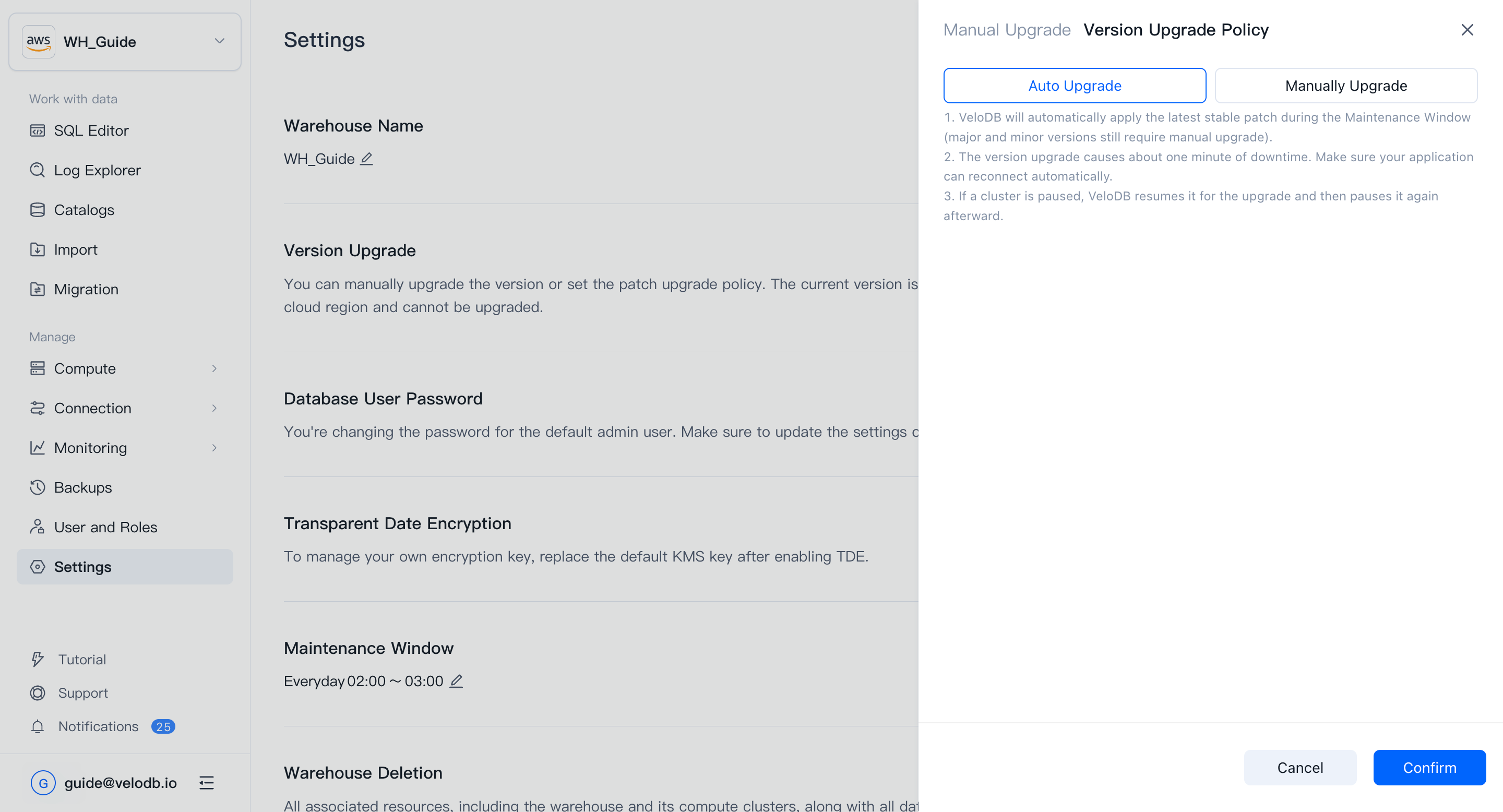
In Settings > Upgrade Core Version > Patch Version Upgrade Policy, choose how patch versions are applied:
- Auto Upgrade — the system upgrades to the latest stable patch during the maintenance window automatically. Major and minor version upgrades still require manual action.
- Manually Upgrade — patch upgrades run only when you trigger them, either immediately or in a specified window.
To change the maintenance window, see Warehouse Settings.