アカウントと組織
この章では、個々のウェアハウス以外で管理するすべてのもの(個人アカウントと、ウェアハウスを含む組織)について説明します。
左下隅のアバターから、またはManageの下のSettingsメニュー項目からパネルを開きます。パネルは2つのグループに分かれています:
| グループ | ページ |
|---|---|
| Account | Profile、Security、Notifications |
| Organization | Members、API Keys、Billings、Plans、Cloud Settings、Activity Logs、Organization Details |
Account
アカウント設定は個人に適用されます。所属するすべての組織でユーザーに従います。
Profile
名前とメールアドレスを表示します。このページでは読み取り専用です。メールアドレスを変更する必要がある場合は、パスワードリカバリーフローで更新してください。
Security
コンソールパスワードを変更し、多要素認証(MFA)を有効にします。
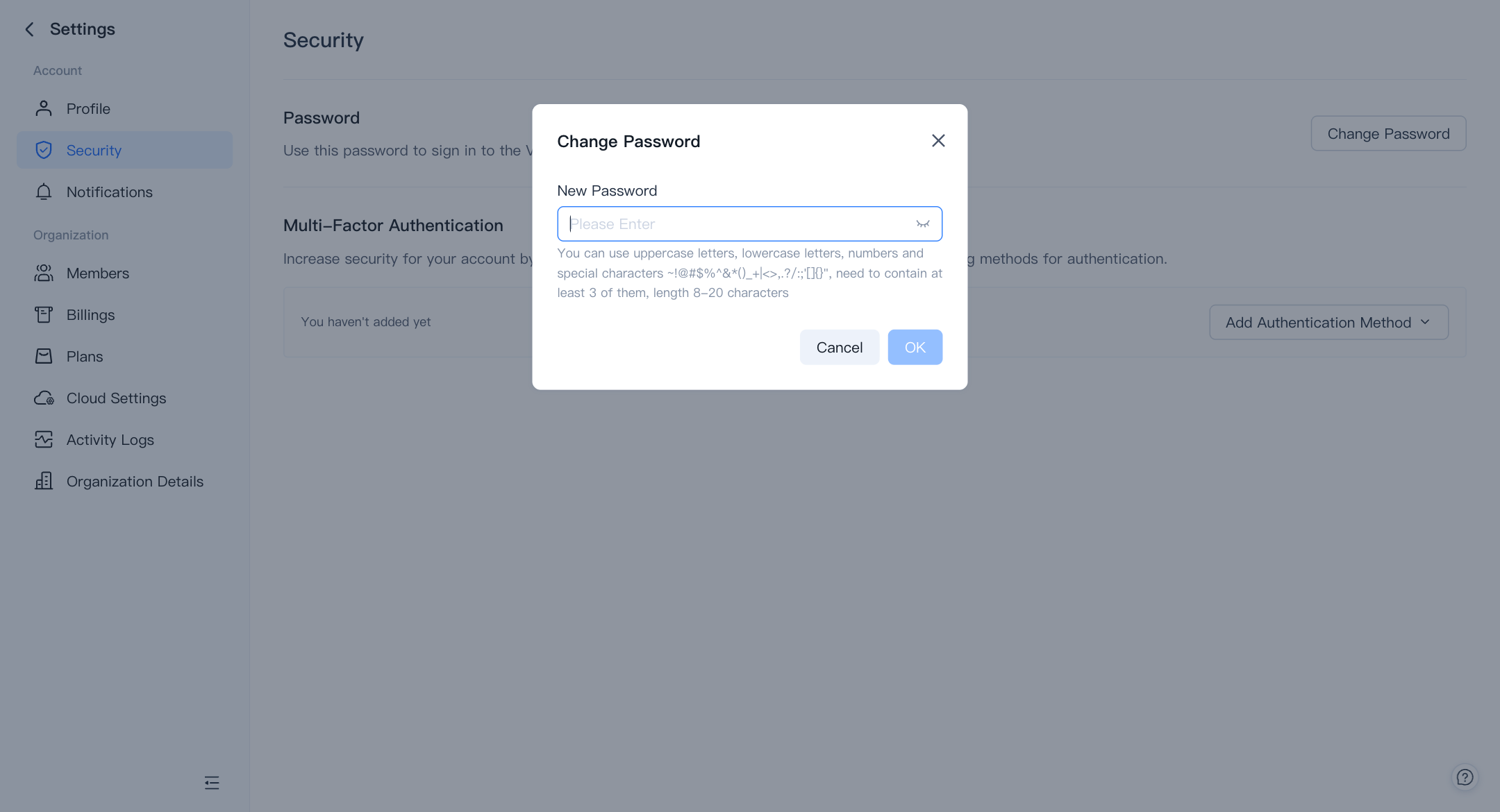
Change password
現在のパスワードを入力し、次に新しいパスワードを入力して保存します。新しいパスワードは次回サインイン時に有効になります。
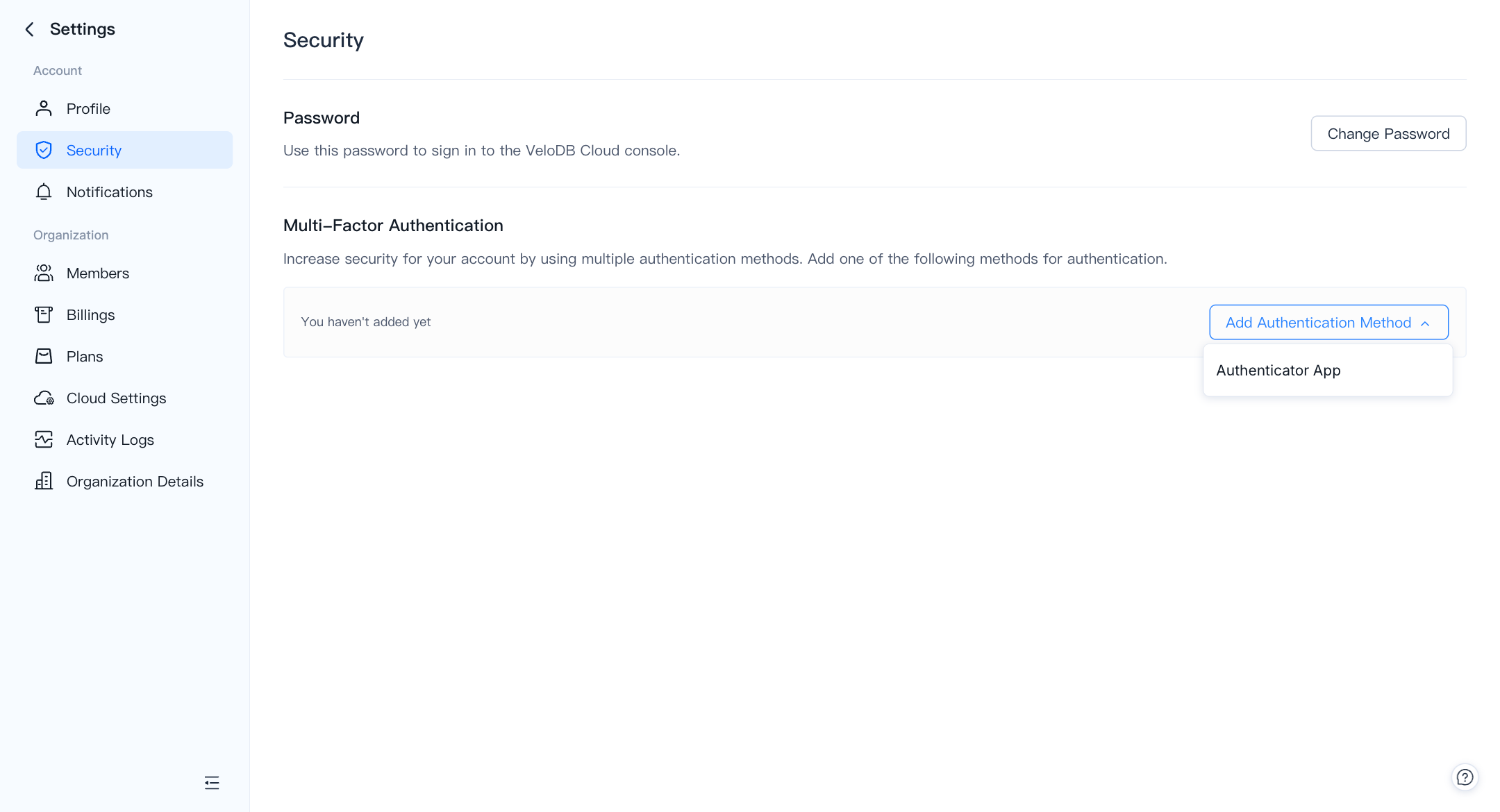
Multi-factor authentication
MFAはサインインに追加のステップを加えます:VeloDB Cloudはパスワードと認証アプリ(Google Authenticator、Authy、または類似のもの)からのワンタイムコードの両方を確認します。
組織のすべてのメンバーにMFAを強制するには、以下のOrganization → Membersを参照してください。
Notifications
どのイベントが通知を生成するかを制御します。通知には、アカウントイベント、承認されたウェアハウスイベント、クラスター操作、アラート発生が含まれます。
Scheduled Eventsに切り替えて、今後の予定されたアクティビティを確認します。
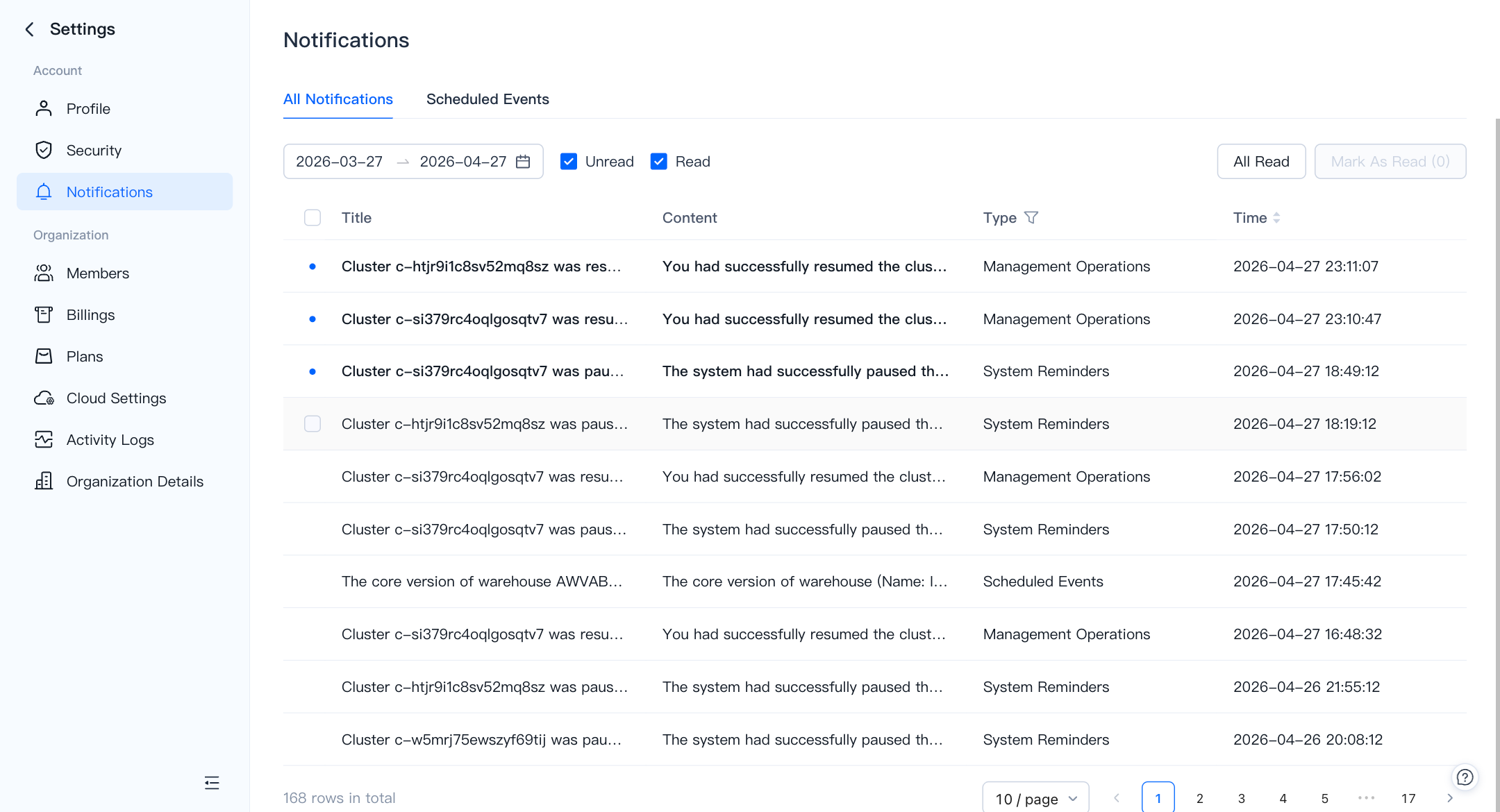
スケジュールされたイベントは2つのソースから発生します:
- System-initiated — 例えば、パッチアップグレードポリシーに基づく自動コアバージョンアップグレード。
- User-initiated — 例えば、特定のウィンドウでスケジュールした手動コアバージョンアップグレード。
一部のイベント(例えばバージョンアップグレード)は一時的にクライアントを切断する場合があります。アプリケーションに再接続メカニズムがあることを確認してください。
イベントが実行される直前まで、スケジュールされたウィンドウを変更したり、イベントをキャンセルしたりできます。
Organization
組織設定は組織全体と、その中のすべてのウェアハウスに適用されます。
Organizationは請求単位です。各組織は個別に請求されます — コスト単位で組織を分けることを推奨します。ユーザーは複数の組織に属することができます。
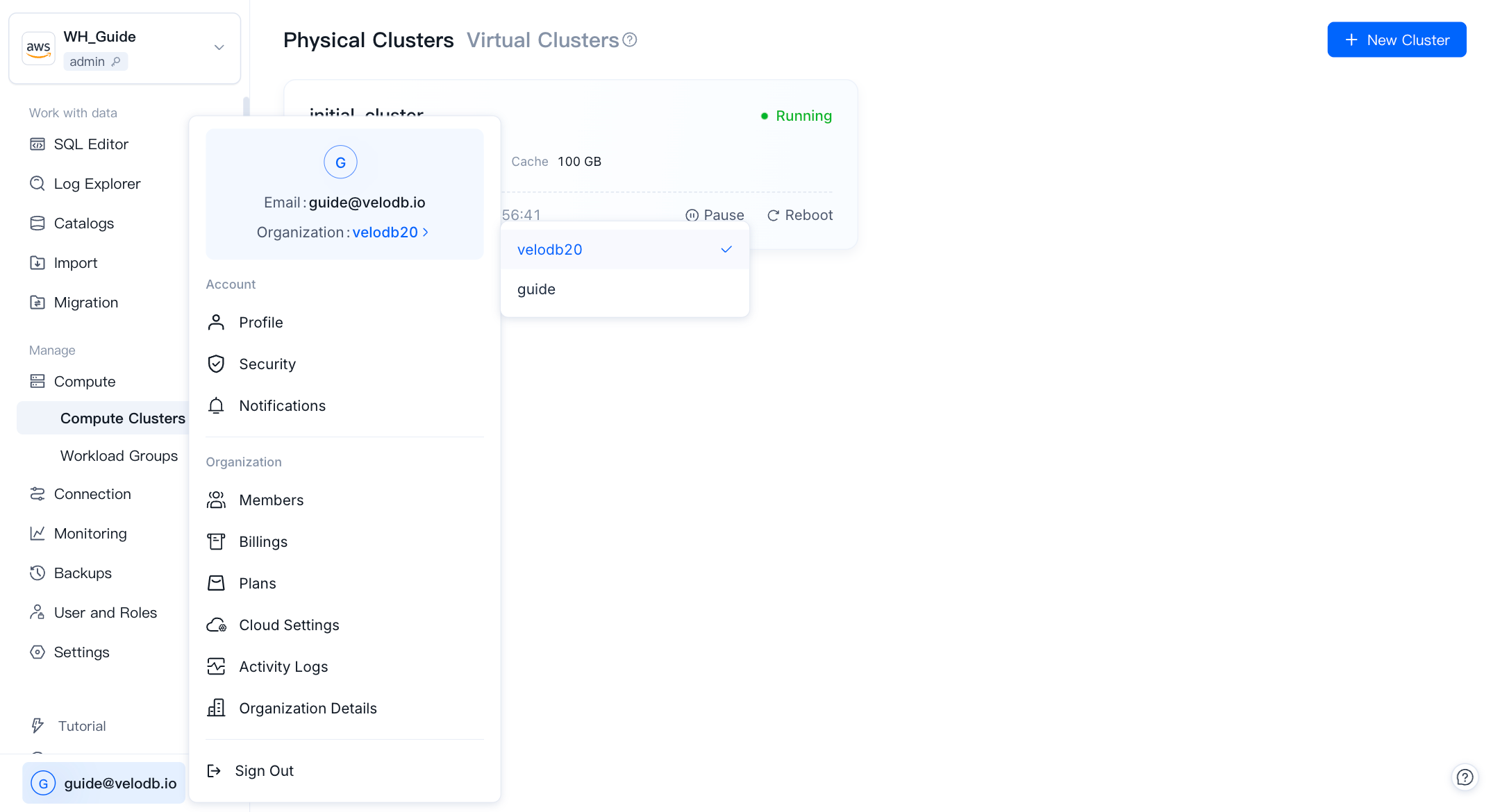
現在の組織を切り替えるには、ユーザーメニューを開いて組織を切り替えます。
Members
Membersは組織内の人を招待し、管理する場所です。
Invite members
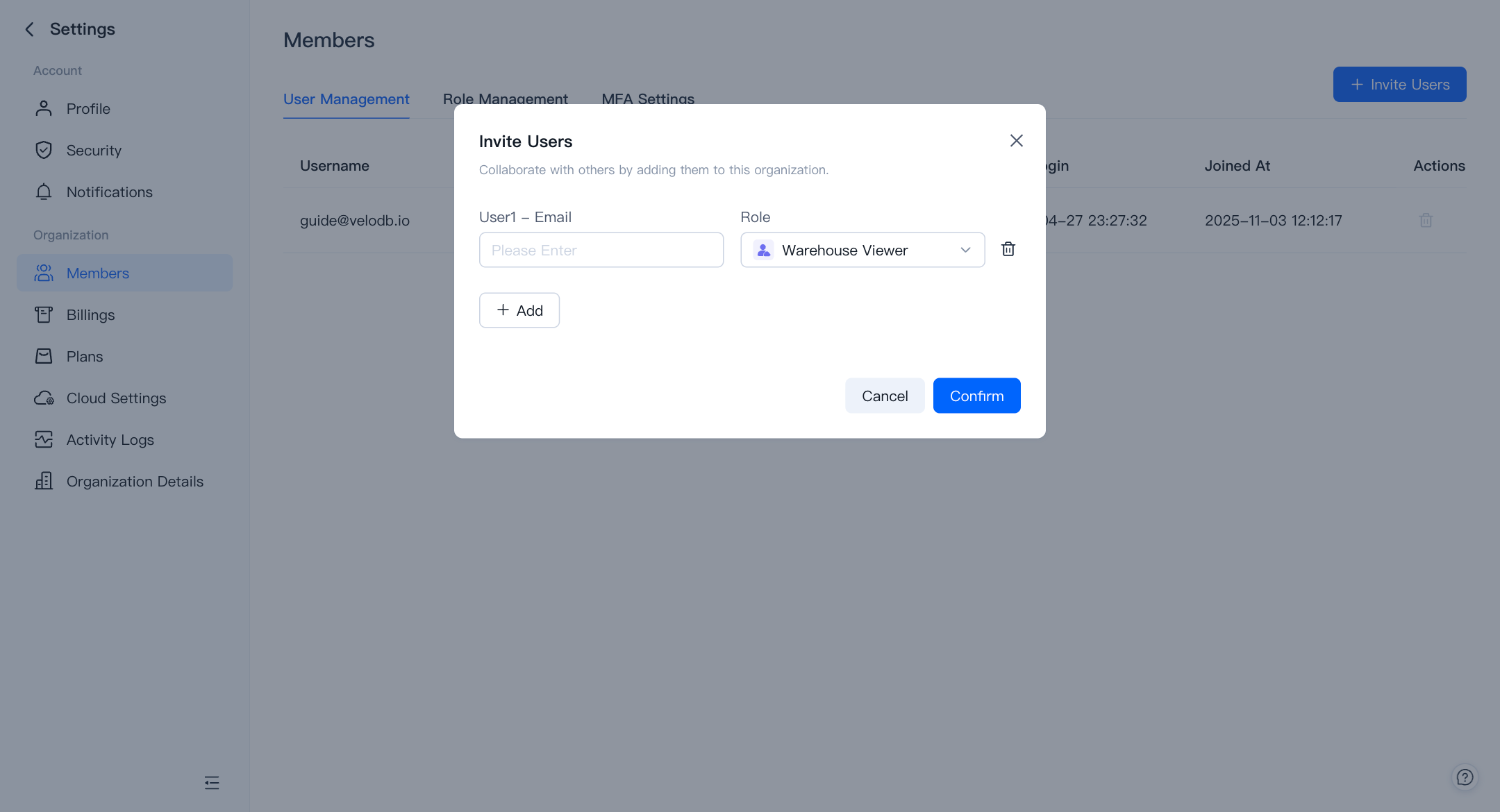
組織管理者は新しいユーザーを招待し、役割を割り当てることができます。新しいユーザーは招待メール内のリンクをアクティベートすることで組織に参加します。
Roles
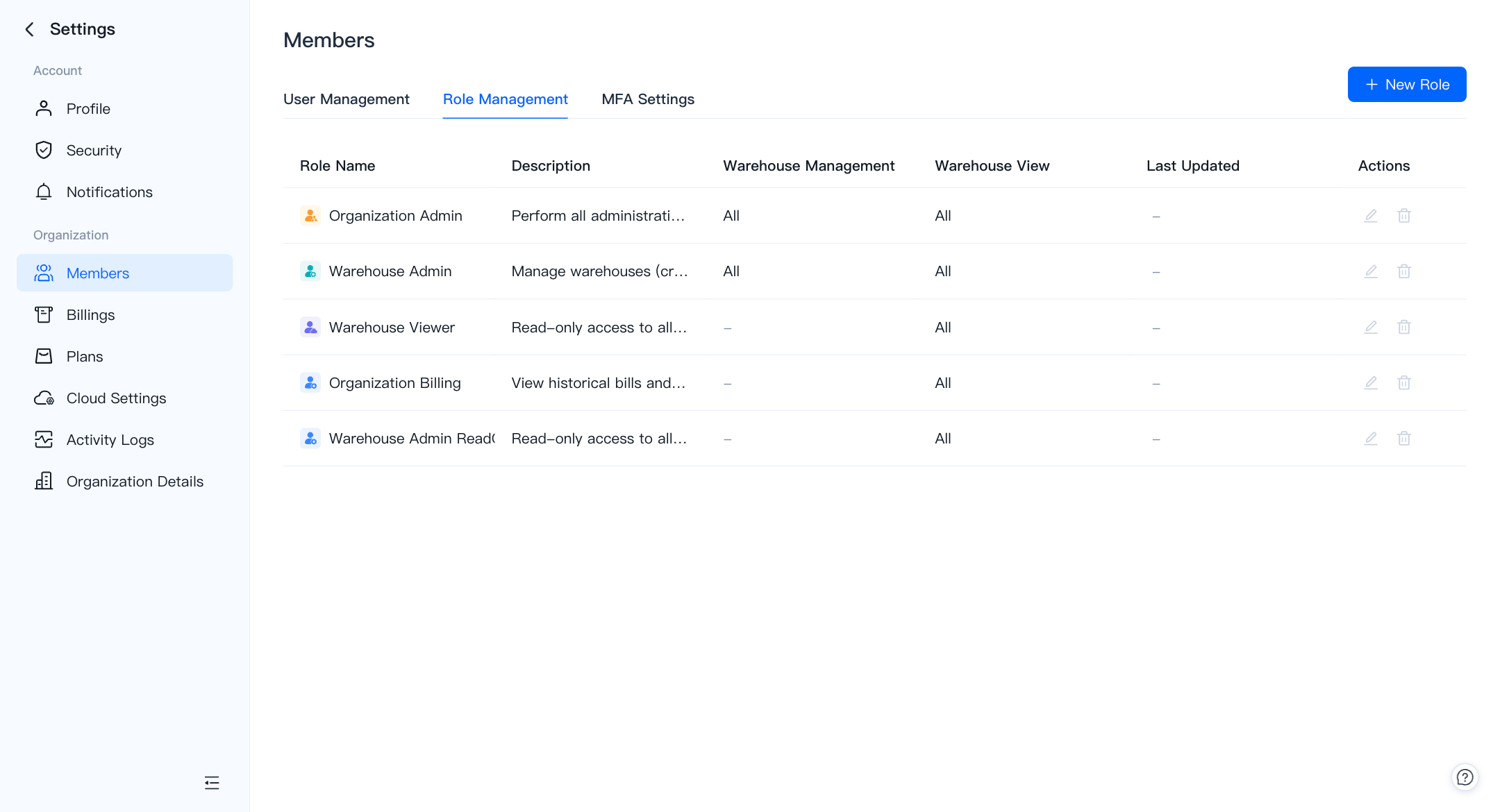
組織には3つの組み込み役割があります。4つの権限カテゴリの任意の組み合わせでカスタム役割を作成することもできます。
| 役割 | Manage Access Control | Manage Billing | Manage Organization | Manage Warehouses |
|---|---|---|---|---|
| Organization Admin | Yes | Yes | Yes | Create / Edit / View / Query / Monitor |
| Warehouse Admin | No | No | No | Edit / View / Query / Monitor |
| Warehouse Viewer | No | No | No | View / Query / Monitor |
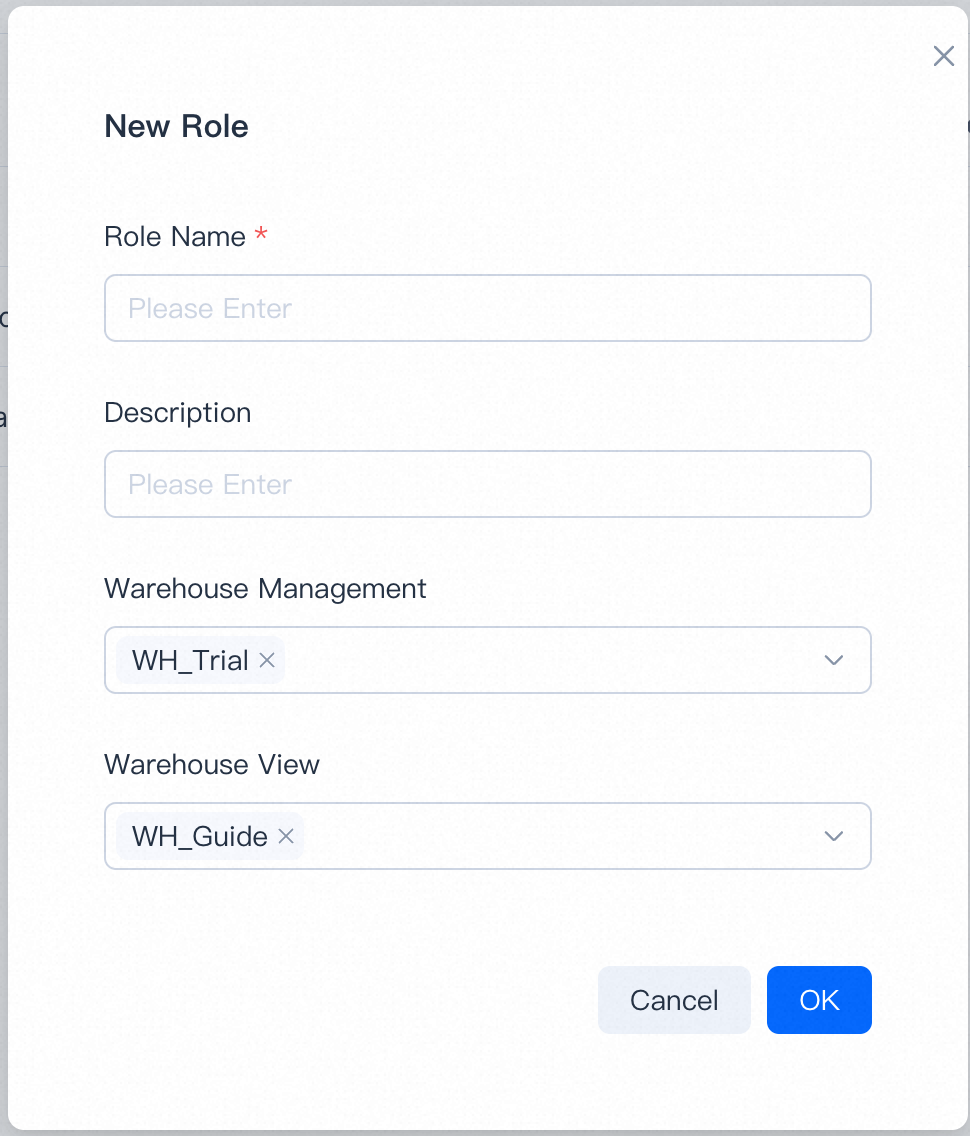
カスタム役割を作成するには、役割名を選択し、必要な権限にチェックを入れます。カスタム役割は編集または削除できます。
組織を作成したユーザーは自動的にOrganization Adminになります。
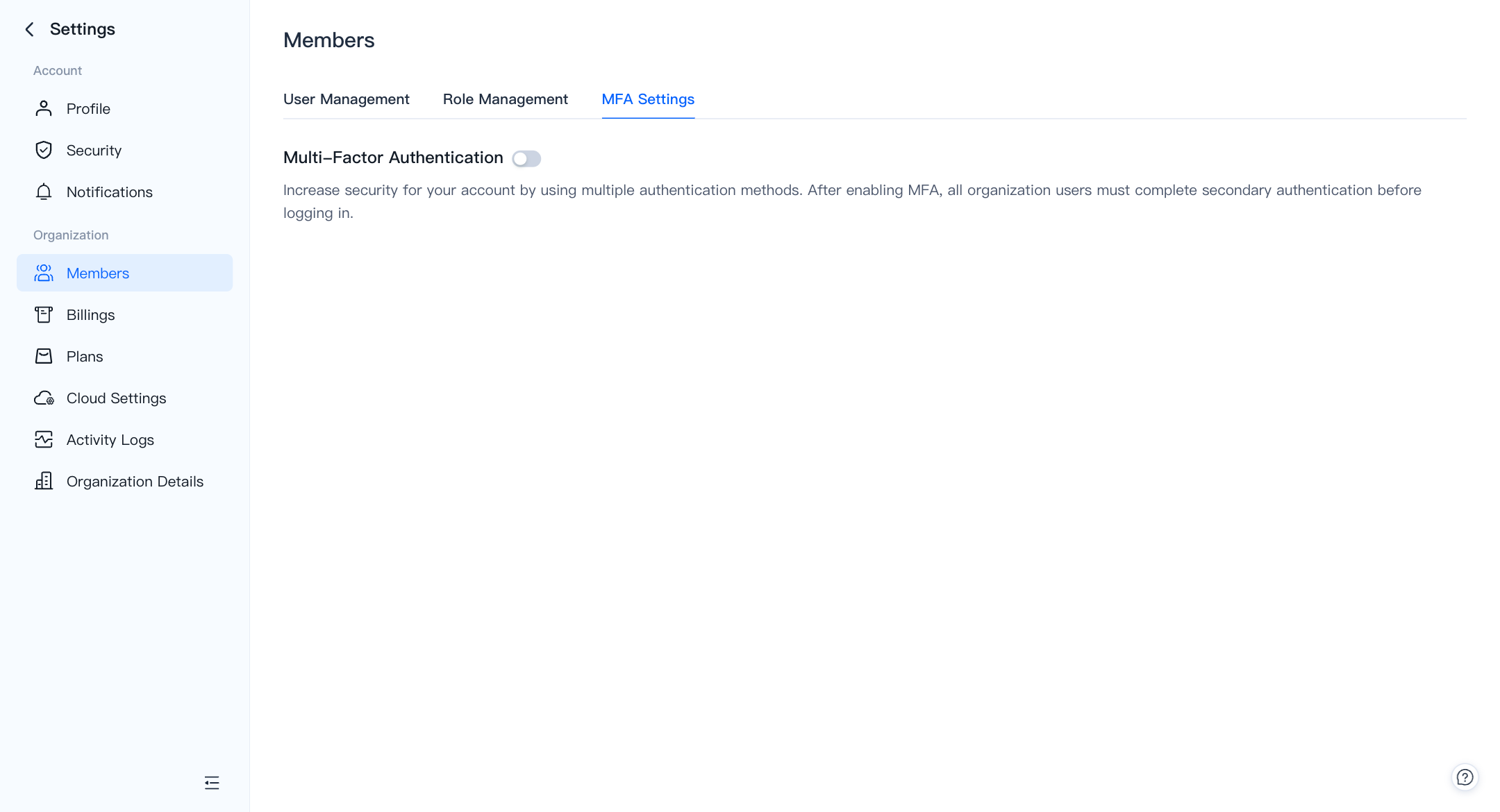
Organization-wide MFA
組織MFAを有効にすると、組織内のすべてのユーザーにサインイン時の多要素認証の完了が求められます。
API Keys
VeloDB Cloud管理APIへのプログラマティックアクセス用のAPIキーの作成と管理については、独立したAPI Keysの章を参照してください。
Billings
支払い方法の管理、マーケットプレイスサブスクリプション、請求書明細については、独立したBillingの章を参照してください。
Plans
StandardプランとPremiumプラン、各プランに含まれる内容、切り替え方法については、独立したPlansの章を参照してください。
Cloud Settings
Cloud SettingsはBYOCウェアハウスで使用されるクラウドアカウント統合を管理します。
このページのドキュメントは保留中です。
Activity Logs
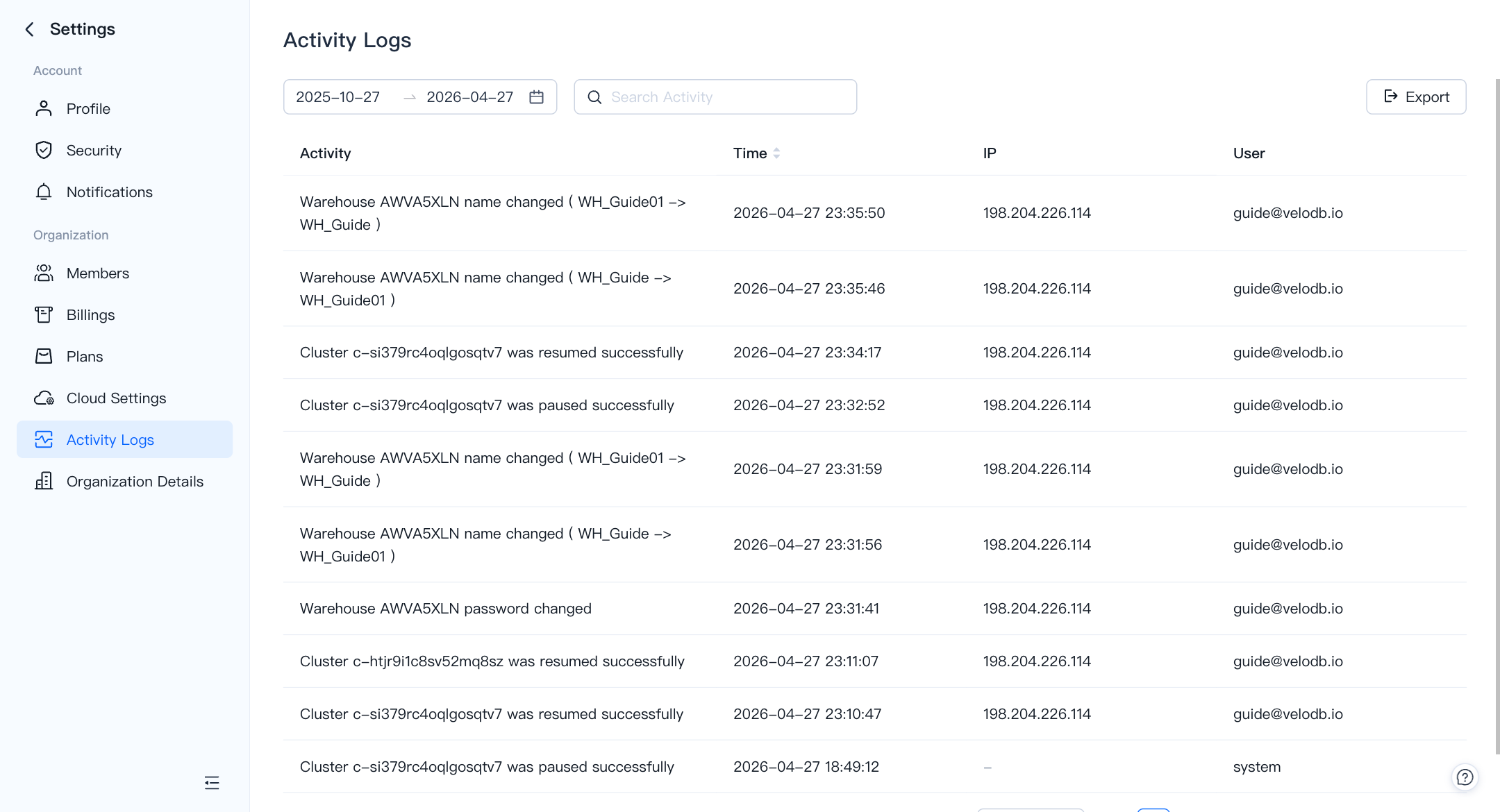
Activity Logsは組織レベルの監査証跡です。VeloDB Cloudは組織に対して行われたすべての変更(アクティビティ、時間、IP、ユーザーを含む)を記録し、このページに履歴を表示して、何が起こったか、誰が行ったかを確認できます。
Organization Details
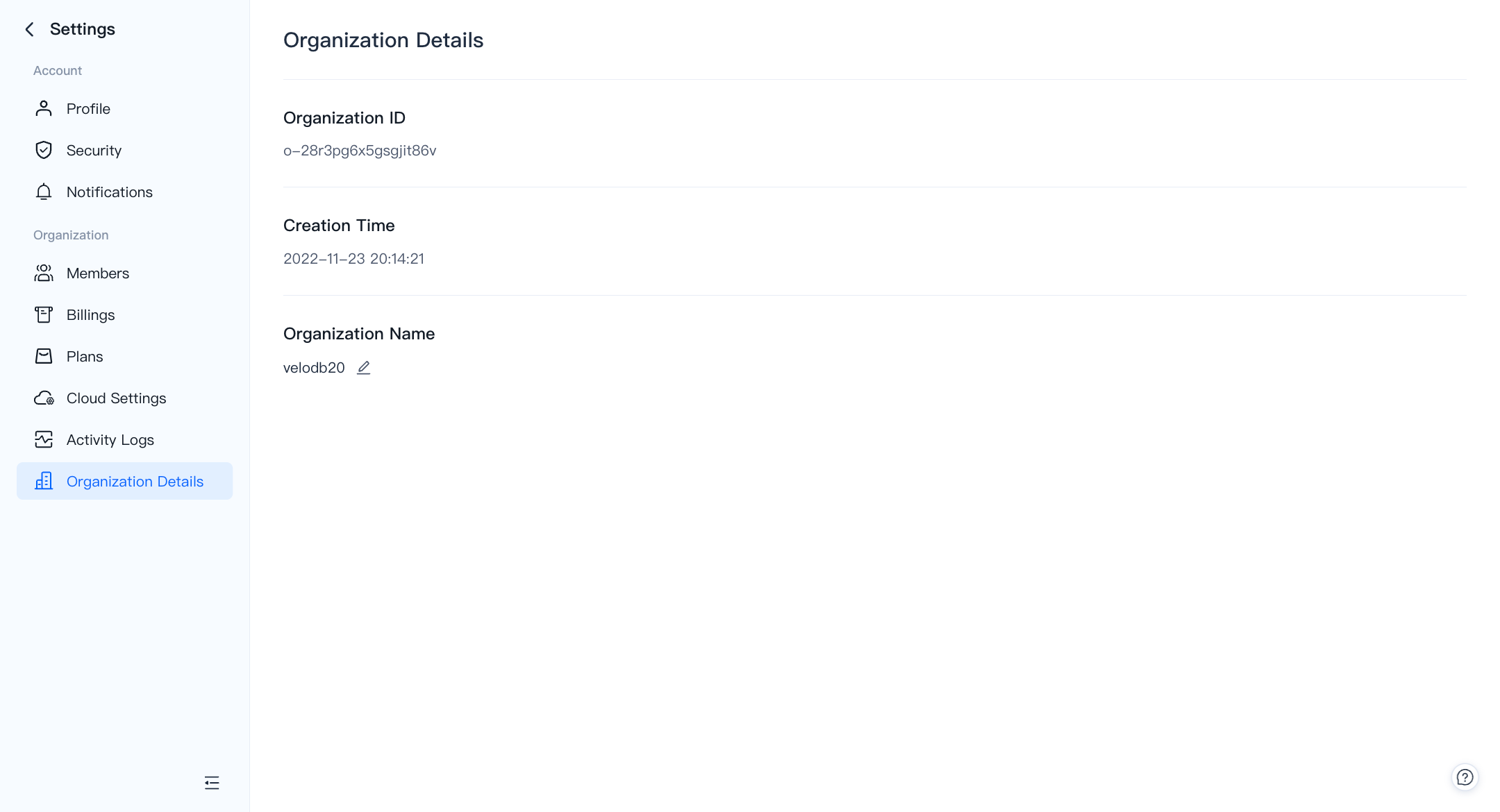
Organization Detailsは組織ID、作成時間、名前を表示します。