Lightweight Snapshot
Lightweight Snapshot creates warehouse-level backups. VeloDB Cloud captures a consistent snapshot of the entire warehouse at a point in time and restores from that snapshot when recovery is needed. Unlike Export Backup, it is warehouse-level, so you do not select backup objects or choose a cluster for the backup task. Use it for full-warehouse recovery and for a recovery point before a high-risk operation.
Lightweight Snapshot is available in VeloDB Cloud 26.1 and later.
Note:
Lightweight Snapshot is in private preview. To use it, contact VeloDB Cloud Support to join the allowlist.
This page covers creating a Lightweight Snapshot plan. To decide between the two backup modes, see Choose a backup mode. For viewing tasks, configuring plans, and restoring, see Backups. If you only need to back up part of the data or a single database, use Export Backup instead.
Limitations
- Lightweight Snapshot supports only warehouse-level snapshots. It does not support taking snapshots for only a specific database, table, or partition.
- Automatic snapshots can retain at most 35 snapshots, and the minimum creation interval is 3600 seconds.
- Lightweight Snapshot is intended for warehouse-level recovery points only. Do not use it as your only long-term archive strategy.
How snapshots and clones use storage
Lightweight Snapshot uses copy-on-write. Creating a snapshot does not copy data. The snapshot references the warehouse's existing data files at the point in time it was taken, so it completes quickly and initially adds almost no storage. This works like a branch: the snapshot and the warehouse share the same base files until they diverge.
A snapshot and a warehouse are both objects that reference data files in object storage. Creating a snapshot or a clone copies only these references, not the data.
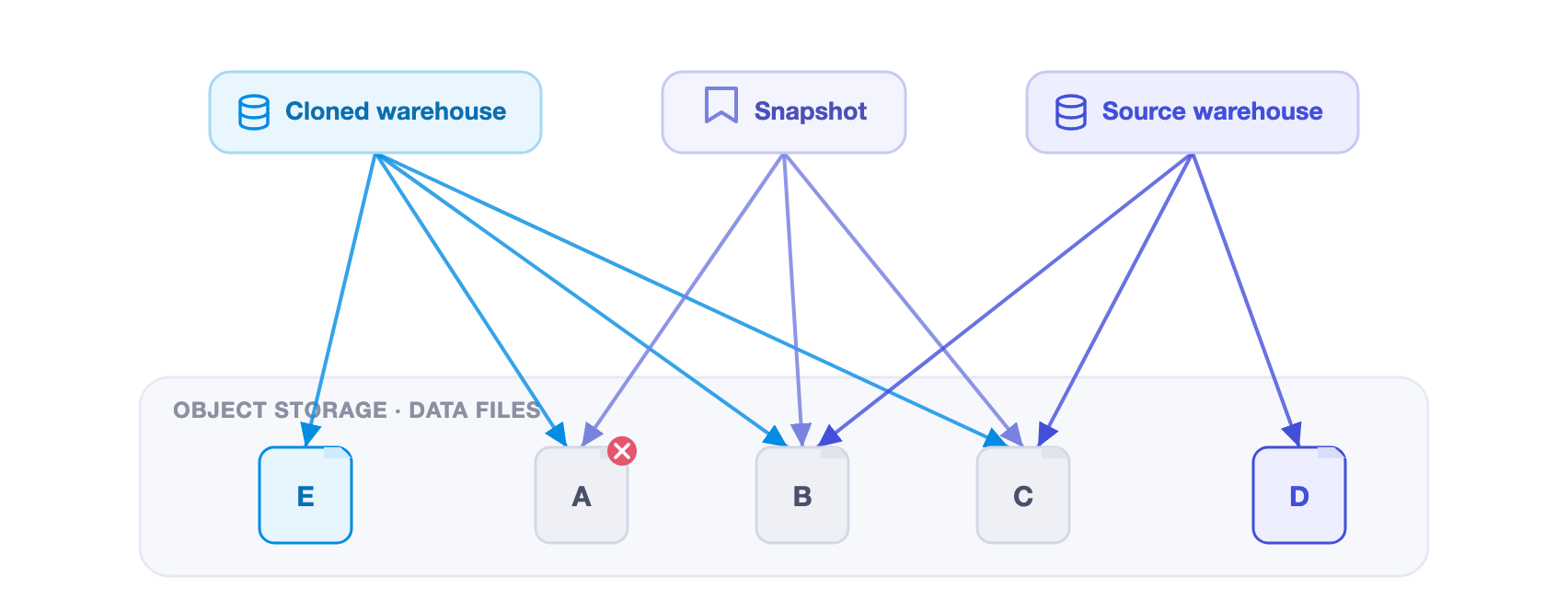
In the diagram, the source warehouse, the snapshot, and the cloned warehouse each point to the files they reference in the shared storage layer. Files B and C are referenced by all three objects. File D is owned by the source warehouse, and file E by the clone. A file that a warehouse writes after the snapshot is owned by that warehouse, so the source warehouse and the clone diverge over time.
Storage reclamation follows these references. A data file is deleted only after no warehouse references it and every snapshot that references it is removed. In the diagram, the source warehouse has dropped file A (marked with a cross), but A is not reclaimed, because the snapshot and the clone still reference it. A retained snapshot keeps its referenced files, and their storage, until you delete the snapshot.
Storage billing
How copy-on-write storage translates to your bill depends on the warehouse type. For a SaaS warehouse, VeloDB Cloud meters stored data volume per warehouse: the warehouse is billed for all the files it references, files shared between a warehouse and its own snapshots are billed once, and a cloned warehouse is billed for all the files it references. For a BYOC warehouse, your cloud provider bills you for the physical data in your bucket, and copy-on-write stores shared files once. For the full rules, see Storage for snapshots and clones.
Prerequisites
Before you create a plan:
- Choose a backup cycle and retention period that match your recovery point objective. Your effective recovery point is the most recent completed backup.
- The warehouse is in Running status. If the warehouse is paused, you cannot create a backup plan.
Create a Lightweight Snapshot plan
To create a Lightweight Snapshot plan, follow these steps:
-
Log in to the VeloDB Cloud console.
-
In the upper-left corner, select the warehouse that you want to use.
-
In the left navigation pane, under MORE, click Backups.
-
On the Backups page, click Lightweight Snapshot, then click Create Backup Plan.
-
Select the backup type.
- For a periodic plan, select Periodic Backup and leave Enable on. Use Enable to turn the periodic plan on or off without deleting its configuration. In Backup Every, select at least one day from Monday through Sunday. You can select any combination of days.
- For a one-time plan, select One-time Backup. This plan runs once and does not create a recurring schedule.
-
Set Start Time and confirm the time zone shown by the console.
-
Set Retention (Days) to specify the number of days to retain each backup set. Backup sets older than this value are cleaned up automatically. The minimum retention period is 1 day.
Note:
VeloDB Cloud cleans up expired backups according to the retention period only after an automated backup succeeds. A failed run does not delete existing successful backups.
-
Click Confirm. The button remains unavailable until all required fields are complete.
The plan creates snapshots of the entire warehouse, so no database or cluster selection is required.
Review backup task status after creating a plan to confirm that backups complete successfully.
View backup tasks
VeloDB Cloud runs backup tasks automatically according to the saved plan. The Backup Tasks list shows each run's status, retention days, data size, start time, and completion time.
To view backup tasks, follow these steps:
- Log in to the VeloDB Cloud console.
- In the upper-left corner, select the warehouse that you want to use.
- In the left navigation pane, under MORE, click Backups.
- In the Backup Tasks list, review the status of each backup task. The status can be Success, Failed, or Running.
- In the action column, click View Details to see execution details for a backup task. Confirm that the task succeeded, note the data size and completion time, and investigate any skipped objects or error messages before treating the backup as a usable recovery point.
Configure a backup plan
After you create a backup plan, you can change the backup type, schedule, and retention period. You can also enable or disable a periodic plan without deleting its configuration.
If you do not need a backup plan any longer, you can delete it, which removes the configuration and stops future backups. The console does not delete existing backup sets when you delete a plan.
Before you configure a backup plan, ensure that the warehouse is in Running status. If the warehouse is paused, you cannot configure the backup plan.
To configure a backup plan, follow these steps:
- Log in to the VeloDB Cloud console.
- In the upper-left corner, select the warehouse that you want to use.
- In the left navigation pane, under MORE, click Backups.
- On the Backups page, in the upper-right corner, click Configure Backup Plan. The console displays the current plan configuration.
- Change the backup type, schedule, and retention period as needed. You can enable or disable a periodic plan without deleting its configuration. You can also delete the plan, which removes the configuration and stops future backups. VeloDB Cloud does not delete existing backup sets when you delete a plan.
- Click Confirm.
Review backup task status after changing a plan to confirm that backups complete successfully.
See also
- Backups and Restore
- Restore from a backup
- Clone a warehouse to create a new warehouse from a snapshot for testing, staging, or migration validation.